

Send Cloudflare Traces to KloudMate
Export production request traces from Cloudflare to KloudMate with the OpenTelemetry Protocol (OTLP) over HTTP.
Cloudflare creates the traces from requests that pass through the configured domain. KloudMate receives those traces and displays them in Trace Explorer.
Prerequisites
Section titled “Prerequisites”- A KloudMate workspace.
- Permission to create an Ingest Key — Backend in that workspace.
- A Cloudflare account with the target domain configured for Cloudflare Traces.
- The domain traffic proxied through Cloudflare.
- Permission to create an OpenTelemetry destination in Cloudflare.
For Cloudflare’s own prerequisites and domain configuration, see the Cloudflare Traces documentation.
Step 1: Create a KloudMate backend ingest key
Section titled “Step 1: Create a KloudMate backend ingest key”In KloudMate, open the workspace that should receive the traces.
- Go to Settings → Ingest Keys.
- Select Add New.
- Choose Ingest Key — Backend.
- Add a note, for example
cloudflare-traces. - Create the key and copy it.
The key is shown only once. Store it securely, and keep it out of source control and screenshots.
Backend ingest keys authenticate telemetry sent by servers, collectors, and integrations. A frontend ingest key won’t work for Cloudflare trace export. See API Keys.
Step 2: Create a Cloudflare OpenTelemetry destination
Section titled “Step 2: Create a Cloudflare OpenTelemetry destination”In the Cloudflare dashboard, go to Observability → OpenTelemetry → Add Destination and configure it as follows.
| Field | Value |
|---|---|
| Destination type | Traces |
| OTLP Traces Endpoint | https://otel.kloudmate.com:4318/v1/traces |
| Destination name | kloudmate-traces |
| Header name | Authorization |
| Header value | Bearer <YOUR_KLOUDMATE_BACKEND_INGEST_KEY> |
The destination name can be anything, as long as it is easy to identify when you assign it to a domain.
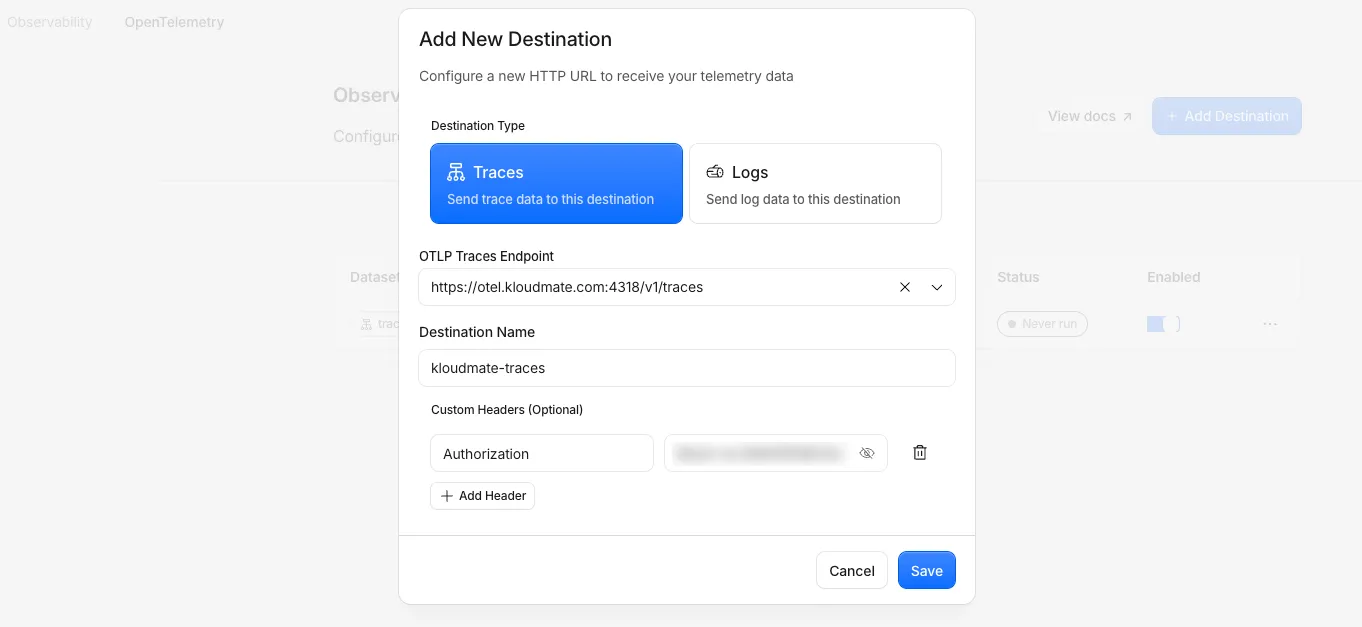
Select Save, then confirm that the destination is enabled.
Step 3: Assign the destination to a domain
Section titled “Step 3: Assign the destination to a domain”Cloudflare destinations are account-level resources, so creating one doesn’t export traces from a domain on its own.
Assign kloudmate-traces to the target domain in Cloudflare’s trace settings, turn on tracing for the domain, and set the sampling and export options you want. A typical configuration is:
- Tracing: enabled
- Export destination:
kloudmate-traces - Default sample rate: whatever suits your traffic volume
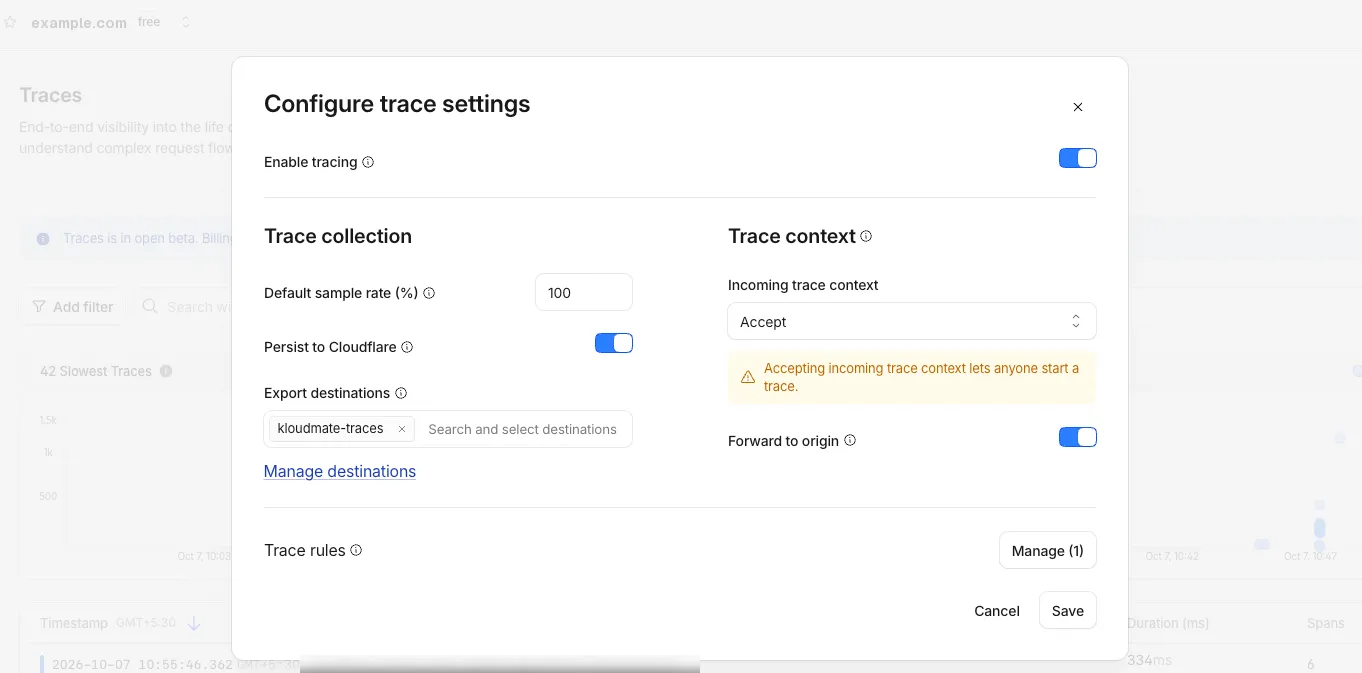
Cloudflare owns the domain-level collection, sampling, persistence, and routing settings. KloudMate receives the OTLP payload after Cloudflare exports it. For the current dashboard steps, see Configure Cloudflare Traces.
Step 4: Generate traffic through the domain
Section titled “Step 4: Generate traffic through the domain”Send a request to the proxied domain:
To generate several test requests:
An ordinary request is enough to trigger trace collection once the domain is enabled and sampling selects the request. There is no separate trace payload to send from the client.
The request has to reach Cloudflare. DNS-only records, traffic that bypasses Cloudflare, and requests excluded by sampling rules produce no exported trace.
Step 5: Verify delivery in Cloudflare
Section titled “Step 5: Verify delivery in Cloudflare”Return to the Cloudflare destination list and confirm that kloudmate-traces is enabled and reporting delivery activity.
Step 6: Find the traces in KloudMate
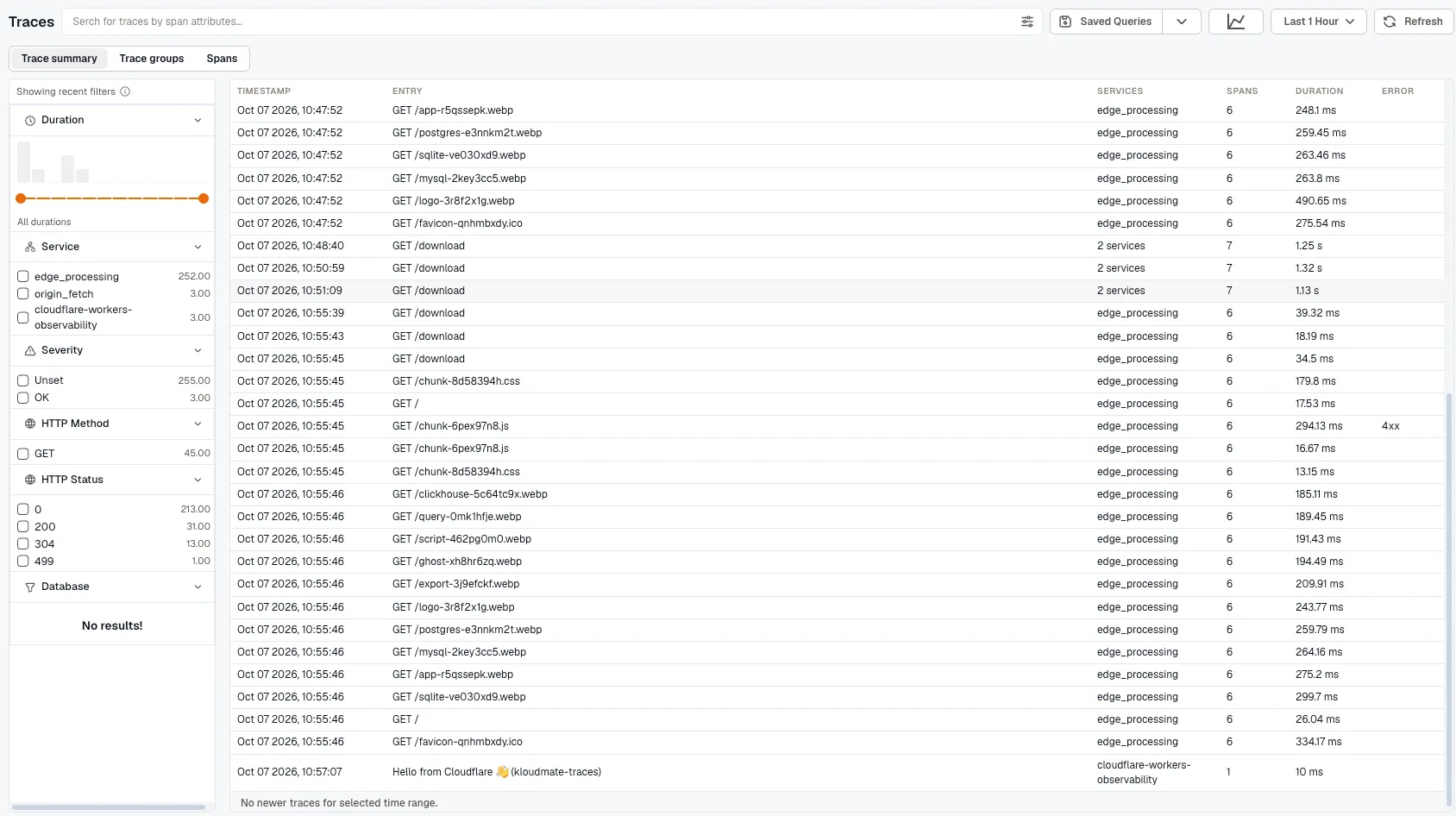
Section titled “Step 6: Find the traces in KloudMate”- Open Traces, or APM & Services → Traces.
- Select the workspace where you created the backend ingest key.
- Set the time range to cover the test request.
- Search for the request path, such as
GET /. - Where available, use the Cloudflare Ray ID or the request timestamp to pick out a specific request.
Troubleshooting
Section titled “Troubleshooting”- Cloudflare reports
Error: check that the endpoint ishttps://otel.kloudmate.com:4318/v1/tracesand that theAuthorizationheader carriesBearer <backend-ingest-key>from the right workspace. - No traces in KloudMate: check that Trace Explorer is on the workspace and time range that go with that ingest key.
- Only a test trace appears: search again after real traffic has reached the domain. Sampling and domain-side settings are covered in Configure Cloudflare Traces.