

Service Map
The Service Map is a visual representation of the relationships and interdependencies between services in your workspace. It is generated from tracing data and gives you a topology-level view of your architecture.
You can use it to understand service dependencies, traffic flow, and operational health at a glance.
Overview
Section titled “Overview”Click Service Map in the left navigation to open the map.
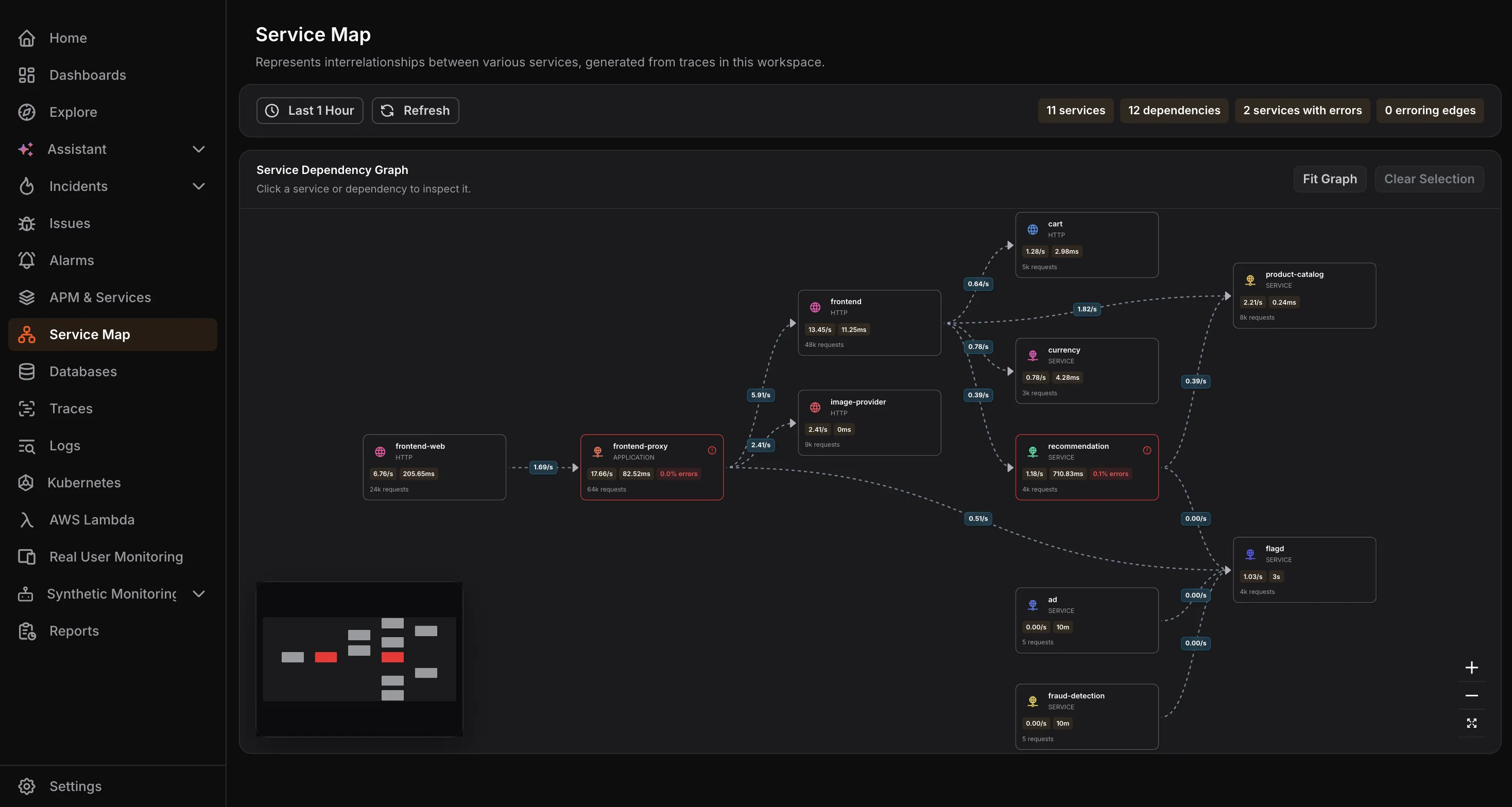
At the top of the page, a summary bar shows the total number of services, dependencies, services with errors, and erroring edges in the selected time range.
Use the time range selector to adjust the observation window, and click Refresh to reload the map with the latest data.
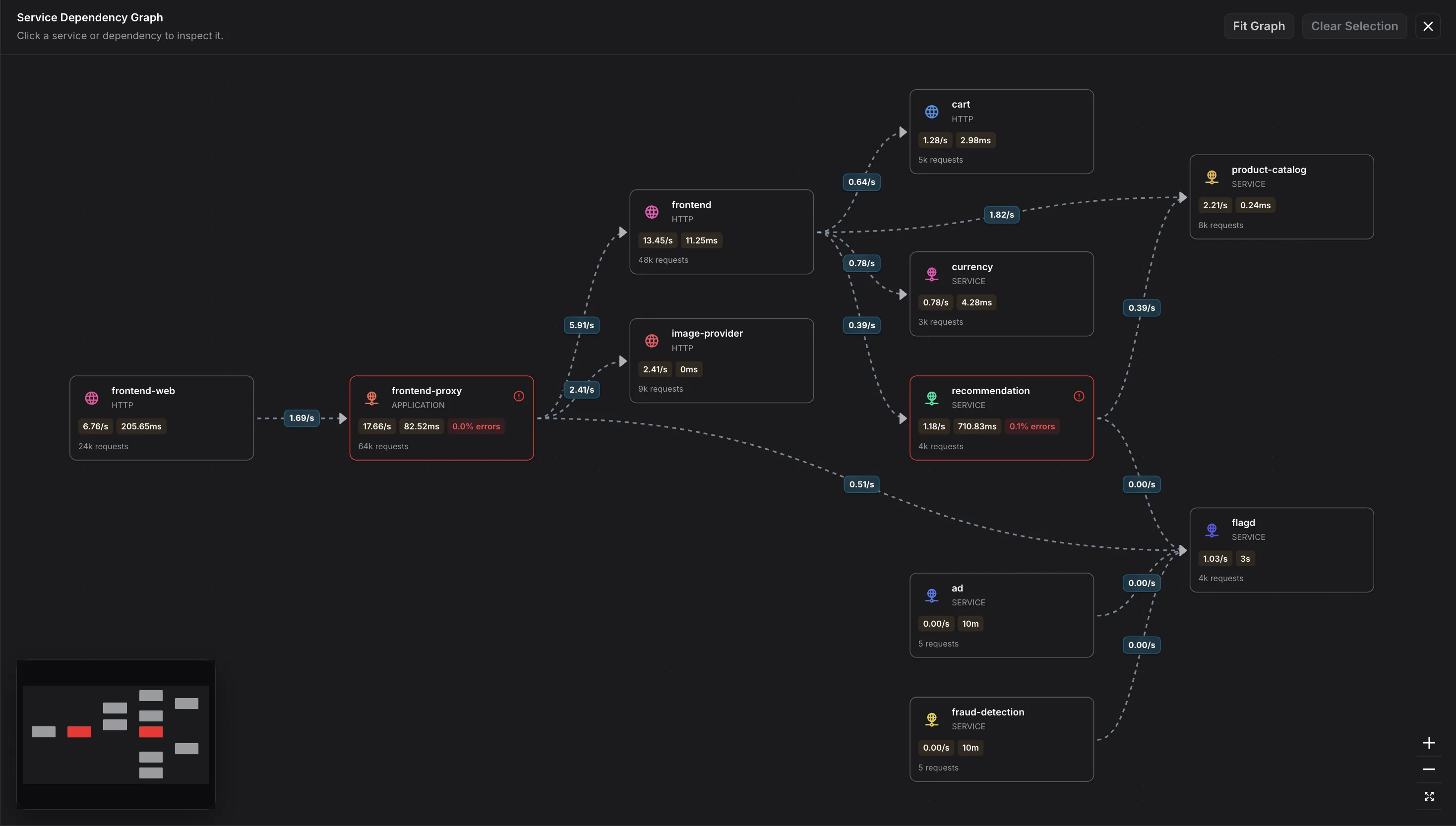
The main area displays the Service Dependency Graph. Each service is represented as a node showing its name, protocol, request rate, and average latency. The directed edges between nodes represent the call flow and dependencies between services.
Use the zoom controls on the bottom-right to zoom in and out, or click the expand icon to view the graph in full screen.
Inspecting a Service
Section titled “Inspecting a Service”Click any service node on the graph to open the service details panel on the right.
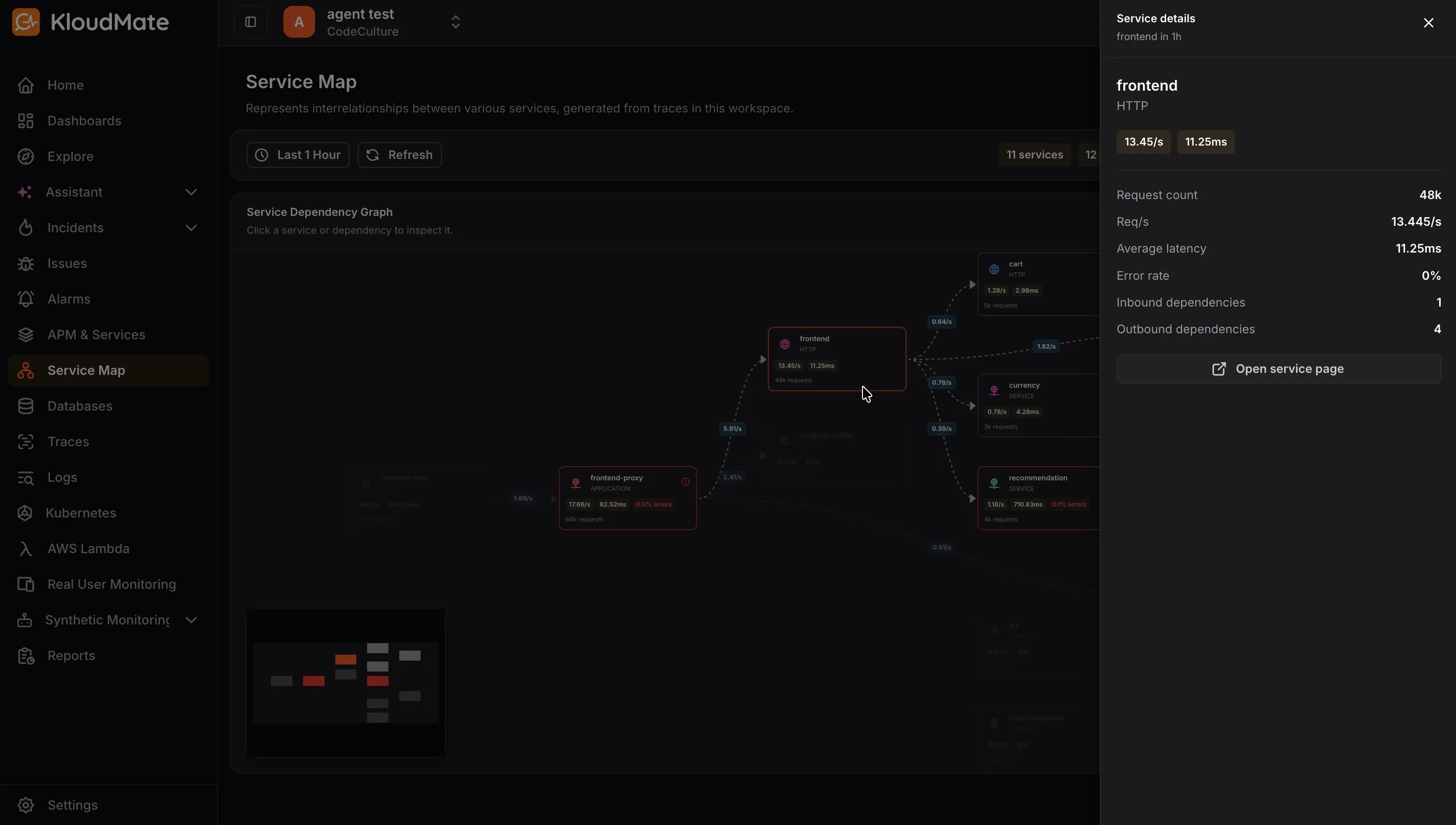
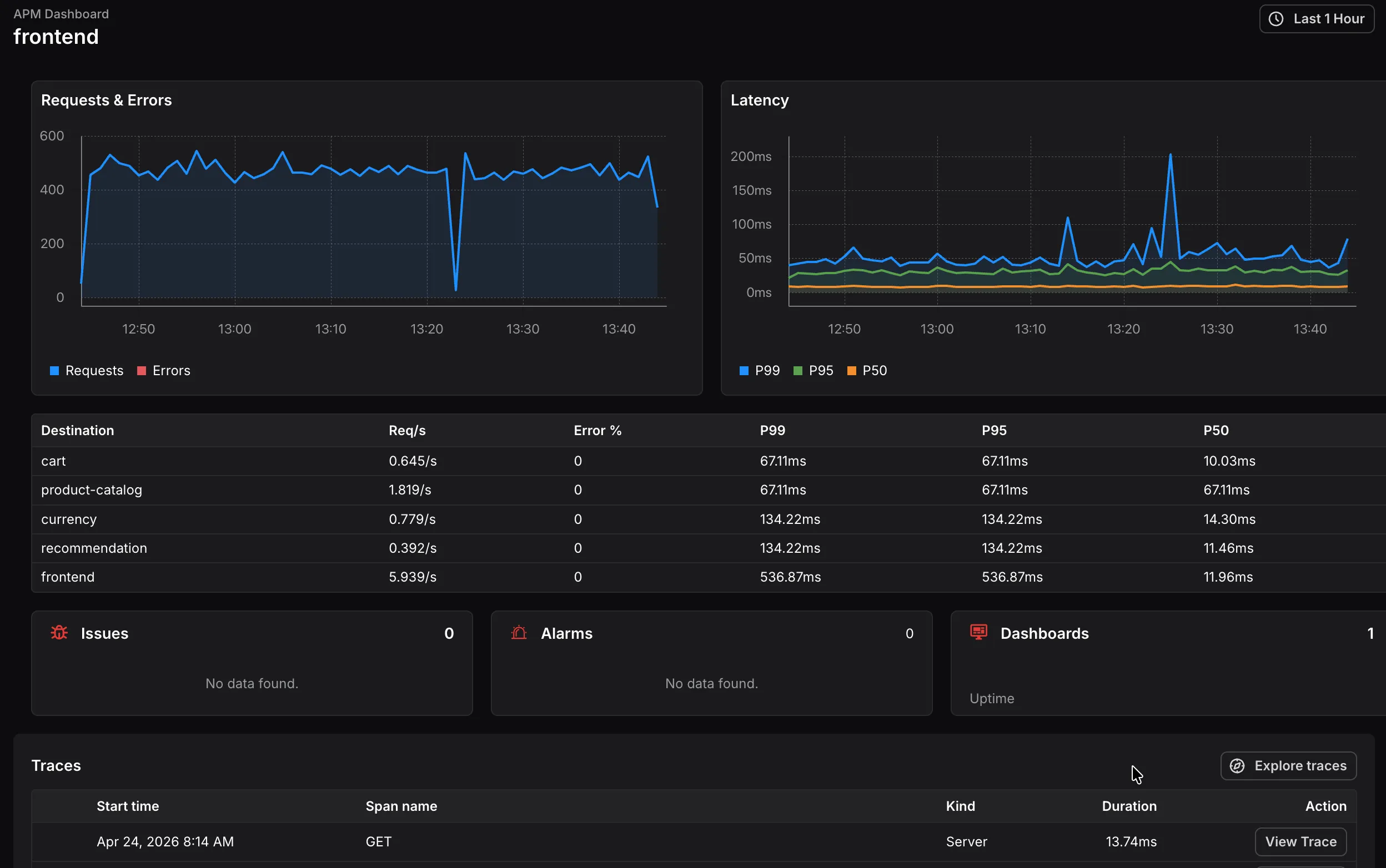
Click Open service page at the bottom of the panel to navigate to that service’s APM dashboard, where you can inspect request trends, latency percentiles, traces, issues, alarms, and dashboards in more detail.
Inspecting a Dependency
Section titled “Inspecting a Dependency”Click any edge between two service nodes to open the dependency details panel on the right.
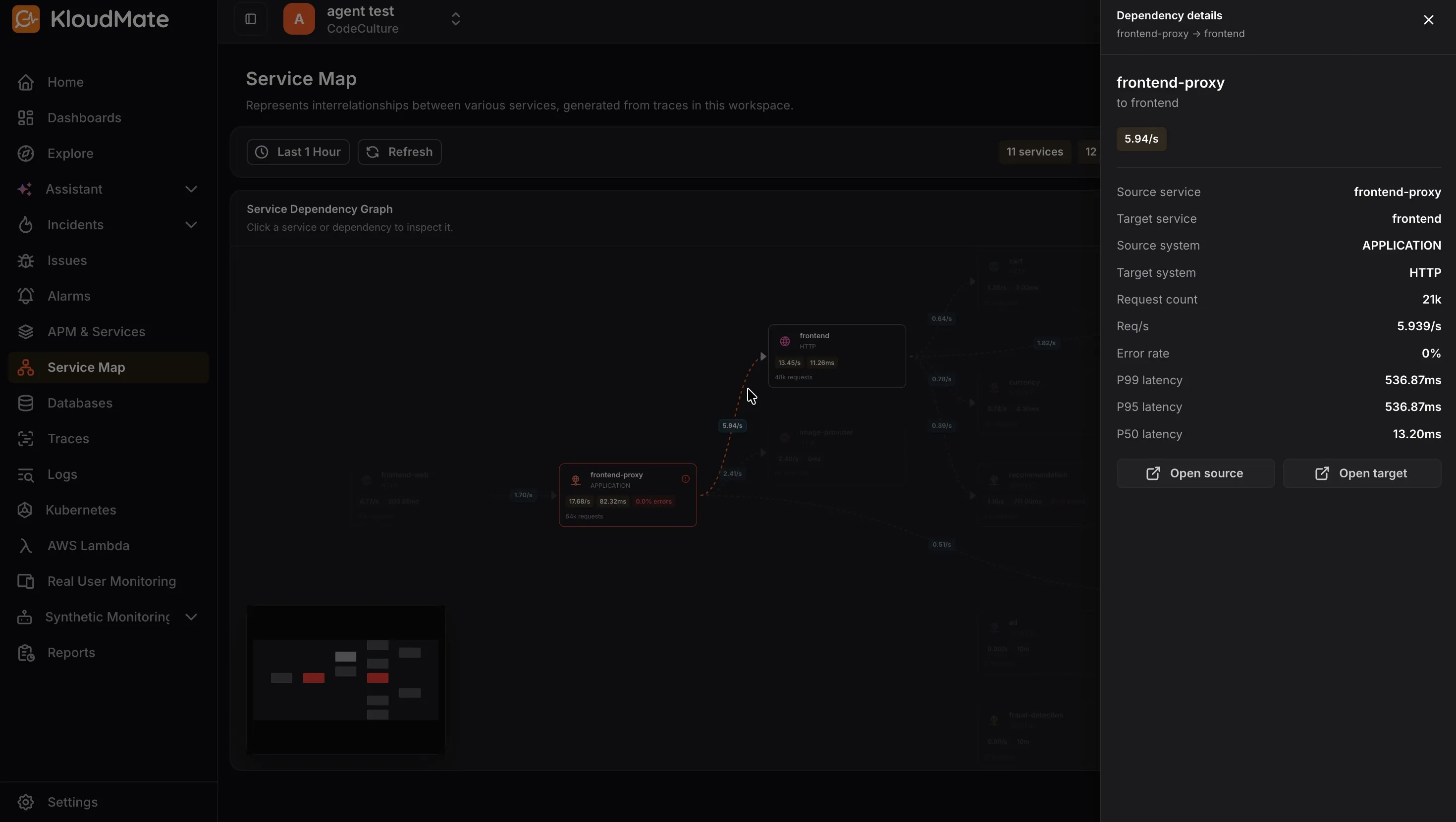
Use Open source or Open target to navigate directly to the APM dashboard of either service involved in the dependency.
Identifying Issues
Section titled “Identifying Issues”Nodes and edges with errors are highlighted in red, making it easy to spot problematic services and dependencies at a glance. Click a highlighted node or edge to review its error rate and latency details.