

Explore
Explore is the ad hoc query workspace in KloudMate. It lets you build and validate queries before saving them into a dashboard, with support for metrics, logs, and traces.
This walkthrough focuses on metrics.
Explore Walkthrough
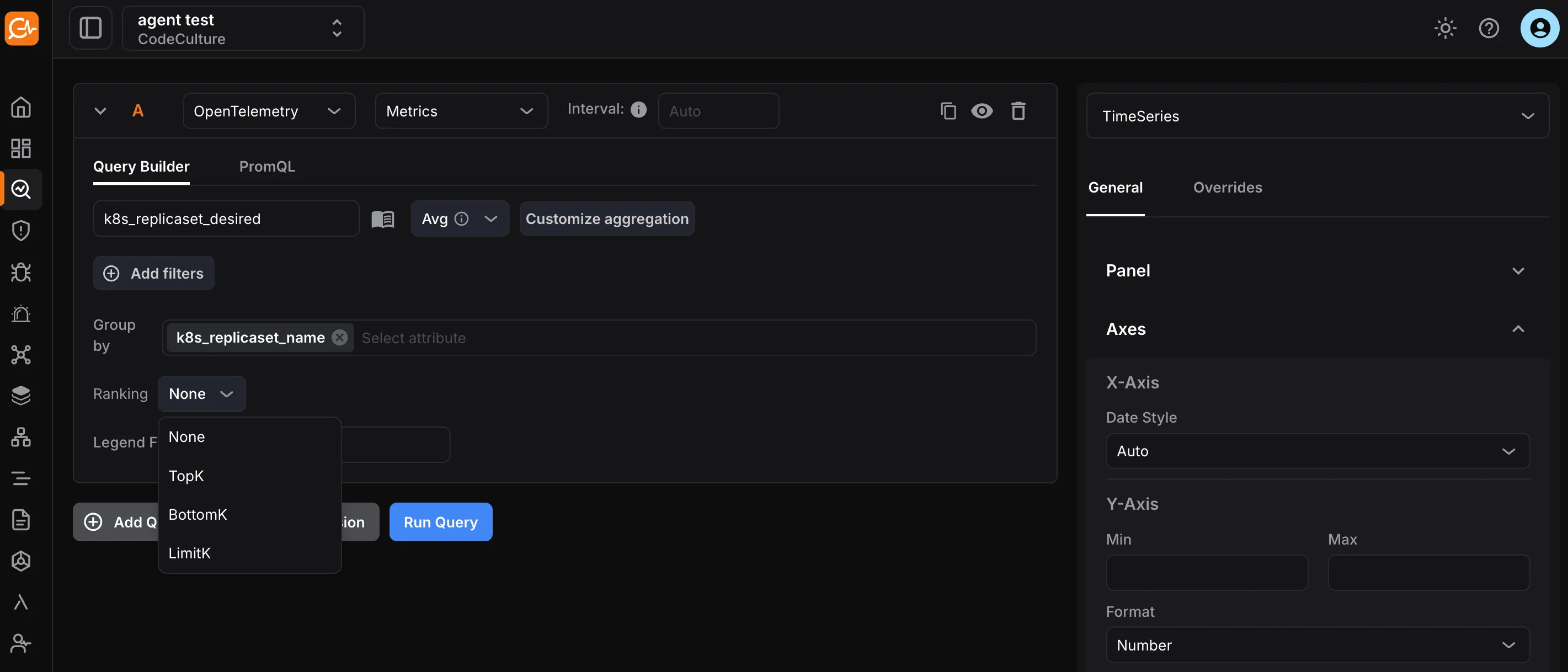
Section titled “Explore Walkthrough”- Navigate to Explore Open the Explore section from the left-hand navigation menu. A new untitled panel opens immediately.
-
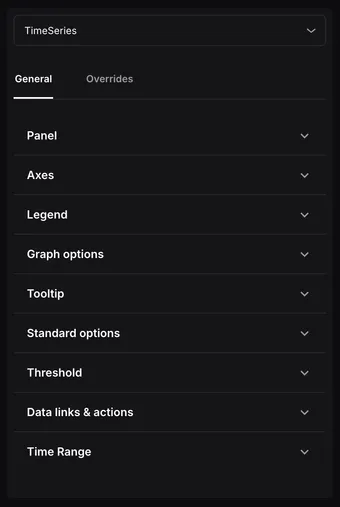
Configure the Visualization Use the settings panel to choose how results are displayed. Common options include
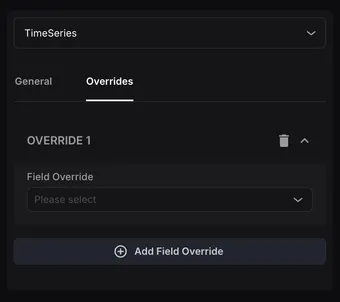
TimeSeries,Table, andStat.The settings panel has two tabs:
- General: Configure panel appearance and behavior.
- Overrides: Apply field-level customizations to specific series or fields.
-
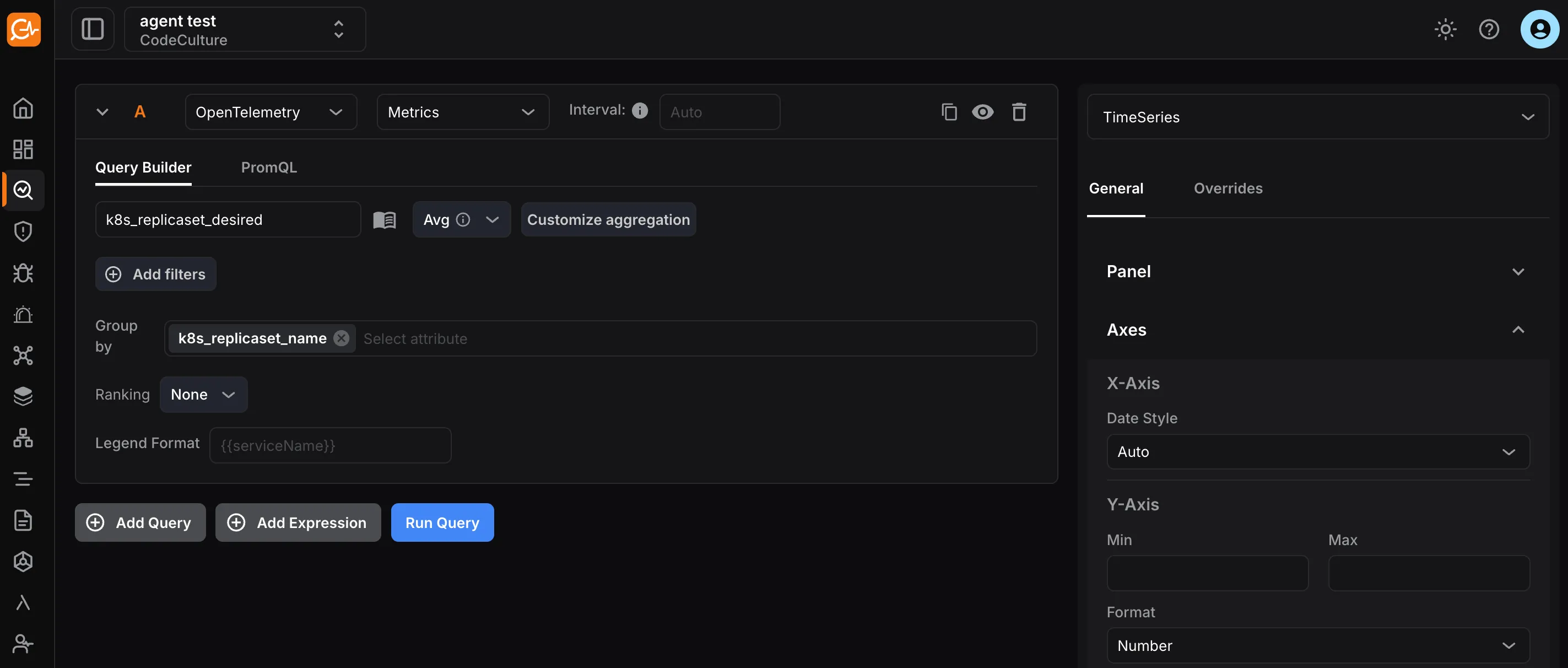
Choose the Data Source and Signal Type At the top of the query editor, select the data source and set the signal type to
Metrics. Keep the query interval onAutounless you need a specific rollup interval. -
Build the Query In the Query Builder, select a metric name and choose an aggregation function such as
Avg,Sum,Min, orMax.- Click Customize aggregation to access advanced temporal and spatial aggregation controls. See Metrics Aggregations for details.
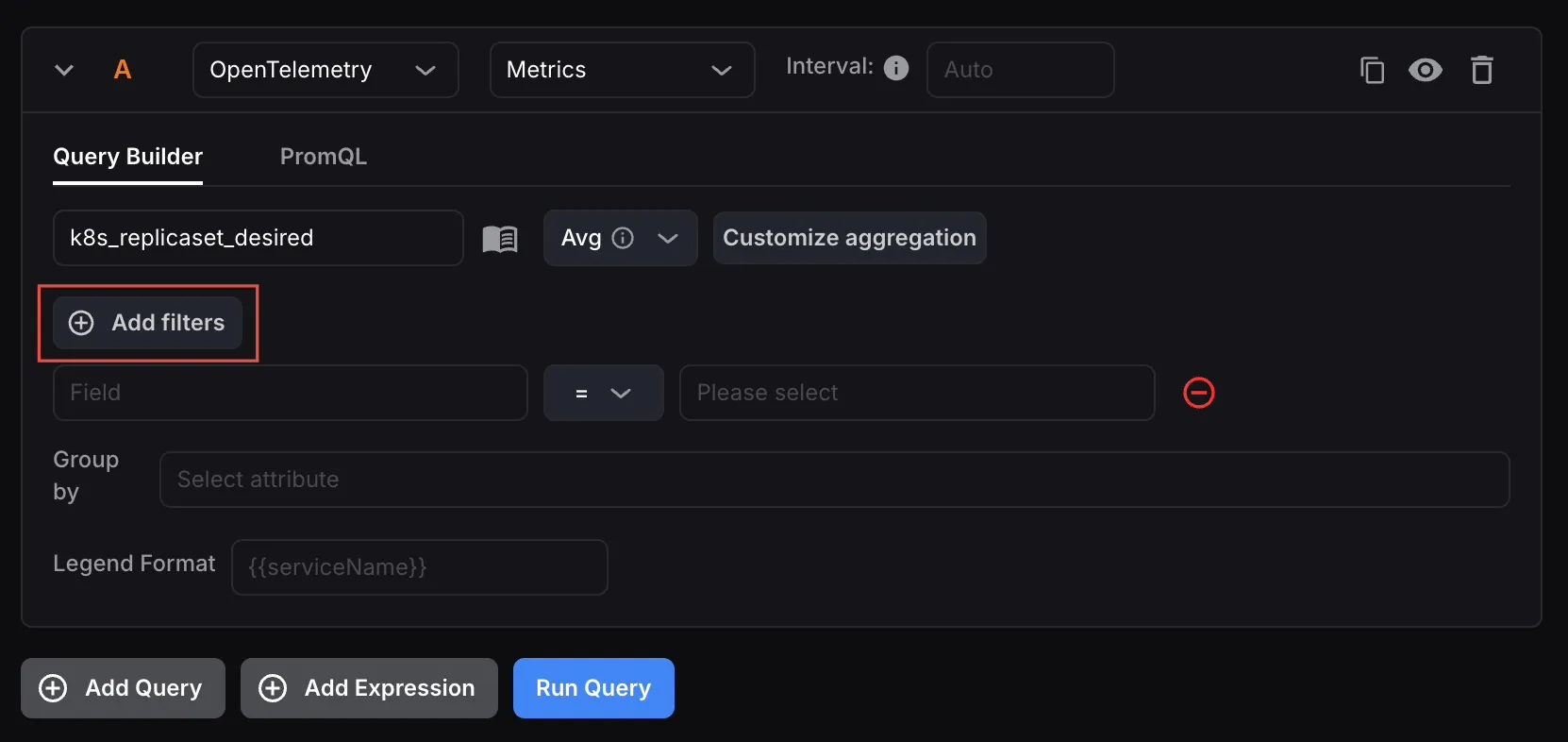
- Use Add filters to narrow the results by attributes.
- Use Group by to break down the metric by a dimension such as
k8s_replicaset_name.
- Use Ranking to control how series are ordered.
- Use Legend Format to customize series labels.
- Switch to the PromQL tab if you prefer raw query expressions.
-
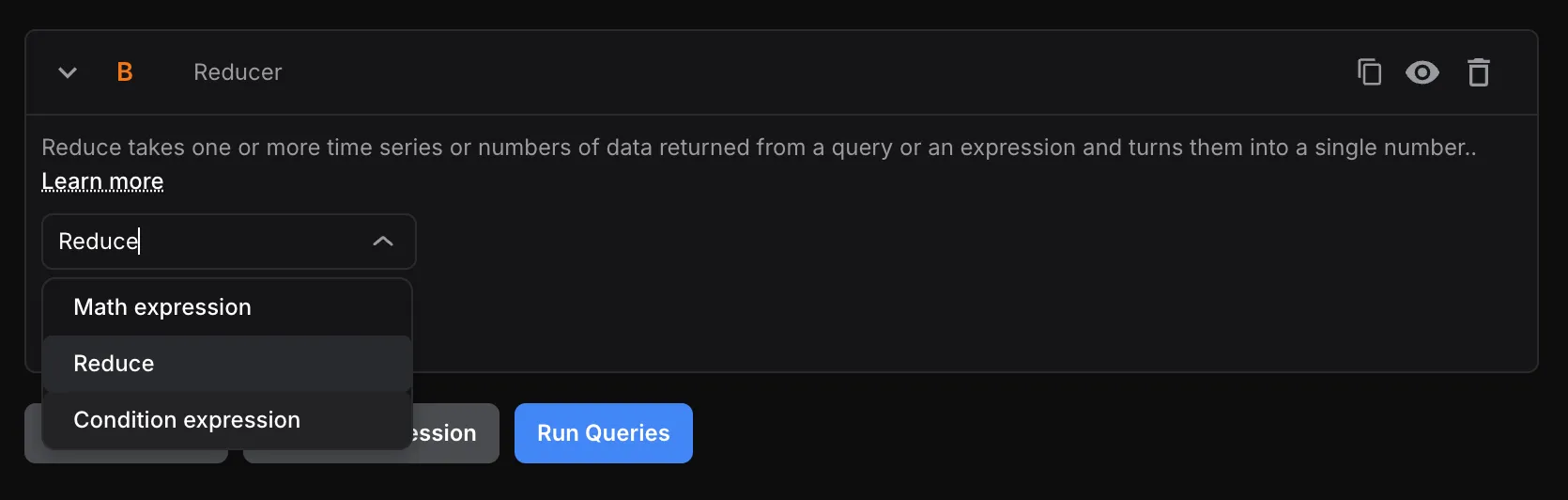
Add Queries and Expressions Use Add Query to compare multiple metric series in one panel.
Use Add Expression to derive values from existing queries, including math, reduce, and condition expressions. See Writing Expressions for KloudMate Alarms for the full expression syntax.
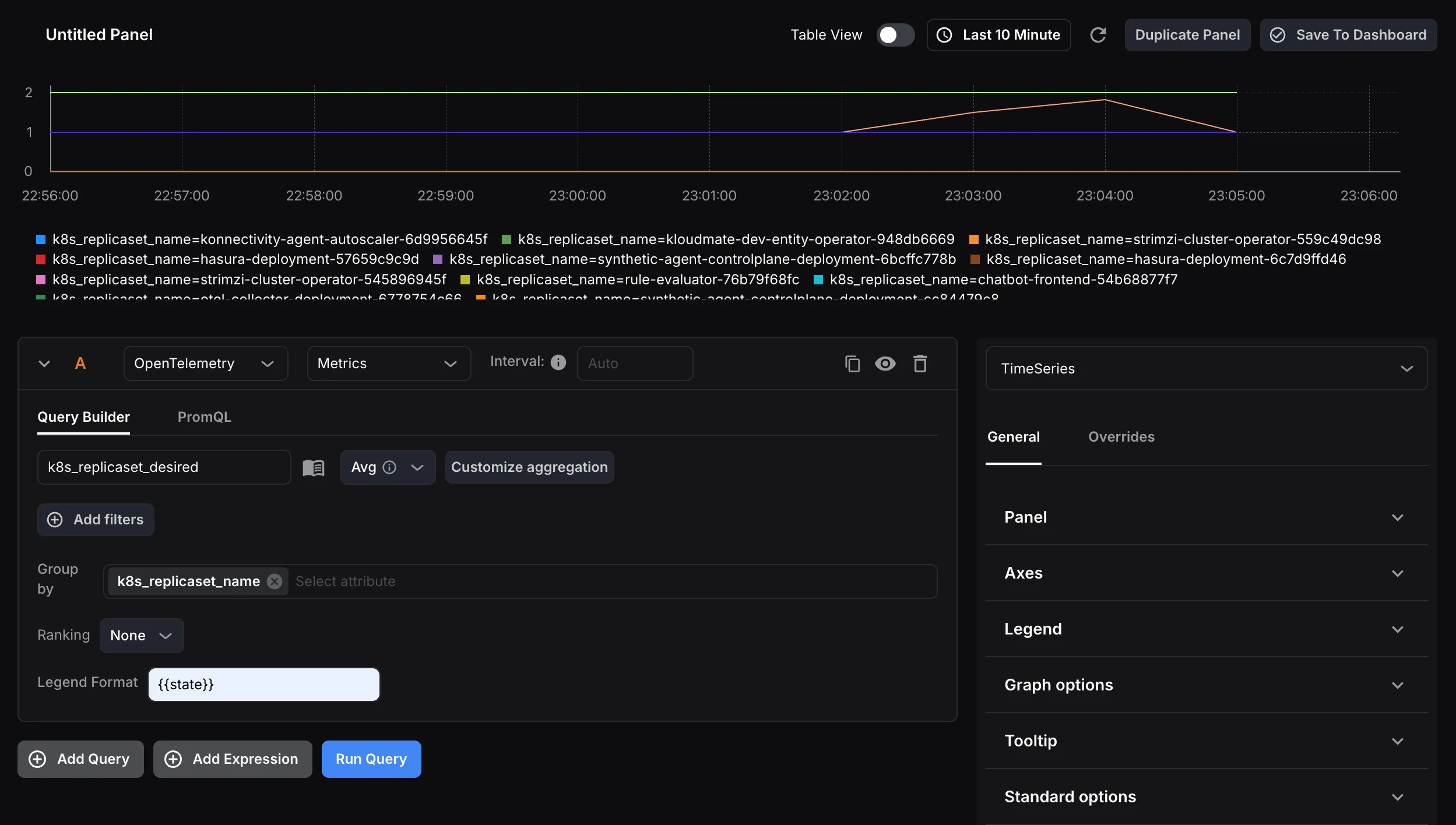
- Run the Query Click Run Query to execute the query and render the result.
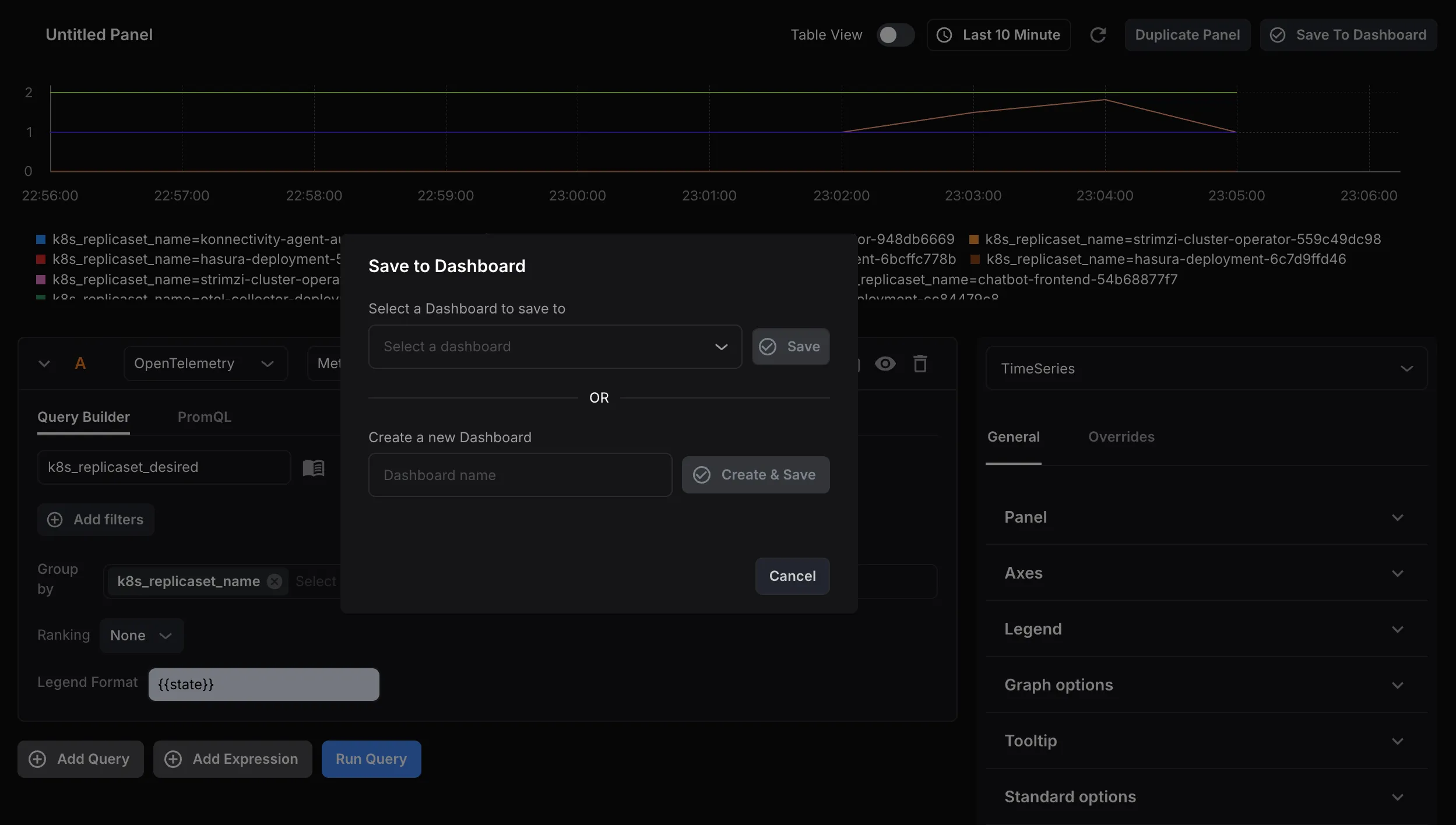
- Save to a Dashboard When the query looks right, use Save to Dashboard to add the panel to an existing dashboard or create a new one.
