Data Sources
Use Data Sources to connect AWS accounts, review sync settings, and control which resources are imported into KloudMate.
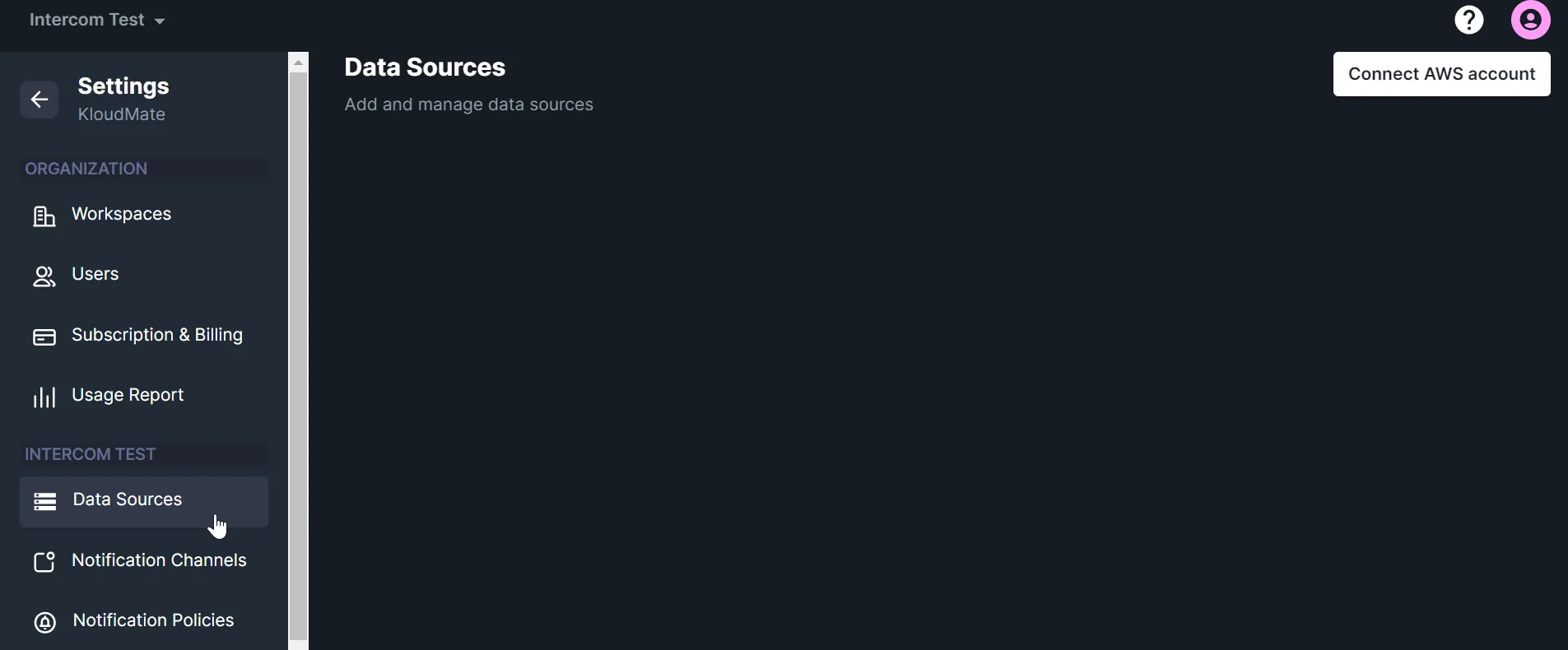
Connect an AWS Account
Section titled “Connect an AWS Account”KloudMate can connect multiple AWS accounts and begin ingesting supported logs, metrics, and traces after setup.
To connect a new account, follow AWS Account Setup.
Manage Connected Accounts
Section titled “Manage Connected Accounts”Open Settings -> Data Sources to view all connected AWS accounts.
From this page, you can:
- Add additional AWS accounts
- Open account details
- Review or update sync settings
- Access CloudWatch log subscription controls
- Remove an AWS account
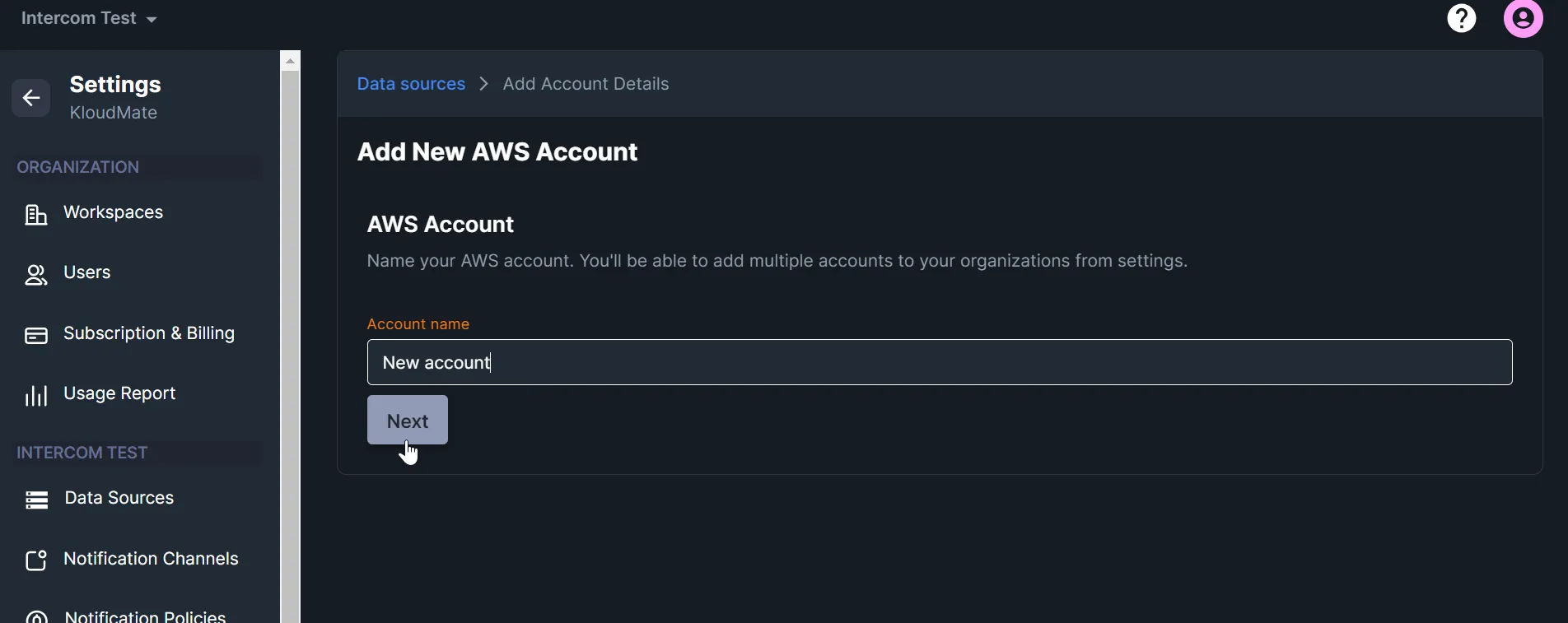
Enter the AWS account name and follow the on-screen setup flow when adding a new account.
Review Sync Settings
Section titled “Review Sync Settings”The data sources page shows every connected AWS account.
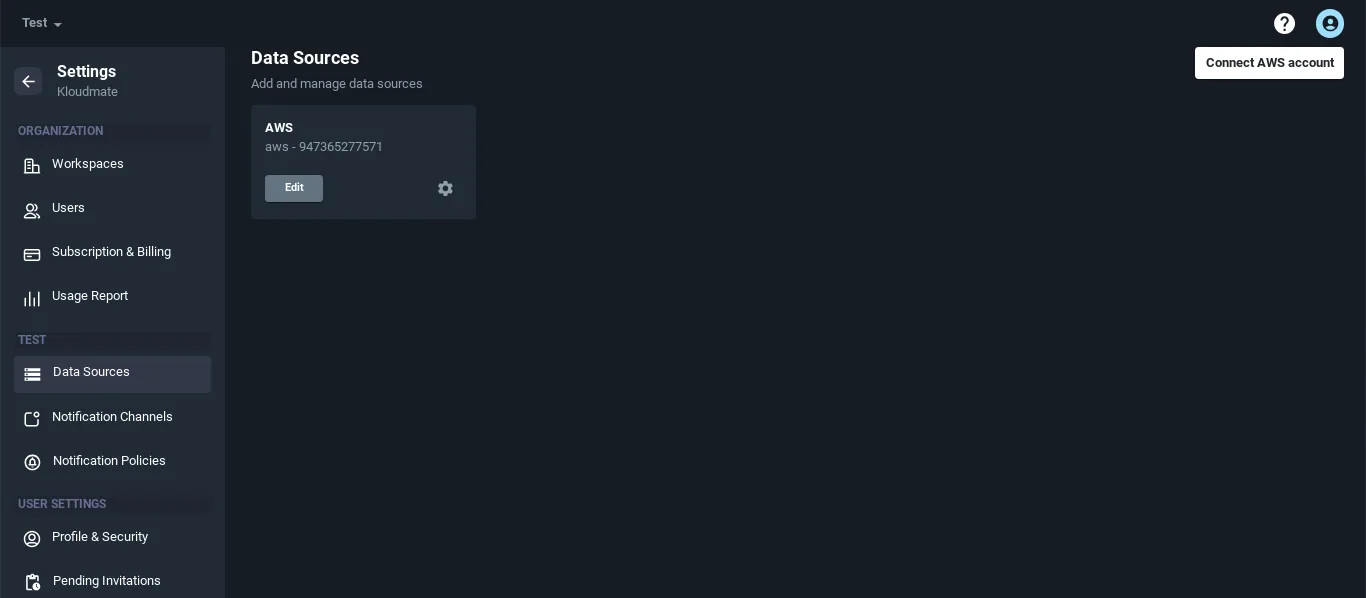
Open the account details screen for the AWS account you want to manage.
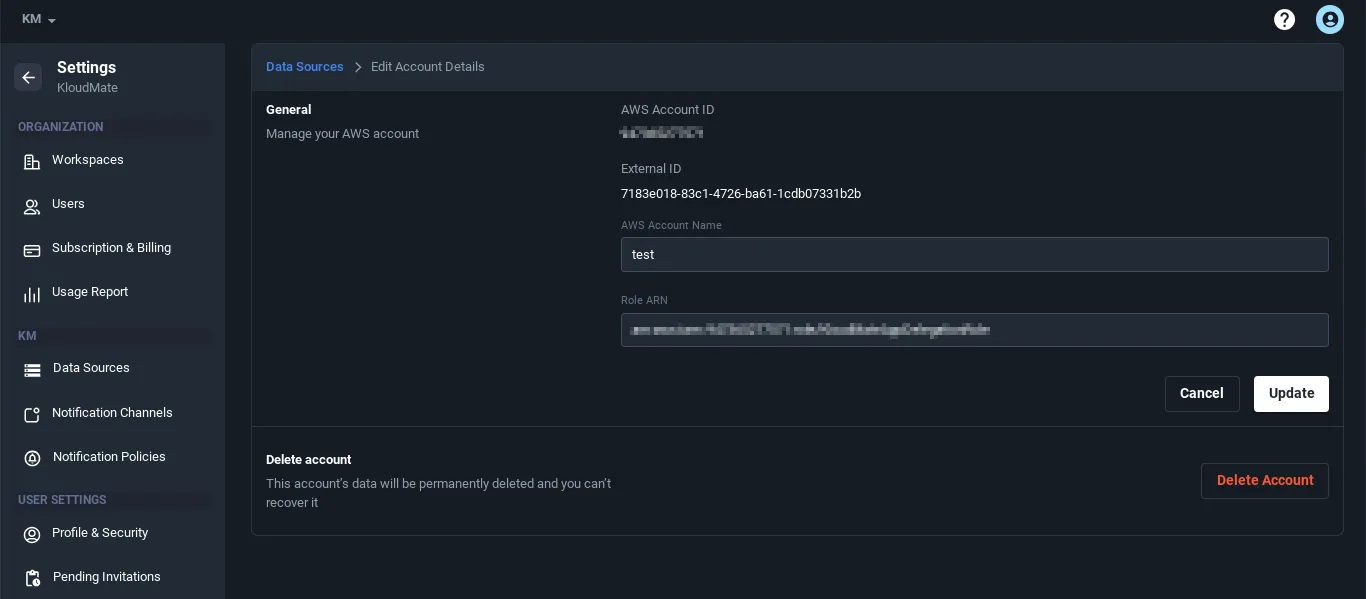
Use the account settings view to control sync behavior and review CloudWatch log options.
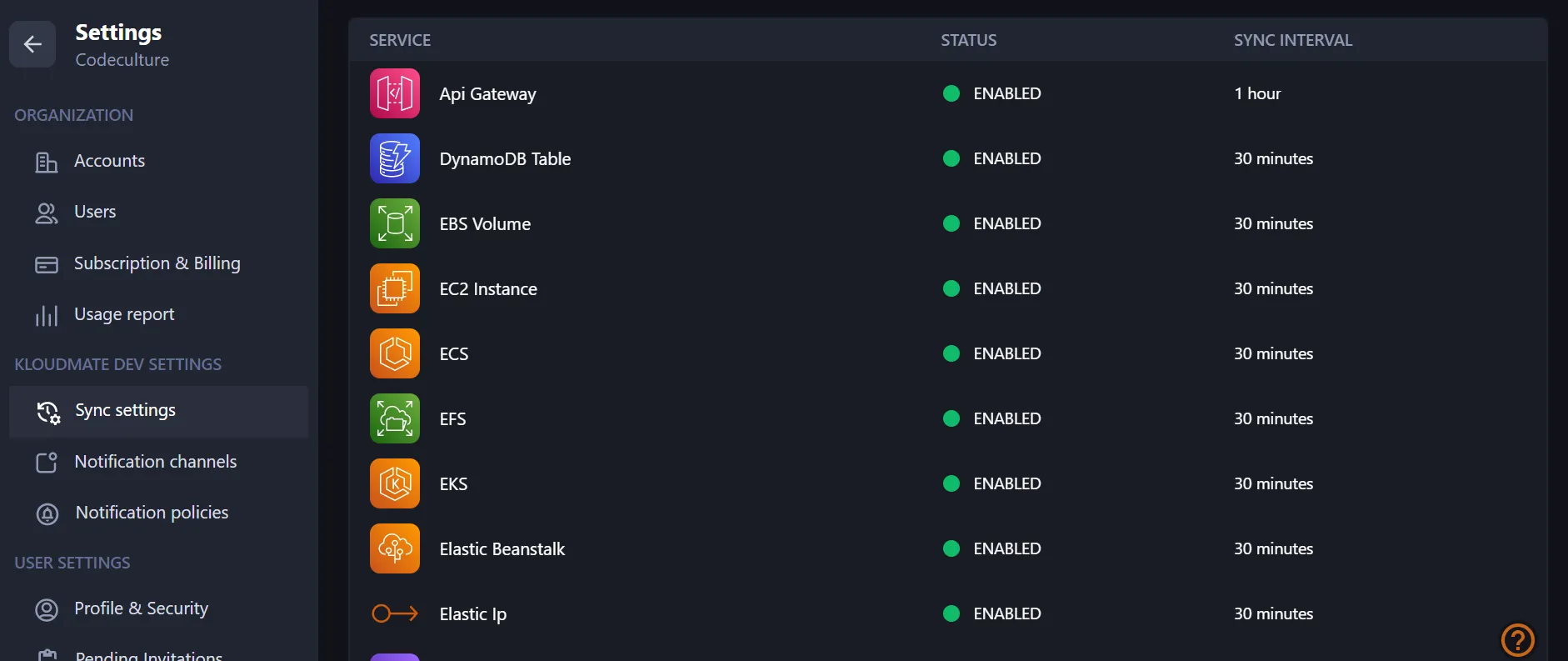
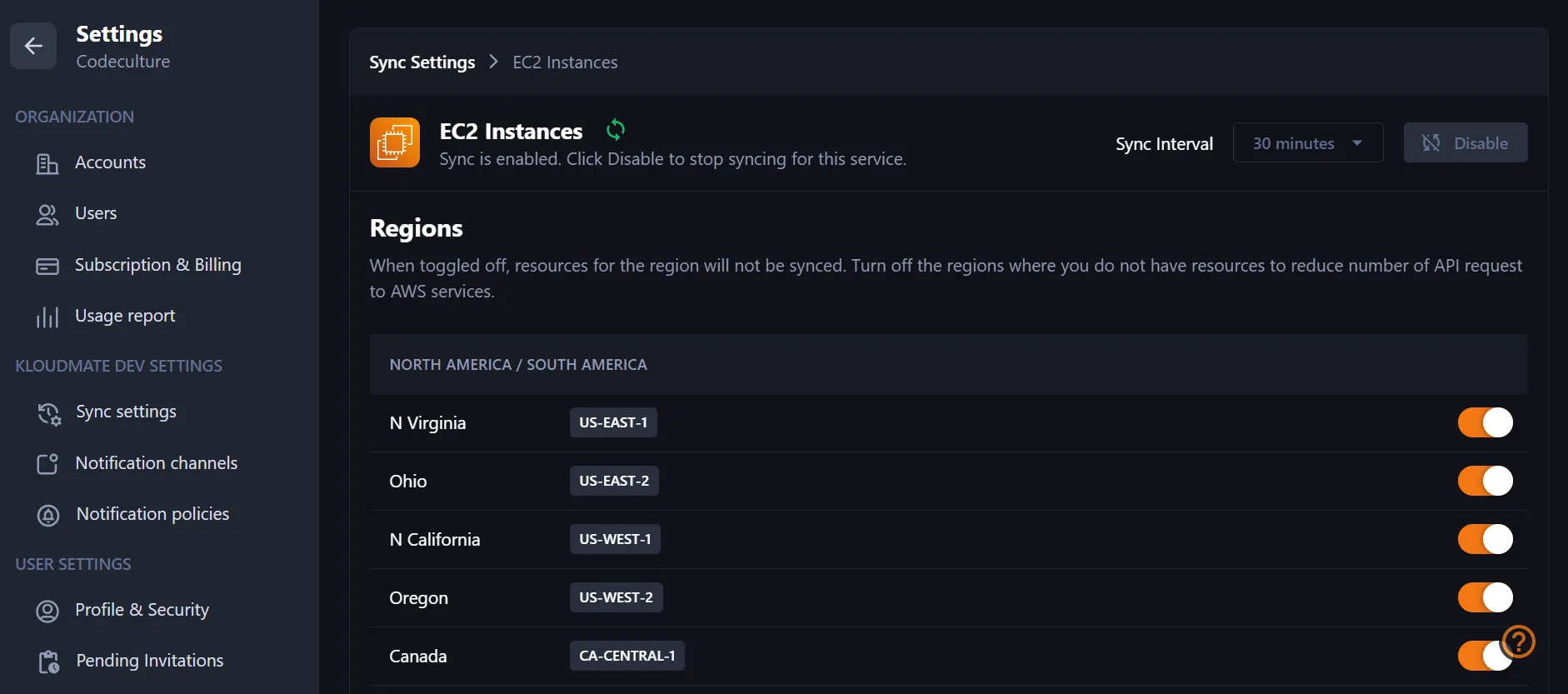
Enable or disable sync for individual services and regions based on what you want KloudMate to monitor.
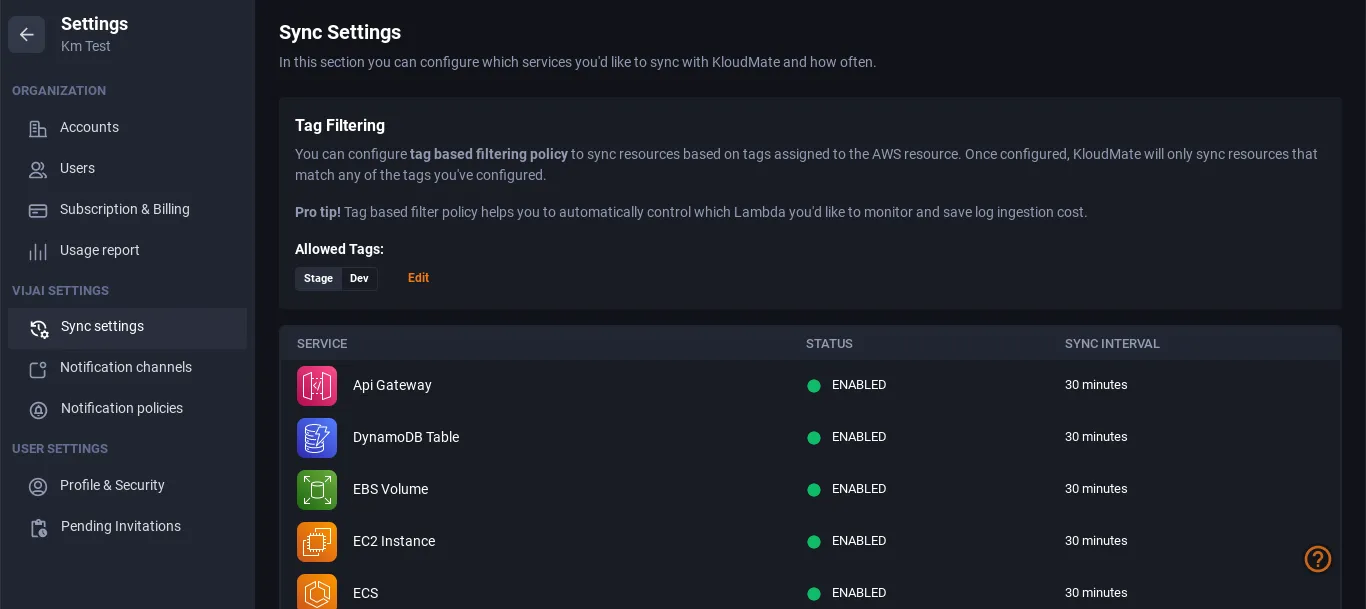
Tag Filtering
Section titled “Tag Filtering”Tag filtering lets you limit syncing to AWS resources that match specific tags.
- Open the sync settings screen.
- Click Add Tags under Tag Filtering.
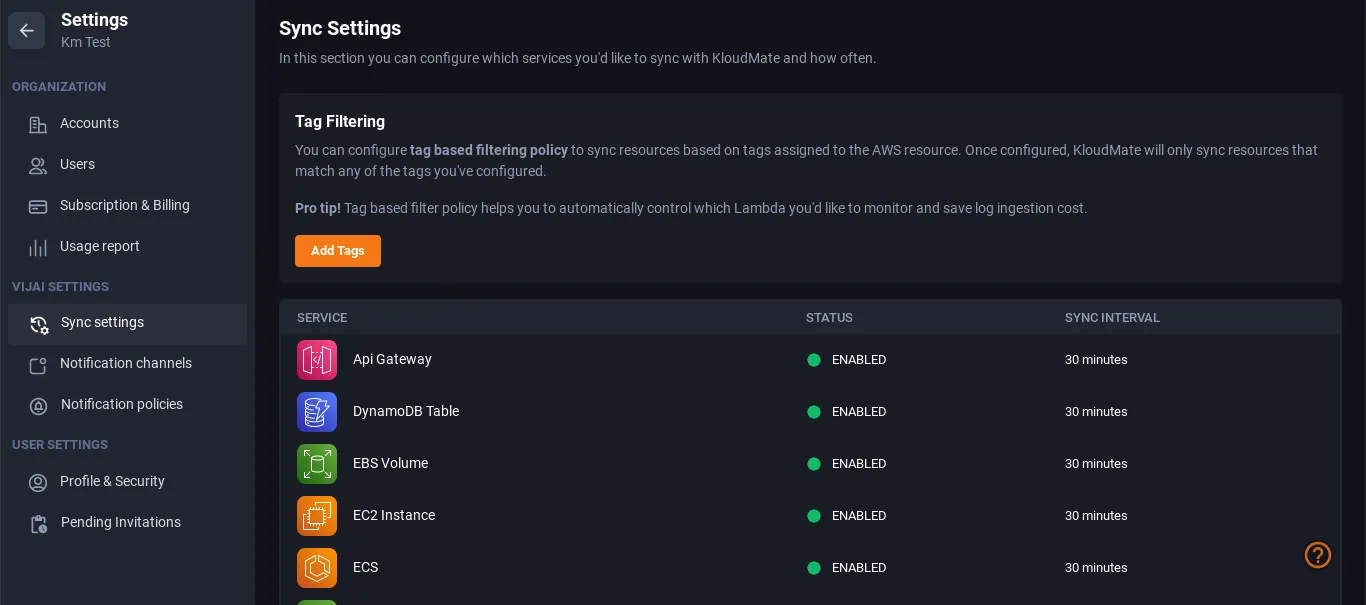
- Enter the tags you want to use.
- Save the configuration.
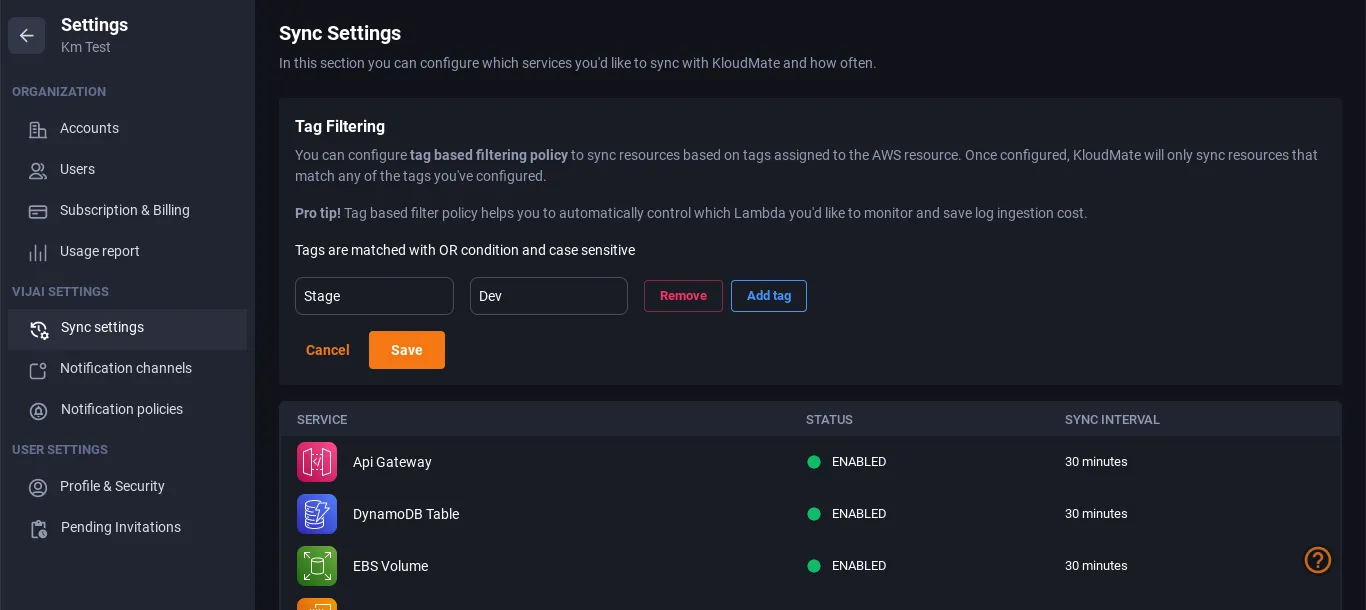
If tags are already configured, use the edit action to update or remove them.