

Kubernetes
This document will guide you to instrument Kubernetes using the KloudMate Agent via DaemonSet & Deployment.
What the Kubernetes Agent Monitors
Once installed, the Kubernetes Agent collects:
- Cluster metrics: CPU, memory, disk, network usage
- Node metrics: Resource usage, health, availability
- Namespace metrics: Workloads, events per namespace
- Pod metrics: CPU, memory, restarts, and lifecycle events
- Workload metrics: Deployment and replica status, resource utilization
- Container logs: stdout/stderr from pods
- Cluster events: Pod failures, scaling events, and other events
- Optional APM metrics: Instrumented applications (Python, Node.js, Java, .NET, Go)
Accessing Your Data
Section titled “Accessing Your Data”View all Kubernetes data in these KloudMate sections:
1. Kubernetes Monitoring
- Explore metrics and events for your cluster, nodes, namespaces, pods, and workloads
- Track availability, resource usage, pod restarts, and workload health
2. Dashboards
- Use the following pre-built dashboards to visualize Kubernetes metrics:
- Build custom dashboards for specific workloads, namespaces, or pods
3. Log Explorer
- Search and filter pod logs and cluster events
- Correlate logs with metrics to troubleshoot container or application issues
Install Agent
Section titled “Install Agent”Step 1: Getting started
Section titled “Step 1: Getting started”Use the KloudMate Kubernetes Agent to monitor your Kubernetes infrastructure and optionally your applications (APM) without any code changes.
Pre-requisites
- Kubernetes version 1.24 or above
- Helm version 3.0 or above
- Cert Manager version v1.18.2 or above
Step 2: Install Cert Manager
Section titled “Step 2: Install Cert Manager”Skip this step if you already have Cert Manager installed.
Step 3: Enter cluster details
Section titled “Step 3: Enter cluster details”Provide a name for your Kubernetes cluster. This name will be used to identify the cluster inside KloudMate.
Step 4: Set preferences
Section titled “Step 4: Set preferences”Configure how KloudMate should collect data from this cluster:
- Collect container logs: Toggle on/off based on whether you want to ingest container logs from the cluster.
- Enable auto instrumentation for APM: Turn this on to automatically instrument supported application runtimes (Python, Node.js, Java, .NET, Go) for APM.
- Monitored namespaces: Enter a comma‑separated list of namespaces to monitor for events and APM (for example,
redis, kafka, prod-app).
Step 5: Run the installation command
Section titled “Step 5: Run the installation command”The UI will generate a Helm command based on your inputs. Run this command in your terminal to install the KloudMate Agent in your Kubernetes cluster.
Installing the Agent on Tainted Nodes
Section titled “Installing the Agent on Tainted Nodes”If your Kubernetes cluster has nodes with taints, the agent pods must be assigned matching tolerations to be scheduled successfully. By default, the agent does not include any tolerations, but you can configure them during installation by using Helm parameters.
Example Helm installation command with tolerations:
In this example, two separate tolerations are defined to match the taints configured on the cluster nodes, enabling the agent pods to be scheduled on all required nodes.
APM Setup Instructions
Section titled “APM Setup Instructions”There are two ways to enable Application Performance Monitoring (APM) in your cluster:
1. Enable APM via Dashboard
Section titled “1. Enable APM via Dashboard”- After installing the agent, open the APM configuration tab in the dashboard.
- Use the toggle button to enable or disable APM.
- Once enabled, the agent will automatically detect all running microservices and identify their respective programming languages.
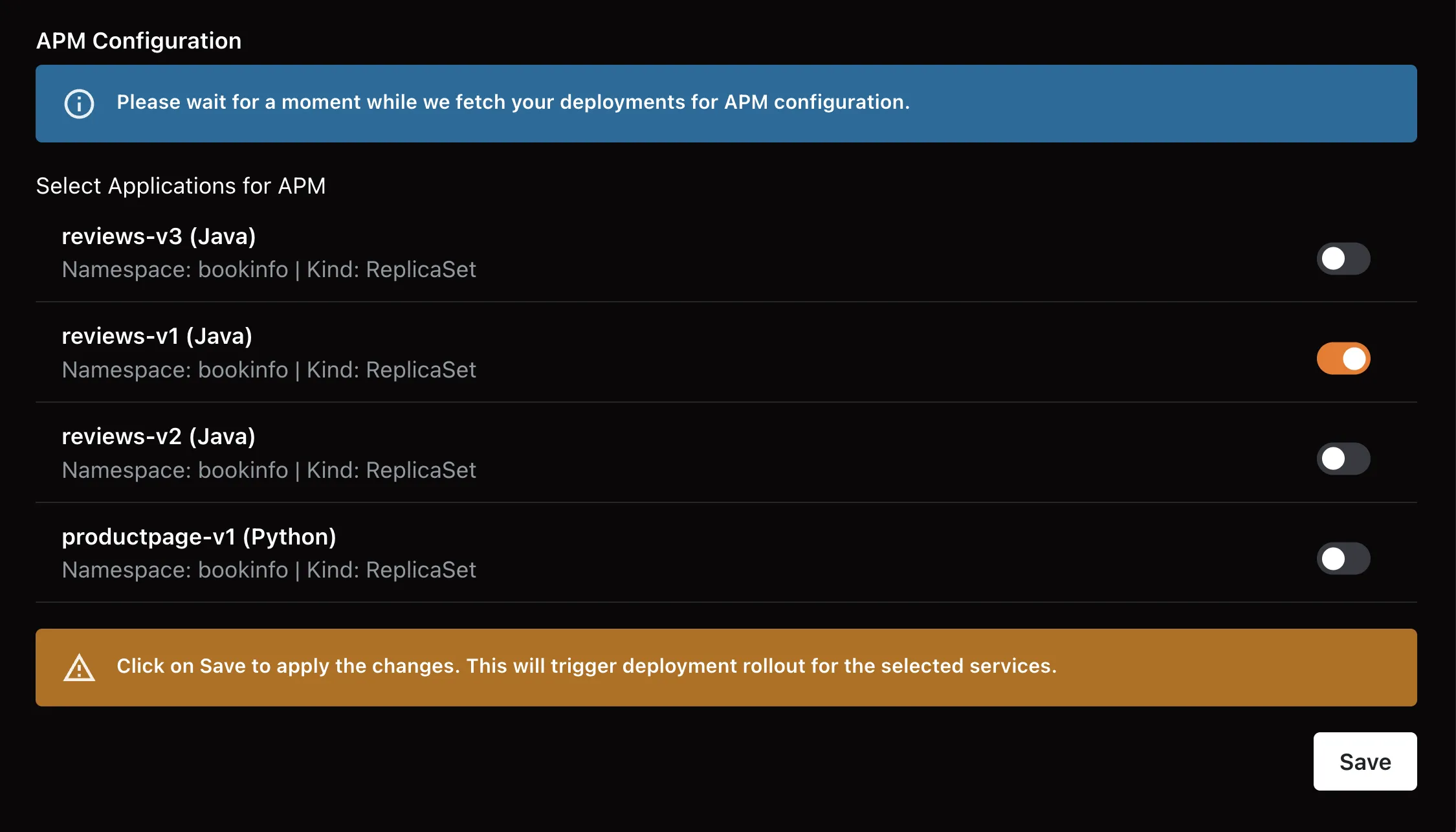
- After turning on APM, wait a few minutes to begin receiving metrics, then verify them on the dashboard.
2. Enable APM via the Patch Method
Section titled “2. Enable APM via the Patch Method”In some cases, the agent may not automatically detect certain applications. In such scenarios, use deployment annotations to enable APM for your applications.
Steps:
1. Identify each application that requires APM.
2. You can enable APM using either of the following methods:
- Option 1 – Patch command
- Option 2 – Add annotation
Python:
Section titled “Python:”- Option 1 – Patch command
- Option 2 – Add annotation
Node.js:
Section titled “Node.js:”- Option 1 – Patch command
- Option 2 – Add annotation
- Option 1 – Patch command
- Option 2 – Add annotation
3. Restart the deployments after adding the annotations.
Next Steps
Section titled “Next Steps”- Open Kubernetes Monitoring to view metrics and events for your cluster, nodes , namespaces , pods , and workloads
- Use Dashboards to create visualizations or view pre-built dashboards
- Use Log Explorer to investigate logs and correlate them with metrics
- Configure alerts for any of these components based on thresholds