

Azure Application Gateway Log Monitoring using Event Hub
This guide explains how to stream Azure Application Gateway logs to KloudMate using Azure Event Hub. Forward diagnostic logs from your gateway (or other Azure resources) to Event Hub, then ingest them using the KloudMate agent for centralized monitoring, analysis, and troubleshooting on the KloudMate platform.
Use Case
Section titled “Use Case”This setup enables pushing Azure logs (Application Gateway, databases, APIs, etc.) through Event Hub so all events can be monitored from a single platform.
Architecture Overview
Section titled “Architecture Overview”Azure Resource → Diagnostic Settings → Event Hub → KloudMate Agent → KloudMate Platform
Prerequisites
Section titled “Prerequisites”- Azure subscription with Application Gateway configured.
- KloudMate Agent installed on Linux VM. Linux Agent
- Permissions to create Event Hub resources.
- KloudMate API key.
Step 1: Set Up Event Hub Namespace and Policies
Section titled “Step 1: Set Up Event Hub Namespace and Policies”- In Azure Portal, search for Event Hubs > Create:
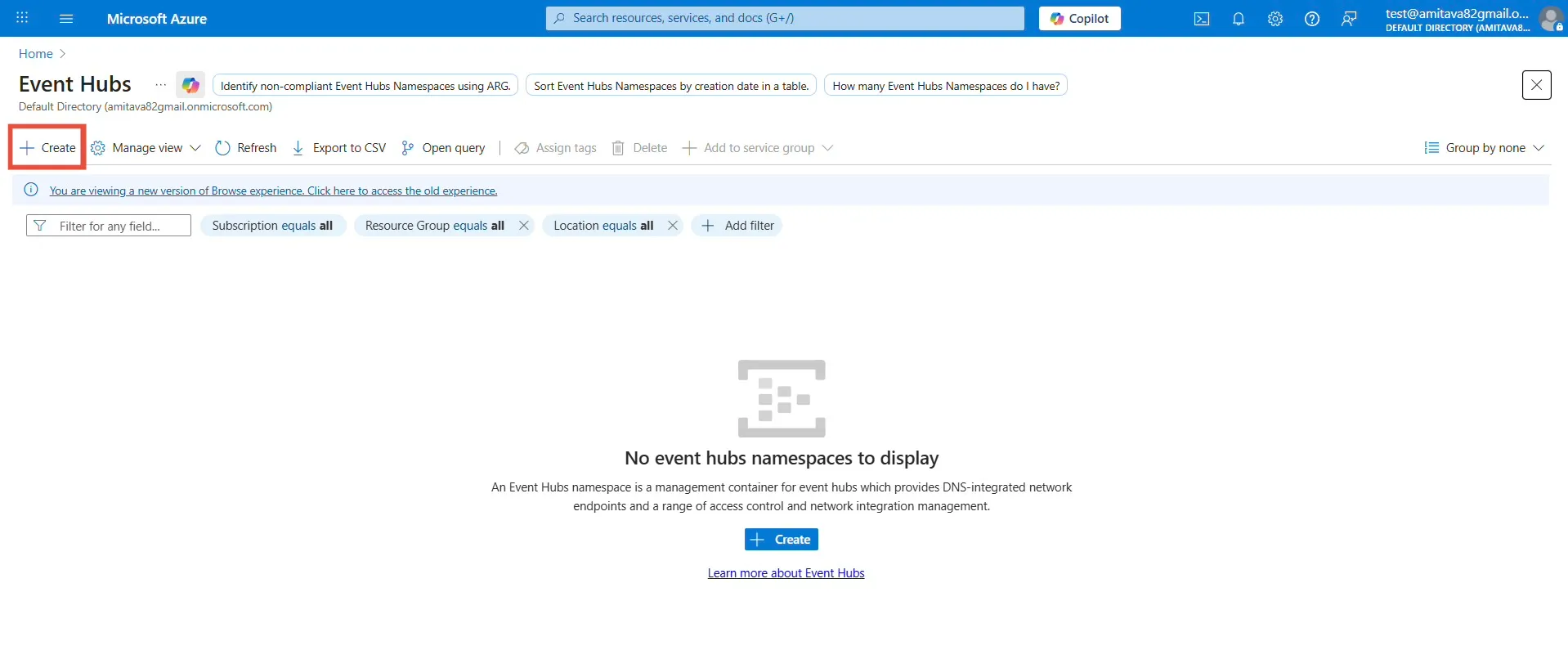
Select subscription, resource group, unique namespace name, and region.
Click Review + Create.
- In the namespace:
- Go to Settings > Shared access policies >+ Add.
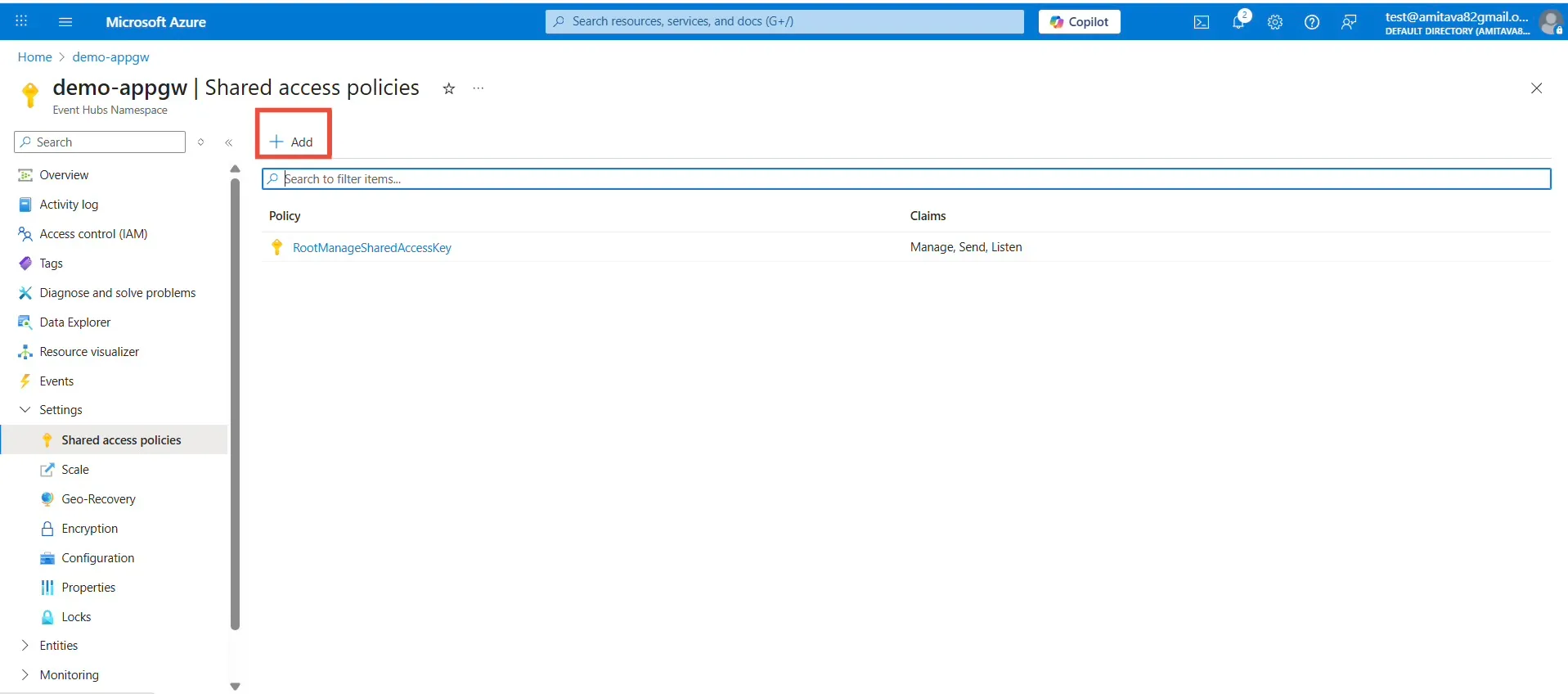
Set policy name and enable Manage (includes Send & Listen).
Create and copy the Primary Connection String (namespace-level, for diagnostic settings).
- Under Entities > Event Hubs >+ Event Hub:
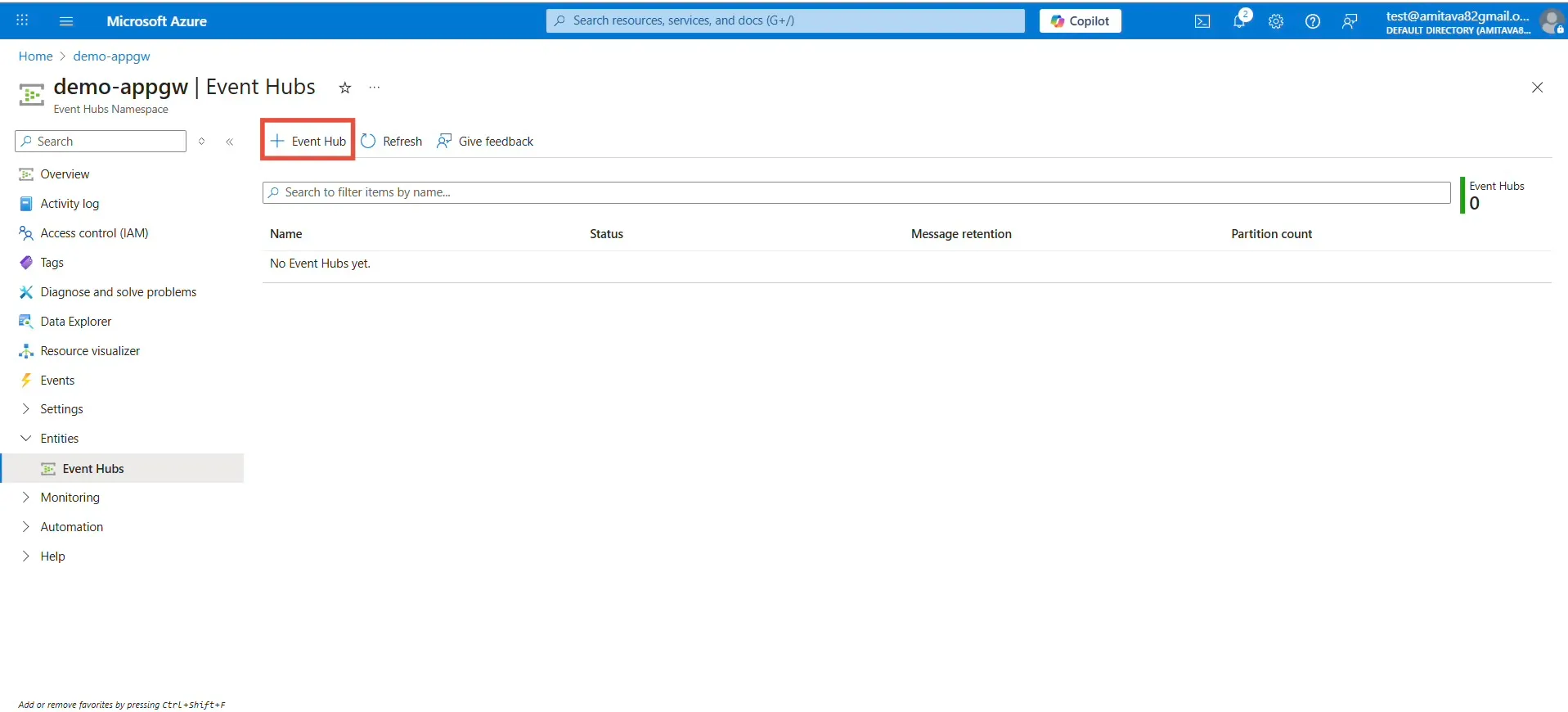
Enter Event Hub name and partition count (default is fine).
Create.
- In the new Event Hub:
- Go to Settings > Shared access policies >+ Add.
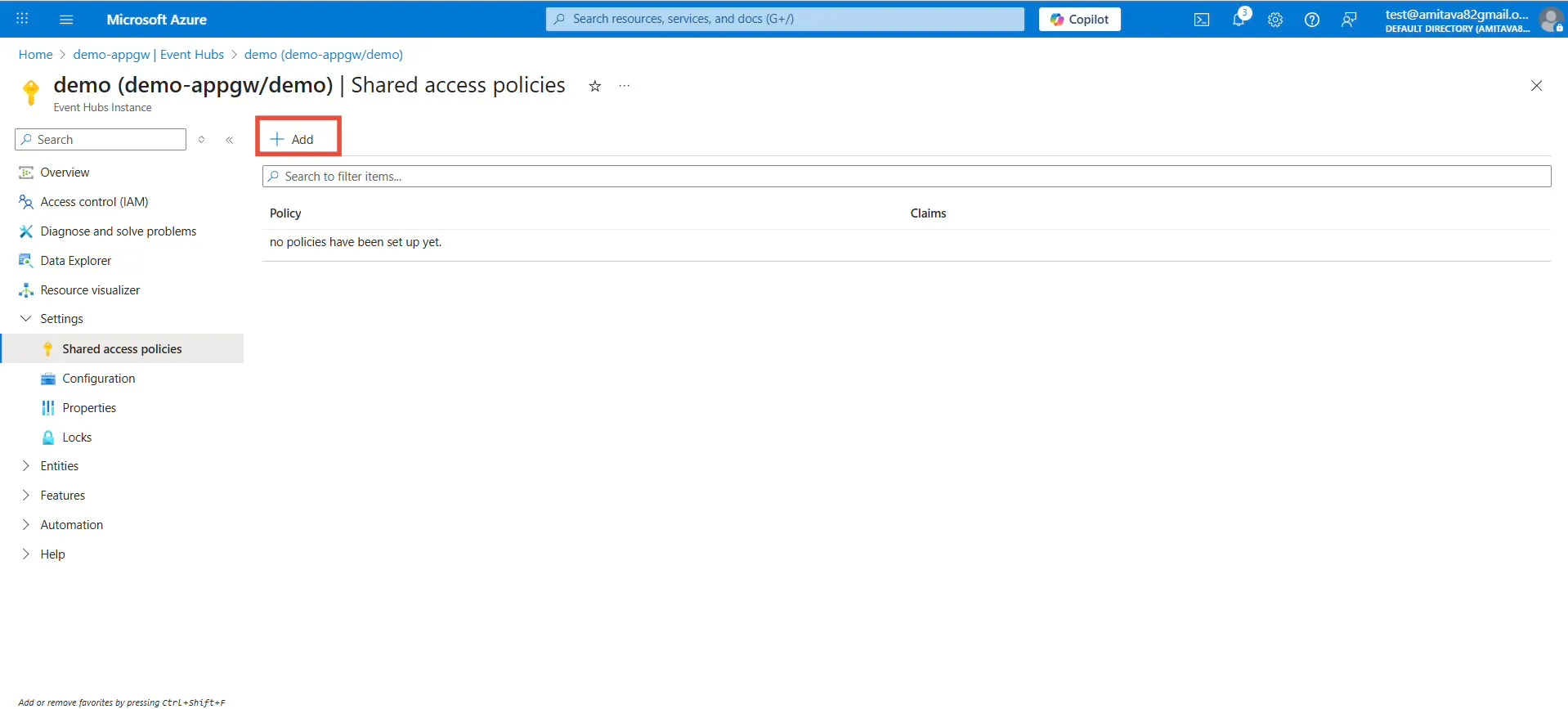
Set policy name and enable Manage.
Create and copy the Primary Connection String (Event Hub-level, for KloudMate agent).
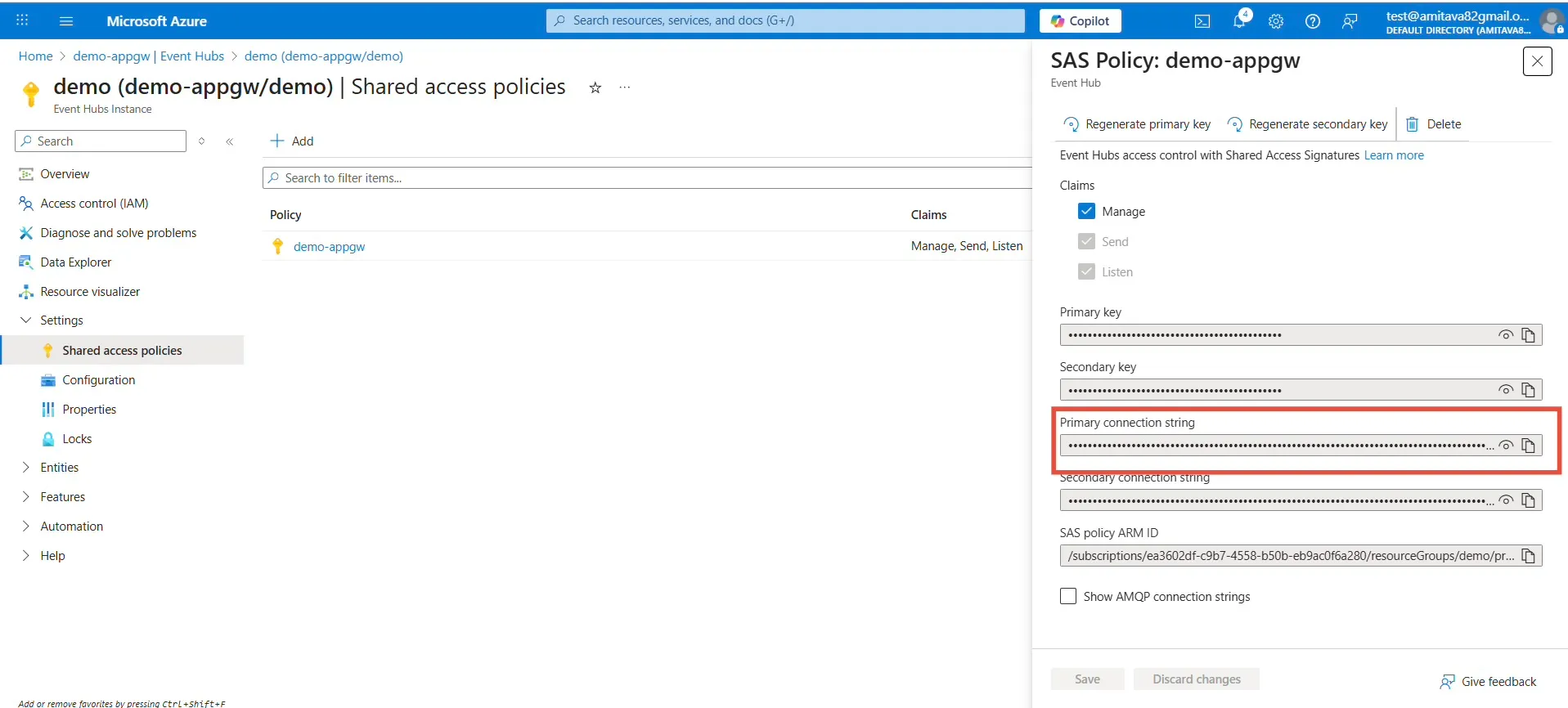
The namespace hosts Event Hub entities; use these connection strings in later steps.
Step 2: Configure Diagnostic Settings on Application Gateway
Section titled “Step 2: Configure Diagnostic Settings on Application Gateway”- Open your Application Gateway > Monitoring > Diagnostic settings >+ Add diagnostic setting.
- Select logs: Access logs , Performance logs , and Firewall logs (if WAF enabled).
- Choose Send to Event Hub:
- Select namespace from Step 1.
- Choose namespace-level shared access policy from Step 1.
- Click Save.
Gateway logs now stream to the Event Hub in real time.
Step 3: Install and Configure KloudMate Agent
Section titled “Step 3: Install and Configure KloudMate Agent”- SSH to your Linux VM and install:
Verify: kloudmate-agent status.
- Edit
/etc/kloudmate/config.yaml(usesudo nano)
Sample Configuration:
Restart: sudo systemctl restart kloudmate-agent.
Benefits
Section titled “Benefits”- Real-time, searchable Application Gateway logs.
- Centralized monitoring for Azure resources (e.g., SQL, storage, VMs, APIs).
- Enhanced troubleshooting and visibility.
Extending to Other Azure Services
Section titled “Extending to Other Azure Services”This Event Hub + KloudMate pipeline monitors any Azure service beyond Application Gateway, no agent reconfiguration needed.
Purpose Apply the same setup across multiple resources to centralize all Azure logs in KloudMate. How It Works
- Event Hub accepts diagnostic logs from any Azure service.
- Identical
config.yamlpipeline processes all logs automatically. - Repeat only Step 2 (Diagnostic Settings) per service, targeting your existing Event Hub.
Applicable Services
- Azure SQL Databases → Query/performance/error logs
- Storage Accounts → Blob/container access logs
- App Services/APIs → HTTP request/response metrics
- Virtual Machines → Platform/OS logs
- Any diagnostic-enabled Azure service
Result: Single agent monitors your entire Azure estate.***