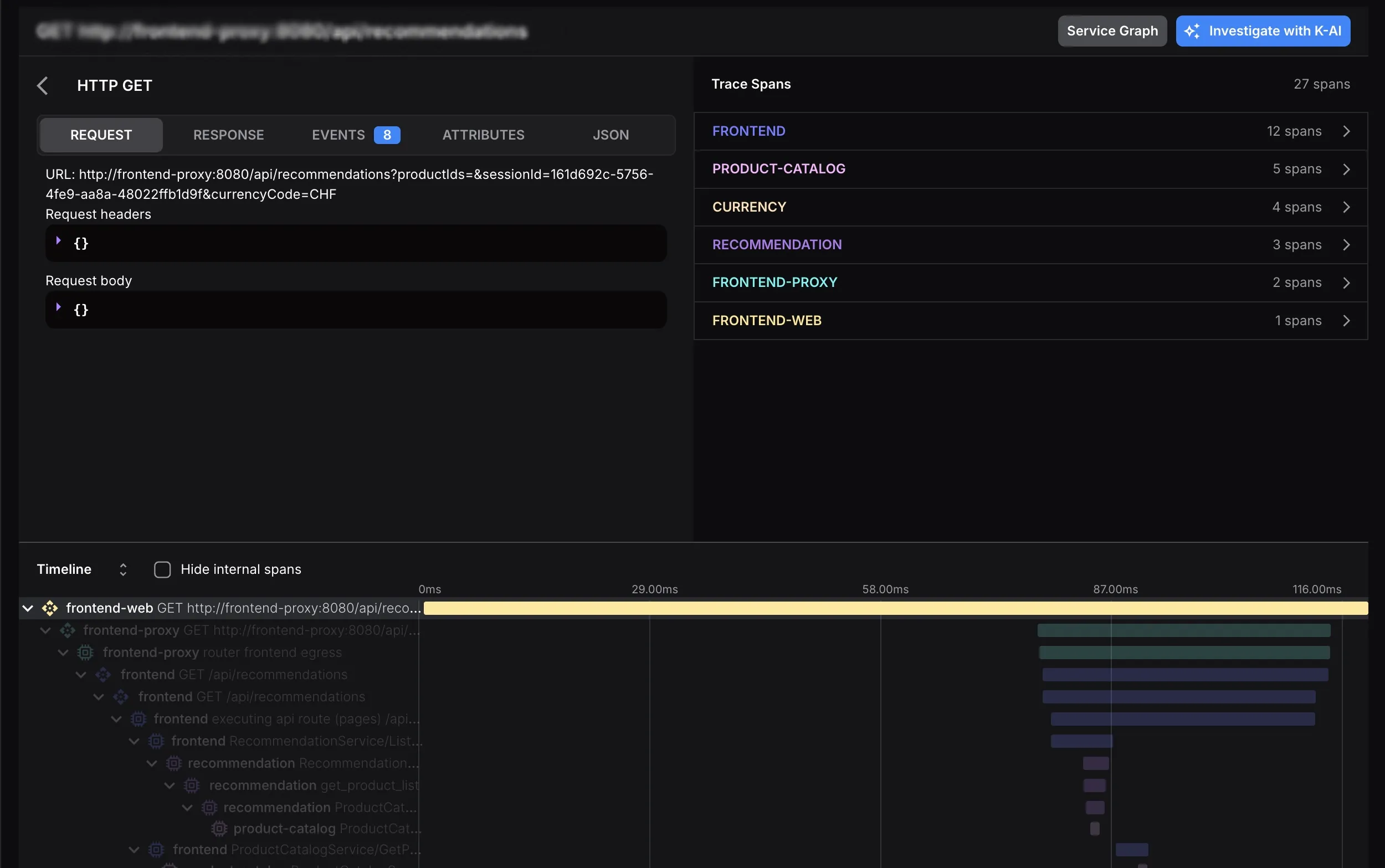
Trace Explorer
Click Traces in the left navigation menu to open the section.
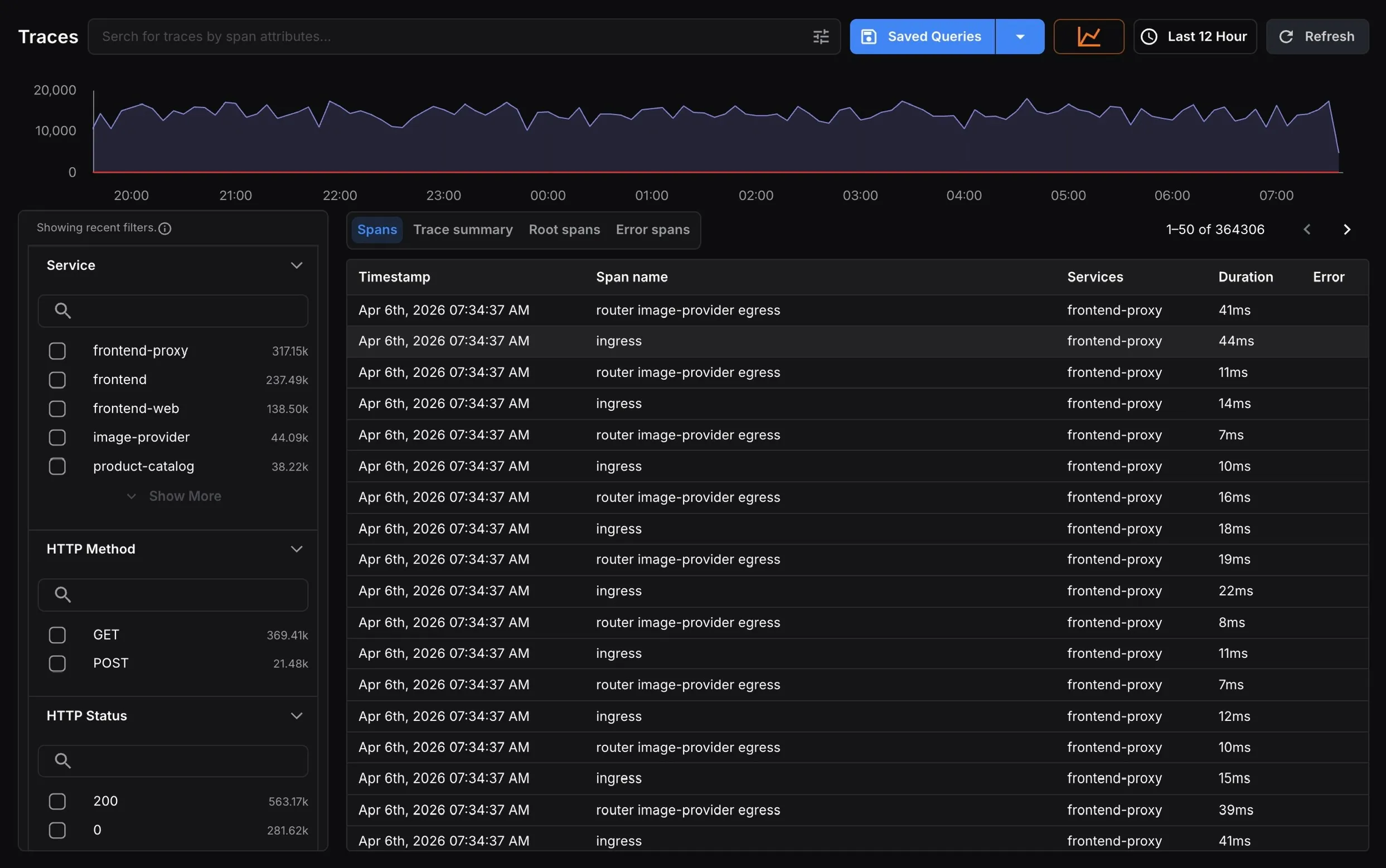
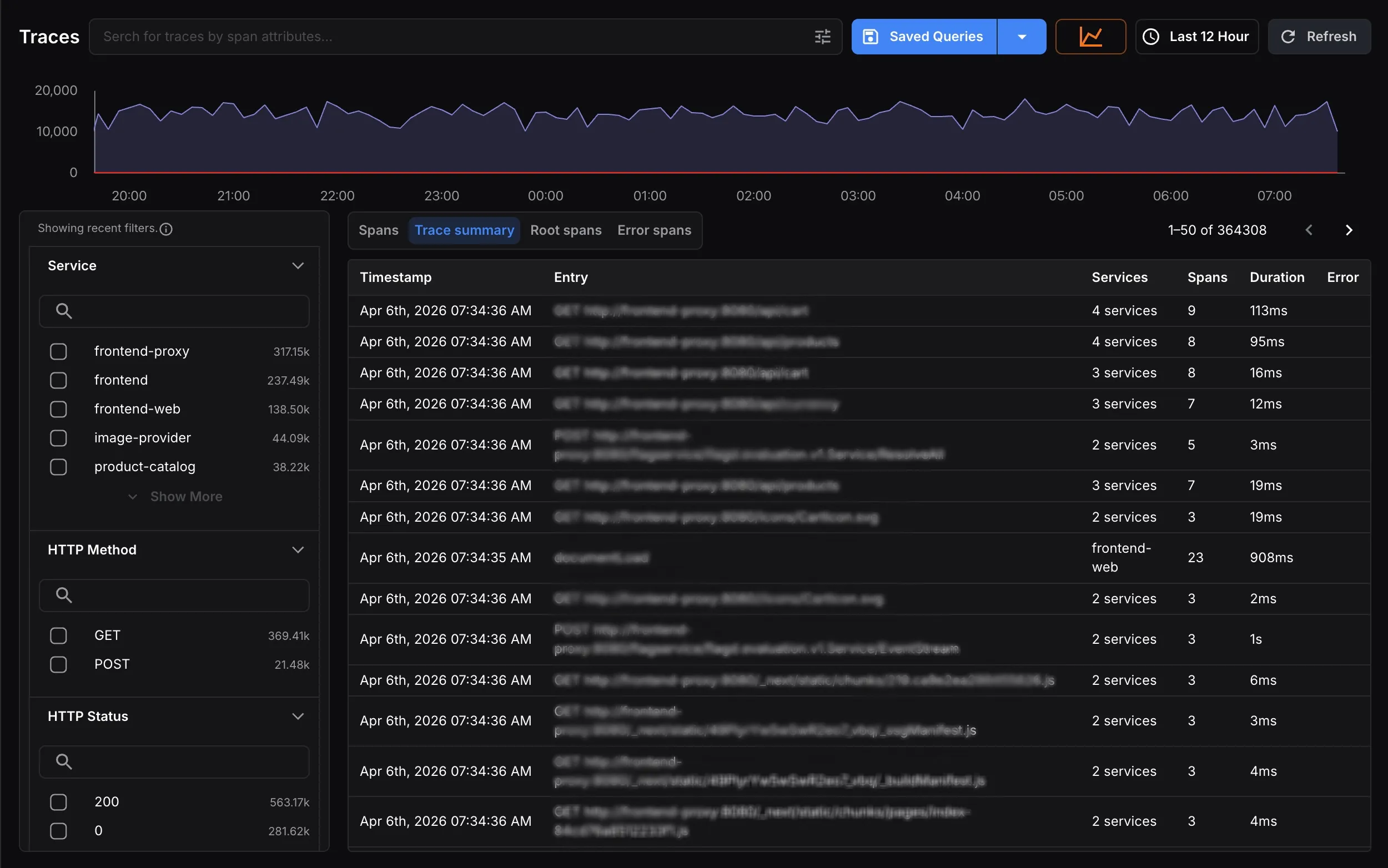
At the top of the page, the span volume graph visualizes trace activity over the selected time range. This gives you a quick pulse check on traffic patterns before you inspect individual traces.
Searching and Filtering
Section titled “Searching and Filtering”Search Bar
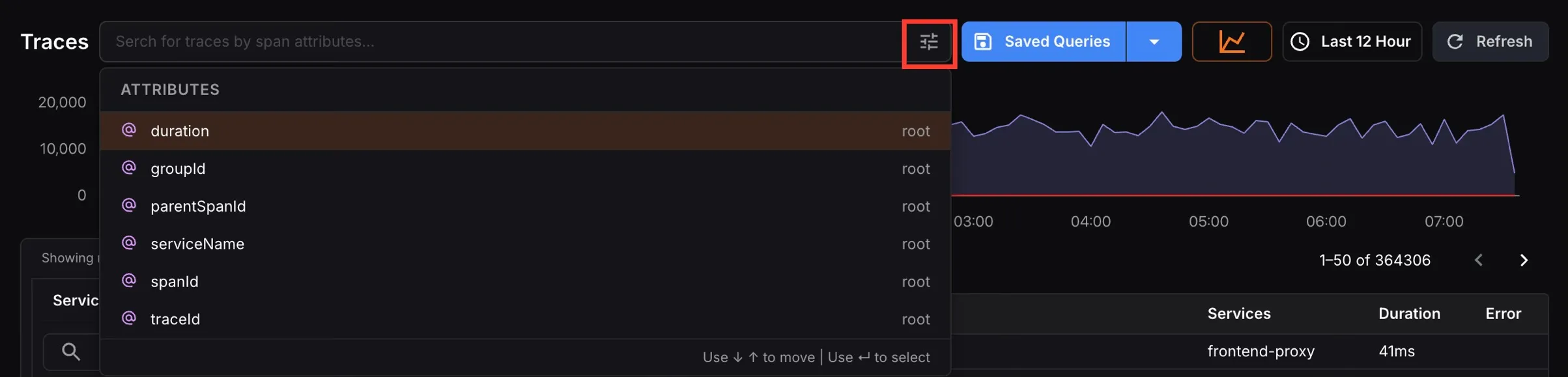
Section titled “Search Bar”Search across traces using span attributes. Click the search bar to see the list of available attributes.

Click the filter icon on the right to open the full attribute picker. Active filters appear as tags in the search bar and can be removed individually.
Sidebar Filters
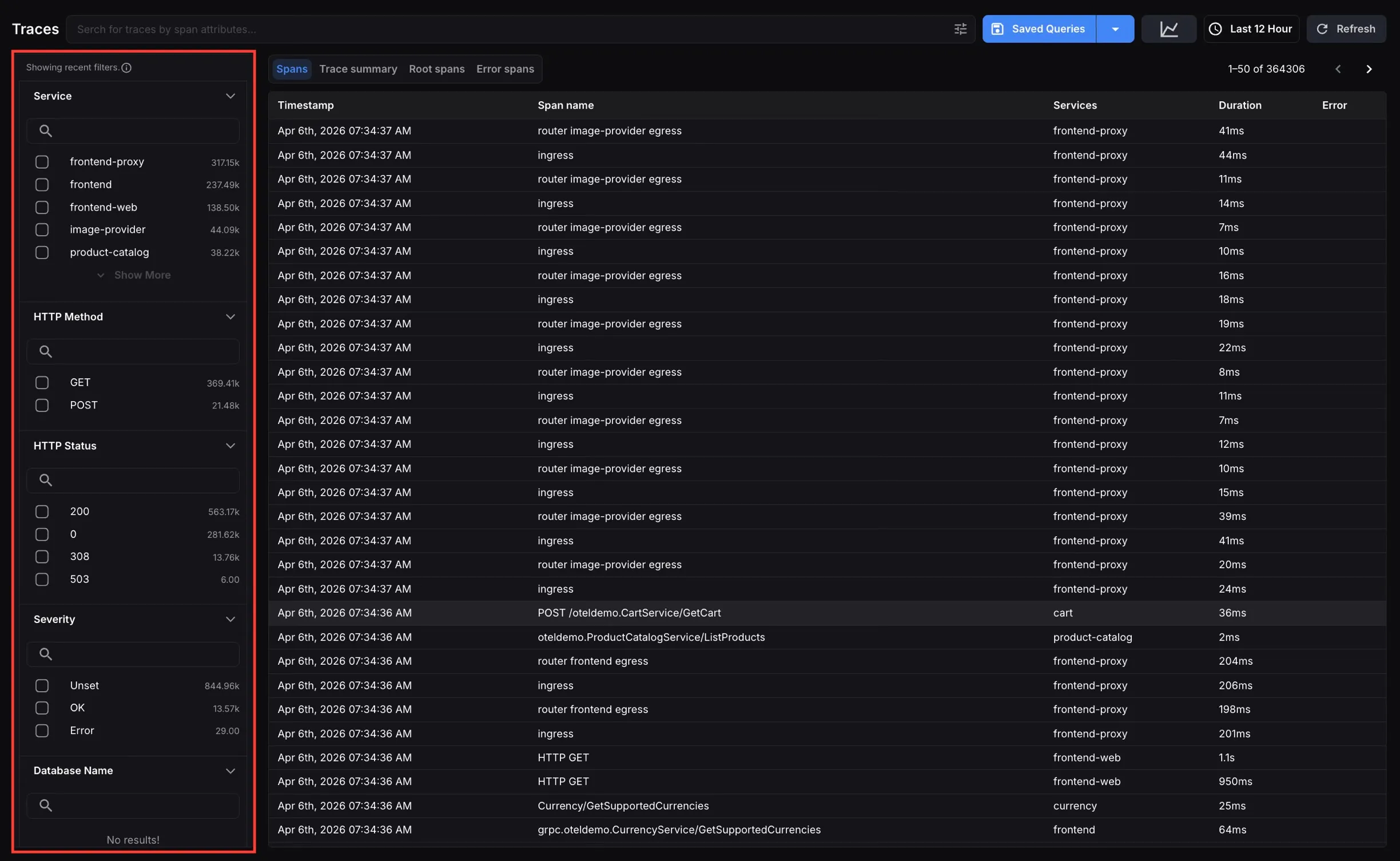
Section titled “Sidebar Filters”Use the left sidebar to filter results by:
- Service
- HTTP Method
- HTTP Status
- Severity
- Database Name
Each filter section includes a search box for quick lookup. When filters are active, a recent-filters notice appears at the top of the sidebar.
Saved Queries
Section titled “Saved Queries”Click Saved Queries to view and apply previously saved searches. To save a new query, click the dropdown arrow next to Saved Queries and select Add New.

Traces Result Views
Section titled “Traces Result Views”The Spans tab is the default view. It lists every individual span captured within the selected time range and active filters. Each row displays Timestamp, Span Name, Services, Duration, and Error.
This view is best when you need the most granular view of tracing activity.
Trace Summary
Section titled “Trace Summary”The Trace Summary tab groups spans into complete traces, giving you a higher-level view of end-to-end request journeys. Each row represents a single trace, showing its entry point, number of services, spans involved, total duration, and any errors.
Root Spans
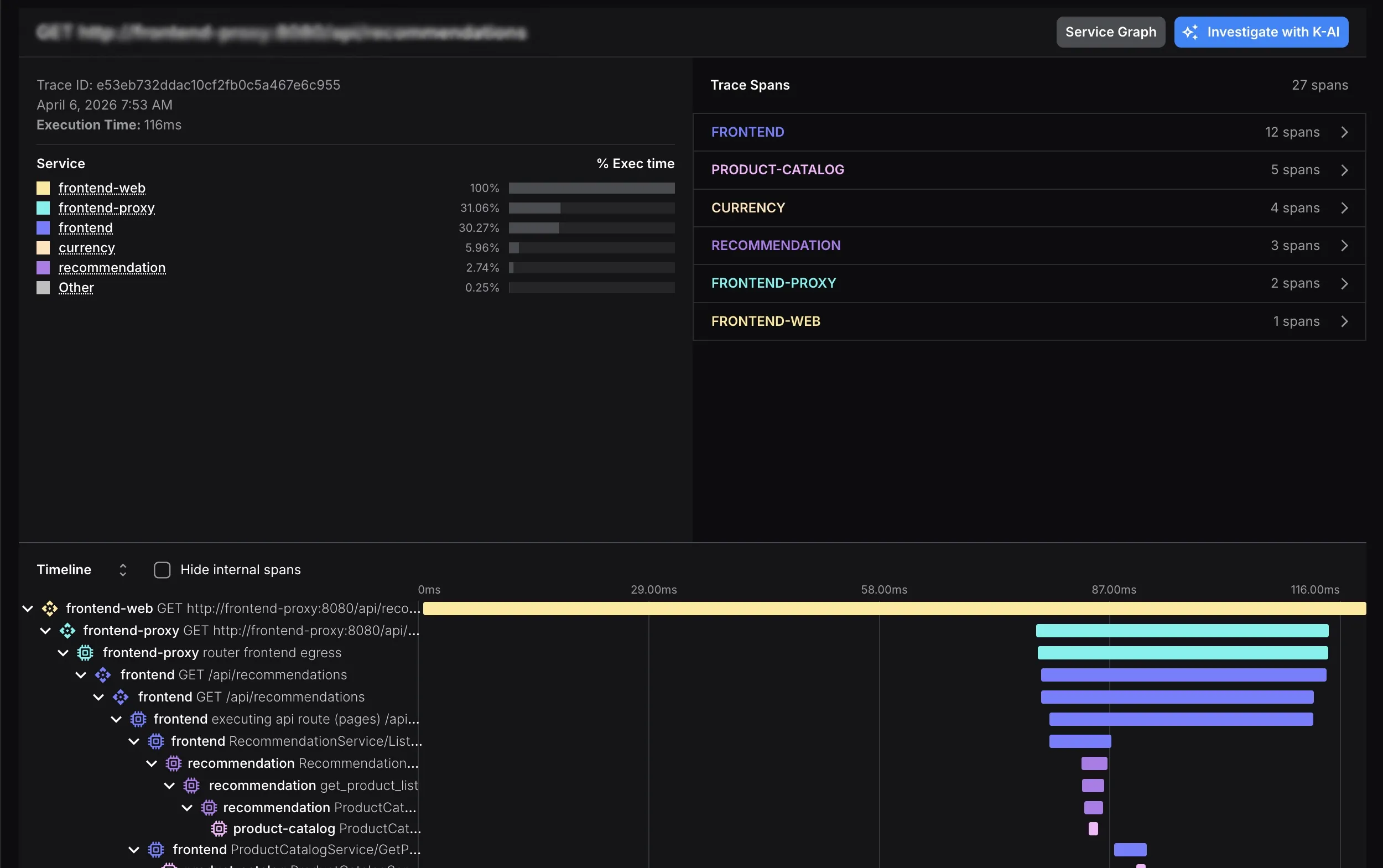
Section titled “Root Spans”The Root Spans tab shows only the root span from each trace. This makes it easier to compare top-level requests without the noise of child spans.
Services
Section titled “Services”The Services tab summarizes traffic by service so you can identify hotspots, dependency trends, and the applications generating the most trace volume.