

Subscribe to AWS CloudWatch Logs
Use this workflow after you have connected your AWS account to KloudMate. You can subscribe CloudWatch log groups by region and make those logs searchable in Log Explorer.
Lambda logs from the connected AWS account are ingested automatically.
Before You Start
Section titled “Before You Start”- Complete AWS Account Setup
- Confirm that the target log groups exist in CloudWatch
Subscribe a CloudWatch Log Group
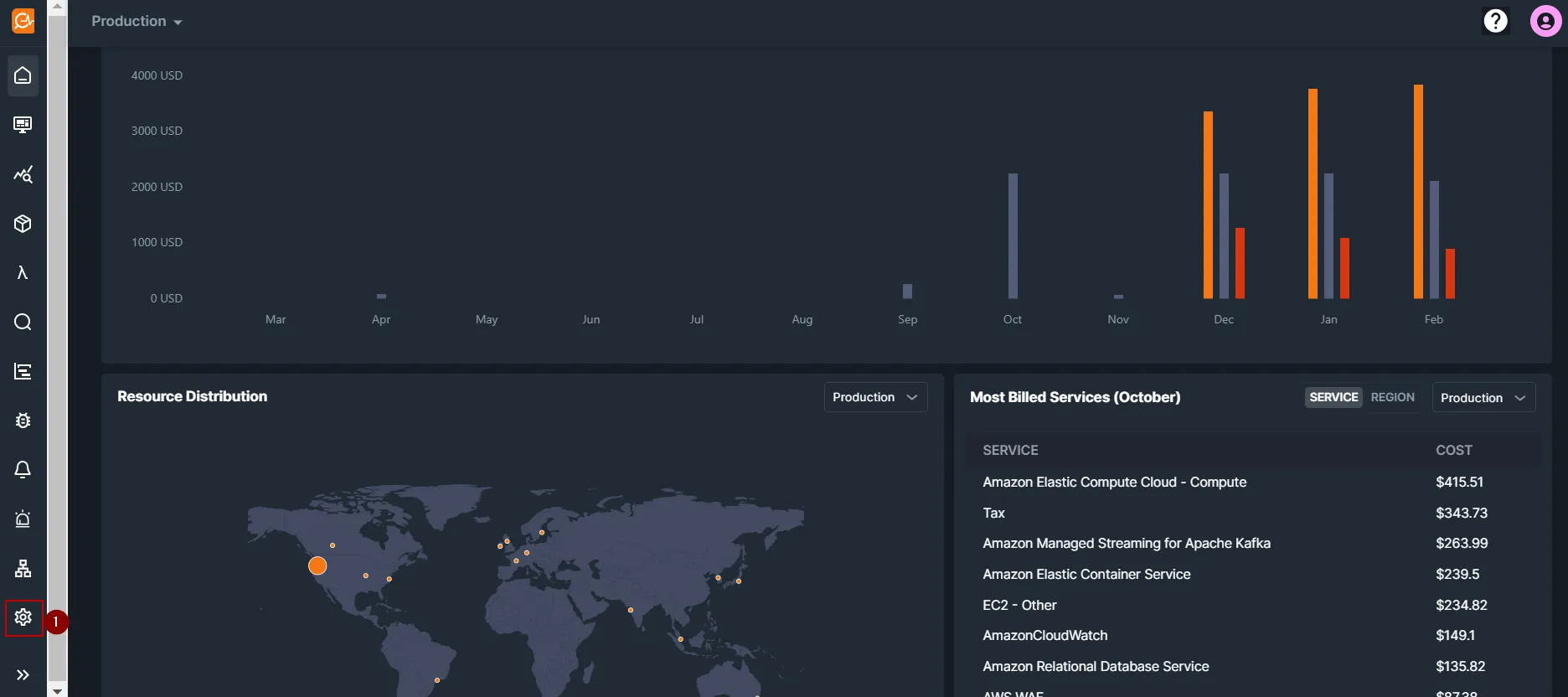
Section titled “Subscribe a CloudWatch Log Group”- From the KloudMate home screen, open Settings -> Data Sources.
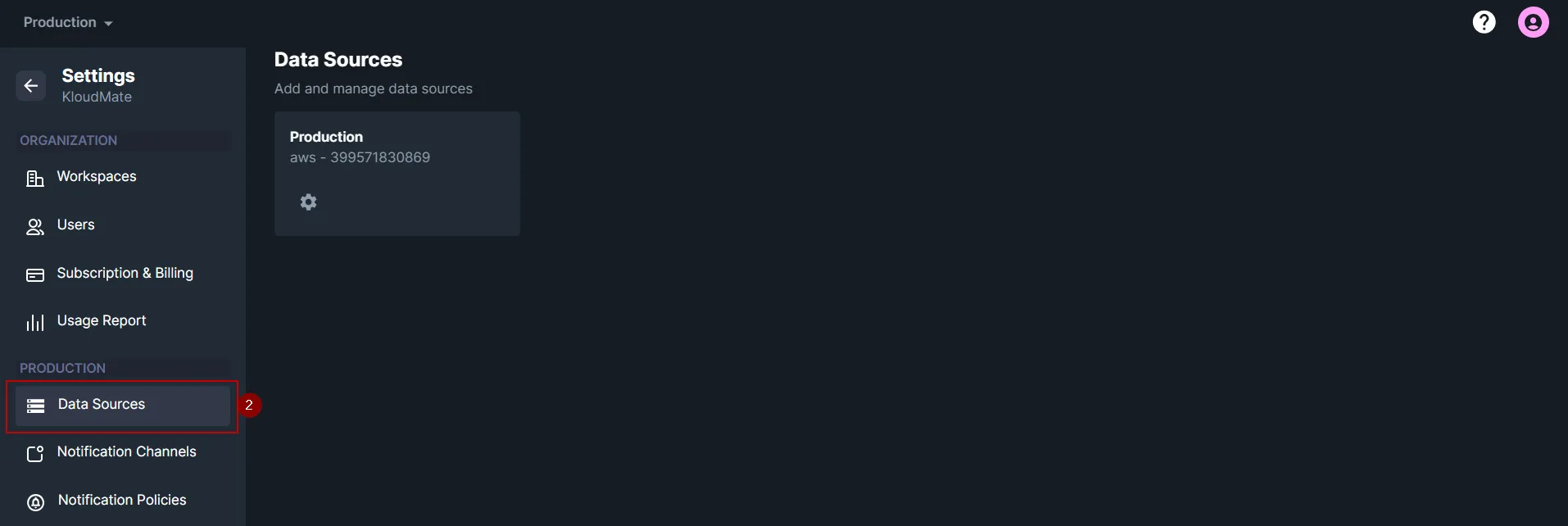
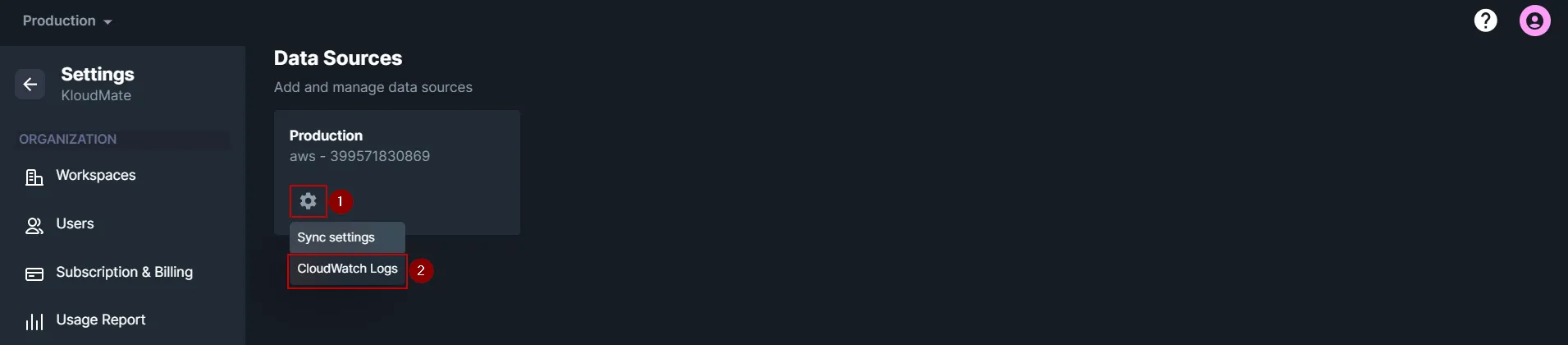
- In the list of connected AWS accounts, click the Settings icon for the account from which you want to ingest CloudWatch logs.
- Select CloudWatch Logs.
- Choose the AWS region or use search to find the required log groups.
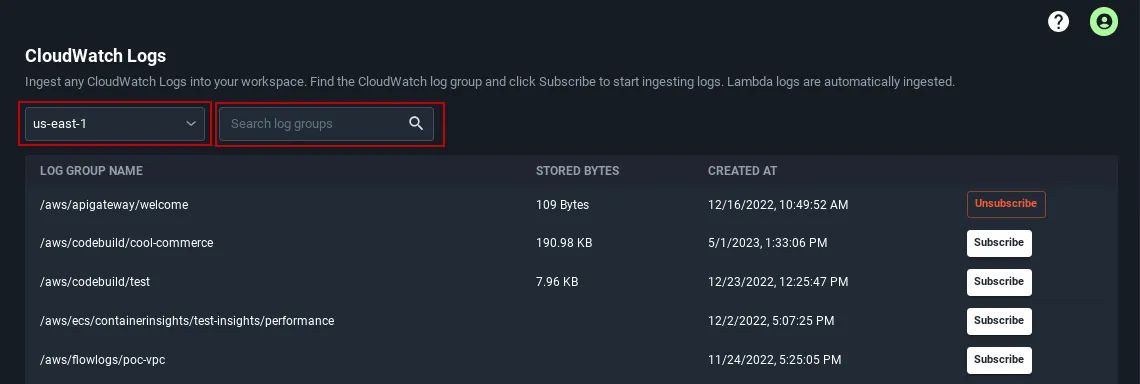
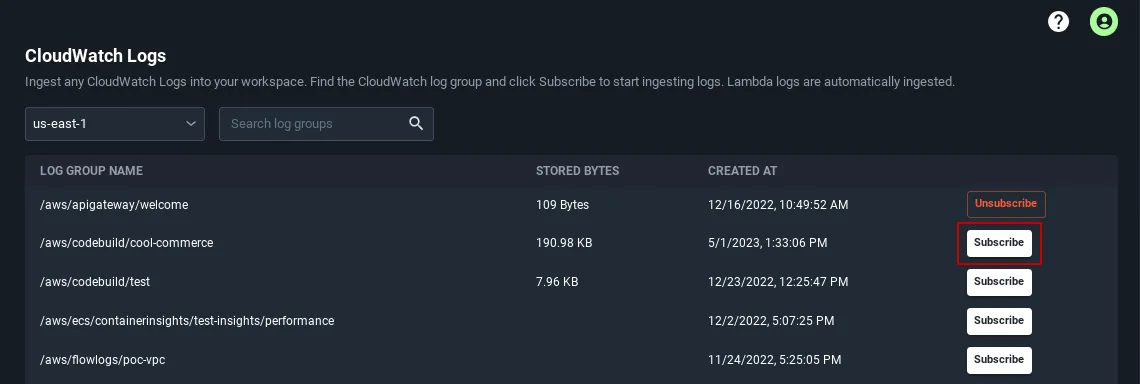
- Click Subscribe for each log group that you want KloudMate to ingest.
CloudWatch Subscription Filter Limit
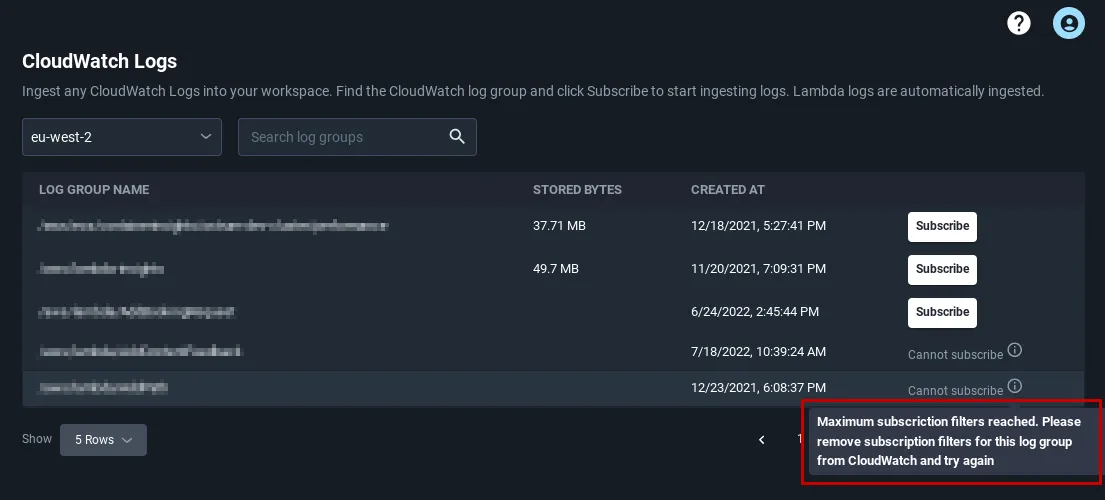
Section titled “CloudWatch Subscription Filter Limit”If a log group already has two active subscription filters, KloudMate cannot add another one until an existing filter is removed.
Remove an Existing Subscription Filter
Section titled “Remove an Existing Subscription Filter”To free a subscription slot:
- Open the AWS console.
- Go to CloudWatch -> Log groups.
- Select the relevant log group.
- Open Actions.
- Click Remove Subscription Filter.