

Adding a Panel
Panels are the individual widgets on a dashboard. Each panel visualizes a specific metric or query result. Adding panels lets you build up a complete view of the metrics you care about in one place.
From your dashboard, click Add Panel. A dialog appears with two options:

- Create from Scratch: Build a new panel with a custom query and visualization.
- Import from Library: Reuse a panel from a saved template or an existing dashboard to avoid rebuilding common visualizations.
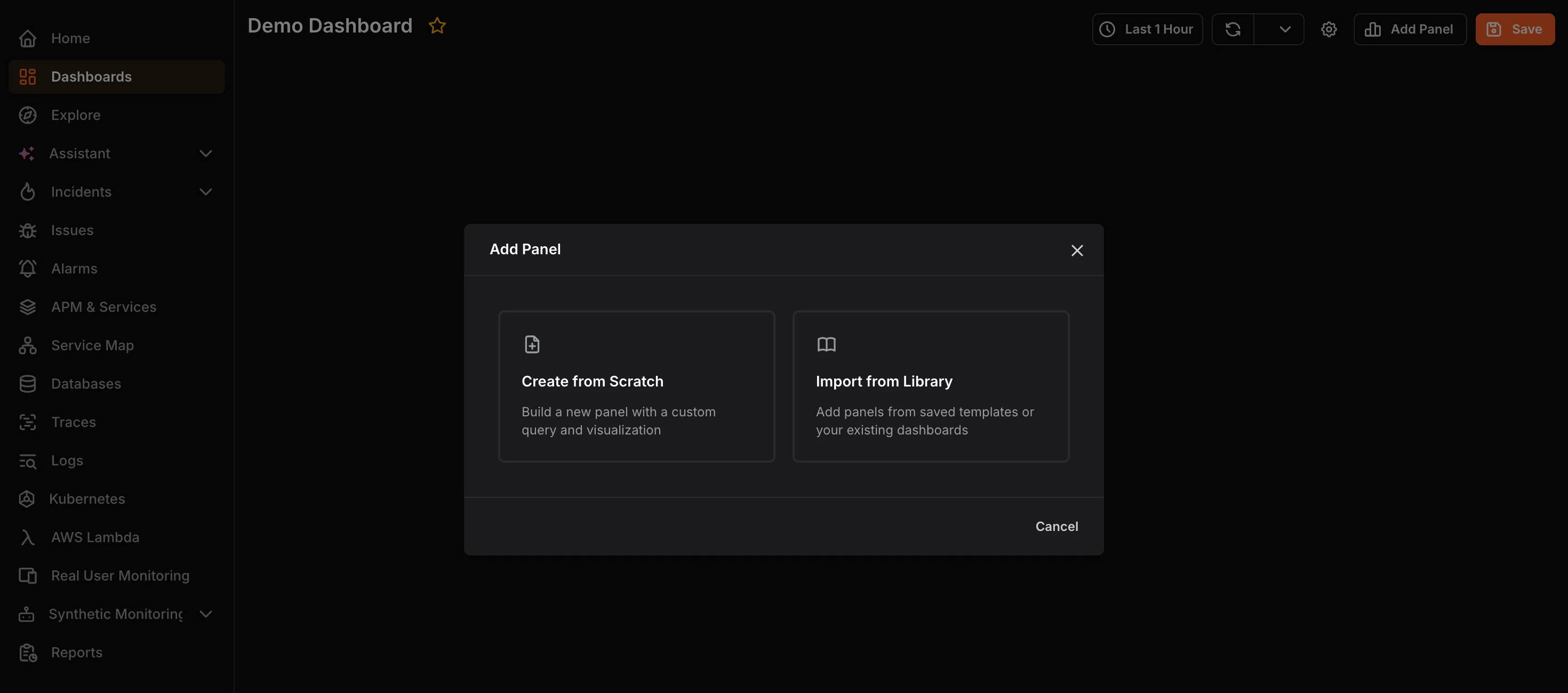
Create from Scratch
Section titled “Create from Scratch”-
Select Create from Scratch.
-
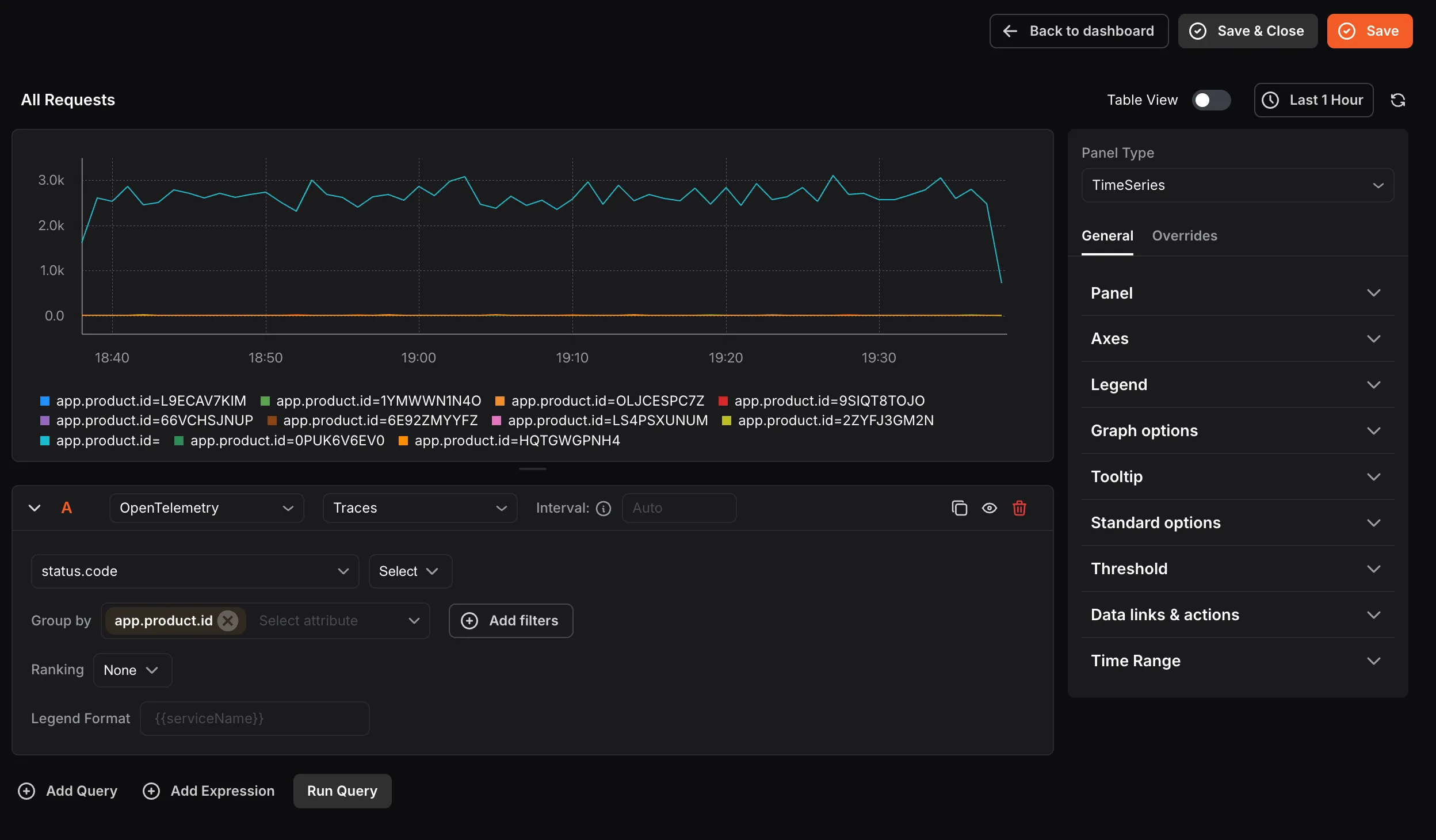
Configure your query in the query editor at the bottom. Queries define what data the panel displays.
- Select a Data Source, OpenTelemetry or aws/dev (available if an AWS account is connected).
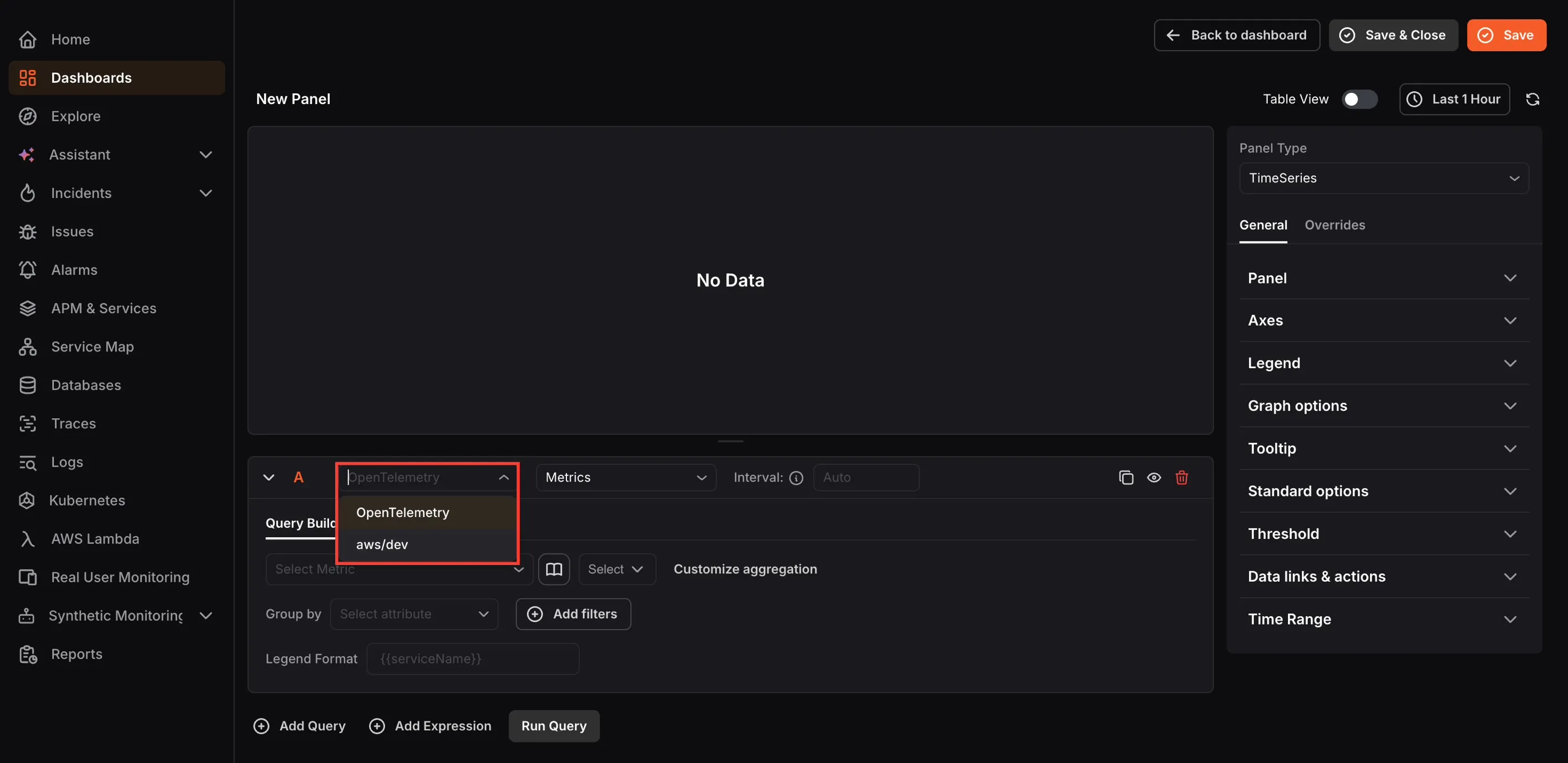
- For OpenTelemetry, select the dataset (Traces , Metrics , Logs , etc.) and configure the metric , aggregation , Group by , filters , and Legend Format using the Query Builder tab. Switch to the PromQL tab to write Prometheus queries directly.
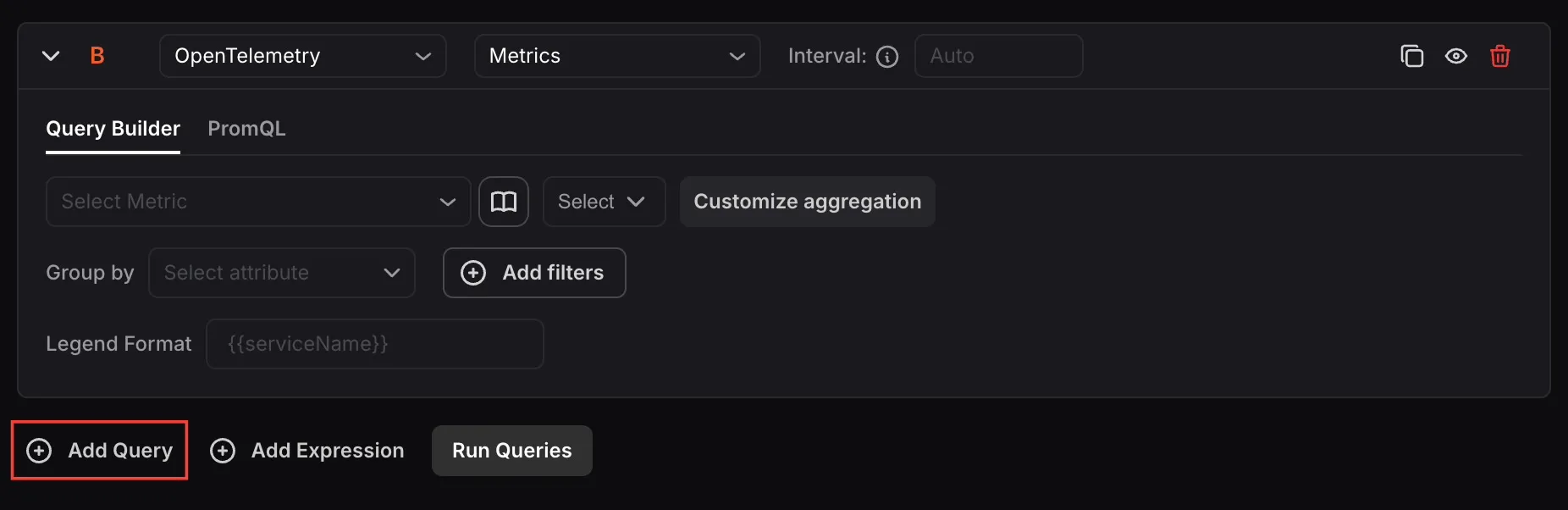
- Add multiple queries using Add Query when you want to compare or combine multiple metrics in the same panel.
- Add expressions using Add Expression to apply math, reduce, or condition logic across query results.
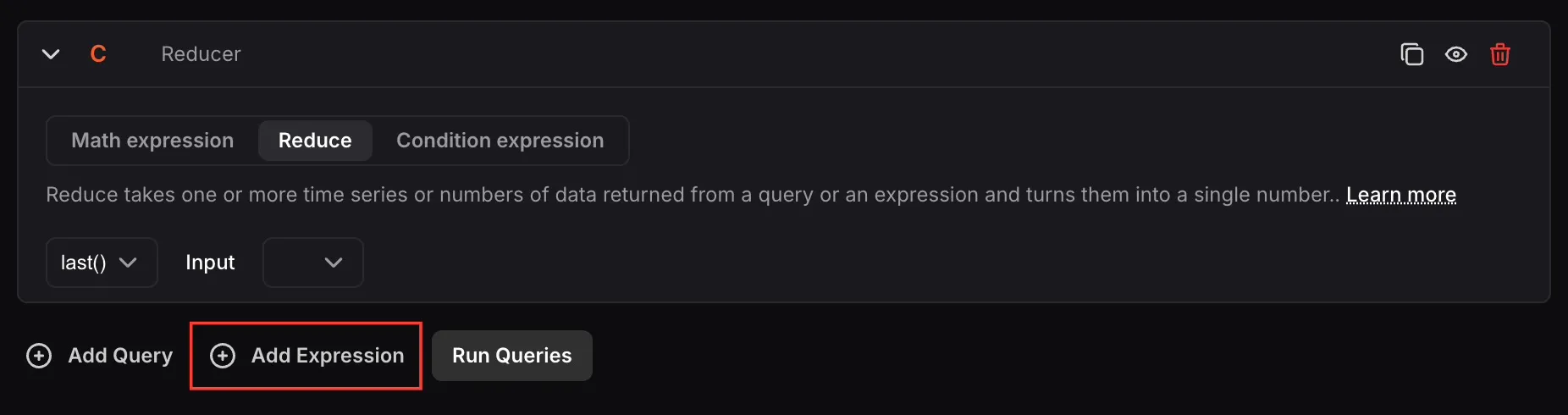
For more information on setting up queries, see Setting Up KloudMate Alarms. For expressions, see Writing Expressions for KloudMate Alarms.
- Click Run Query to execute the query and preview the result in the visualization area. Running the query lets you verify the data looks correct before saving the panel.
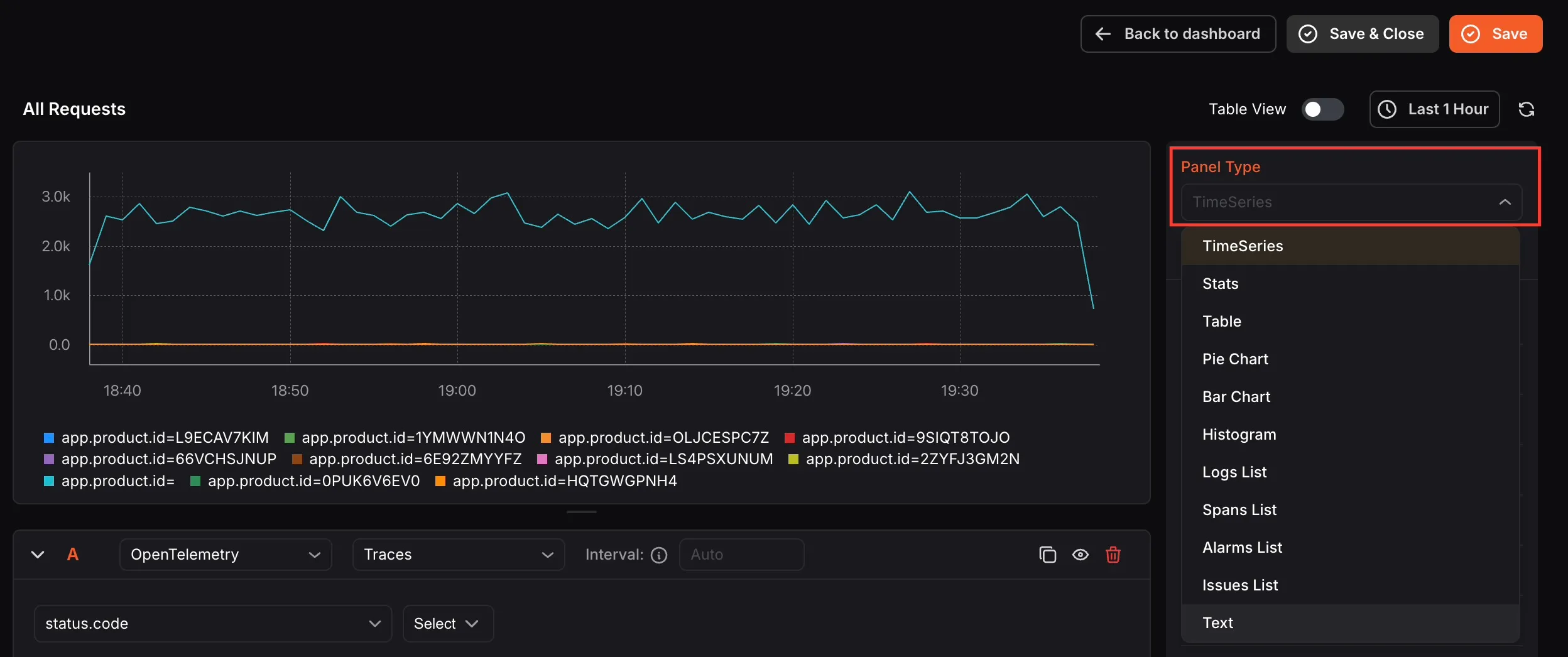
- Select a Panel Type from the dropdown on the right to control how the data is visualized.
Choosing the right type makes data easier to interpret, for example, use TimeSeries for trends over time or Stats for a single current value.
Available types are: TimeSeries , Stats , Table , Pie Chart , Bar Chart , Histogram , Logs List , Spans List , Alarms List , Issues List , and Text.
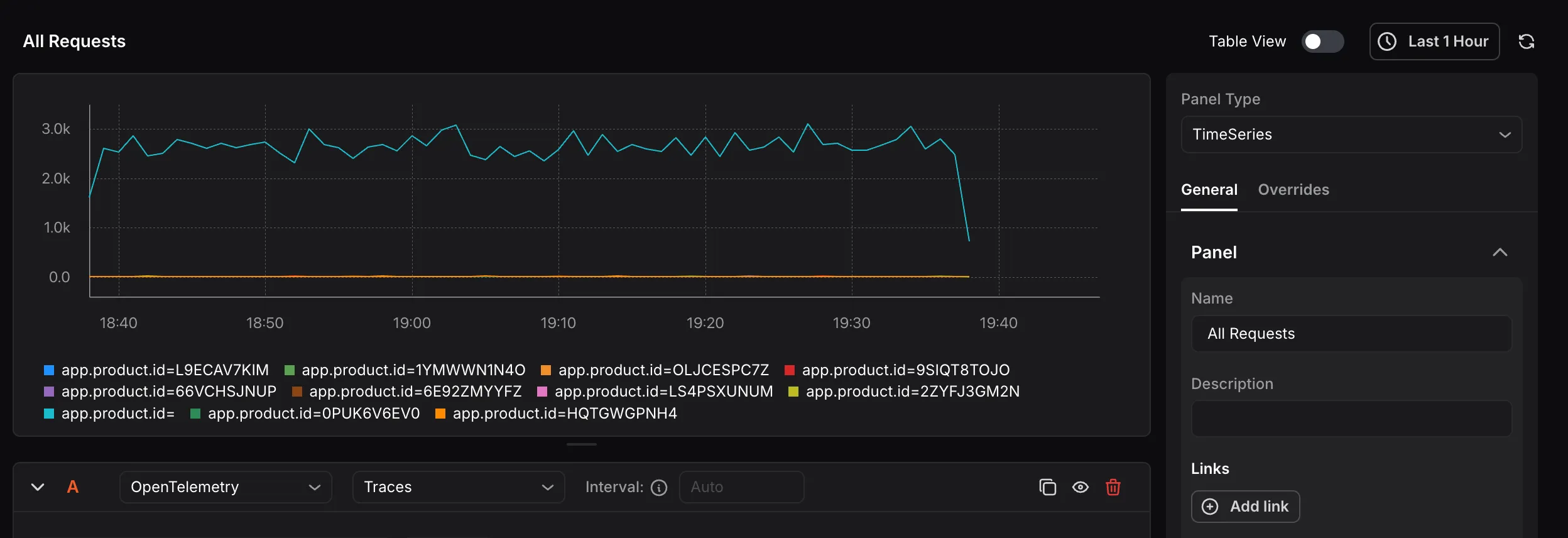
- In the right-side settings panel under General > Panel, enter a Name and Description so the panel is easy to identify on the dashboard. You can also add Links using Add link to connect the panel to related resources.
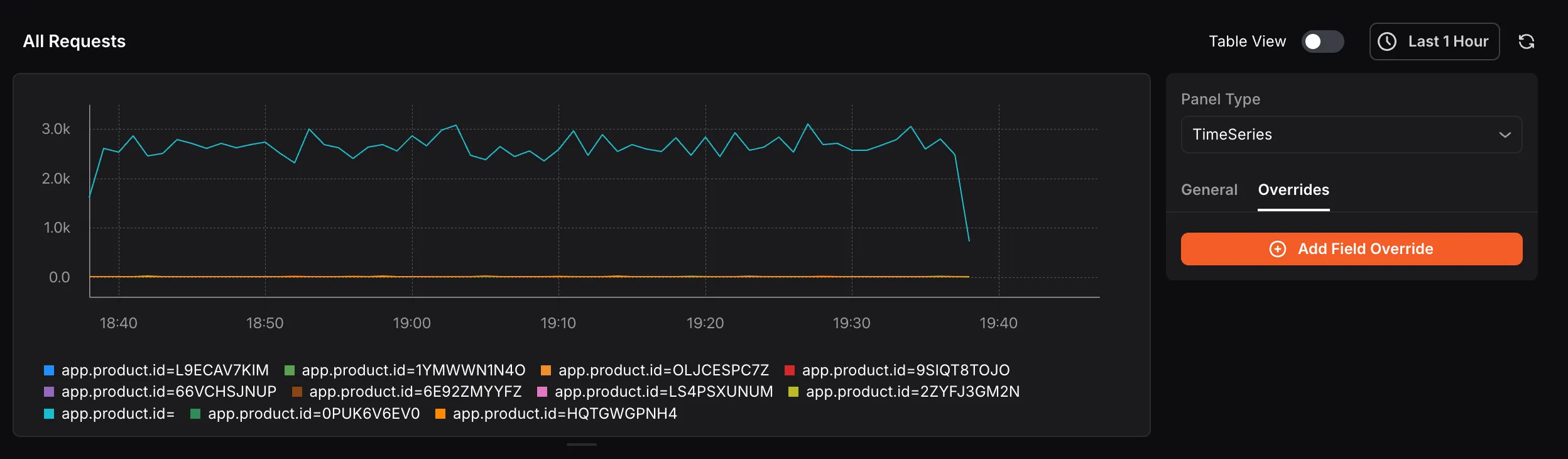
- Customize the panel appearance using the General and Overrides tabs on the right:
- General: Configure Panel name, Axes, Legend, Graph options, Tooltip, Standard options, Threshold, Data links & actions, and Time Range.
- Overrides: Click Add Field Override to apply custom display settings to specific fields, useful when different data series need different formatting.
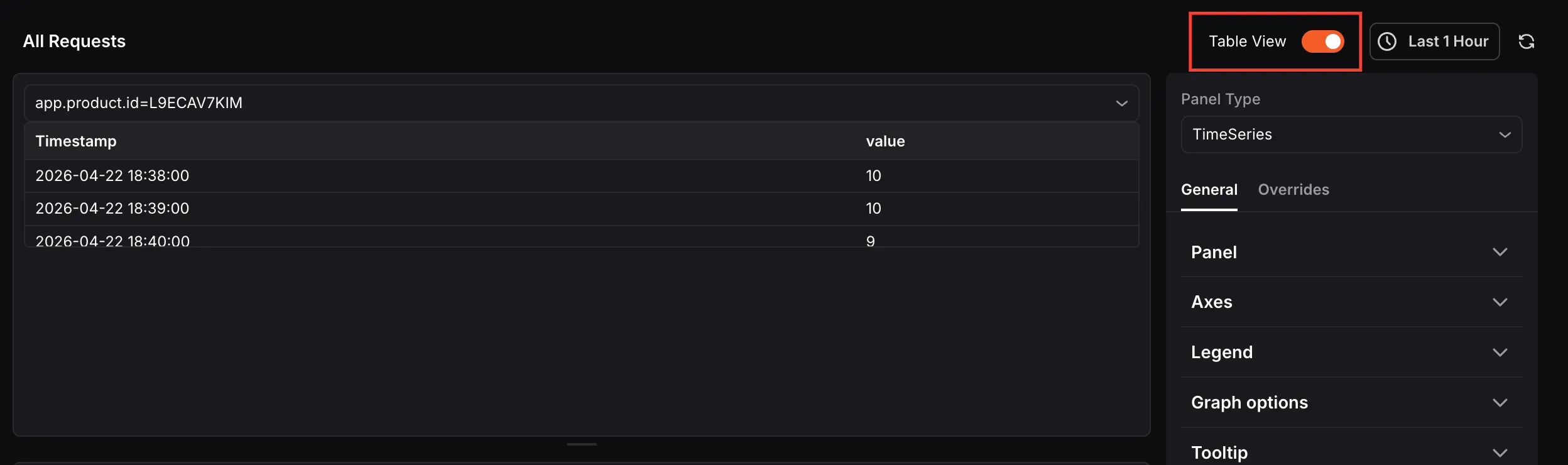
- Toggle Table View at the top of the panel editor to switch between the visual chart and a raw data table showing timestamps and values. This is helpful for inspecting exact data points.
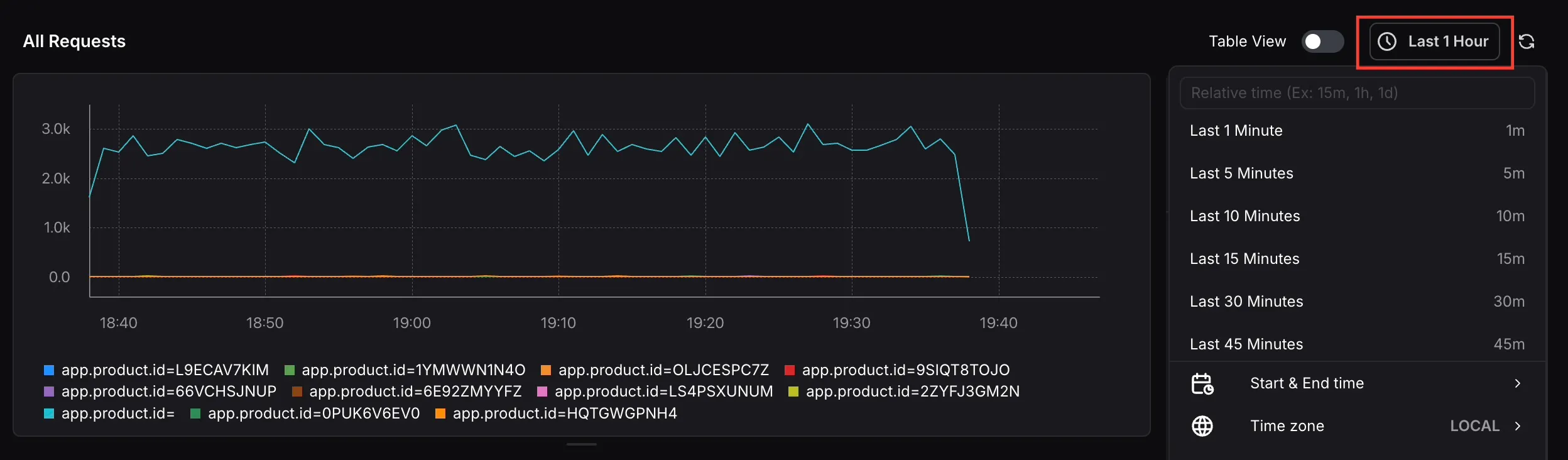
- Use the time range picker at the top to set the time window for this panel.
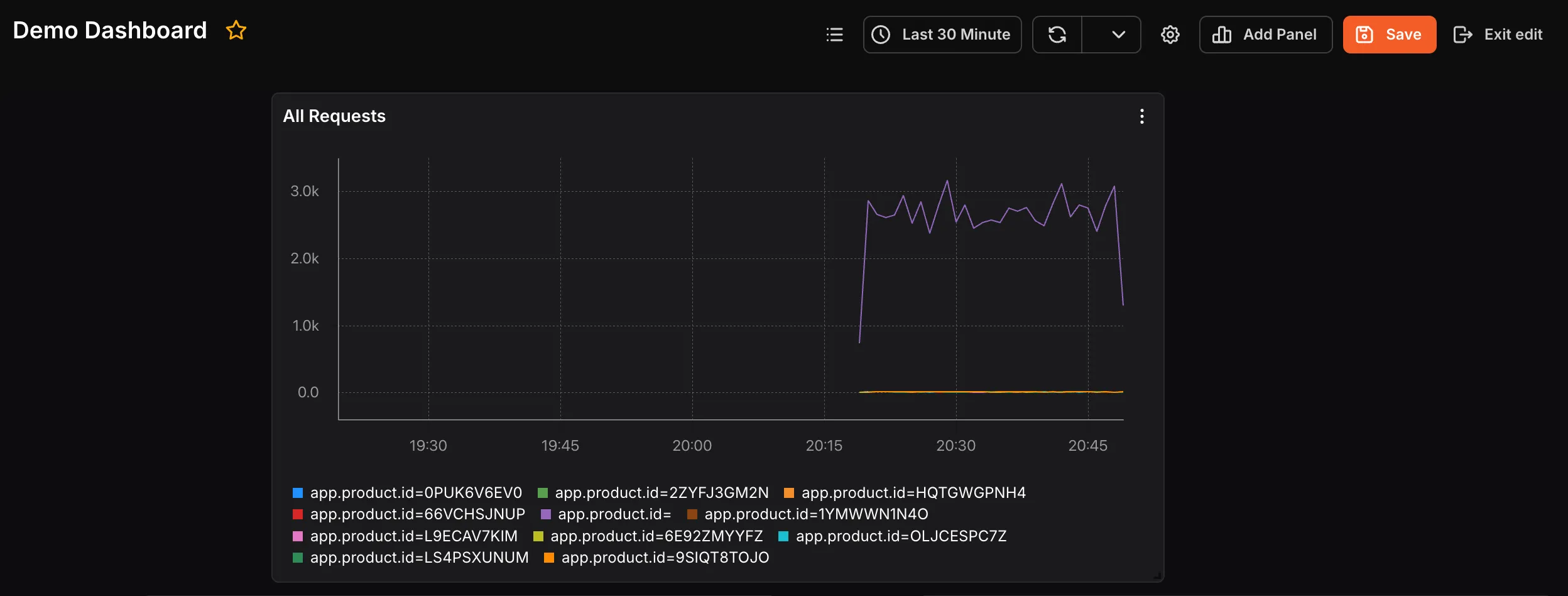
- Click Save & Close to save the panel and return to the dashboard, or Save to save without exiting the editor.
Import from Library
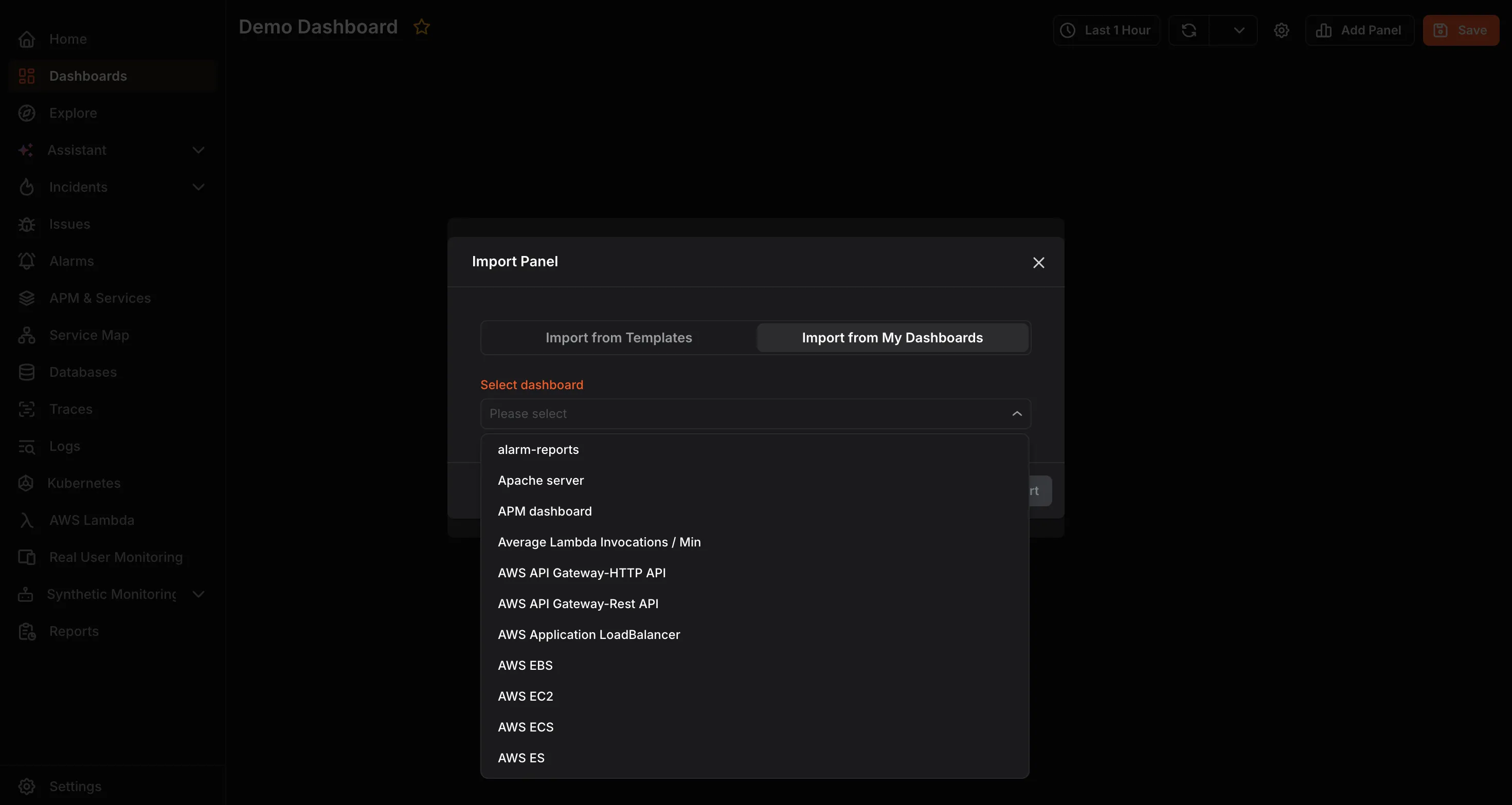
Section titled “Import from Library”Select Import from Library to add a pre-built panel to your dashboard without building it from scratch. The Import Panel dialog offers two options:
Import from Templates: Select a template from the dropdown to import a panel from a pre-built KloudMate template.
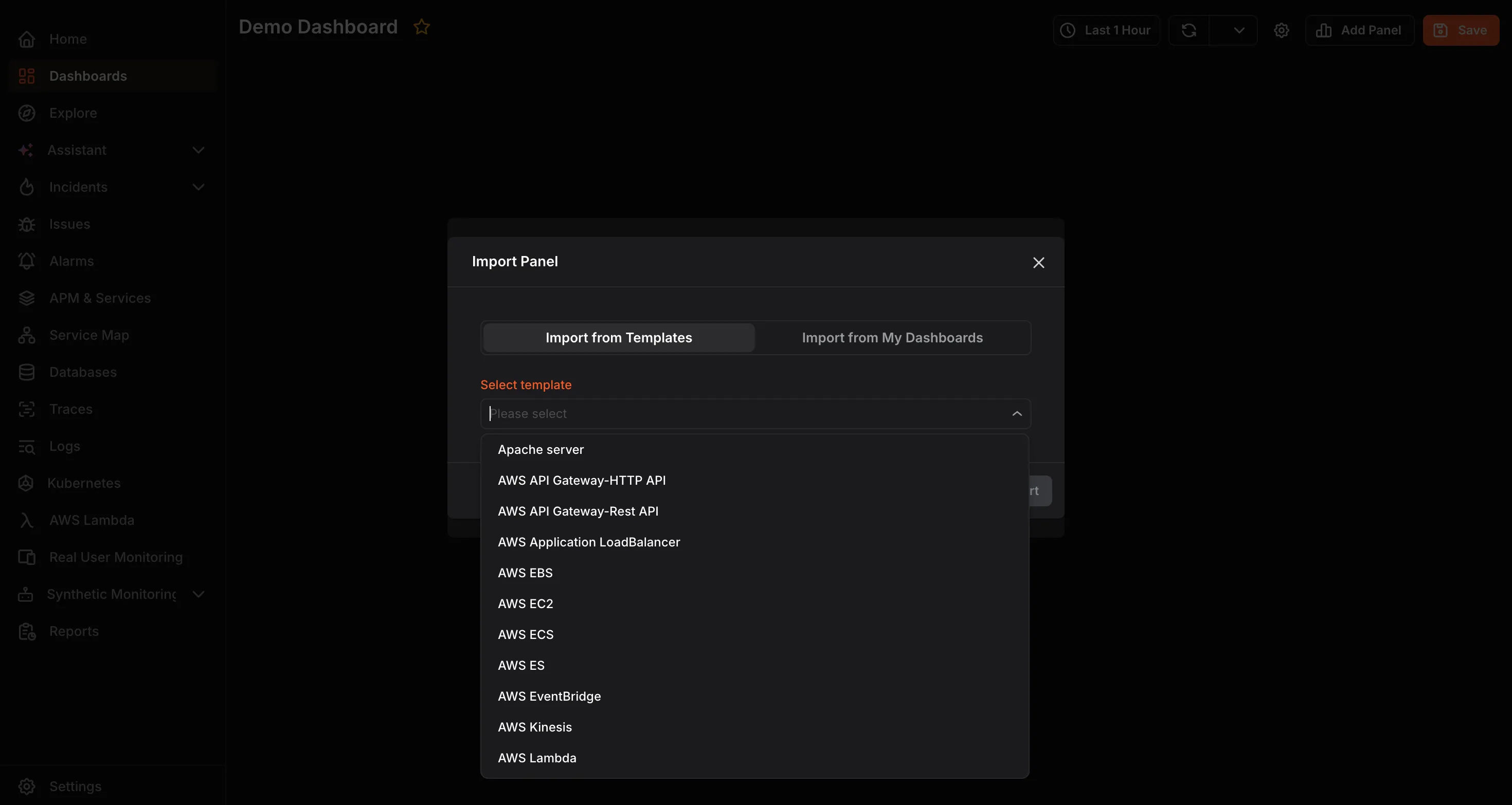
Import from My Dashboards: Select an existing dashboard from the dropdown to reuse a panel you have already built. This saves time when the same metric needs to appear across multiple dashboards.
Once imported, you can edit , delete , or duplicate the panel using the panel’s more options menu.