

Adding Links to Dashboards
KloudMate dashboards allow adding both internal dashboard links and external URLs, helping you quickly navigate to related resources for streamlined data analysis and correlation.
Add a Dashboard Link
Section titled “Add a Dashboard Link”To add a link to another KloudMate dashboard:
-
Navigate to the dashboard where the link will be added.
-
Open Dashboard Settings and click on the General tab.
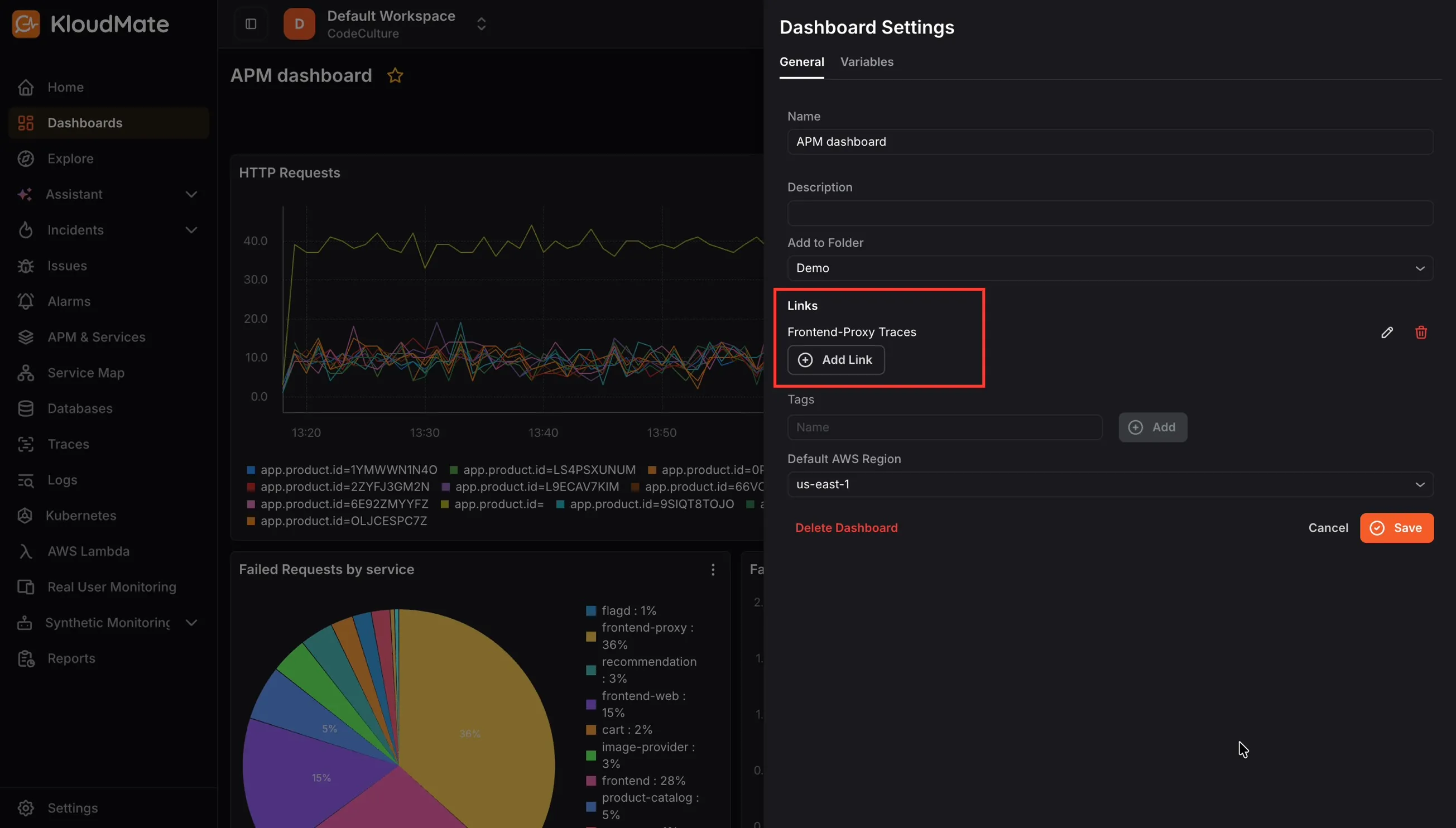
- Click Add Link.
-
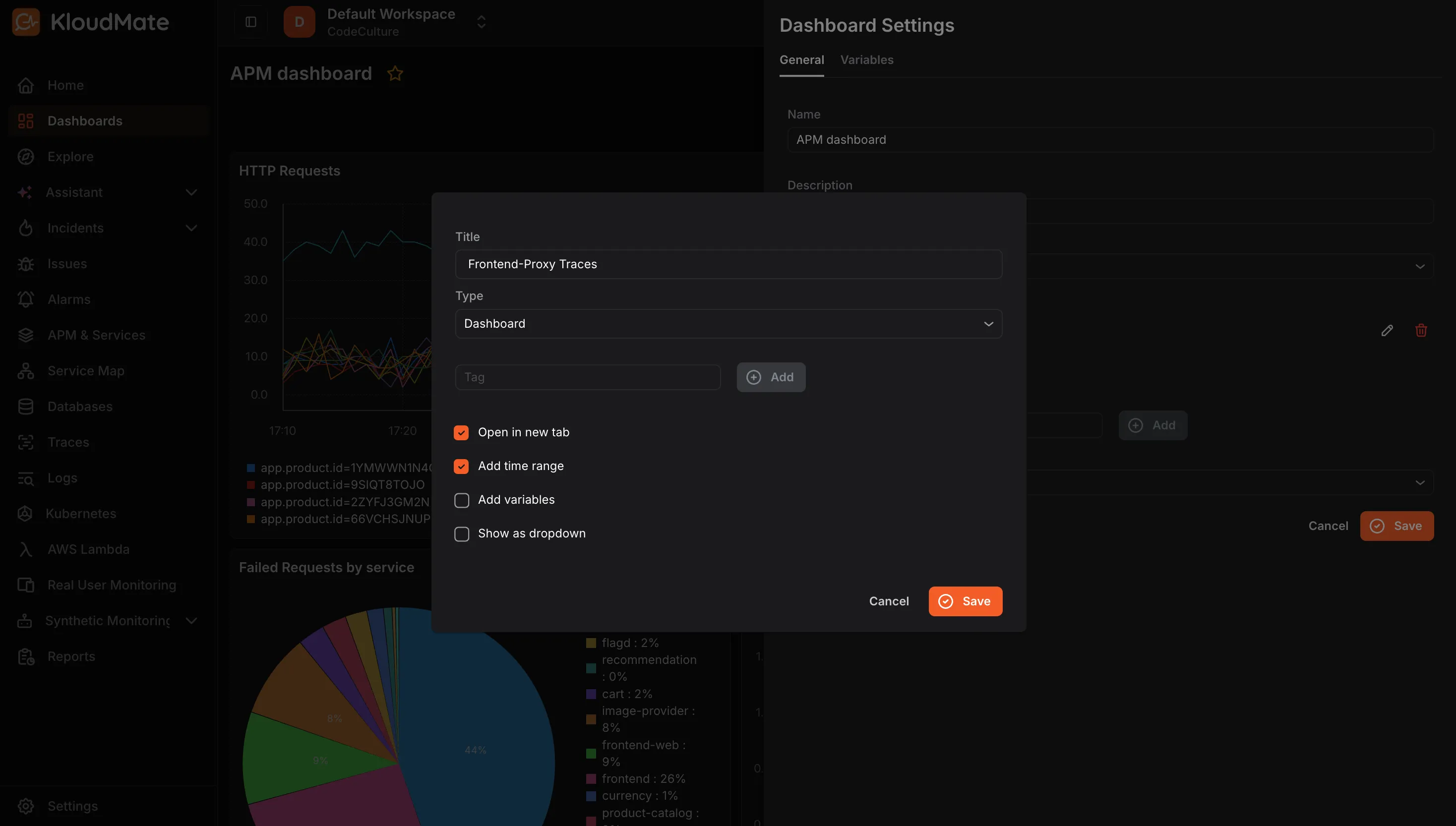
Enter a Title for your link.
-
Select Dashboard as the link type from the dropdown.
-
Optionally, add a Tag to reference the target dashboard.
-
Select from the available options:
- Open in new tab: Opens the linked dashboard in a separate browser tab.
- Add time range: Transfers the time range selected in the main dashboard to the linked dashboard.
- Add variables: Transfers variables from the main dashboard to the linked dashboard if the same variables are available.
- Show as dropdown: Displays multiple dashboard links as a dropdown, useful when several links are added to the same dashboard.
- Click Save.
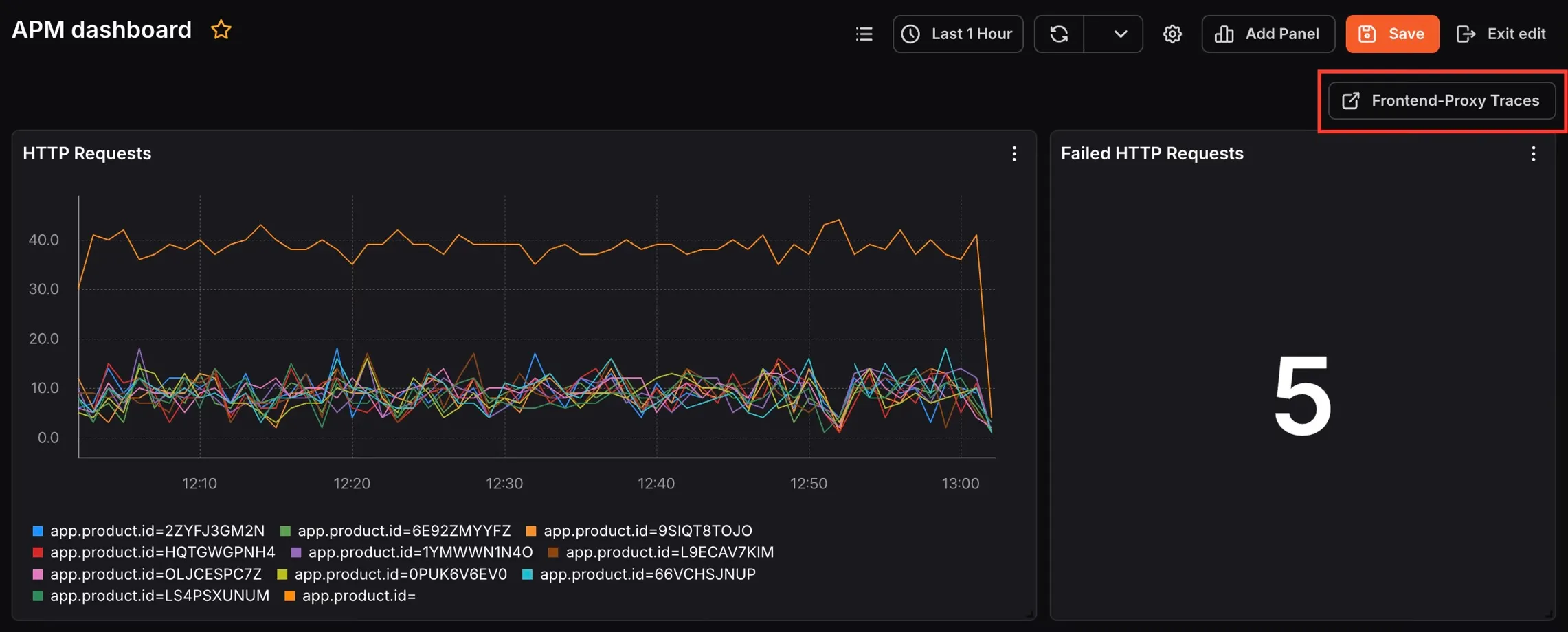
Once saved, the link appears as a button in the top-right corner of the dashboard.
Add a URL Link to a Dashboard
Section titled “Add a URL Link to a Dashboard”To add an external URL as a dashboard link:
- Follow steps 1–4 from Add a Dashboard Link.
-
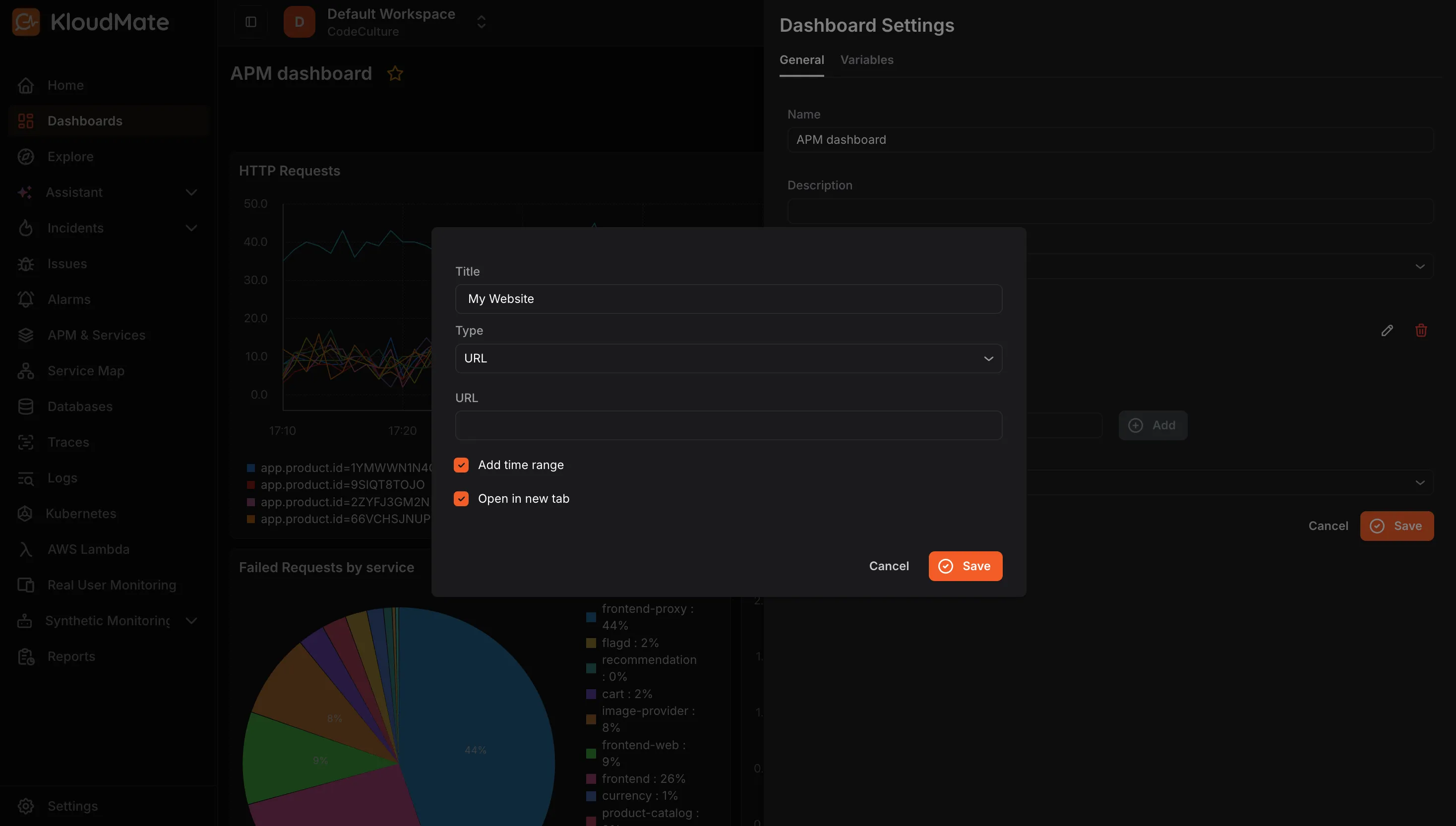
Select URL as the link type from the dropdown.
-
Enter the desired URL in the URL field.
-
Select from the available options:
- Add time range: Transfers the dashboard’s selected time range to the linked URL if that URL supports time range filtering.
- Open in new tab: Opens the URL in a new browser tab.
- Click Save.
Add a Data Link to a Panel
Section titled “Add a Data Link to a Panel”To add a URL link to an individual panel:
-
Navigate to the dashboard containing the panel and open it for editing.
-
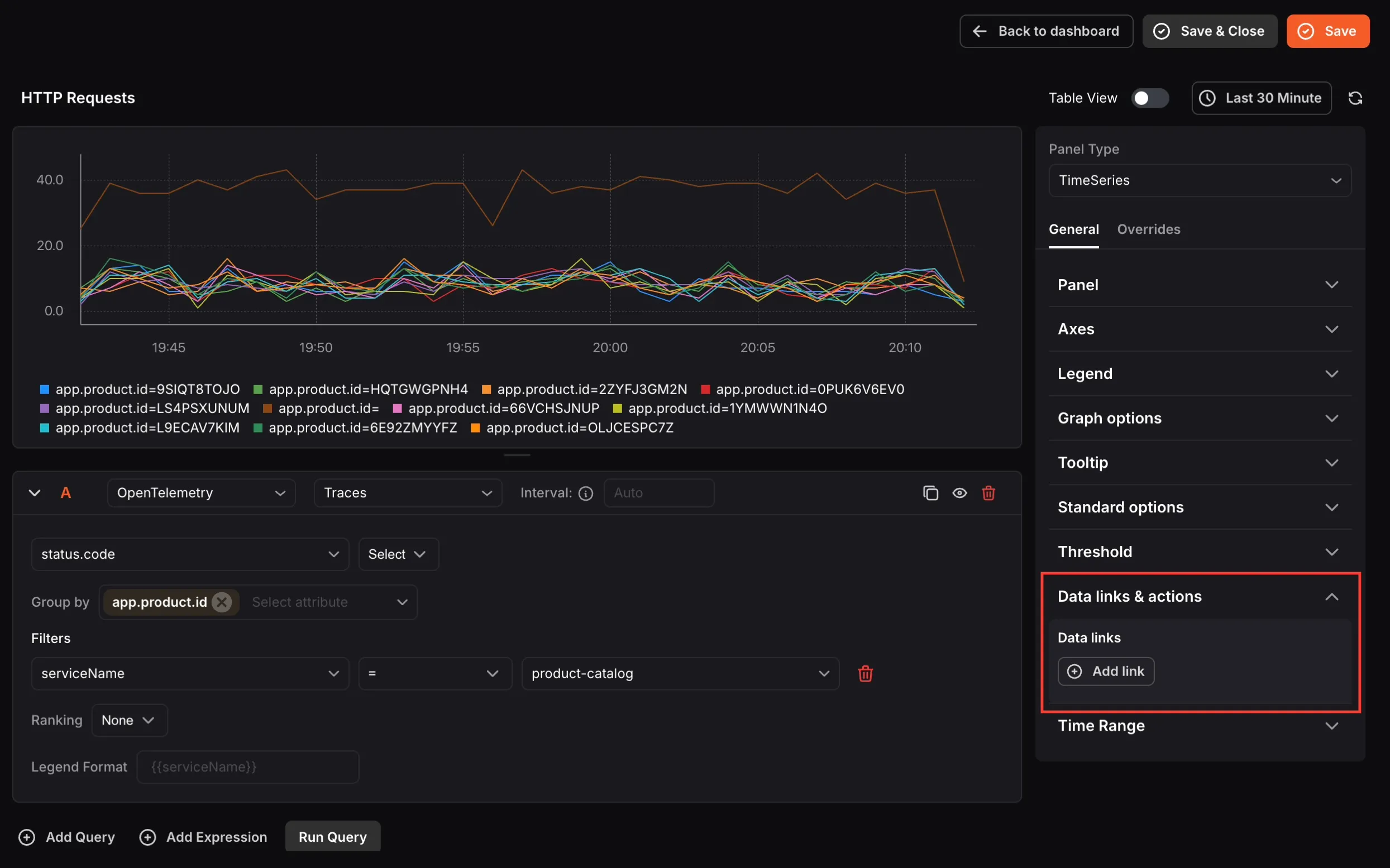
On the right-hand panel settings, scroll down to Data links & actions.
-
Under Data links, click Add link.
-
Enter a Title and the URL for the link.
-
Toggle Open in new tab if needed.
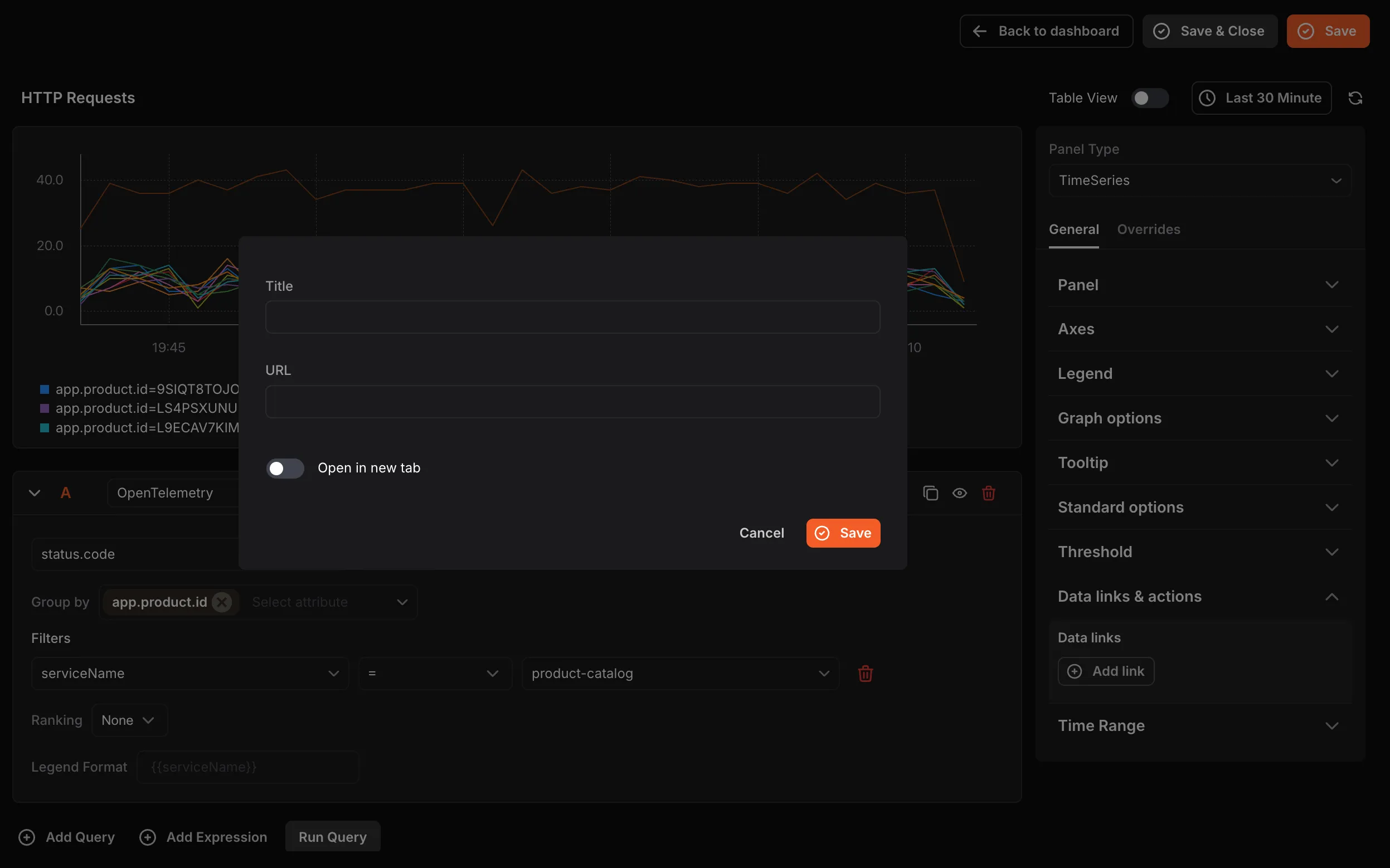
- Click Save.