

Managing Panels
Panel management actions are available in two modes, view mode and edit mode. Some actions are only available once you enter edit mode by clicking the Edit icon in the dashboard toolbar.
View Mode
Section titled “View Mode”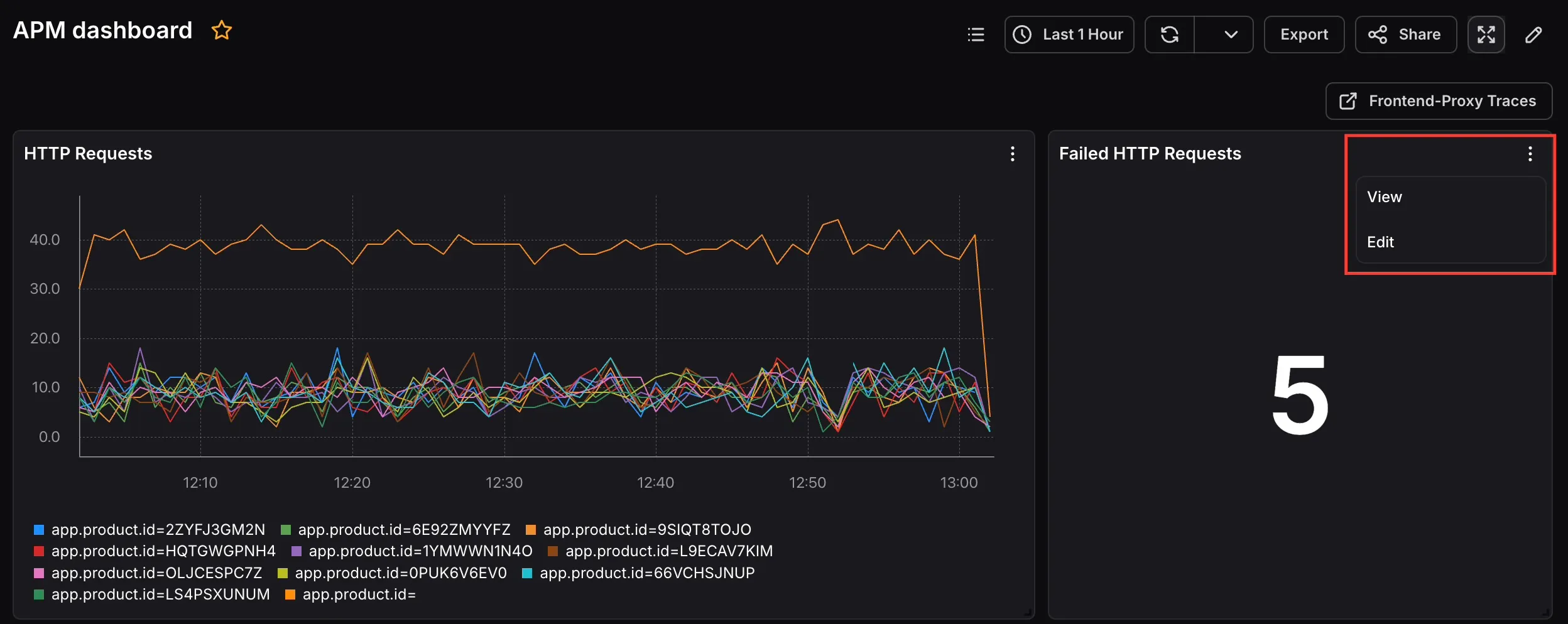
In view mode, click the more options (⋯) icon on any panel to access:
- View: Opens the panel in a focused full view for a closer look at the data.
- Edit: Opens the panel editor to modify the query, visualization, or settings.
Edit Mode
Section titled “Edit Mode”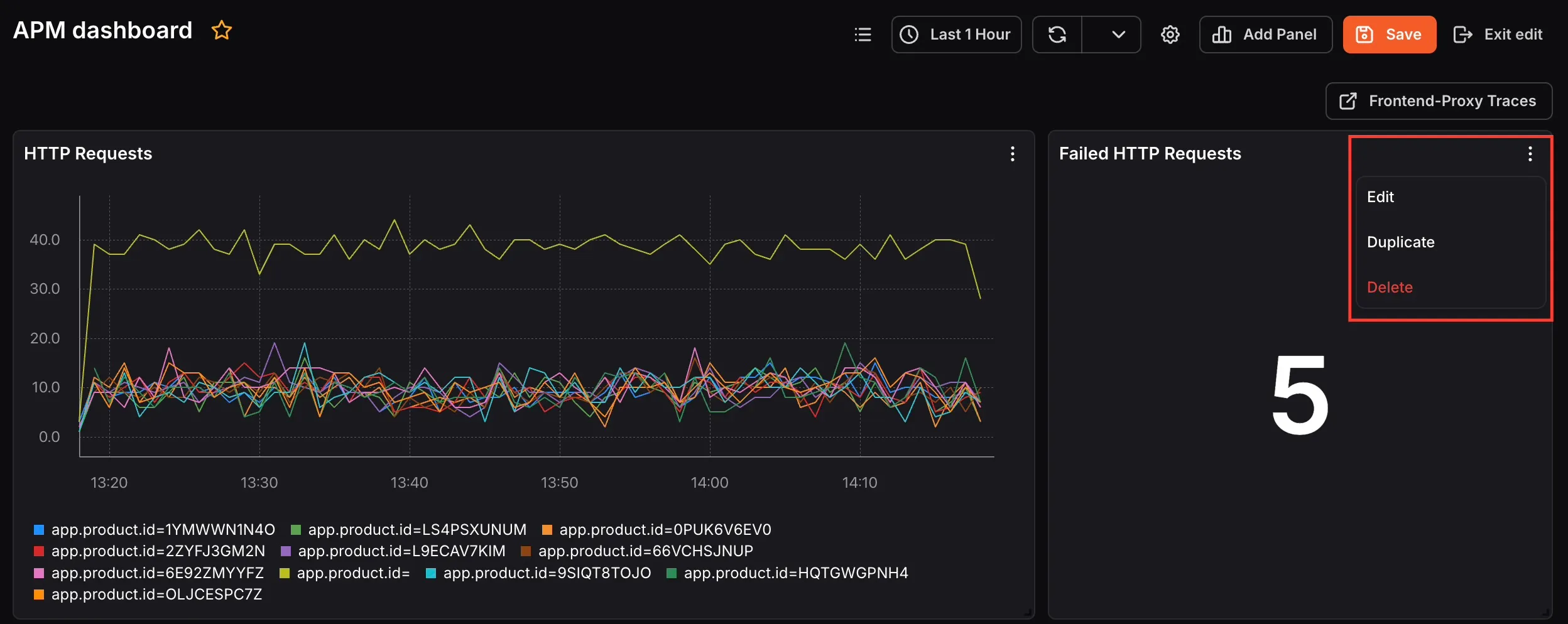
In edit mode, click the more options (⋯) icon on any panel to access:
- Edit: Opens the panel editor to modify the query, visualization, or settings.
- Duplicate: Creates a copy of the panel on the same dashboard. Useful when you need a similar panel with minor query differences.
- Delete: Removes the panel from the dashboard.
Reposition a Panel
Section titled “Reposition a Panel”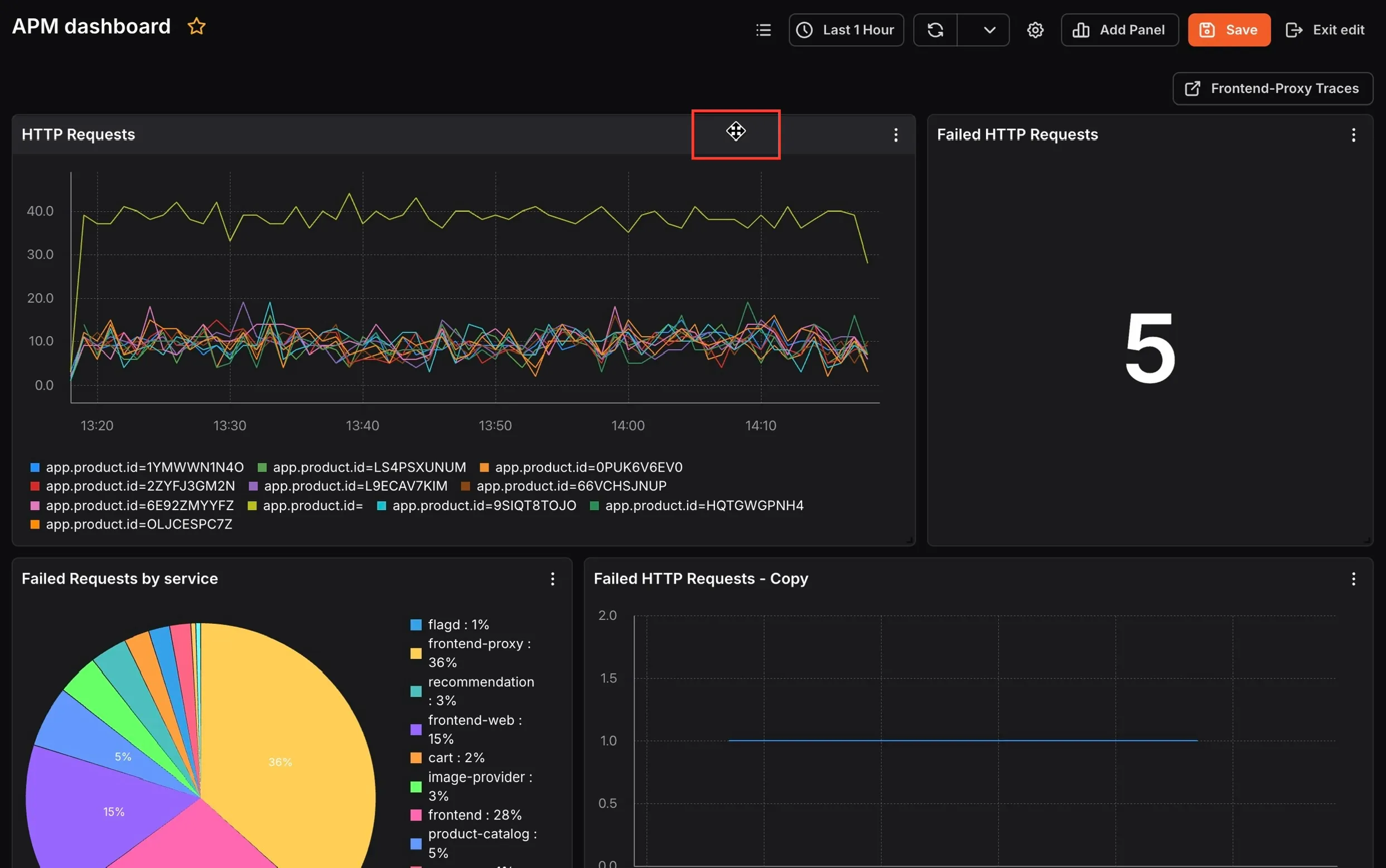
In edit mode, a drag handle (move icon) appears at the top-center of each panel. Click and drag it to move the panel to a different position on the dashboard. This helps you arrange panels in a layout that makes the most sense for your workflow.
Resize a Panel
Section titled “Resize a Panel”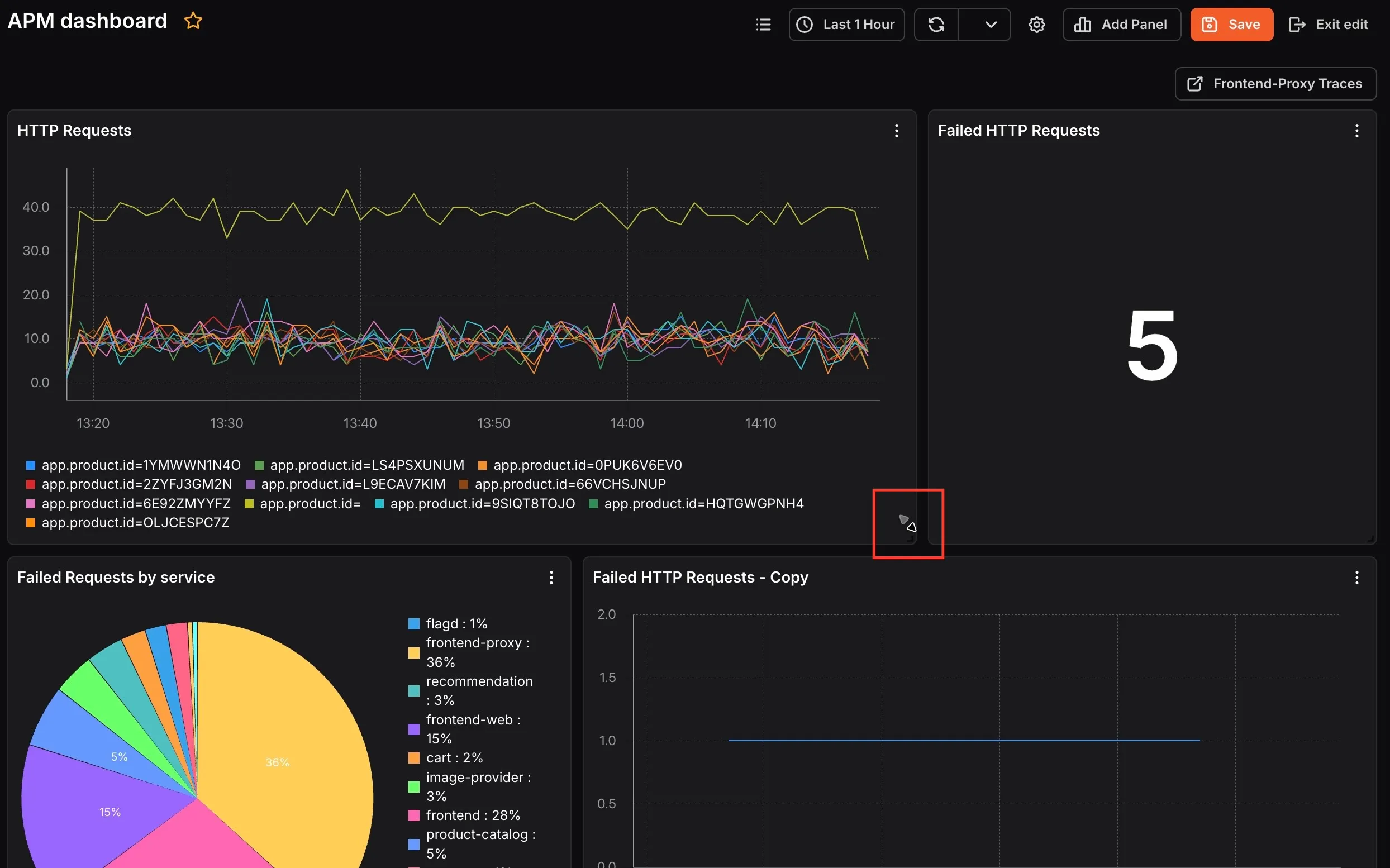
In edit mode, a resize handle appears at the bottom-right corner of each panel. Click and drag it to make the panel larger or smaller. Resizing lets you give more space to the metrics you care about most.