

Creating Alerts
An alert watches a query, evaluates a condition, and when the condition holds long enough, fires into the grouping and routing engine so the right people get notified. This page walks through creating one, step by step.
Getting started
Section titled “Getting started”Open Alerts → Rules.
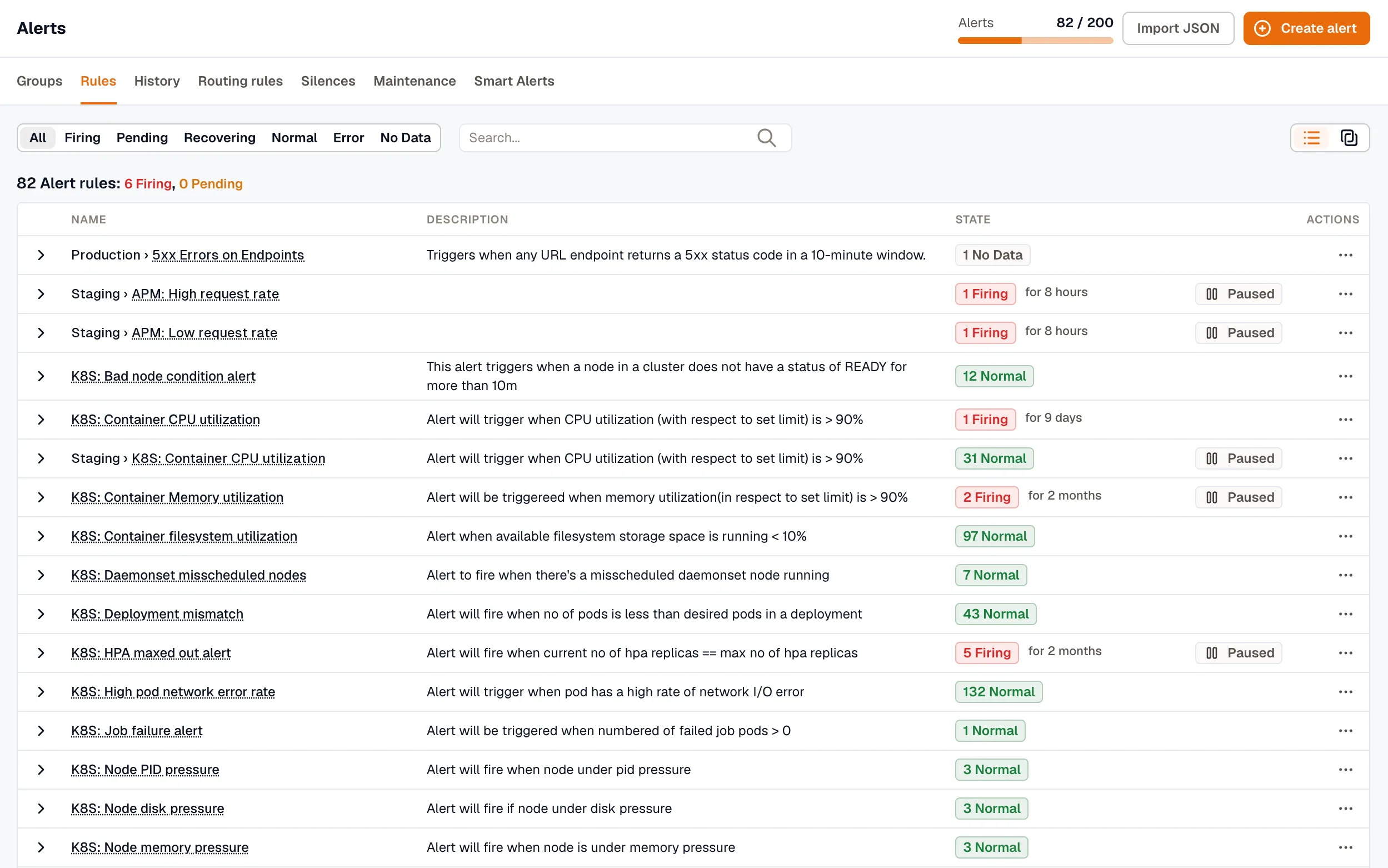
The Rules tab lists your alert rules with their current state, name, and description. You can group rules into Folders. Select a rule’s name to open it.
From the more options (⋯) icon on any rule, you can:
- Edit the rule configuration
- Duplicate the rule
- Move to folder… to move the rule into a different folder
- Export as JSON to copy the rule into another workspace. See Export and Import Alerts
- State history to see the rule’s past state changes
- Pause Evaluation or Pause Notifications
- Delete the rule
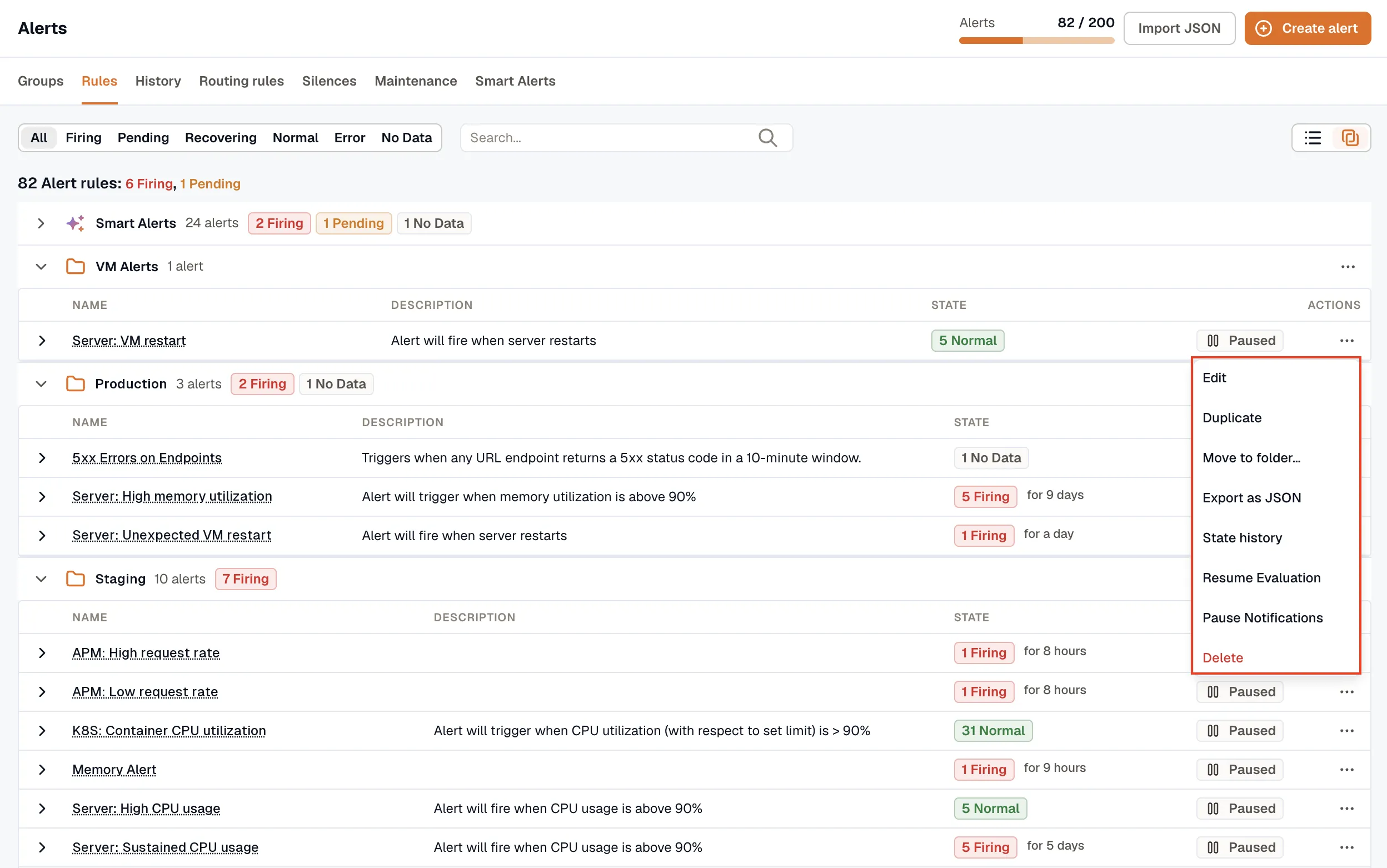
Pause Notifications creates a temporary silence scoped to this alert: the rule keeps evaluating, but KloudMate suppresses its notifications until the silence expires. While it’s paused, the rule is marked Silenced; view or end the pause from Alerts → Silences. Add matchers to limit it to specific instances.
For the key concepts, see the Alerts Overview.
Creating a new alert
Section titled “Creating a new alert”Click Create alert, then choose how to start:
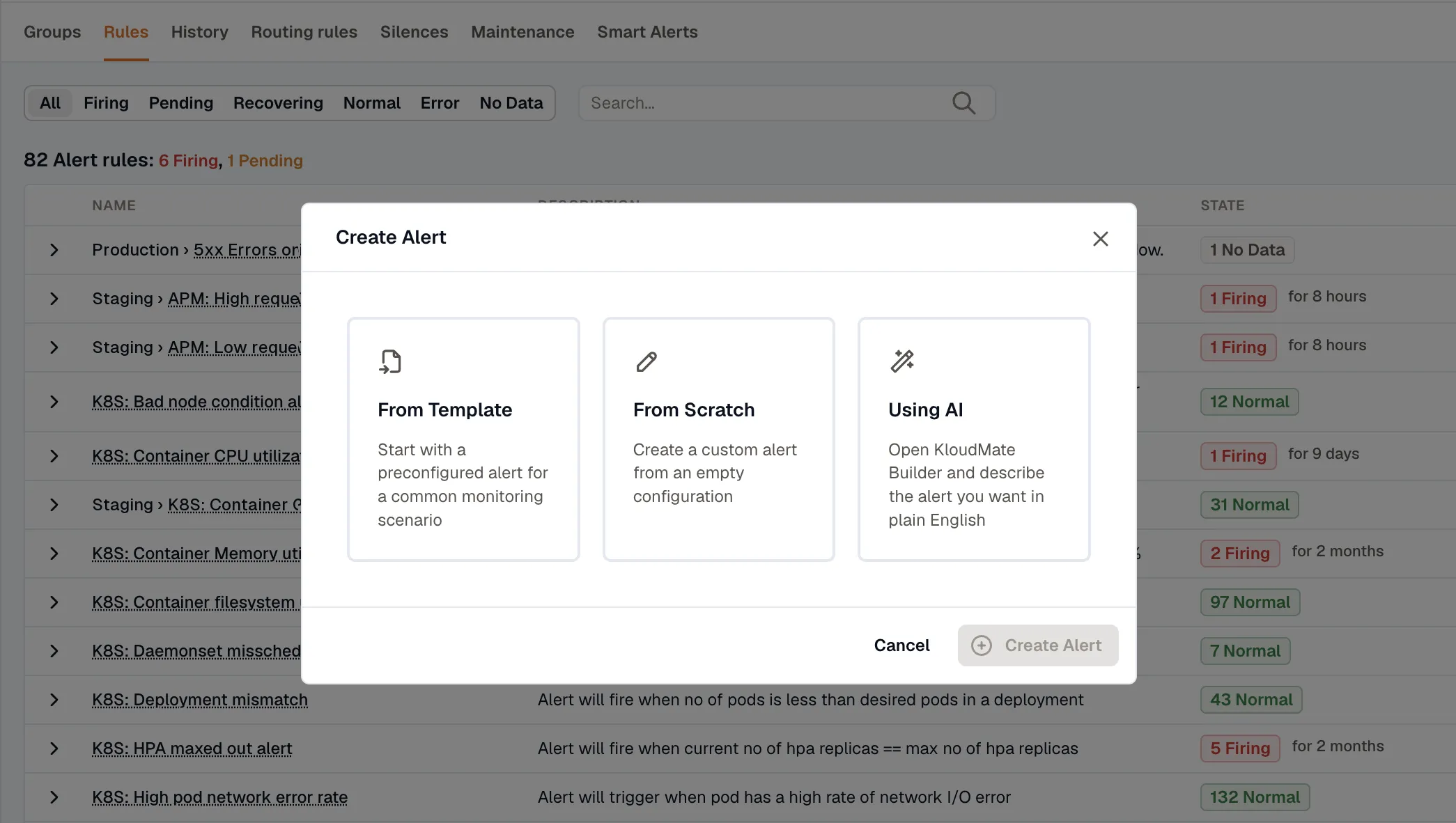
- From Template: start with a pre-configured alert for a common monitoring scenario.
- From Scratch: create a custom alert from an empty configuration.
- Using AI: open KloudMate Builder and describe the alert you want in plain English.
From Template
Section titled “From Template”Instead of building an alert from scratch, start from a pre-configured template that covers a common monitoring scenario.
- In the Create Alert dialog, select From Template.
- Open the Template dropdown and choose a template that matches your monitoring needs.
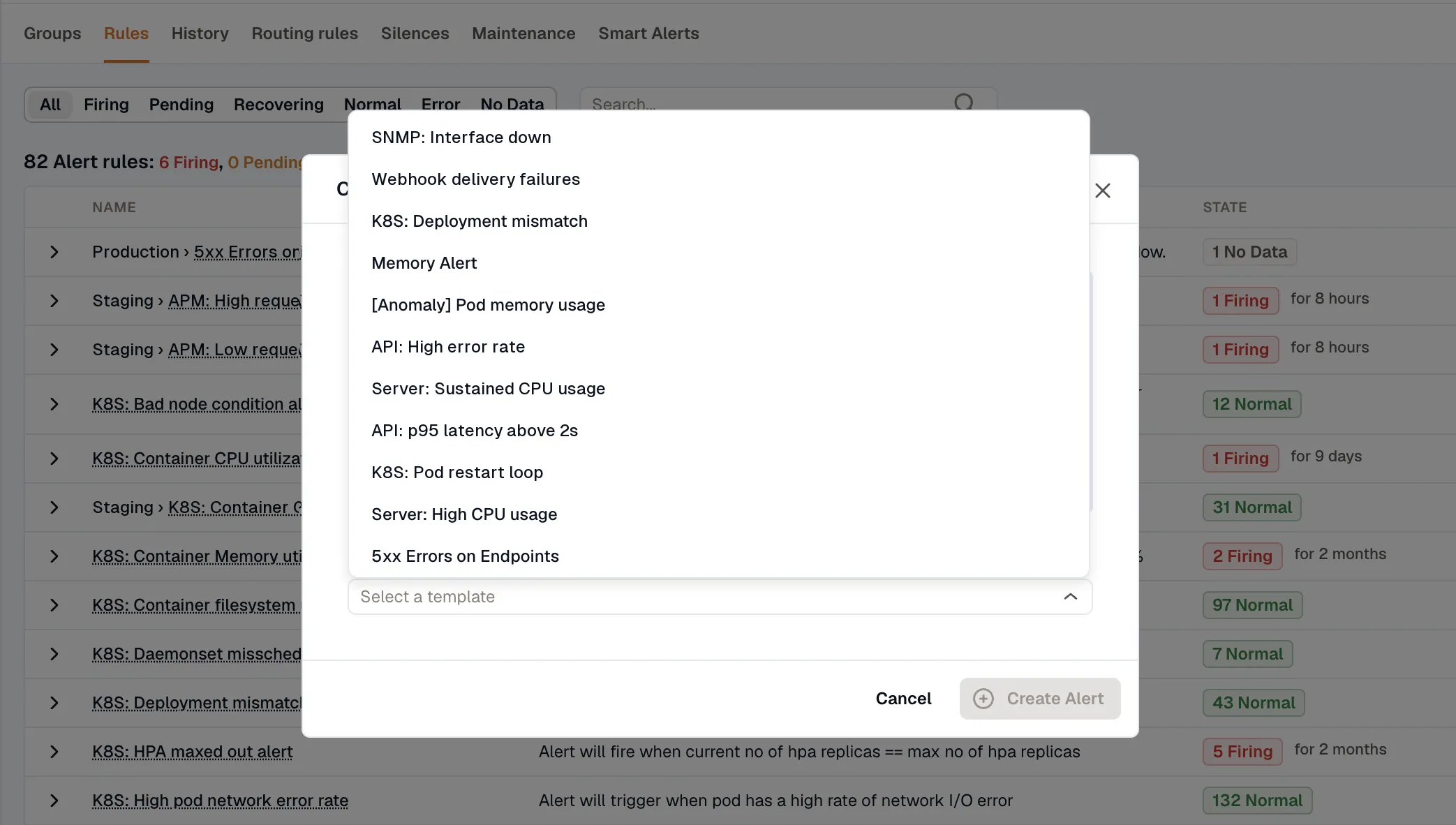
- Click Create Alert. The rule is saved right away and appears on the Rules tab.
- To configure it, click the menu next to the rule and select Edit.
- The alert opens pre-configured with the query, aggregation, and threshold from the template. Review it and adjust any filters to match your environment.
- Click Save or Save & Close when you’re done.
Using AI
Section titled “Using AI”KloudMate Builder drafts an alert from a plain-English description and fills in the alert editor for you. Nothing is saved until you click Save.
- In the Create Alert dialog, select Using AI.
- Describe the alert you want to create.
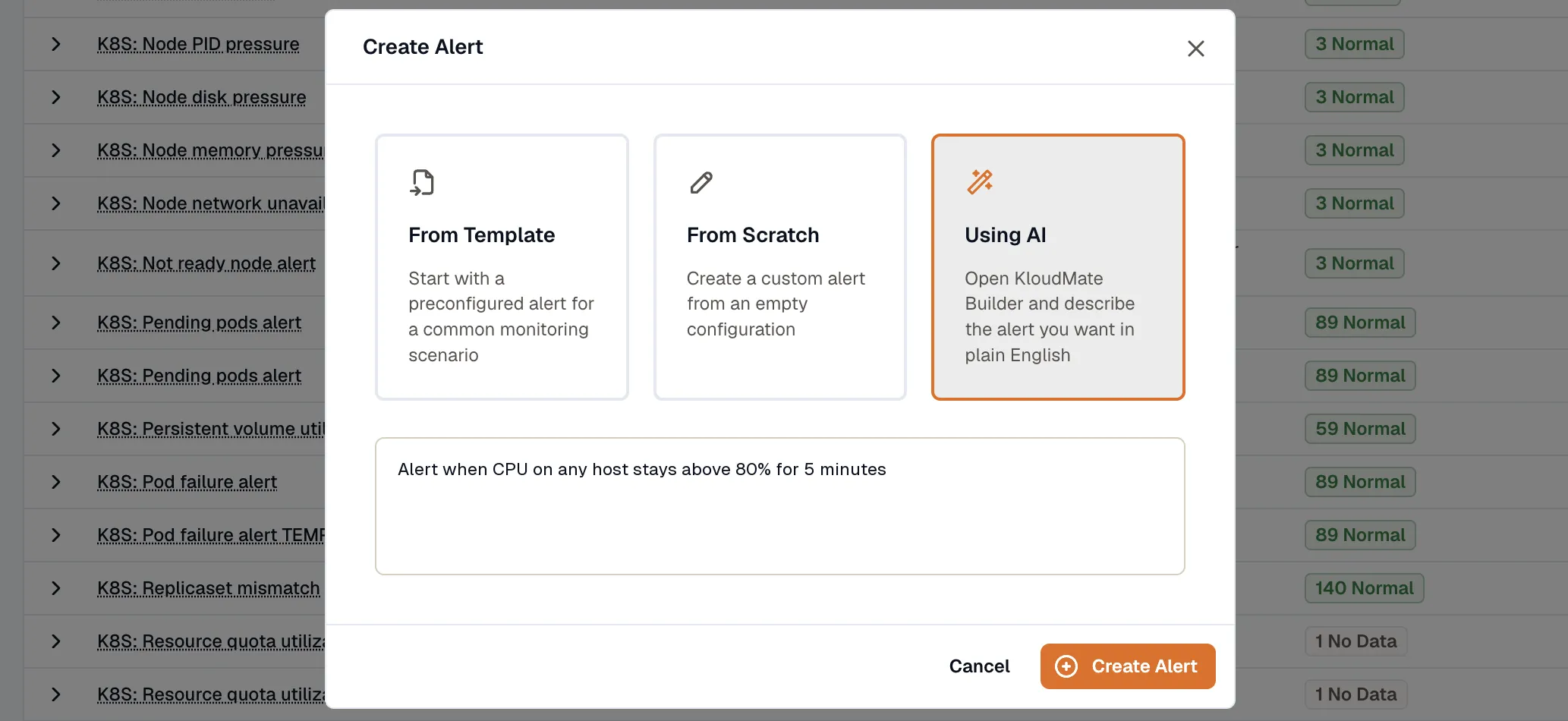
- Click Create Alert. KloudMate Builder opens with your description as a draft message.
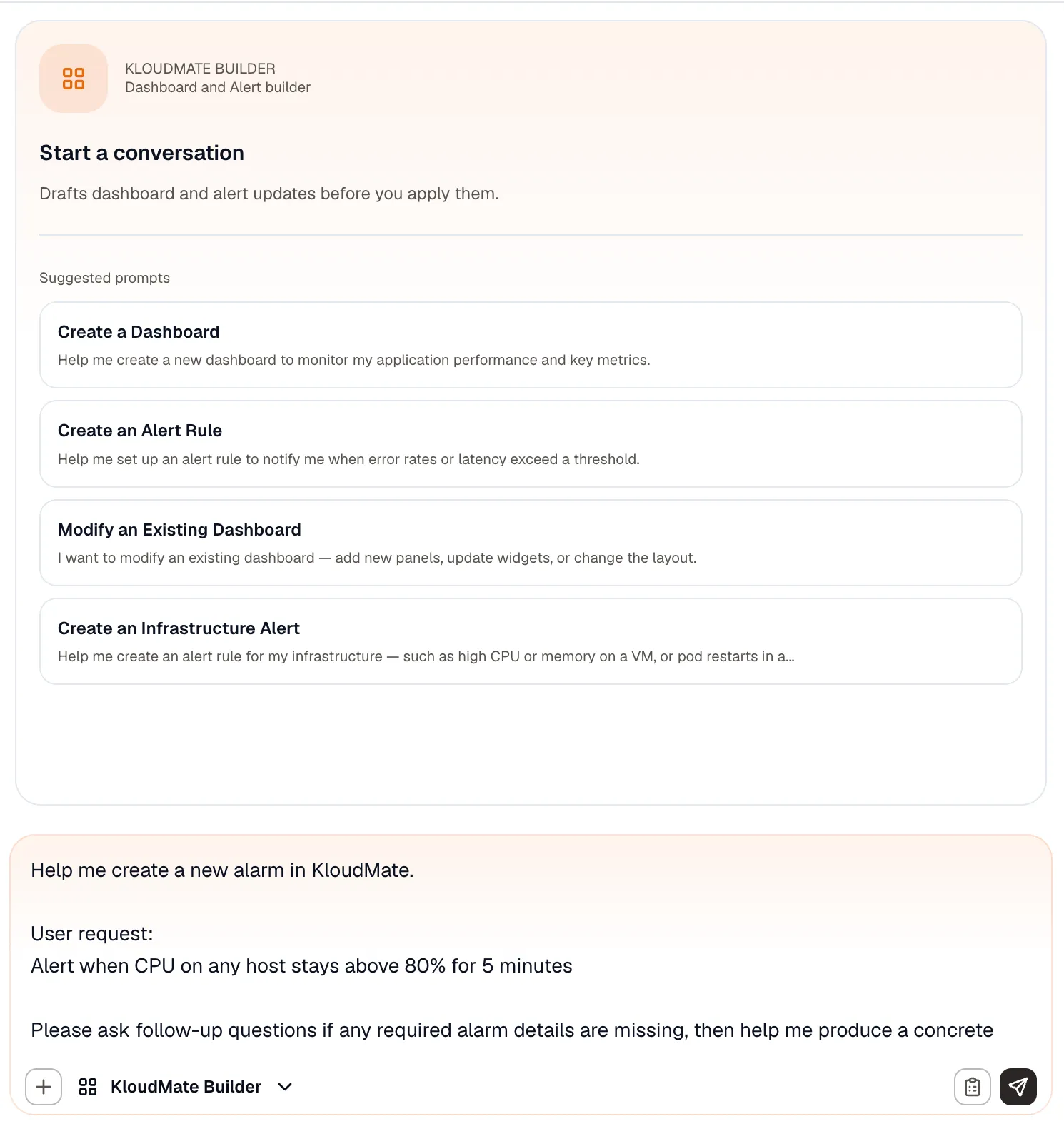
- Send the message. The Builder may ask follow-up questions before it fills in the rule in the alert editor. A draft that Simple mode can’t represent, such as one with several queries or expressions, opens in Advanced mode.
- Review the query, condition, and evaluation settings, and change anything that doesn’t match your environment.
- Click Save.
From Scratch
Section titled “From Scratch”Select From Scratch in the Create Alert dialog and click Create Alert. The alert editor opens in Simple mode.
- Simple mode builds the rule from one query and one condition, on a single page. It’s the only mode with the Detection method toggle for Anomaly and Forecast alerts. See Build an alert in Simple mode.
- Advanced mode lets you add more queries and combine them with math, reduce, and condition expressions. It’s also the only mode with custom annotations. See Build an alert in Advanced mode.
To switch, click Advanced mode. You can’t switch back to Simple mode afterward. Editing or duplicating an existing rule always opens it in Advanced mode.
Build an alert in Simple mode
Section titled “Build an alert in Simple mode”Simple mode puts the whole rule on one page.
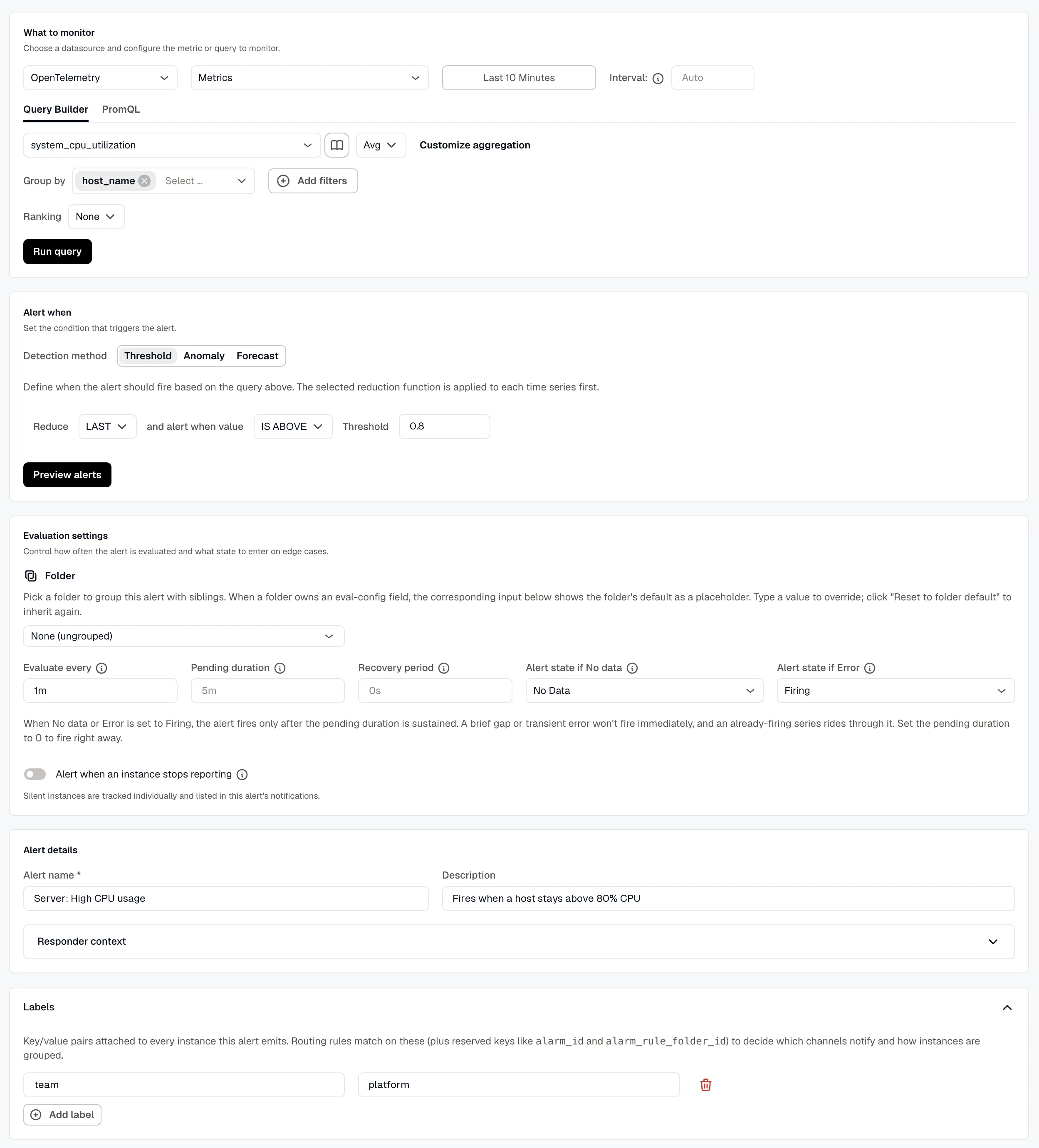
- In What to monitor, choose a data source and set up the query. The query fields are the same as in Advanced mode. Click Run query to chart the result.
- In Alert when, set the condition. For a Threshold, pick a reduction, a comparison, and a threshold value. To alert on unusual values or a trend instead, choose a detection method. Click Preview alerts to check the result.
- In Evaluation settings, pick a folder and set how the rule is evaluated. The fields are described in Configure evaluation settings.
- In Alert details, enter an Alert name and a description. Expand Responder context to add annotations such as a severity, a title, or a summary. See Add alert details.
- Expand Labels and add the labels you want routing rules to match on. See Notifications.
- Click Save, or Save & Close to save and return to the Rules tab.
Choose a detection method
Section titled “Choose a detection method”The Alert when section sets the firing condition with a Detection method toggle:
- Threshold: the classic fixed rule. Pick a reduction (such as
meanormax), a comparison, and a value; the alert fires when the reduced value crosses it. - Anomaly: KloudMate learns the metric’s normal range for each entity and alerts when a value moves well outside it, with no threshold to set. Choose a Sensitivity (High, Medium, or Low) and a Direction (Above, Below, or Both).
- Forecast: KloudMate follows the recent trend and alerts before the value reaches a Limit, within an Alert horizon of 1, 4, or 7 days. Set the Direction toward the max or the min. Good for disks, memory, and quotas.
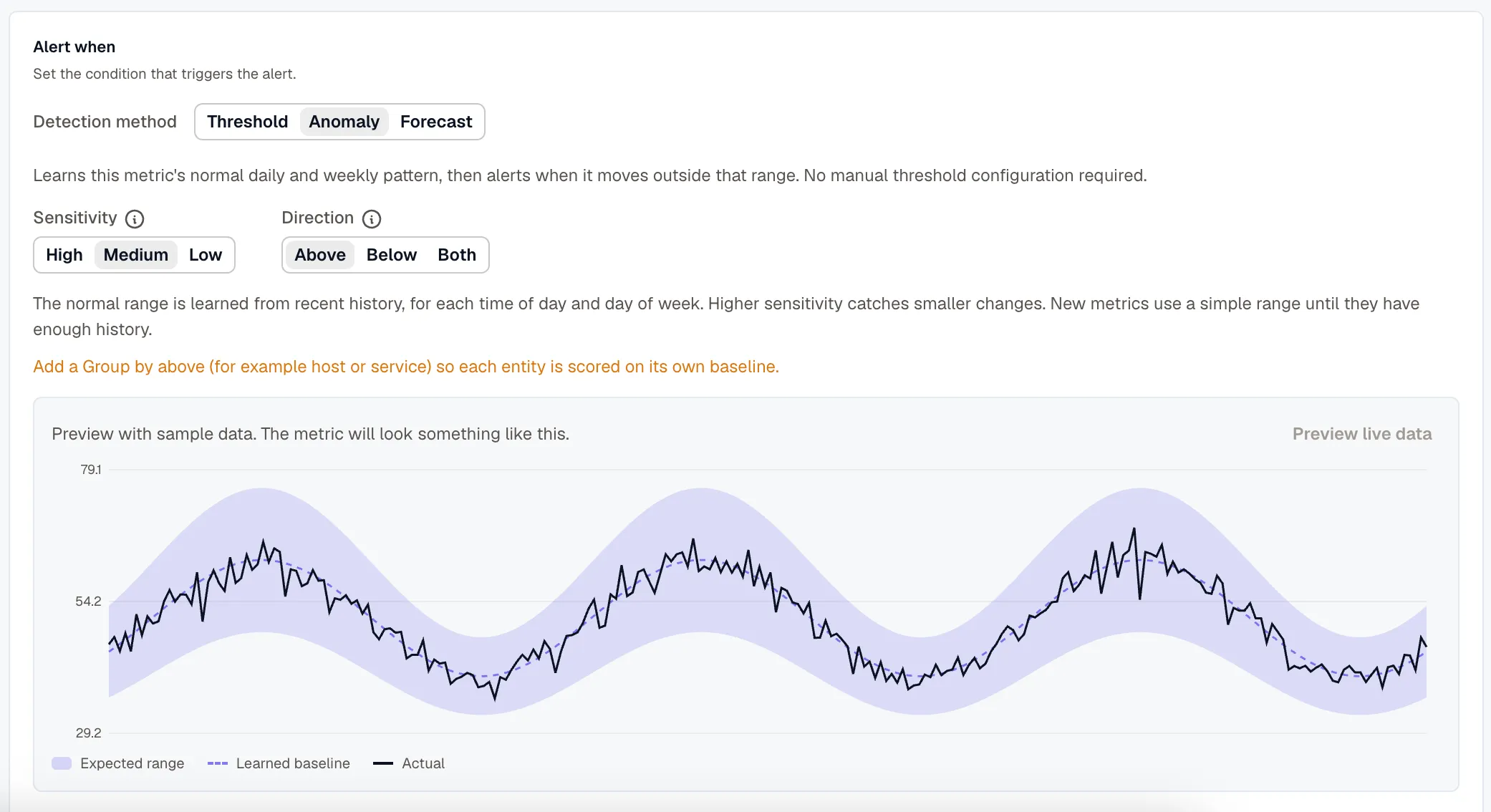
Add a Group by key (such as host or service) so each entity is scored or forecast on its own baseline. The preview shows the learned range or the projected trend; click Preview live data to pull this workspace’s own data.
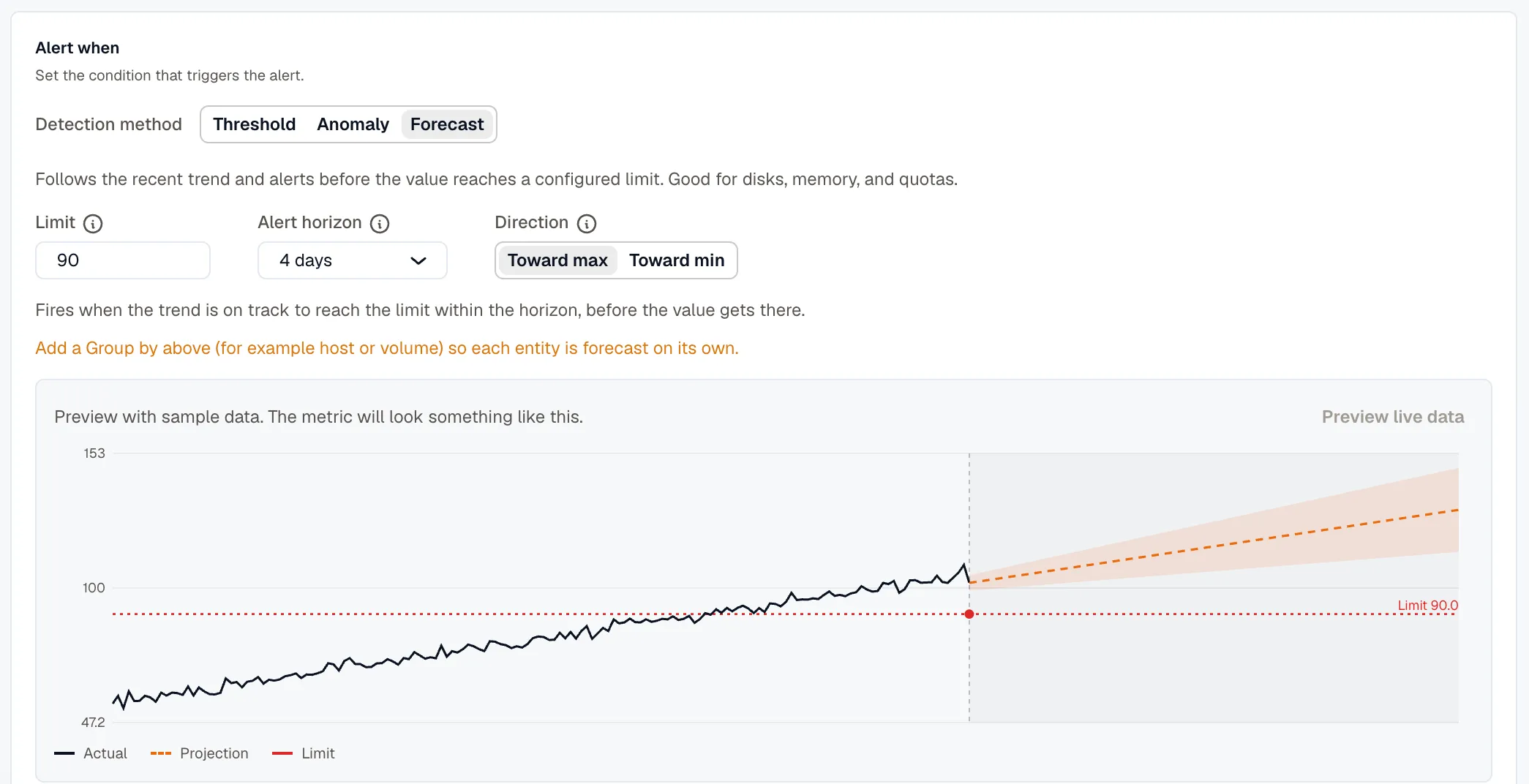
Anomaly and Forecast are the same detection Smart Alerts provisions and maintains automatically for common infrastructure. Both need a plan with anomaly detection; Threshold works on any plan.
Anomaly and Forecast rules evaluate every 5 minutes, so Evaluate every is fixed for them. If you leave Pending duration empty, it’s saved as 30m. Set Sensitivity, Direction, Limit, and Alert horizon before you save. Editing the rule opens it in Advanced mode, which doesn’t have these controls.
Build an alert in Advanced mode
Section titled “Build an alert in Advanced mode”Advanced mode is for rules that need more than one query, or expressions that transform query results. The editor is split into steps: Setup query conditions and expressions, Configure evaluation settings, Add alert details, and Notifications, followed by a save.
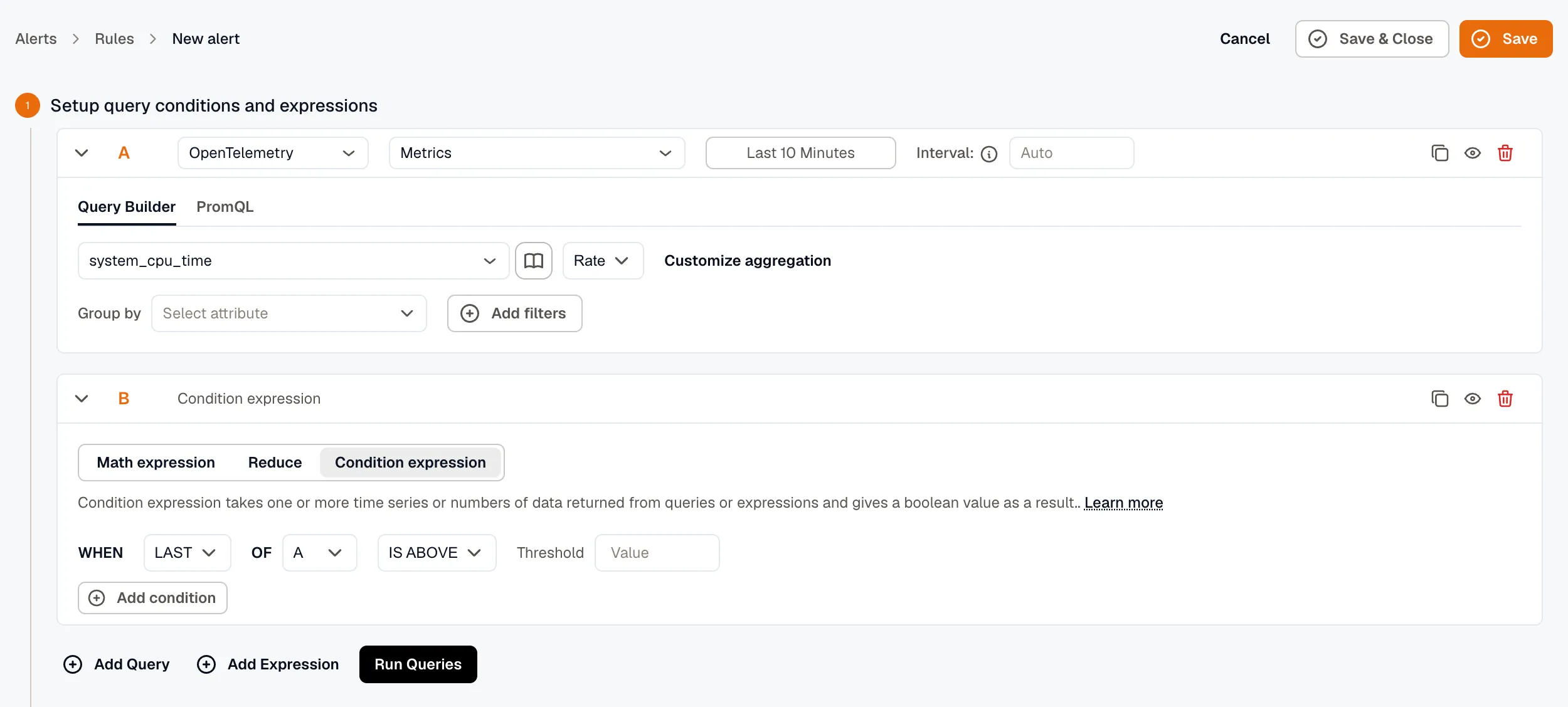
1. Setup query conditions and expressions
Section titled “1. Setup query conditions and expressions”Create more queries and expressions with the Add Query and Add Expression buttons. KloudMate assigns each one a letter, such as A, B, or C, and you can duplicate any block with its copy icon.
Setting up query conditions for OpenTelemetry / KloudMate
Section titled “Setting up query conditions for OpenTelemetry / KloudMate”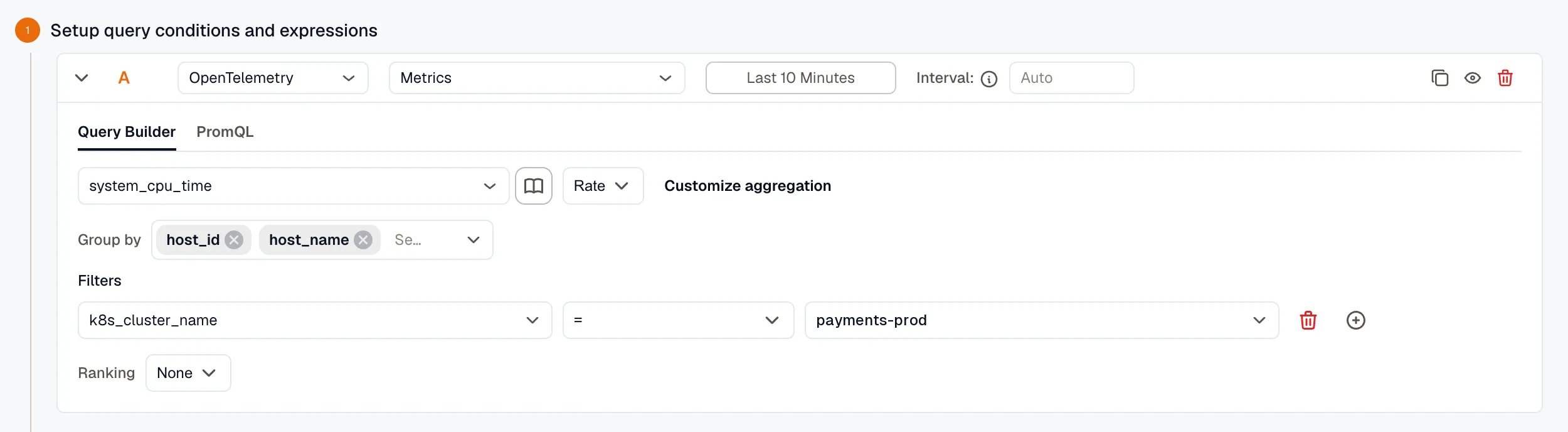
- Data Set: select the dataset you want to retrieve from your data source.
- Metric to Aggregate: select the metric you want to monitor from that dataset.
- Aggregation: choose the function applied to the metric, such as
AvgorRate. Click Customize aggregation for temporal and spatial aggregation controls. See Metrics Aggregations. - Group By: enter the attributes used to group the data points.
- Filters: add filters to narrow the retrieved data points.
- Ranking: control how the series are ordered.
OpenTelemetry users can also use Prometheus query language to retrieve data and configure alerts.
Setting up query conditions for AWS (CloudWatch)
Section titled “Setting up query conditions for AWS (CloudWatch)”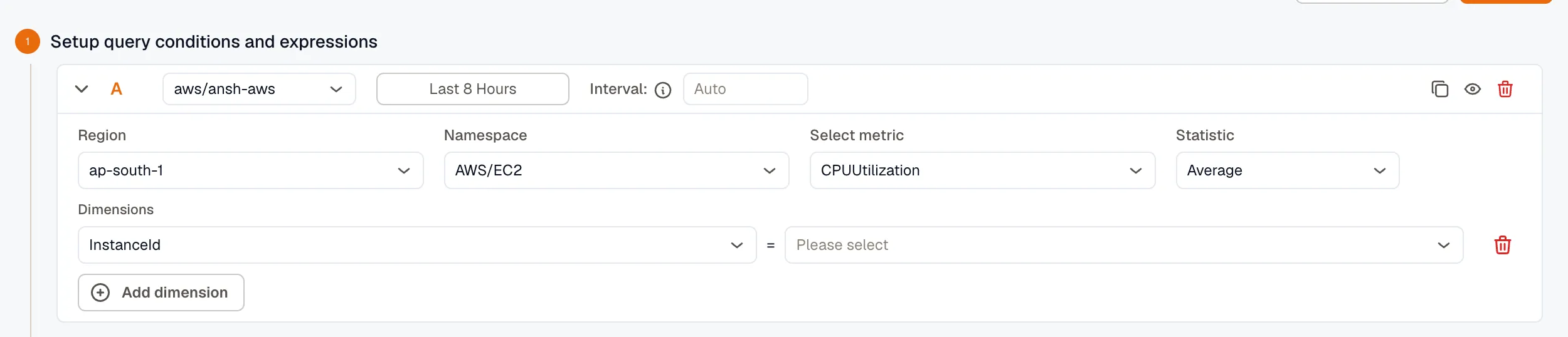
- Time Range: set how far back to fetch data with the dropdown, or enter a custom value in seconds.
- Region: select the AWS region of the service you want to monitor.
- Namespace: select the AWS service namespace you want to alert on.
- Metric: select the metric from that namespace.
- Statistic: select the statistical function to apply when calculating data points.
- Dimensions: optionally scope the alert to grouped resources within the namespace. For EC2, for example, you can filter by autoscaling group name, image ID, instance type, and more.
Click Run Query to fetch data.
Time range expressions for custom time
Section titled “Time range expressions for custom time”Query time ranges support the following:
- Operators:
-for subtracting time - Supported values: the same units and keywords used in dashboards
- Examples:
now,now-5m
Setting up evaluation expressions
Section titled “Setting up evaluation expressions”Expressions let you apply logic to query results. Reference any query or expression by its letter, such as A, B, or C. An expression can be passed as a parameter only when multiple expressions are configured.
Choose from these expression types:
- Math expression: enter a mathematical expression to apply to a query or expression, such as
$A+1,$A<$B, or$A && $C. See Alert Expressions. - Reduce: aggregate a query or expression into a single number with a function, then pick the target from the Input dropdown. Available functions include
mean(),max(),min(),sum(),last(), andcount(). - Condition expression: pick a function and a query or expression, then choose a condition and a threshold to evaluate against. You can add multiple conditions and combine them with AND or OR.
Click Run Queries to execute everything you’ve configured.
2. Configure evaluation settings
Section titled “2. Configure evaluation settings”In Simple mode, these fields are in Evaluation settings, without Alert condition.
Pick a Folder to organize the rule: select an existing folder, or type a new name to create one inline. A folder can set defaults for Evaluate every, Alert state if No data, Alert state if Error, Alert when an instance stops reporting, and Auto-close after. See Folders.
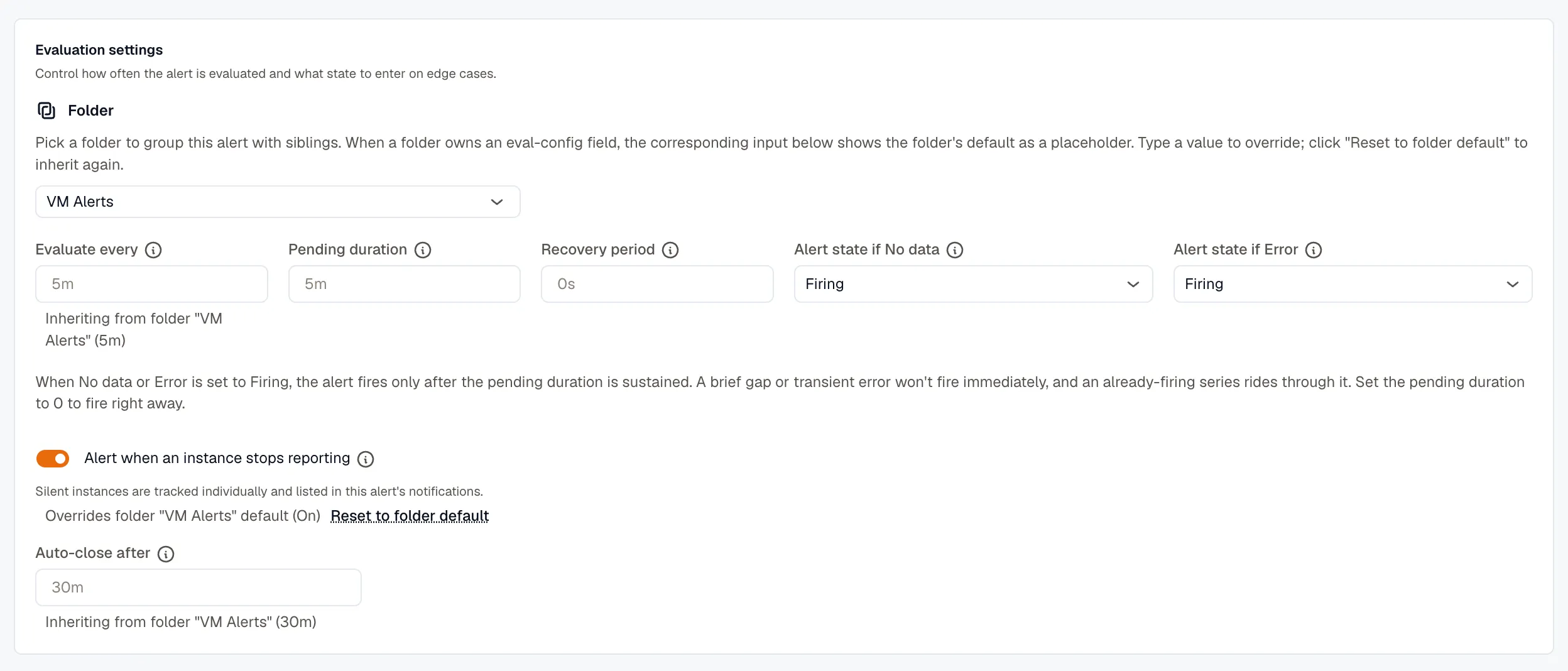
- Alert condition: the query or expression that triggers the alert, such as A, B, or C.
- Evaluate every: how often the alert condition is evaluated (for example,
60sor1m). - Pending duration: how long the condition must stay true before the alert fires (for example,
5m). Leave empty to fire immediately. - Recovery period: how long the condition must stay within threshold before the rule resolves (for example,
5m). This stops a flapping metric from resolving and immediately re-firing. While the rule waits out this window, the instance shows as Recovering: still firing, not yet back to Normal. Leave empty to resolve as soon as the condition clears. - Alert state if No data: which state the alert enters when the query returns no data points. Options: Firing, No Data, Normal, or Error.
- Alert state if Error: which state the alert enters when a query returns an error. Options: Firing, Error, or Normal.
- Alert when an instance stops reporting: track each instance the query returns, and alert when one goes silent while the others keep reporting. Turning this on also sets Alert state if No data to Firing. Set Auto-close after to control how long a silent instance stays tracked. See Instance Absence Detection.
Click Preview alerts to run the query immediately and check the result.
3. Add alert details
Section titled “3. Add alert details”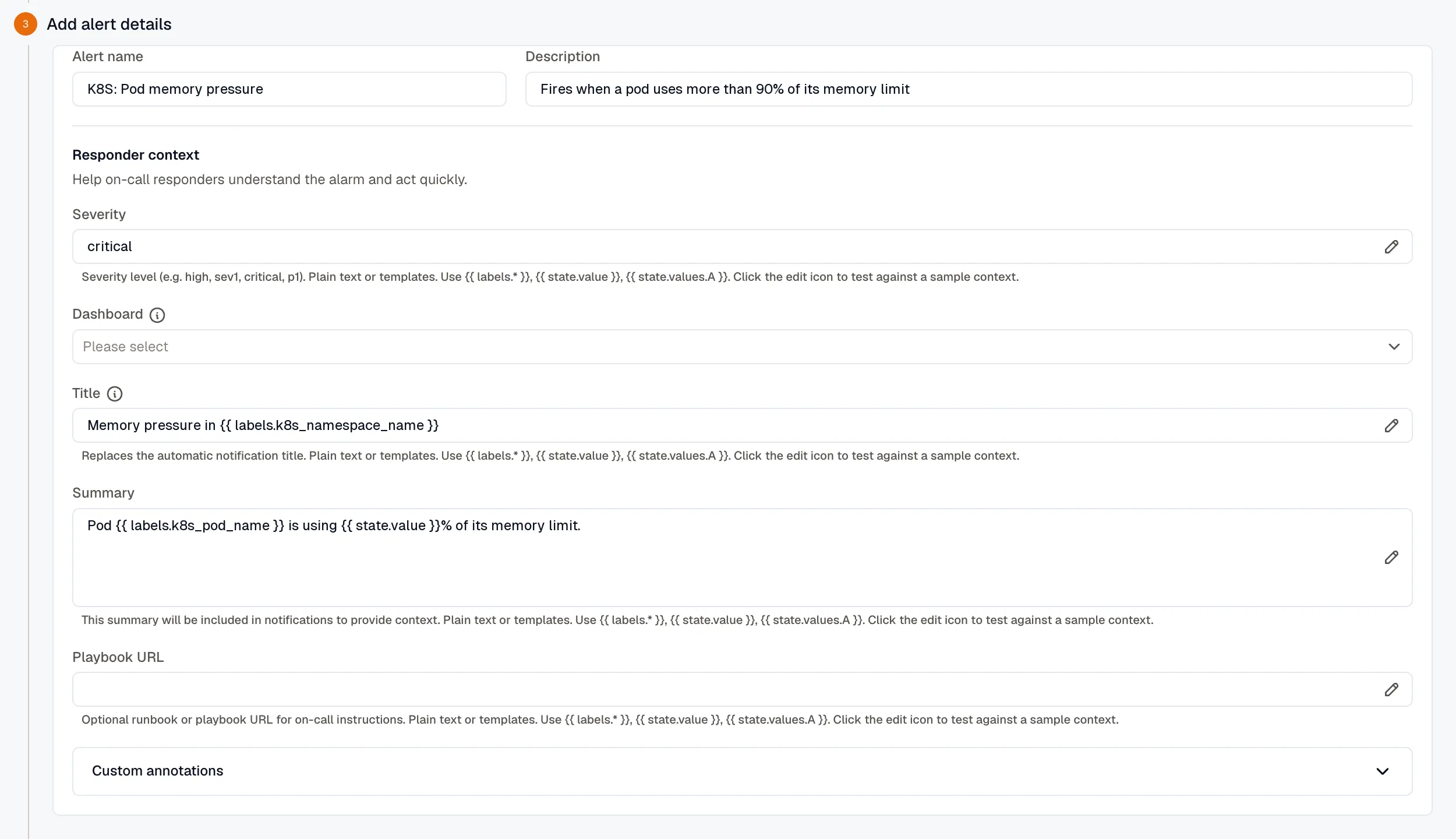
Set the alert’s name and description, then fill in the responder context. In Simple mode, these fields are in the Alert details section.
- Alert name: a name for the alert.
- Description: a short description of the alert’s purpose.
Responder context holds the annotations responders see when the notification lands.
- Severity: free-form severity (for example,
sev1,critical, orp1). Supports Liquid templates, so severity can depend on the firing value. - Dashboard: optional dashboard link included with the notification.
- Panel: after you pick a dashboard, narrows the link to a specific panel.
- Title: replaces the automatic notification title. Supports templates. See Set a custom notification title.
- Summary: multiline message included in notifications. Supports templates.
- Playbook URL: optional runbook URL. Supports templates.
In Advanced mode, open Custom annotations and click Add annotation to add your own key-value pairs (for example, service_owner or region). Values support Liquid templates. Simple mode doesn’t have custom annotations. See Annotations & Severity.
4. Notifications
Section titled “4. Notifications”The Notifications step controls how this alert flows into the grouping engine. In Simple mode, add labels in the Labels section. Routing rules match on labels, not free-form tags:
- Labels: key/value pairs attached to each alert this rule fires. Add them with Add label, or leave the list empty. Routing rules match on these labels, plus the reserved
alarm_id,alarm_rule_folder_id, and per-instance query labels, to decide which channels notify and how alerts group. - Routing: Routing Rules in Alerts → Routing rules match alerts by label and send them to one or more notification channels.
- Severity: flows through the reserved
severityannotation from the previous step; downstream tools use it to prioritize.

If you’re migrating a rule that used notification tags, it keeps working; routing now matches on labels instead.
5. Save the alert
Section titled “5. Save the alert”Click Save to save the alert, or Save & Close to save it and return to the Rules tab.
Viewing an alert
Section titled “Viewing an alert”To open an alert, select its name on the Rules tab. The detail page has these tabs:
- Overview: instance states, breaching instances with their labels, reason, and duration, plus recent state transitions.
- Instances: the full list of alert instances and their current states.
- History: the state-change history over time.
- Rule: the alert configuration and query definition.
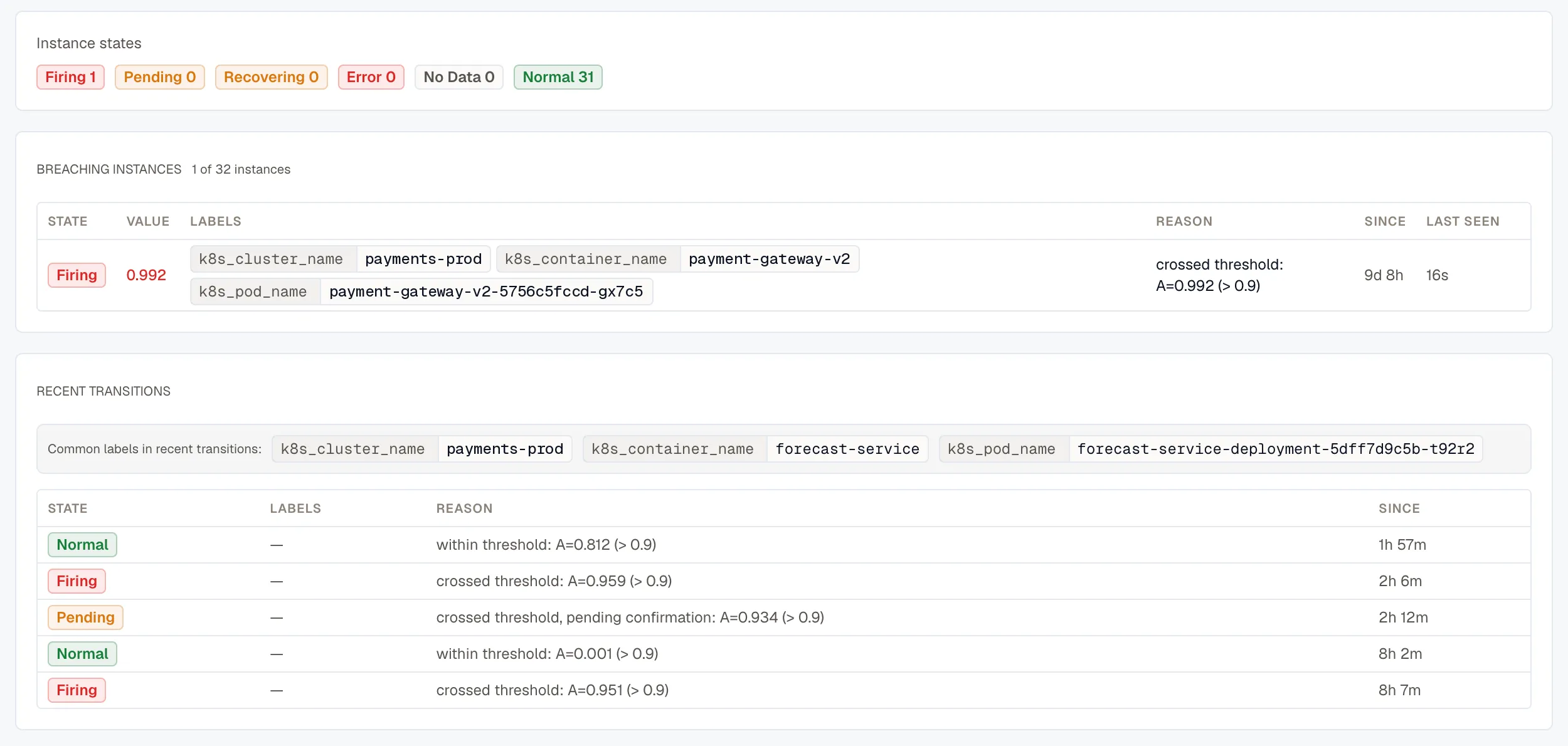
To see which resources the firing alerts affect, and what else is alerting around them, open their alert group.
The instance tables on Overview and Instances also show each instance’s last evaluated value and when it was Last seen.