

Integrate with KloudMate Alerts
To open an Incident Management incident whenever an alert fires, you wire two things together: a KloudMate Incidents notification channel (which bridges KloudMate alerts into the IM service) and a Routing Rule (which decides which alerts feed the channel).
This replaces the older “webhook channel + notification policy with Alarm condition” flow. The KloudMate Incidents channel handles the bridge plumbing for you; routing rules give you label-level control over which alerts trigger which IM services.
Prerequisites
Section titled “Prerequisites”- An IM service you want incidents to open against.
- The Developer role (you need it to create channels and routing rules).
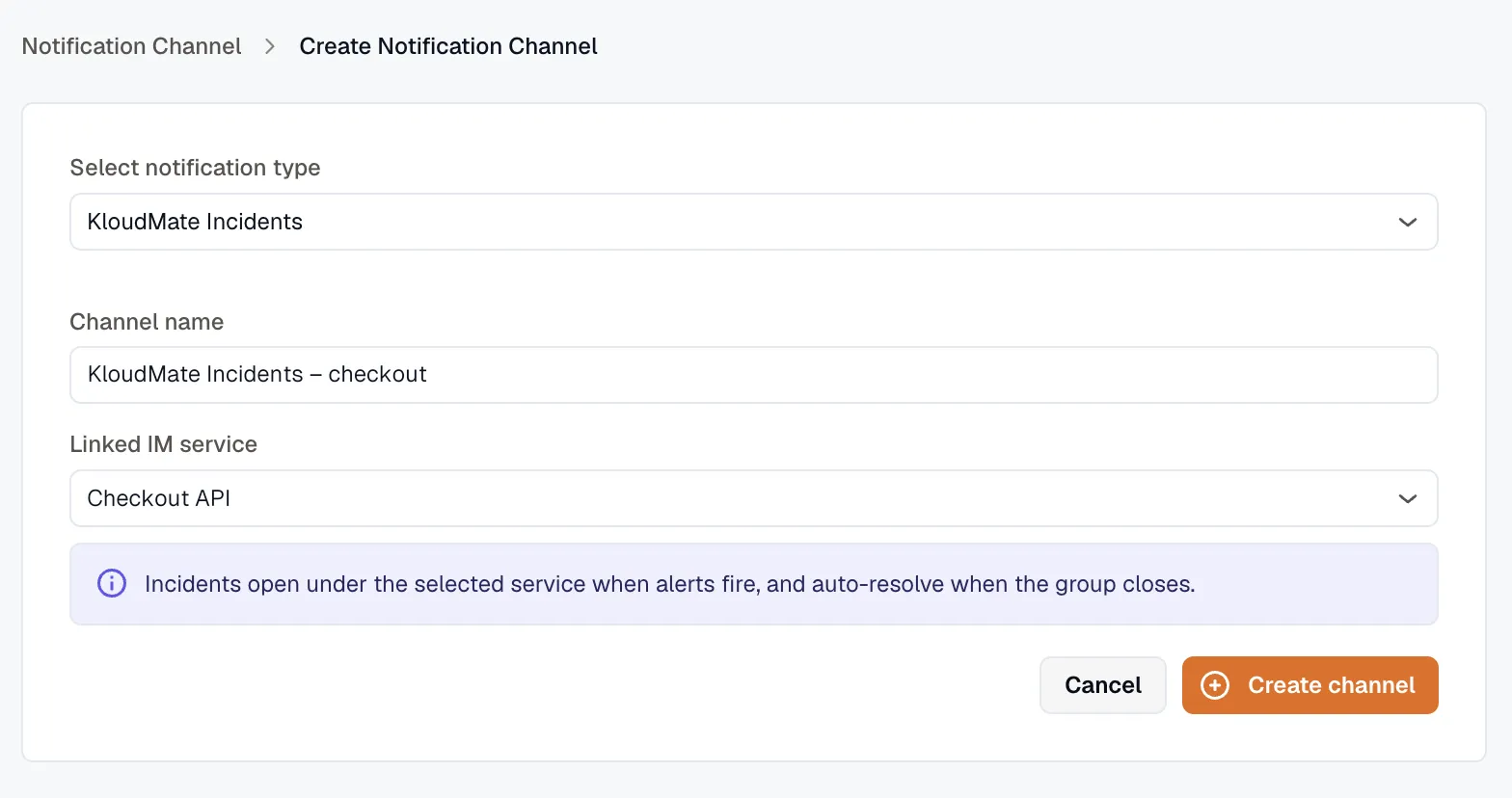
Step 1 — Create a KloudMate Incidents channel
Section titled “Step 1 — Create a KloudMate Incidents channel”-
Open Settings → Notification Channels → Create.
-
Pick KloudMate Incidents as the channel type.
-
Give the channel a Channel name.
-
Pick the IM service you want to link from the Linked IM service dropdown.
-
Click Create channel.
KloudMate creates the IM integration row under your service automatically and points the new channel at the integration’s signed loop URL. You don’t need to copy URLs or paste them anywhere. See Notification Channels for the channel-side details.
Step 2 — Route alerts to the channel
Section titled “Step 2 — Route alerts to the channel”-
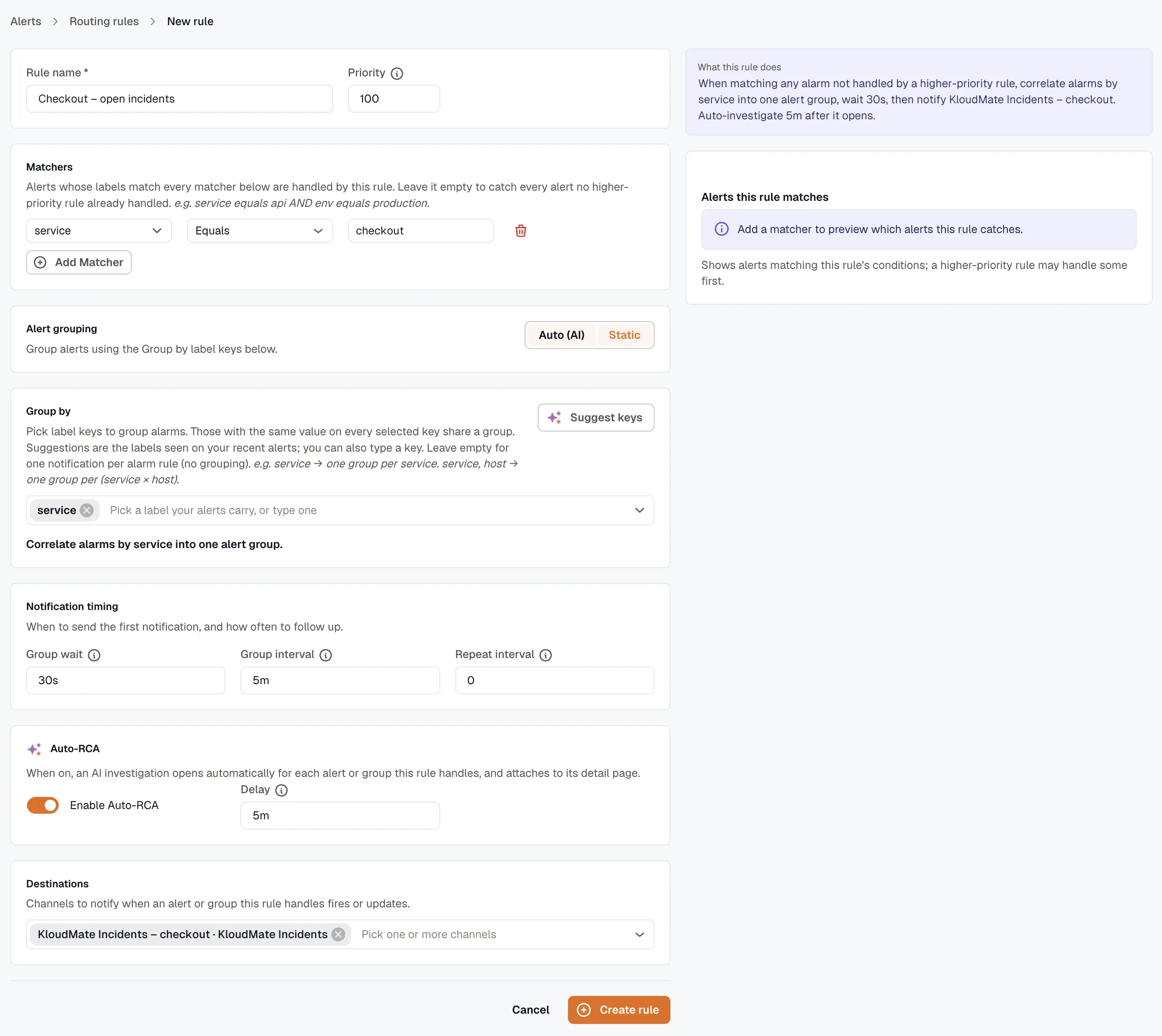
Open Alerts → Routing rules and click Create rule.
-
Name the rule and set a priority (lower wins).
-
Add matchers that identify which alerts should feed this IM service, e.g.
service equals checkoutto route every checkout alert to the Checkout API IM service. -
Select group-by keys (e.g.
service,env) so related alerts fold into a single notifiable group. -
Select the KloudMate Incidents channel you created in Step 1 as a destination.
-
Optionally enable Auto-RCA if you want KloudMate’s AI investigator to attach a summary to the incident automatically.
-
Click Create rule.
See Routing Rules for the full rule editor walk-through.
Step 3 — Verify
Section titled “Step 3 — Verify”Trigger a matching alert. Within the routing rule’s group_wait (default 30 seconds), an incident opens on the linked IM service under the configured escalation policy.
Things to check:
- The incident shows up on the IM service’s incidents tab.
- The originating Alert Group in Alerts → Groups lists the KloudMate Incidents channel under its Notifications tab with the new incident’s ID.
- If Auto-RCA was enabled, the investigation summary attaches to both the group and the incident.
Migrating from the older flow
Section titled “Migrating from the older flow”If you used to wire this up via Webhook channel + Notification Policy with Alarm condition, the upgrade migrated each policy to a routing rule. No recreation is required — but the recommended path going forward is the KloudMate Incidents channel, not a raw webhook, because:
- KloudMate Incidents channels carry HMAC signing automatically.
- The KloudMate Incidents receiver knows how to dedupe against existing incidents and append RCA summaries when they arrive late.
- Routing-rule label matchers give you finer control than tag-based policies did.
Related
Section titled “Related”- Alerts Routing Rules — the rule editor used here (routes notifications).
- IM Routing Rules — the different feature that turns alerts into incidents.
- Alert Groups — what gets routed.
- Notification Channels — KloudMate Incidents channel setup.
- IM Services — the destination side.