

Burn-rate Alerts
A burn-rate alert fires when an SLO’s burn rate is too high over both a short and a long window simultaneously. The long window suppresses brief blips; the short window keeps the alert responsive. Both are required to catch real problems without paging on every momentary spike.
Burn-rate alerts live in two places:
- Per SLO, under the SLO detail page’s Burn-rate alerts section — for creating, editing, and deleting alerts.
- Workspace-wide, on Reliability → Burn-rate alerts, which lists every burn-rate alert in the workspace with firing alerts first.
Anatomy of a burn-rate alert
Section titled “Anatomy of a burn-rate alert”| Field | What it does |
|---|---|
| Name | Required. How the alert shows up in the list. |
| Short window in minutes | Required, positive integer. |
| Long window in minutes | Required, must be greater than short. |
| Burn rate threshold | Required, must be > 1. |
| Notification channels | Multi-select from the workspace’s notification channels — at least one is required. |
| Enabled | Toggle. Disabled alerts show a Disabled chip but keep their config. |
The four presets
Section titled “The four presets”Four preset buttons sit above the create form. Each picks a common responsiveness-vs-noise tradeoff:
| Preset (button label) | Short / Long | Threshold | When to use |
|---|---|---|---|
| Critical (1m / 5m, 14.4×) | 1 m / 5 m | 14.4× | Page immediately — for very high-priority SLOs. |
| Fast (5m / 1h, 14.4×) | 5 m / 1 h | 14.4× | Page now — catches sudden outages. |
| Slow (30m / 6h, 6×) | 30 m / 6 h | 6× | Catches gradual problems before the budget runs out. |
| Background (2h / 24h, 3×) | 2 h / 24 h | 3× | Daily-check level for less critical SLOs. |
Clicking a preset fills the form fields and seeds a default name (Critical burn, Fast burn, etc.). You can rename and tweak any field before saving.
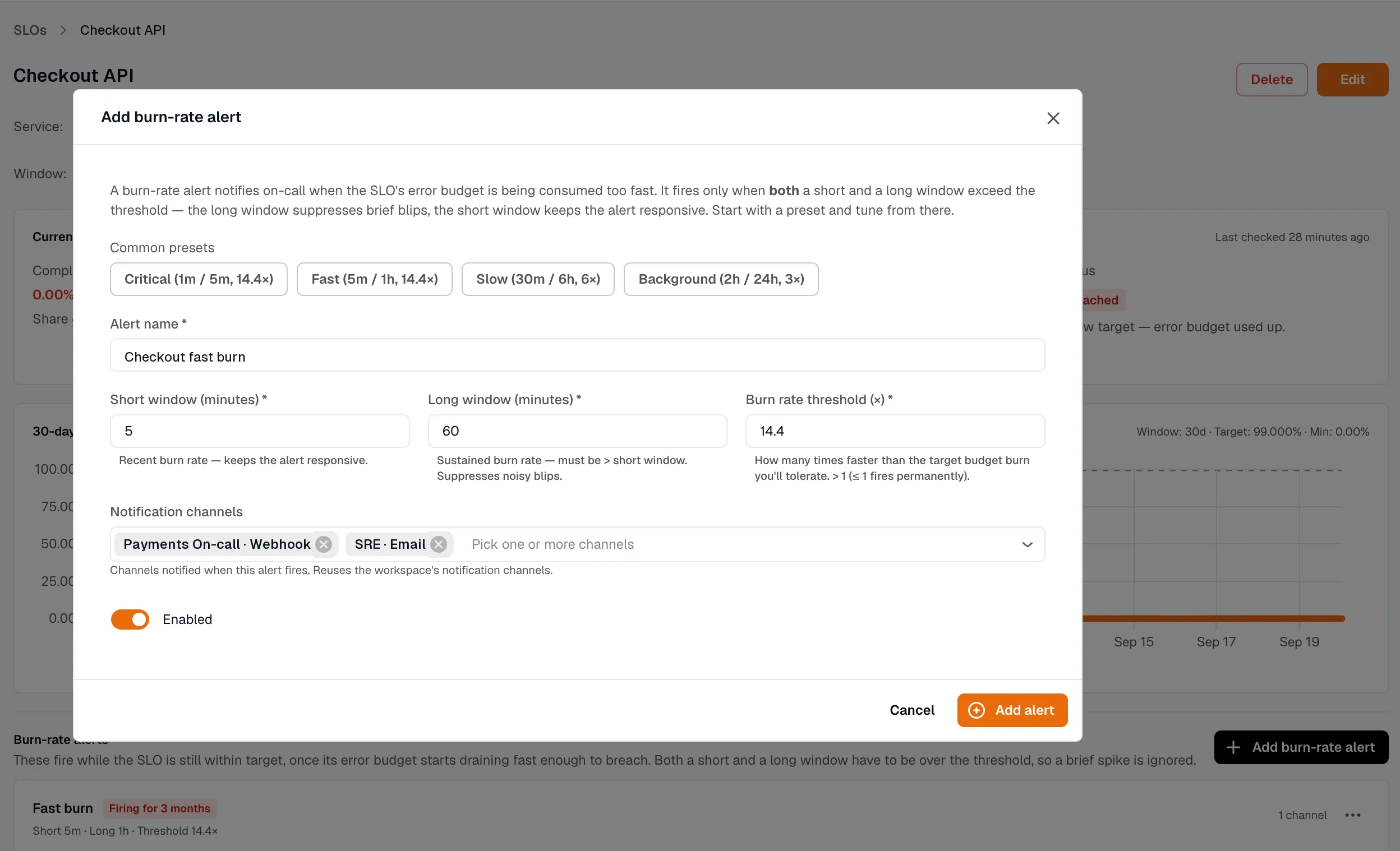
Create a burn-rate alert
Section titled “Create a burn-rate alert”- Open the SLO’s detail page.
- Scroll to Burn-rate alerts and click Add burn-rate alert.
- Select a preset (recommended) or fill in short / long / threshold manually.
- Name the alert.
- Select one or more Notification channels.
- Leave Enabled on (or off if you want to stage the alert).
- Click Save.
Workspace-wide burn-rate alerts
Section titled “Workspace-wide burn-rate alerts”Reliability → Burn-rate alerts lists every burn-rate alert across every SLO.
Columns: State / Alert / SLO / Channels. Each row shows its parent SLO’s name and SLI kind — there’s no Service column, since most SLOs aren’t tied to a service.
Default sort is firing-first — currently-firing alerts at the top. The State chip reads Firing for X, Quiet, or Disabled.
Filters:
- Firing only toggle. The Overview hub’s e.g. “N alerts firing” chip deep-links here with this toggle on via
?firing=1.
Click any row to open the parent SLO’s detail page — alerts are created and edited from there.
Permissions
Section titled “Permissions”You need the Developer role to create, edit, or delete burn-rate alerts. With the Viewer role, you can read the list.
Related
Section titled “Related”- SLO detail — where burn-rate alerts live per SLO.
- Notification Channels — set up the channels burn-rate alerts dispatch to.
- What is an SLO? — burn-rate definition.