

On-Call Schedules
On-call schedules decide who’s on call when an incident needs a person. Rather than wiring a specific name into an escalation policy, you point the policy — or a routing rule — at a schedule, and KloudMate resolves it to whoever is on call at that exact moment.
How a schedule decides who’s on call
Section titled “How a schedule decides who’s on call”A schedule is a named wrapper around one or more rotations. Once the mental model clicks, every other page here falls into place.
- Schedule — a named container with a default timezone. It holds one or more rotations. The timezone is the default basis for every time inside the schedule, though any rotation can override it.
- Rotation — the unit that actually puts a person on call. Each rotation answers four questions:
- Members — an ordered list of people. The first member takes the first shift.
- Shift assignment — either Handoff and rotate to next member (one person is on call per shift, and it advances to the next member at each handoff) or All members are on-call for each shift (everyone in the rotation is on call together).
- Shift length / handoff — how long each shift lasts before the on-call person changes: sub-day (for example 8h or 12h), daily, weekly, or every N hours, days, or weeks. (This only applies when the rotation hands off.)
- Coverage — when the rotation is active: 24/7, or a Custom window built from active days and active times.
- A rotation can also carry its own timezone that overrides the schedule’s — the basis for follow-the-sun.
- Override — a timed swap that replaces the on-call set for a fixed window. See Overrides.
How rotations combine
Section titled “How rotations combine”By default, rotations add up. Who’s on call at any instant is the union of every active rotation’s current assignee(s), deduplicated by person. A rotation is active at a given moment when that moment falls inside its coverage window — a 24/7 rotation is always active. If three rotations are active at once, all three of their current responders are on call together, and an escalation step that targets the schedule notifies every one of them.
This is what makes multi-responder and follow-the-sun coverage natural:
- Multi-responder — run two rotations over the same hours and both responders are on call at the same time (for example, a primary plus a shadowing secondary).
- Follow-the-sun — give each region its own rotation in its own timezone, and coverage hands around the globe as each region’s working hours come round.
When you don’t want both people on call for an overlap, give one rotation a higher priority. The higher priority takes over and hides the lower one for as long as they overlap. Every rotation sits at priority 0 until you change it, so schedules stay additive unless you opt in — see Rotations and coverage.
See who’s on call
Section titled “See who’s on call”Open Incidents → On-call and switch between these views:
- My on-call — your personal, cross-schedule view: whether you’re on call right now and your upcoming shifts across every schedule you belong to. This is the page to check before you log off for the day.
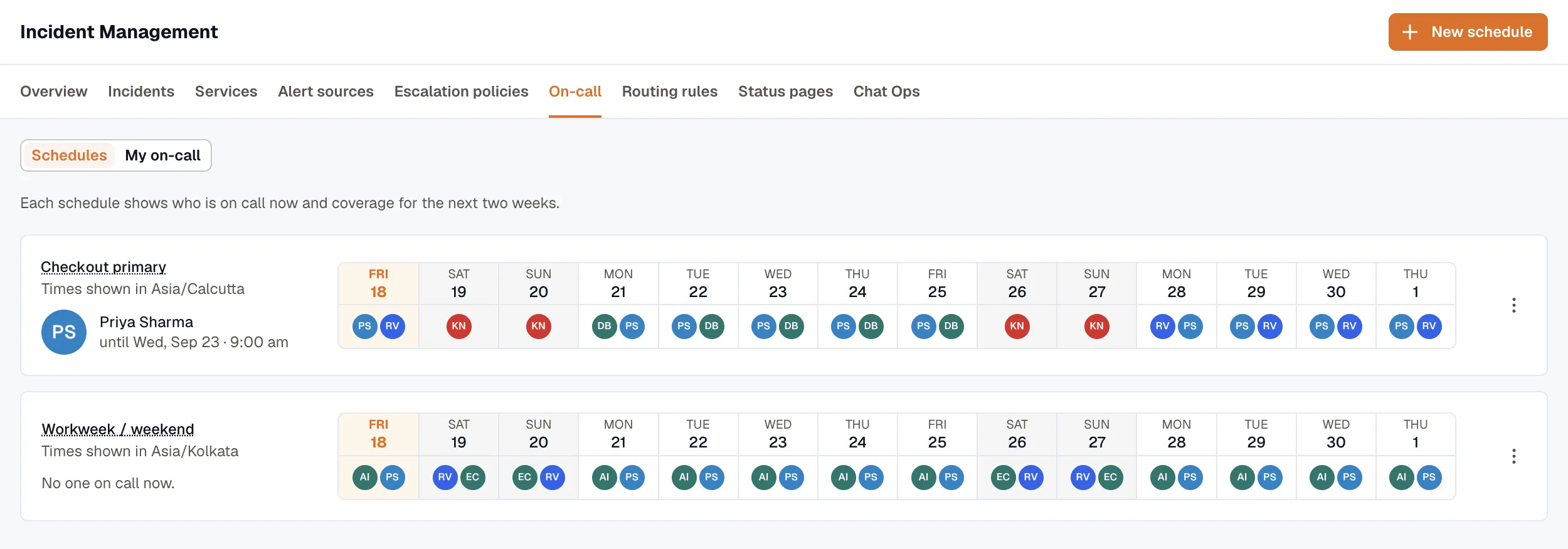
- Schedules — a compact list of every schedule, each showing who’s on call now, a roughly two-week coverage timeline, and the timezone the times are shown in. Use it to scan coverage at a glance and spot windows where no one is rostered.
Mind the gaps
Section titled “Mind the gaps”Because rotations are additive rather than a fallback stack, custom coverage windows can leave moments with no rotation active — and so nobody on call. If an incident fires during such a gap, an escalation step that targets the schedule has no one to reach.
For any schedule an escalation policy depends on, keep at least one 24/7 rotation (or make sure your rotations’ windows tile the clock with no gap). The coverage timeline in the Schedules view is the quickest way to spot an uncovered window before you rely on the schedule. See Rotations and coverage for worked examples.
How schedules connect to incidents
Section titled “How schedules connect to incidents”A schedule doesn’t notify anyone on its own. It becomes useful when something targets it:
- An escalation policy step can target a schedule instead of a named user. See Escalation Policies.
- A routing rule can notify one or more schedules when an alert matches. See Routing Rules.
In both cases the schedule is resolved at notification time — KloudMate looks up who’s on call at that instant, which may be several people, and notifies each of them through their own notify methods (email, SMS, or voice). Edit a rotation or add an override a minute before an incident fires, and the new result is what gets notified.
In this section
Section titled “In this section”- Create a schedule — the template picker, the calendar editor, and a simple weekly rotation.
- Rotations and coverage — coverage windows, per-rotation timezones, and additive patterns for business-hours, follow-the-sun, and overnight coverage.
- Overrides — cover a vacation or a one-off swap without touching the rotations.