

Status Pages
A status page tells your customers what’s working and what isn’t, without them opening a ticket. You publish component health, active incidents, and uptime history at a public URL; when something breaks, you post updates there instead of answering the same question a hundred times.
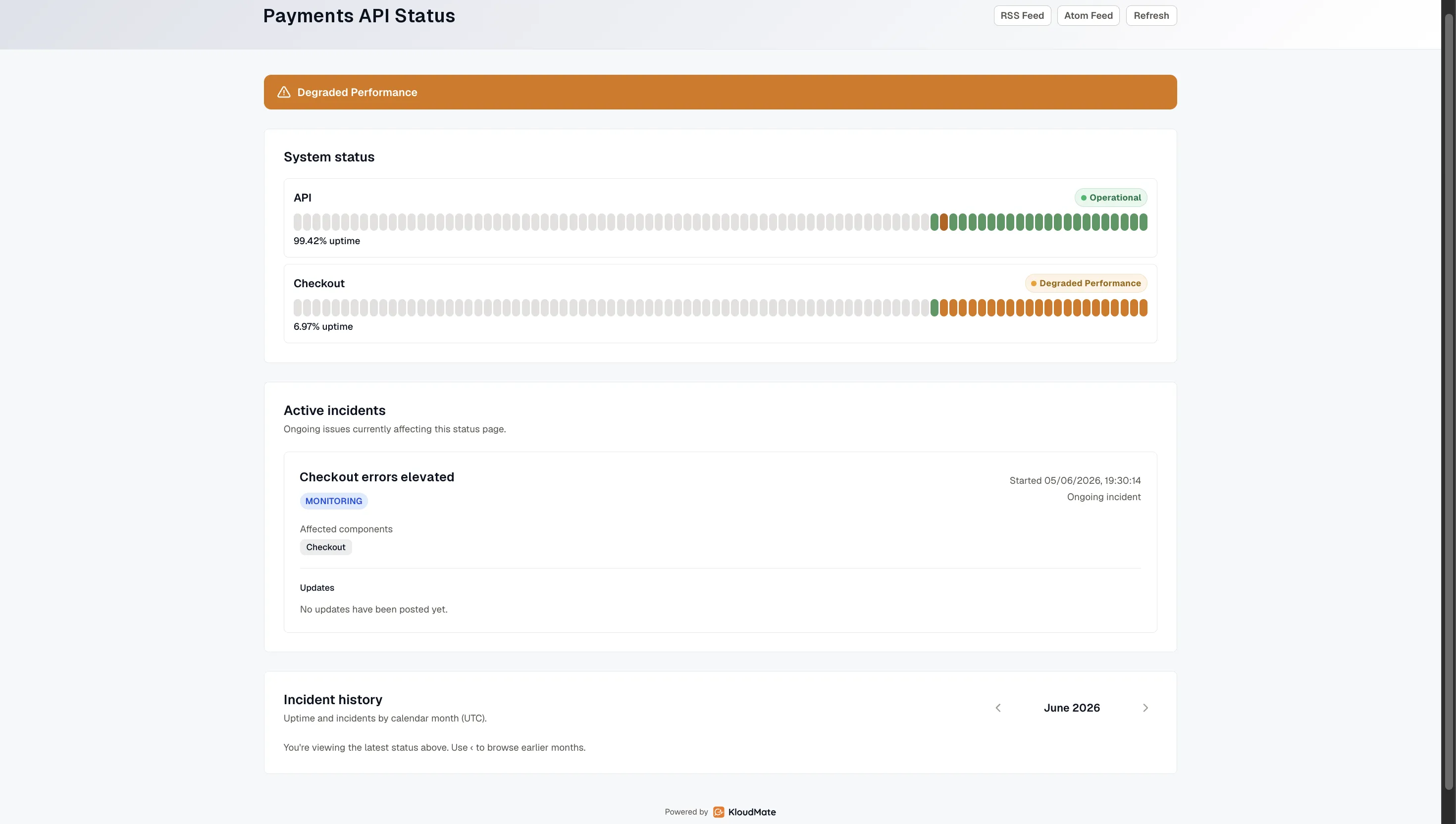
What visitors see
Section titled “What visitors see”A published status page shows:
- An overall status banner — Operational, Degraded Performance, Partial Outage, or Major Outage — derived from active incidents and component health.
- Components, optionally grouped, each with a 90-day uptime strip. Hovering a day shows its status, duration, and any related incidents.
- Active incidents, newest update first.
- A history view for browsing past months.
- RSS and Atom feeds so people can subscribe to changes.
The editor
Section titled “The editor”You manage everything from one editor with three tabs:
- Components — what the page reports on.
- Incidents — what you post during an outage. See Post incidents and updates.
- Settings — branding, the public URL, and a custom domain. See Branding and custom domain.
Create a status page
Section titled “Create a status page”-
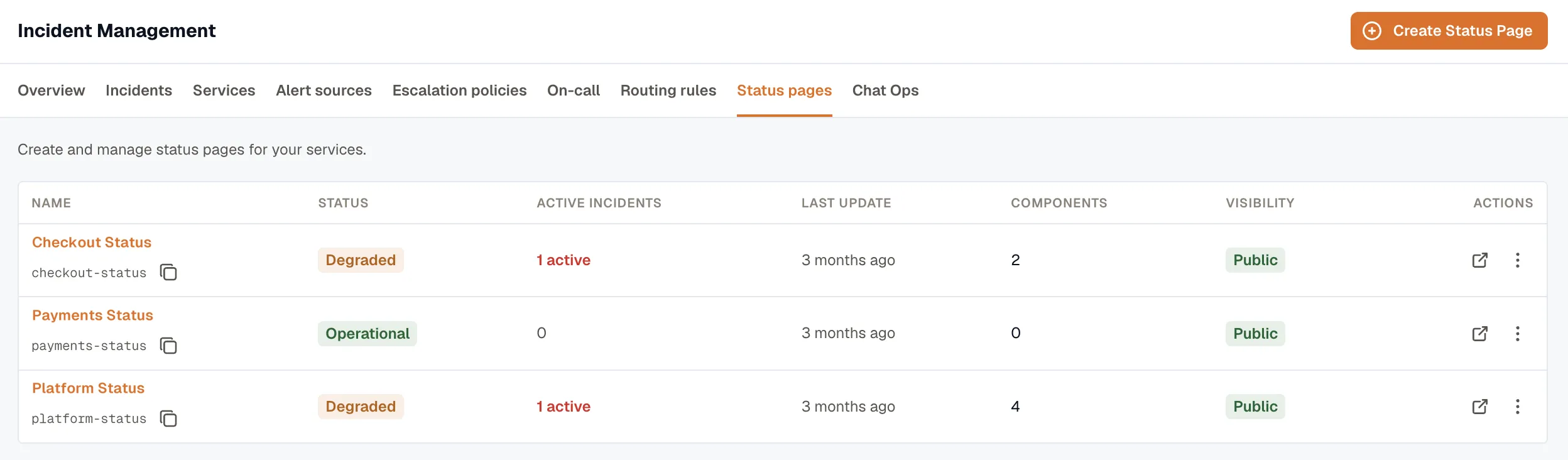
Open Incidents → Status pages and click Create Status Page.
-
Enter a name — the title visitors see.
-
Set a slug. It becomes part of the default public URL, so use lowercase letters, numbers, and hyphens (for example
acme-status). -
Add an optional description shown under the title.
-
Pick a primary color for the page’s accent. The default is
#1453ff. -
Save. The page starts as a draft — only you can see it until you publish.
Add components
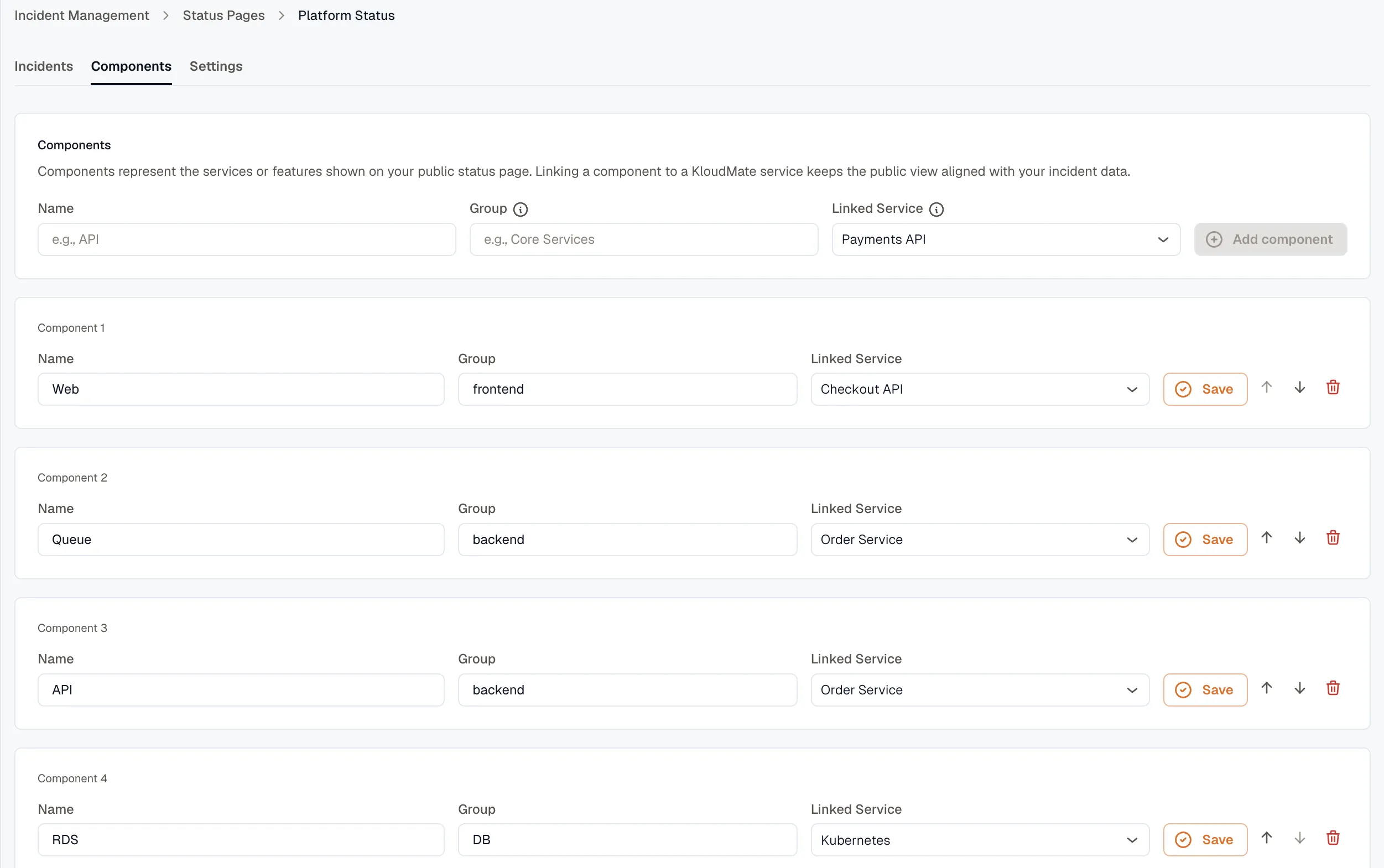
Section titled “Add components”Components are the services or features your page reports on — “API”, “Dashboard”, “Webhooks”. For each component you set:
- Name — what visitors see.
- Group (optional) — components with the same group label are visually grouped on the page.
- Linked service (optional) — link a component to an IM service and its status tracks that service’s health automatically, so you don’t update it by hand.
- Display order — reorder components to control how they stack on the page.
A component’s status is one of Operational, Degraded, Partial Outage, or Major Outage. (On the public page, “Degraded” reads as “Degraded Performance”.)
Publish and unpublish
Section titled “Publish and unpublish”A page is either a draft (only your team can see it) or public. Publish when the components are set up and you’re ready for visitors; unpublish to take it private again. Publishing doesn’t lock anything — you keep editing components, incidents, and settings while it’s live.
In this section
Section titled “In this section”- Post incidents and updates — communicate during an outage and publish from an existing incident.
- Branding and custom domain — logo, colors, and serving the page from your own domain.