

Incidents
The Incidents overview gives you a high-level view of incident activity across your workspace, including current status counts and incidents assigned to you.
Incident Statuses
Section titled “Incident Statuses”Incidents in KloudMate move through three core statuses:
- Triggered: The incident has been created and needs attention.
- Acknowledged: A responder has taken ownership and is actively reviewing it.
- Resolved: The incident has been fixed and closed.
Status isn’t a field you set directly — it’s derived from whether the incident has been acknowledged and resolved. Acknowledging a triggered incident moves it to Acknowledged; resolving it moves it to Resolved. You can reverse either action too (unacknowledge, unresolve).
At the top of the page, you can review:
- Total incident count
- Triggered, acknowledged, and resolved counts
- MTTA (Mean Time to Acknowledge)
- MTTR (Mean Time to Resolve)
My Incidents
Section titled “My Incidents”The My Incidents list shows incidents currently assigned to you, including severity, responders, triggered time, and current status.
Use View All to open the full incident list across the workspace.
The incident list
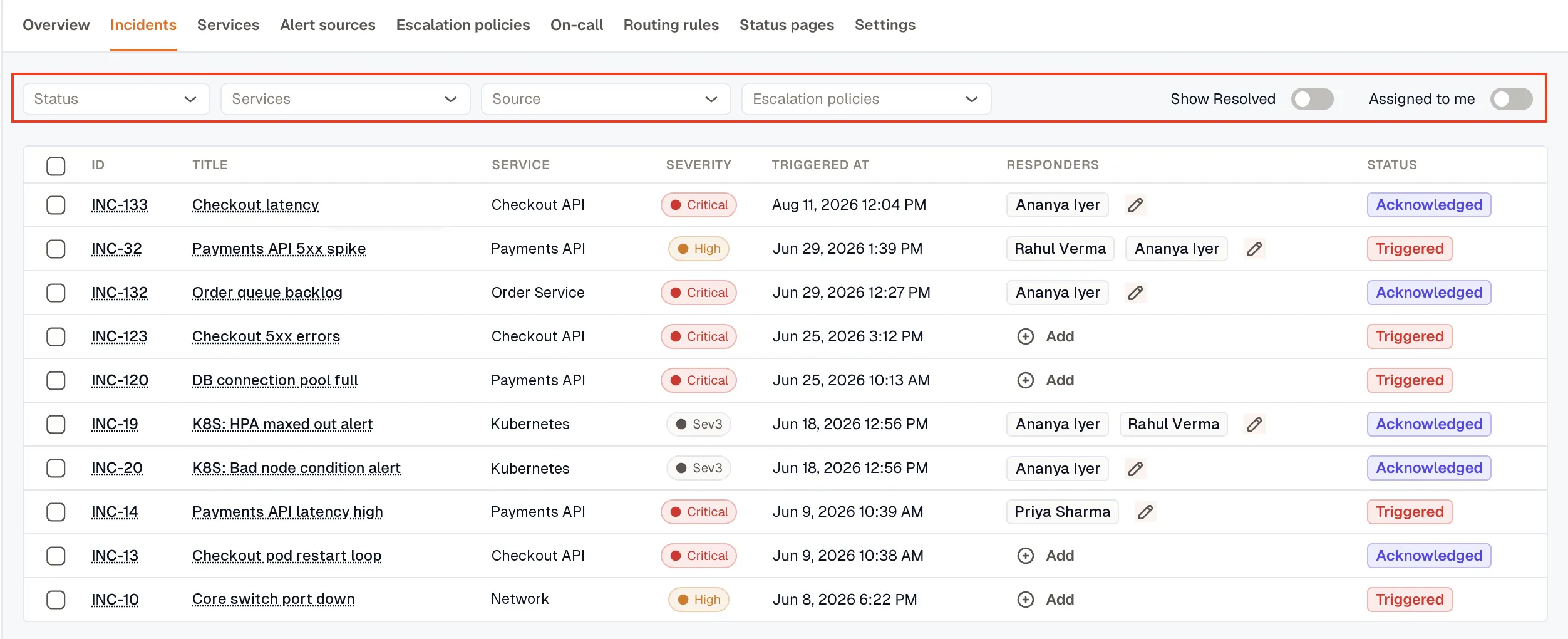
Section titled “The incident list”The full list is where you work through incidents at scale. Each row shows the incident’s ID — its stable key, which links to the detail page — along with the title, service, severity, triggered time, responders, and status.
Filter the list by:
- Status — triggered, acknowledged, or resolved.
- Services, Source, and Escalation policies.
- Assigned to me — only incidents you’re a responder on.
- Show Resolved — include resolved incidents, which are hidden by default.
You can also act in bulk: select several incidents and acknowledge, resolve, or change the severity of all of them at once — handy when one root cause spawned a wave of incidents.
Related
Section titled “Related”- Incident Details — the activity timeline, responders, and status actions.
- Services · Alert Sources · Escalation Policies — what the list filters on.