

Data Sources
Use Data Sources to connect AWS accounts, review their sync settings, and check sync health across regions.
Connect an AWS Account
Section titled “Connect an AWS Account”KloudMate can connect multiple AWS accounts and begin ingesting supported logs, metrics, and traces after setup.
To connect a new account, follow AWS Account Setup.
Manage Connected Accounts
Section titled “Manage Connected Accounts”Open Settings → Data Sources to view all connected AWS accounts.
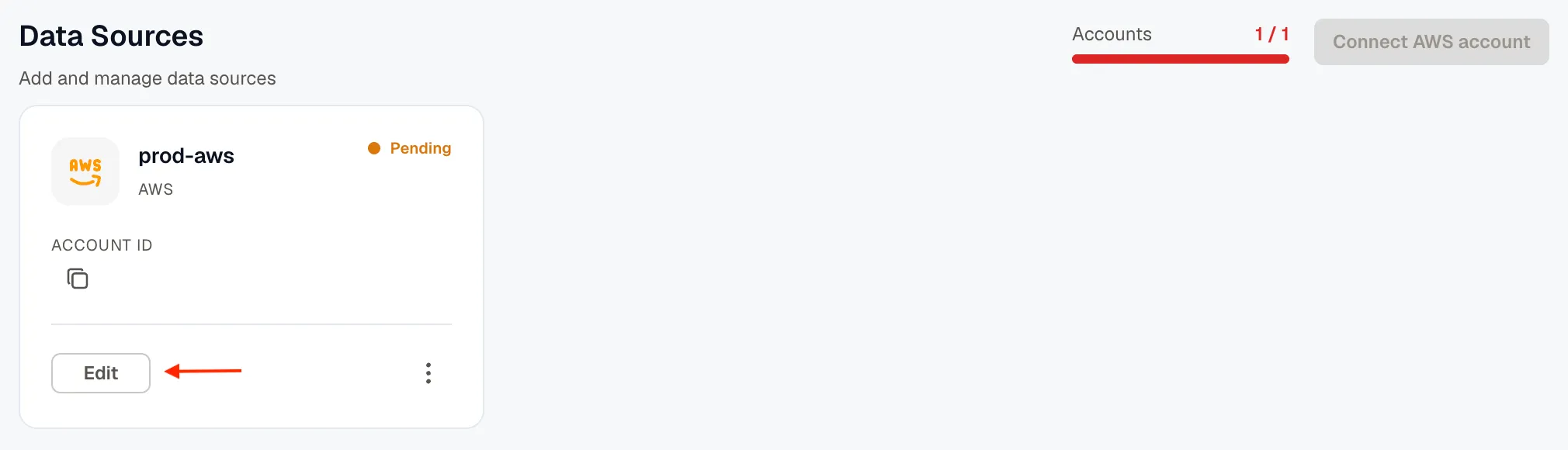
Each connected account appears as a card with its name, a connection-status indicator, and the AWS account ID with a copy button. Edit opens the account’s details, and the card’s menu (⋮) has Sync settings and CloudWatch Logs.
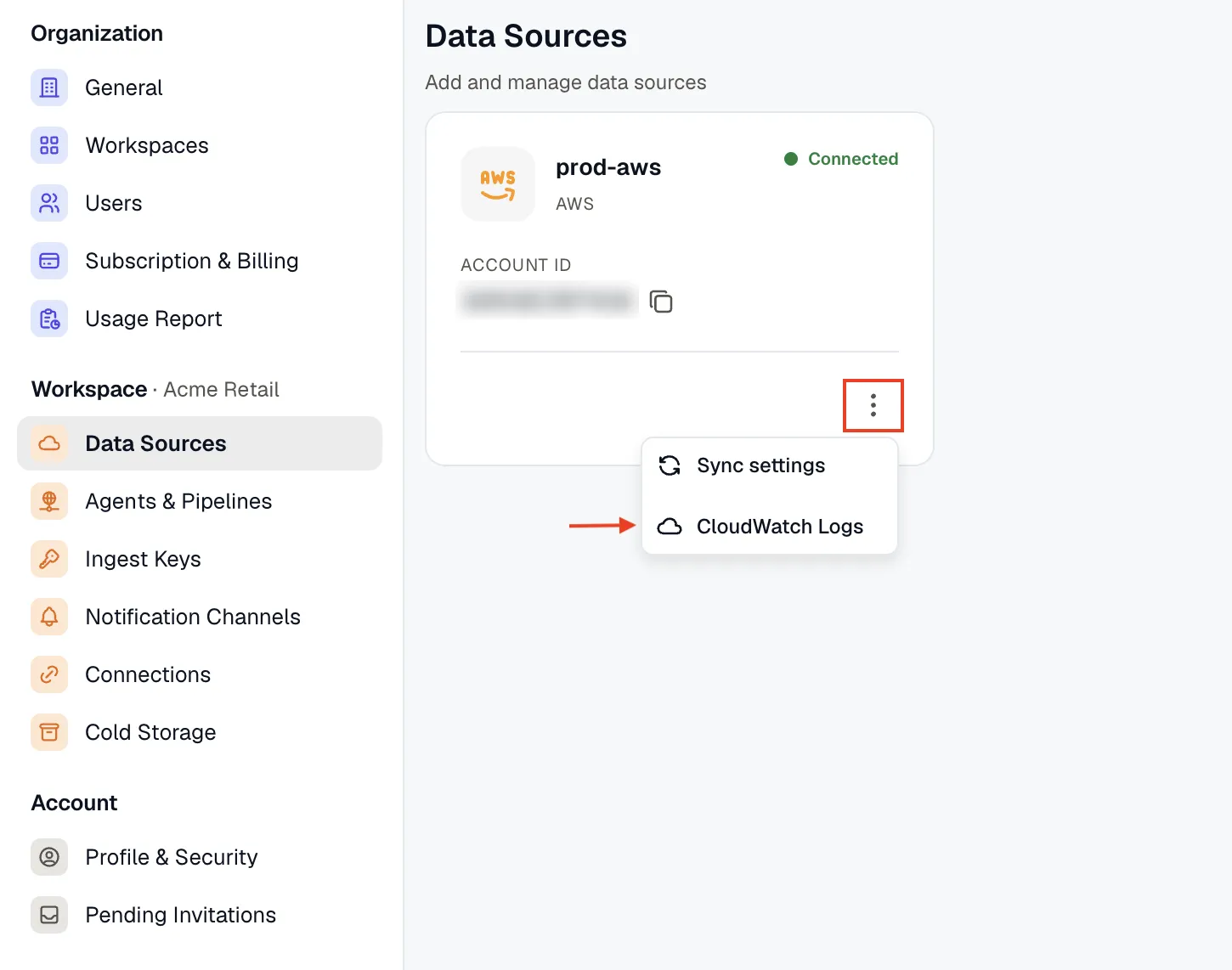
The connection-status indicator also flags access problems. When the delegation role KloudMate uses is missing a required permission, the account shows a Permission error state with the reason. That means the whole account’s access is failing, not a single region. Open the account’s Edit Account Details screen to see the same error alongside the connection details. To fix it, update the delegation role’s permissions, then let KloudMate re-check on the next sync. See Troubleshoot AWS sync.
From this page, you can:
- Add another AWS account
- Open account details and edit the connection
- Review or update sync settings
- Access CloudWatch log subscription controls
- Remove an AWS account
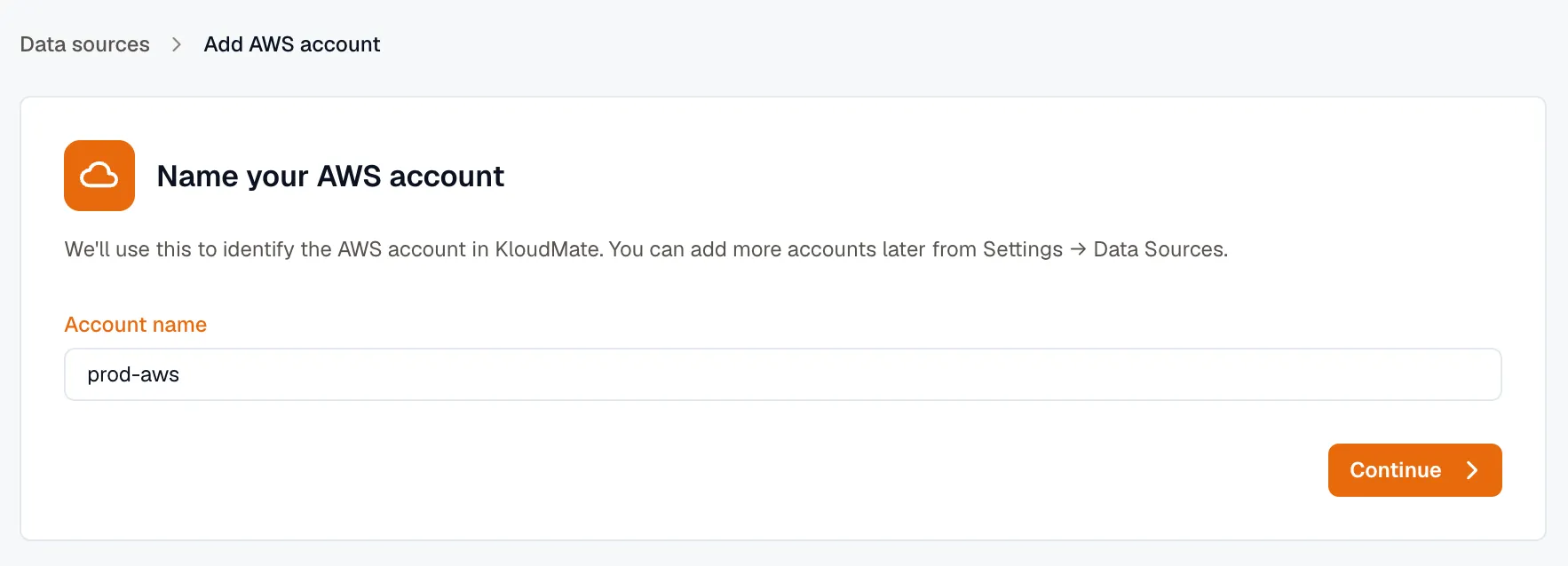
To add an account, click Connect AWS account, name the account, and follow the steps in AWS Account Setup.
Edit account details
Section titled “Edit account details”Click Edit to open Edit Account Details.
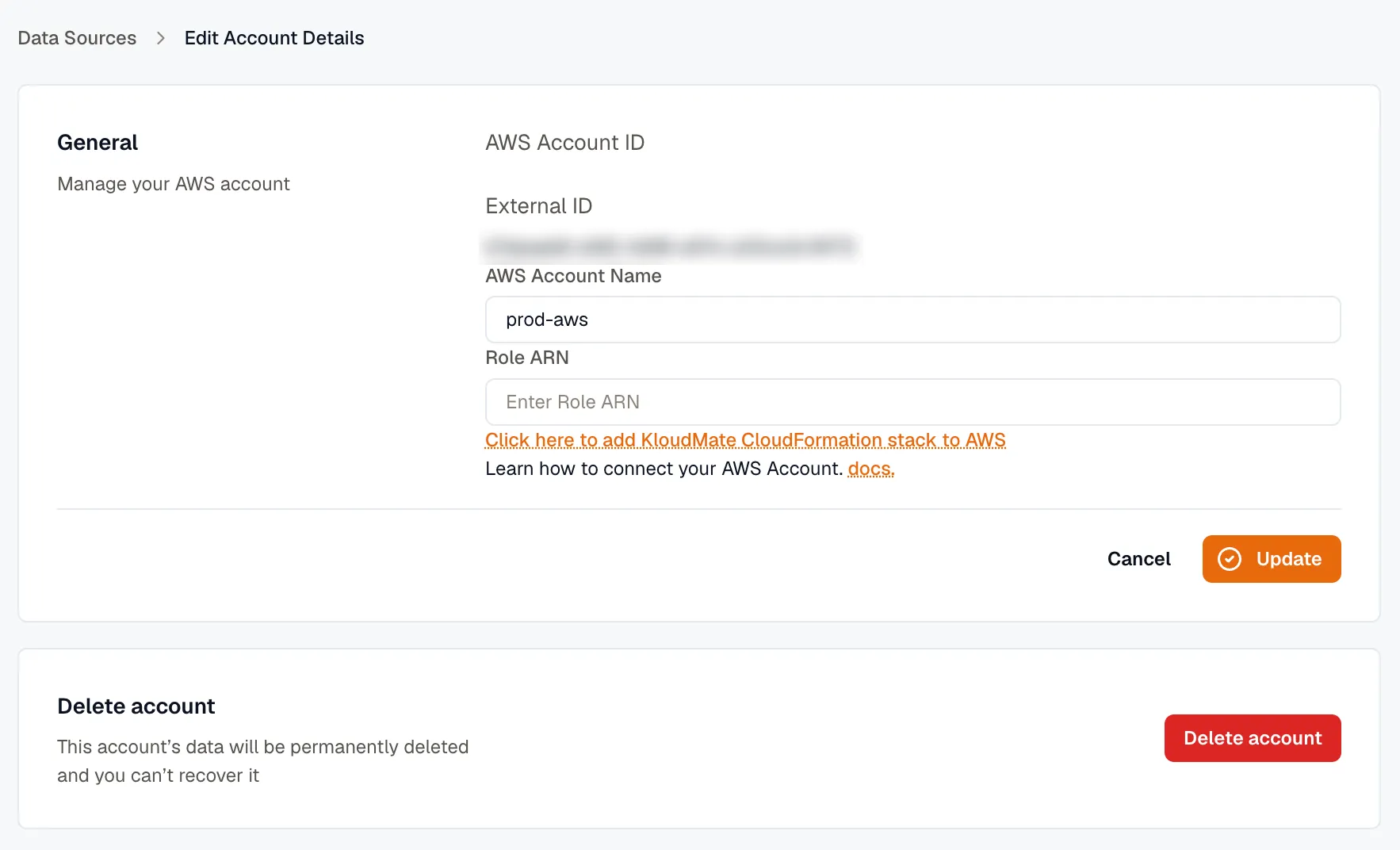
Edit Account Details shows the account’s AWS account ID and external ID. Change the AWS Account Name, or paste a new Role ARN, then click Update. If you don’t have a role yet, Click here to add KloudMate CloudFormation stack to AWS below the field opens the stack in AWS. To remove the account, click Delete account. Its data is deleted permanently.
Sync Settings
Section titled “Sync Settings”Sync Settings control what KloudMate inventories for a connected account. Open an account’s menu and choose Sync settings.
Two account-level controls decide what gets synced: Primary regions and an optional tag allowlist. The set of resource types KloudMate inventories is platform-managed and the same for every account. See Covered services. The Region sync status section on the same page surfaces any regions that have stopped syncing, and with the Developer role you can turn them back on.
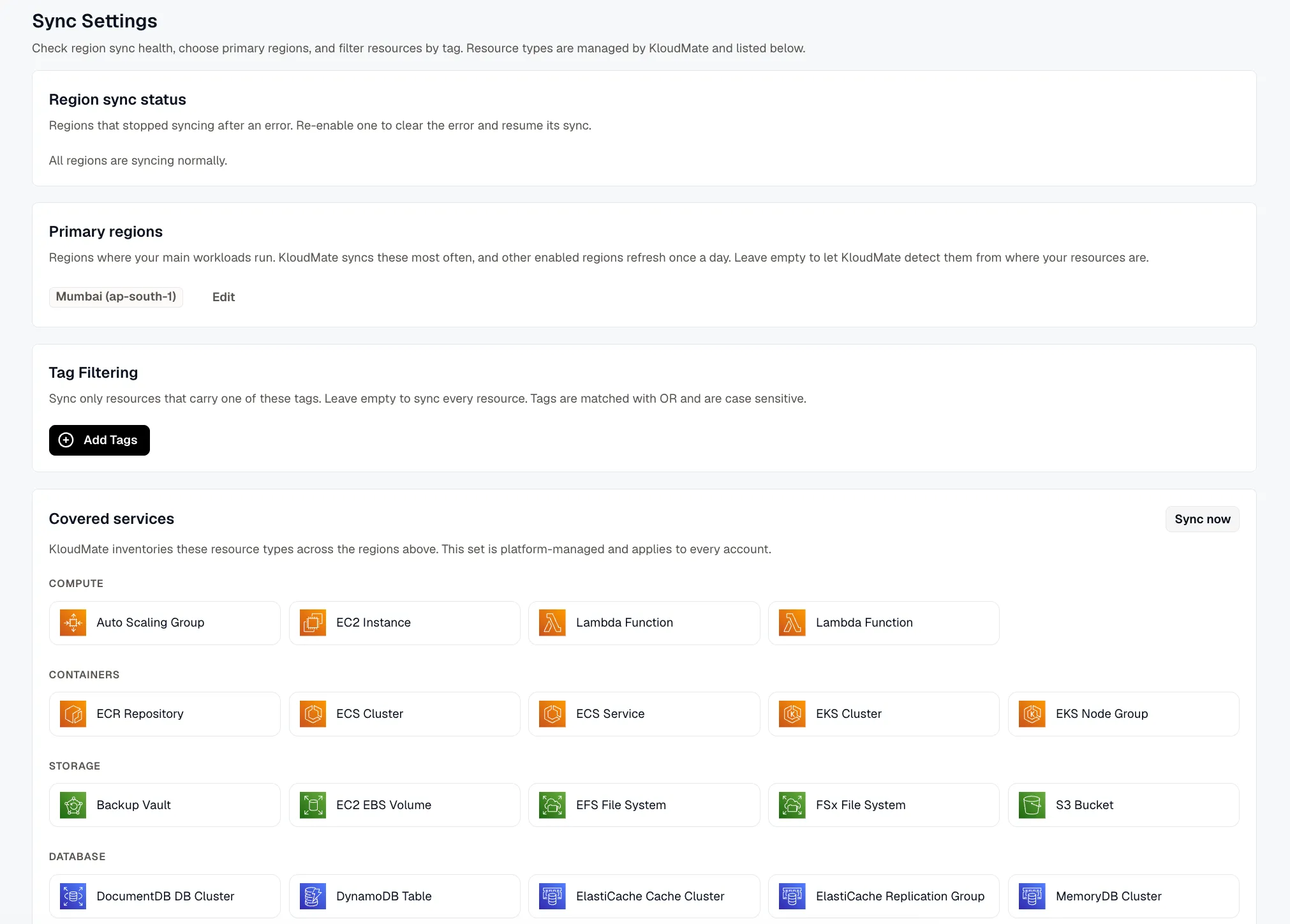
Primary regions
Section titled “Primary regions”Primary regions are the regions where the account’s main workloads run. KloudMate syncs primary regions most frequently, and other enabled regions refresh about once a day. Set them to keep your busiest regions the freshest.
Primary regions must be a subset of the regions enabled for sync, so the picker offers only regions that are currently syncing. Leave the field empty and KloudMate detects the primary regions for you, based on where the account’s resources actually live.
Region sync status
Section titled “Region sync status”KloudMate normally syncs every region that’s enabled for an account. If a sync hits an AWS permission error in one region, KloudMate turns that region off so it stops retrying a region it can’t read, and the rest of the account keeps syncing. The Region sync status section lists any regions that are currently turned off and not syncing.
For each region, the panel shows why it stopped:
- If a permission error disabled it, the recorded reason appears, for example an
AccessDeniedmessage naming the missing permission. - If it was turned off some other way, it shows Disabled. No recent error recorded.
With the Developer role, you can select Re-enable on a region. That turns the region back on, clears its stored error, and starts a sync right away, so its resources return without waiting for the next cycle. With the Viewer role, you can see the status but can’t re-enable a region.
Most permission problems recover on their own once you fix the underlying access. To find the cause and confirm the fix, see Troubleshoot AWS sync.
Tag filtering
Section titled “Tag filtering”The tag allowlist limits syncing to resources that carry a tag you list. Add one or more name = value tags and KloudMate syncs only resources matching at least one of them. Leave the list empty to sync everything.
- Tags combine with OR: a resource matches if it carries any one of the listed tags.
- Tag matching is case-sensitive, so
env = Prodandenv = prodare different.
To set tags:
- Open the account’s Sync settings.
- Click Add Tags under Tag Filtering.
- Enter the tags you want to match.
- Save the configuration.
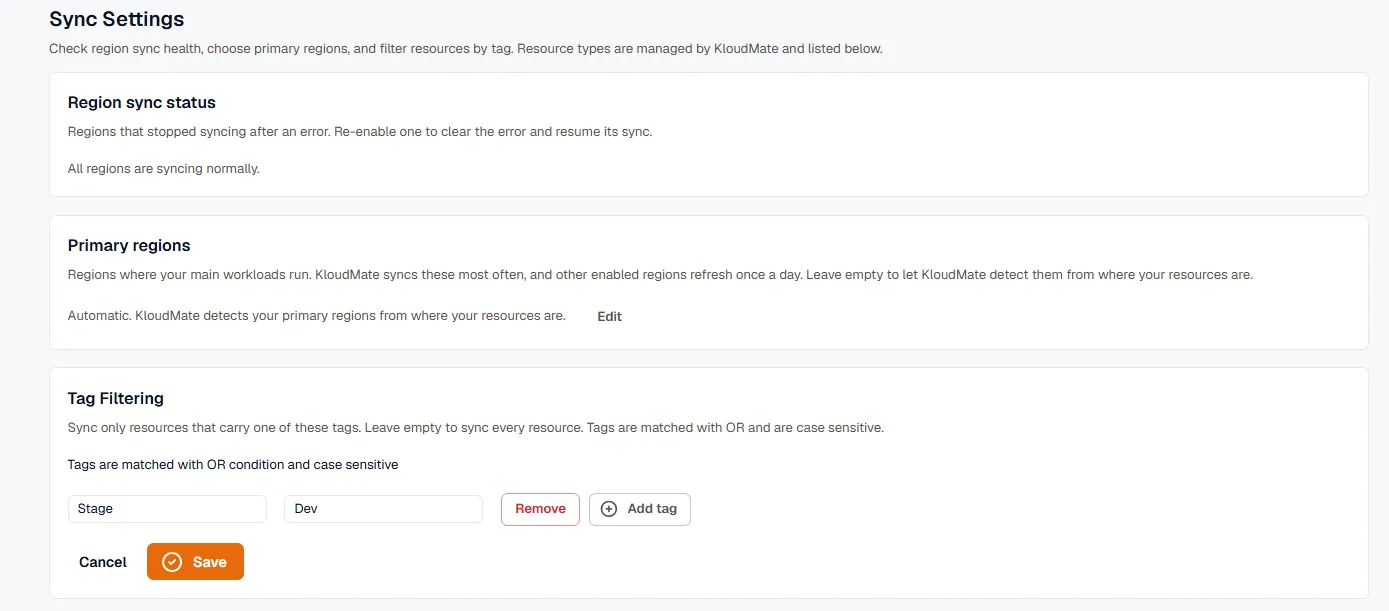
If tags are already configured, use the edit action to update or remove them.

Covered services
Section titled “Covered services”KloudMate inventories a fixed set of about 52 AWS resource types, the same for every account. Sync Settings shows them as a read-only Covered services list, grouped by AWS category (Compute, Storage, Database, Networking, and so on) with each service’s icon.
This list is platform-managed and applies to every connected account. There’s no per-service on/off switch. You scope what’s inventoried with regions and tags, not by toggling individual services.
Sync now
Section titled “Sync now”To refresh an account without waiting for the scheduled cycle, use Sync now. It refreshes the cloud inventory and the per-region resource sync together, so one action brings everything for the account up to date.
Reach for it after you re-enable a region or fix a permission problem and want the account’s resources to reappear right away.