

Connect an account
You need the Developer role to connect an account. Open Settings → Connections and click Connect.
The picker lists only the providers your organization can connect. If a provider you expect is missing, see Providers.
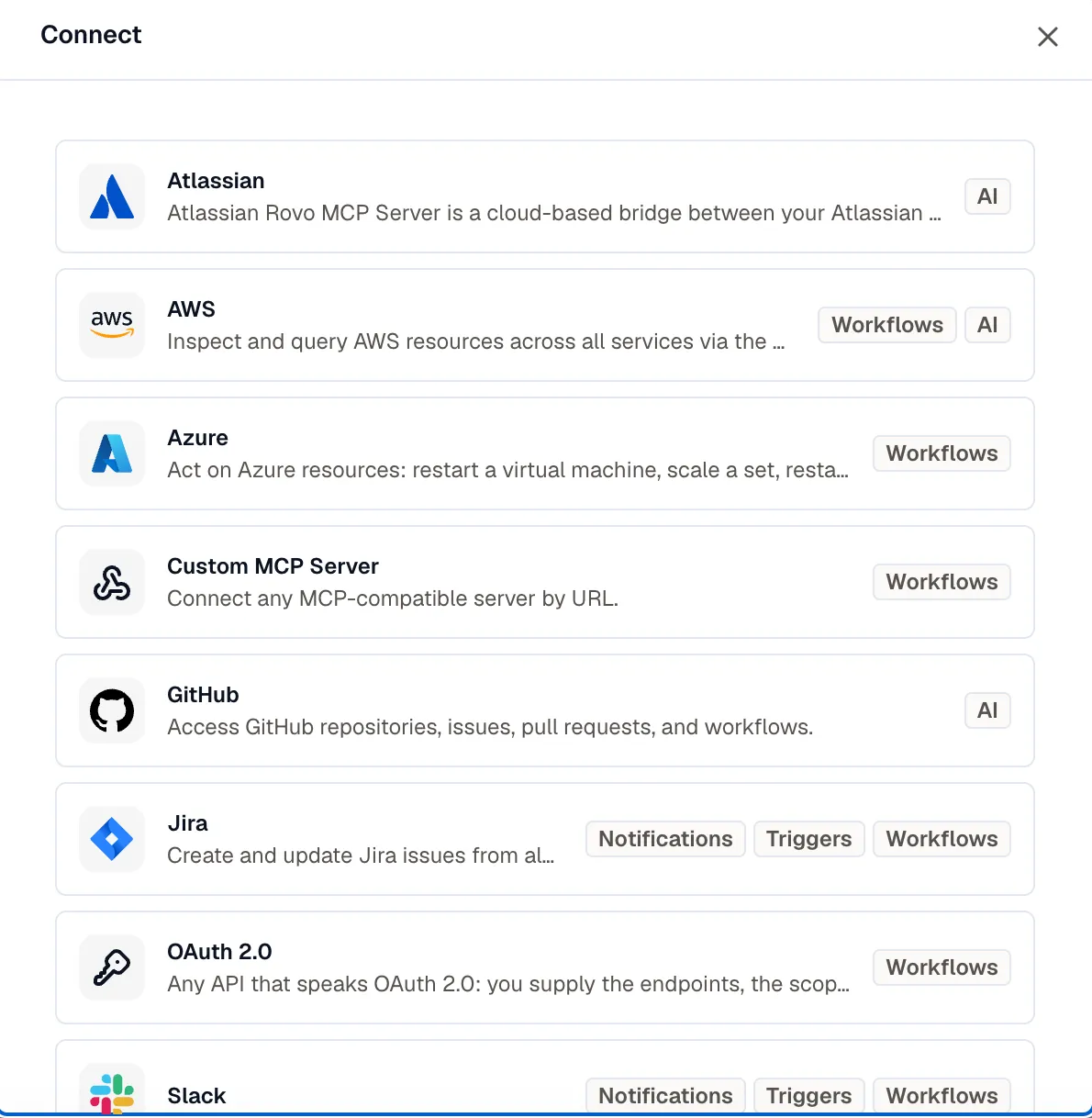
Pick a provider and fill in the Connection name. How you finish depends on the provider.
A connection made here starts with the provider’s usual capability: Notifications for Slack and Jira Cloud; Workflows for AWS, Azure, a custom MCP server, and OAuth 2.0; and AI for the assistant tools. Change what it’s used for, and who can use it, afterward under Edit.
Connect through OAuth
Section titled “Connect through OAuth”Slack, Jira Cloud, Sentry, and the Google Cloud providers send you to the provider’s own site. Click Connect and approve the access there. KloudMate adds the connection when you’re done.
The connection records the account you authorized, so you can tell two Slack installs or two Google accounts apart.
Connect with a credential form
Section titled “Connect with a credential form”AWS, Azure, GitHub, Atlassian, a custom MCP server, and a generic OAuth 2.0 API take their credentials in a form. Fill in the provider’s fields and click Connect.
Where a provider supports more than one method, choose one under Authentication. AWS offers Assume Role (recommended) or Access keys; a custom MCP server offers no auth, a bearer token, or an API key in a named header.
KloudMate checks the credential as soon as you save. If the check fails, it still saves the connection, so you don’t lose what you typed, and marks it Degraded. Click Edit beside it and fix the values.
Connect from a workflow step or trigger
Section titled “Connect from a workflow step or trigger”You don’t have to start in Settings. A workflow step’s connection picker and an app-event trigger’s Account picker both offer New connection, or Connect followed by the app’s name when the app has no connection yet. They open the same form, and the new connection can be used for Workflows straight away.
That matters most for app-event triggers. A Slack account connected from Settings for notifications still appears in a trigger’s Account picker, but it’s flagged Not enabled for workflows until you add Workflows to it under Edit.
Visibility
Section titled “Visibility”Every connection is Workspace or Private.
Workspace is how every connection starts, and it’s almost always the right choice. The connection belongs to the workspace, so anyone with the Developer role can use and manage it, and it keeps working when whoever connected it leaves.
Private restricts a connection to its creator. Only a connection whose one capability is AI can be private, so use it for a personal GitHub or Google account that you want the assistant to use on your behalf and nobody else’s.
A private connection is invisible to everyone else: it’s absent from their list, and they can’t use it even if they know its id.
To make a connection private, set Visibility under Edit. To share a private connection with the workspace, use Share with workspace on its row menu.
Related
Section titled “Related”- Providers for what each one covers and what a plan includes.
- Manage a connection for editing, reconnecting, and deleting.
- Workflows for binding a connection to a step or a trigger.