

Dashboards
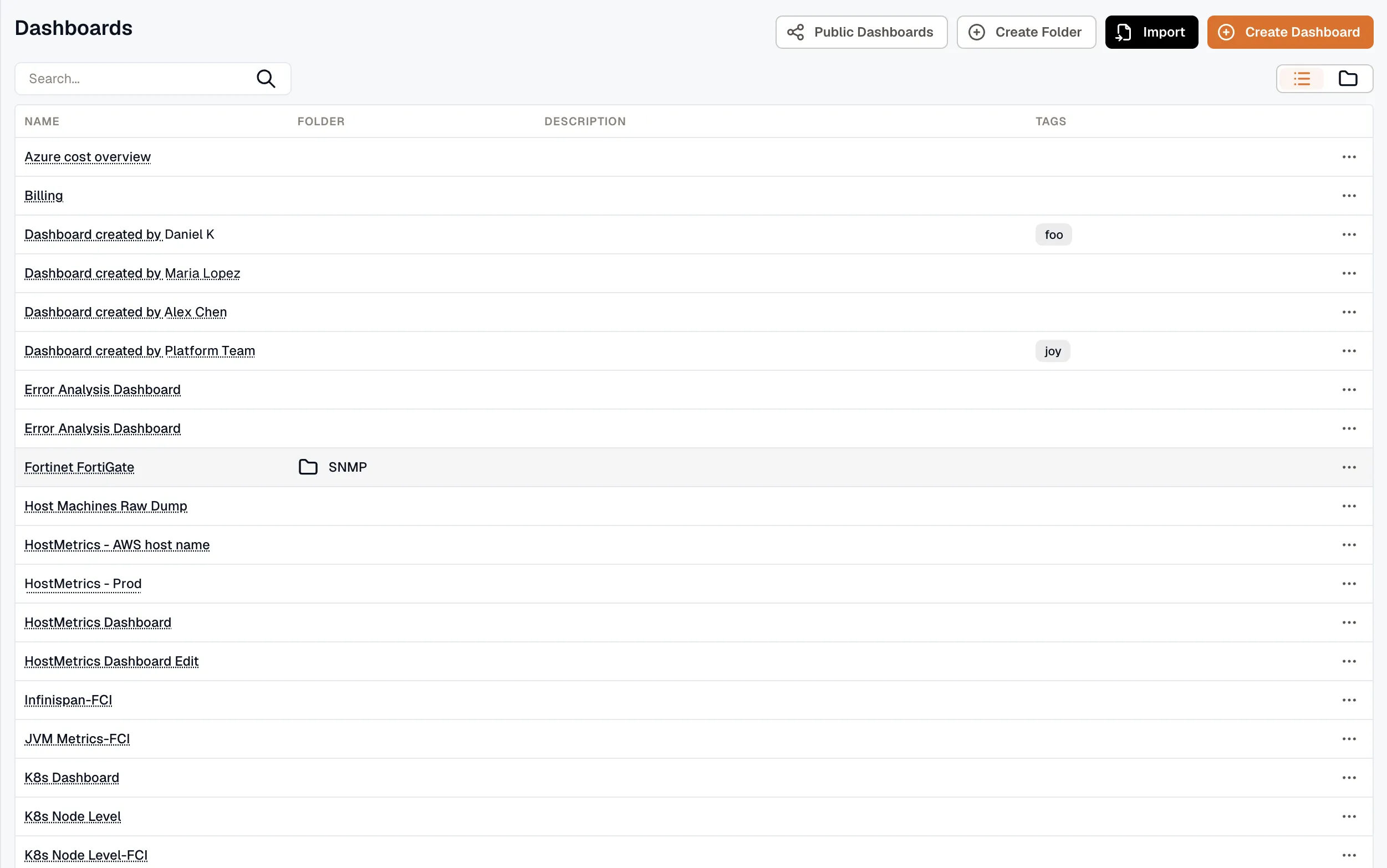
Build dashboards to track the metrics that matter to your application and business. Open Dashboards in the left navigation to see all of them. To build one, see Create a dashboard.
Find a dashboard
Section titled “Find a dashboard”Search by dashboard or folder name. Switch to Folders to group dashboards by folder, or to List to see them all in one list.
To move, share, or delete a dashboard, open its more options (⋯) menu and click Move to folder, Share, or Delete. See Sharing a Dashboard.
Tag dashboards
Section titled “Tag dashboards”Click a dashboard’s Tags cell to add a tag or create a new one. A tag is saved exactly as you type it. A dashboard can’t carry the same tag twice in different cases, so if it already has Prod, adding prod keeps Prod.
To show only dashboards with certain tags, click Tags in the toolbar and pick one or more. A dashboard must carry every tag you pick. The filter ignores case and lists each tag once, under the spelling first used in the workspace.
Dashboard links match a tag’s exact spelling, case included, so keep one spelling for each tag.
Organize dashboards in folders
Section titled “Organize dashboards in folders”Group related dashboards in a folder, for example one folder per team or service. Folders are optional.
-
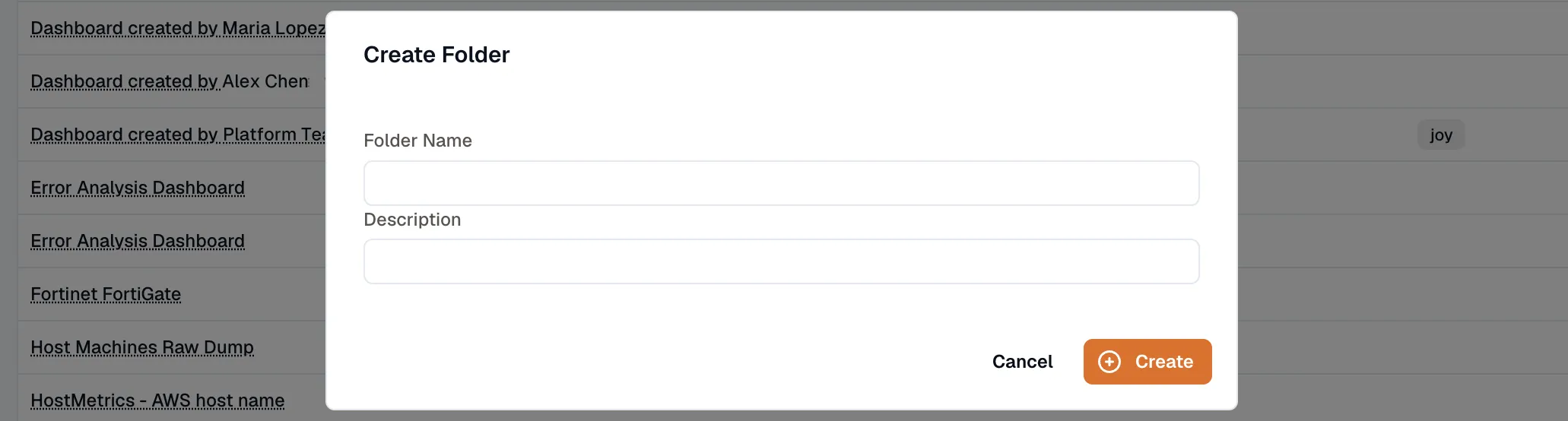
Click the arrow next to Create Dashboard, then click Create folder.
-
Enter a Name and an optional Description, then click Create.

To put a dashboard in a folder, open its more options (⋯) menu, click Move to folder, and pick the folder. Pick Ungrouped to take it out of a folder.
To rename or remove a folder, use its more options (⋯) menu to Edit folder or Delete folder. Deleting a folder doesn’t delete its dashboards. They move to Ungrouped.
Manage public dashboards
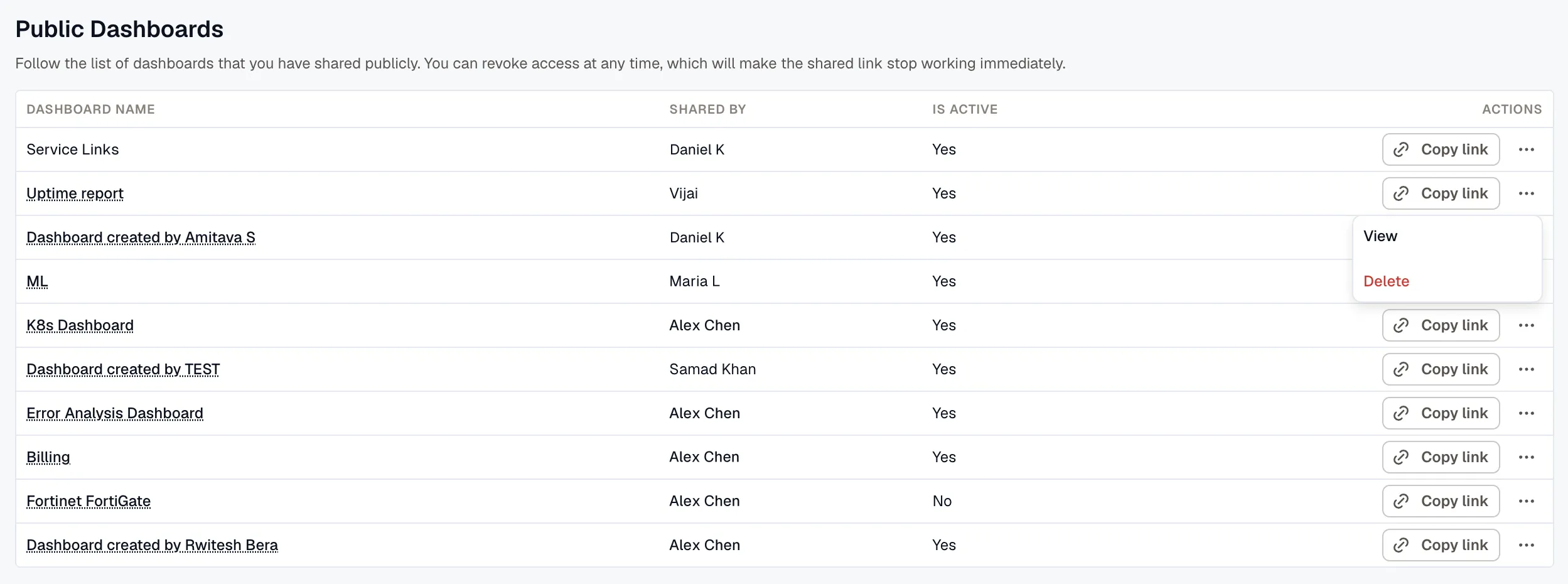
Section titled “Manage public dashboards”A public link gives read-only access to people outside your workspace, such as stakeholders or external teams, without a KloudMate login. To create one, see Sharing a Dashboard.
To manage your public links, click Public Dashboards. From there you can copy a link, open it to see what others see, or click Delete to revoke it. A deleted link stops working immediately.
Importing a Dashboard
Section titled “Importing a Dashboard”Import a dashboard from its JSON to copy it from one workspace to another, or to reuse a dashboard someone shared with you. To get the JSON of an existing dashboard, see Sharing a Dashboard.
- Copy the dashboard’s JSON.
- On the Dashboards page, click Import.
- Paste the JSON and click Submit.

To create, update, or delete dashboards from a script instead, or to read the JSON format, see Dashboard JSON and API.
User Permissions
Section titled “User Permissions”| Role | Permissions |
|---|---|
| Admin | Create, edit, or delete dashboards and folders. Turn a public link on or off. |
| Developer | Create, edit, or delete dashboards and folders |
| Viewer | View dashboards and folders only |