

Rotations and Coverage
A single rotation covers the simple case. Real coverage often needs more: a daytime team alongside an after-hours rotation, a roster that follows working hours around the globe, or an overnight shift that runs past midnight. You build all of these by adding more rotations and giving each one the coverage window and timezone it should run in.
How overlapping rotations resolve
Section titled “How overlapping rotations resolve”By default, rotations are additive. At any moment, whoever’s on call is the union of every active rotation’s current assignee(s), deduplicated by person. A rotation is active when the moment falls inside its coverage window; a 24/7 rotation is always active.
So where two rotations’ coverage windows overlap, both responders are on call — the building block for multi-responder coverage. When you want exactly one person on call there instead, you have two levers: give the rotations windows that don’t overlap, or give one a higher priority so it takes over the overlap. Priority is covered below.
Coverage windows
Section titled “Coverage windows”Each rotation’s Coverage is either always-on or limited to a window:
- 24/7 — the rotation is always active. This is the right choice for a baseline rotation that an escalation policy can always reach.
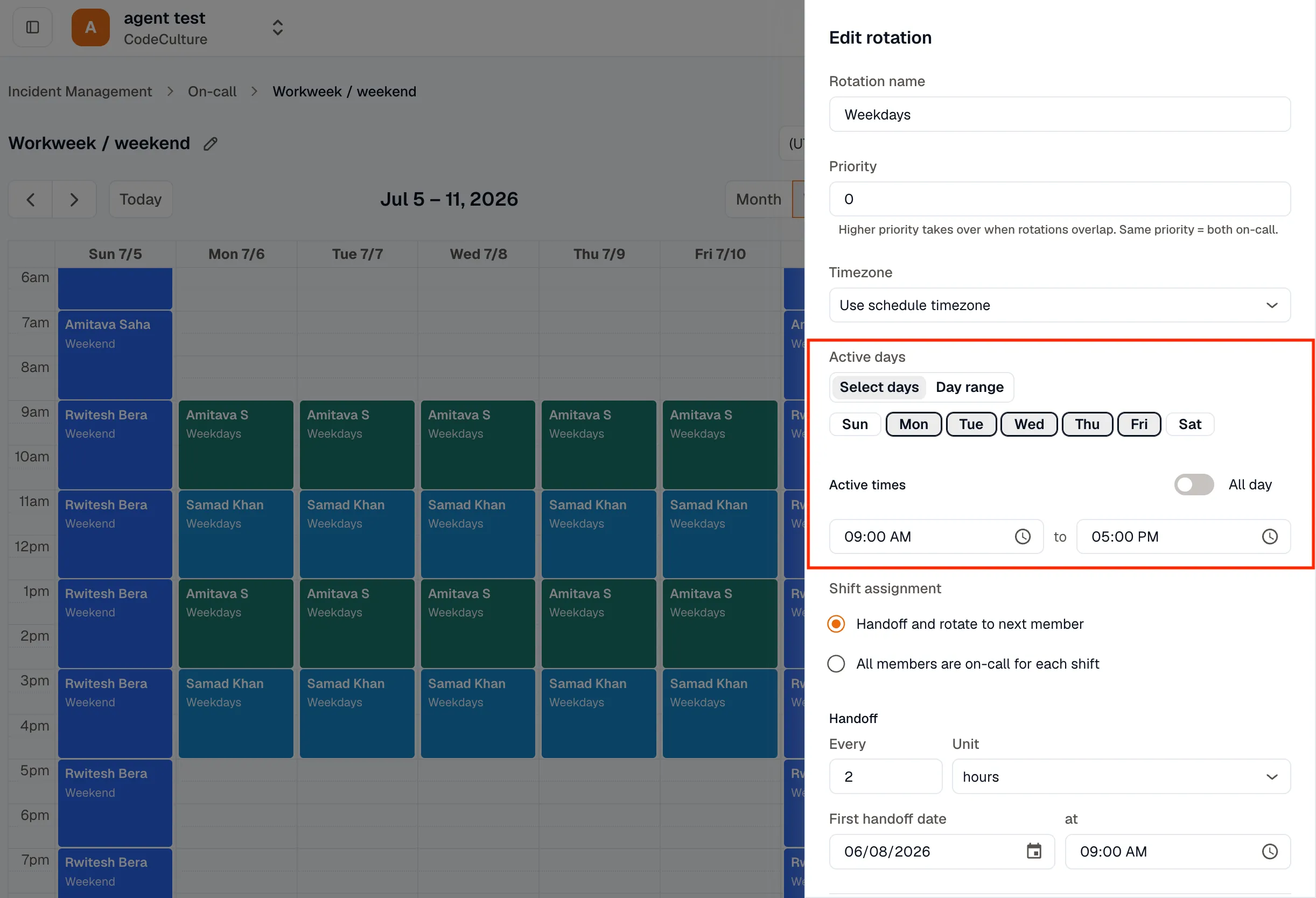
- Custom — the rotation is active only within a window built from two parts:
- Active days — any set of weekdays, or a day range (for example Mon–Fri).
- Active times — All day, or a from–to window (for example 09:00–17:00).
“All day” on the selected days means round-the-clock on those days. A from–to window applies on each active day. All of a rotation’s times are evaluated in its effective timezone — its own timezone if set, otherwise the schedule’s.
A rotation exposes a single active-times window. If you need different hours on different days — say 09:00–17:00 on weekdays but all day on weekends — use separate rotations, one per pattern.
Overnight windows that cross midnight
Section titled “Overnight windows that cross midnight”An active-times window can end earlier than it starts — for example 22:00–05:00 — which means it runs overnight into the next morning. The rule to remember:
Active days select the day a shift starts.
So a rotation with Active days Mon–Fri and Active times 22:00–05:00 runs each weeknight from 22:00 into the next morning until 05:00:
- It starts a shift on Monday, Tuesday, Wednesday, Thursday, and Friday nights.
- The Friday-night shift runs into Saturday 05:00 — because it started on Friday.
- It does not start a shift on Saturday or Sunday night, so there’s no coverage from Saturday 22:00 onward.
If you also need Saturday and Sunday nights covered, add the missing days to the rotation (or add a second rotation for the weekend). This start-day rule is the most common point of confusion with overnight coverage, so check it on the calendar before you rely on it.
Rotation priority
Section titled “Rotation priority”Trimming windows or adding days handles most overlaps. Sometimes two rotations have to cover the same moment, though, and you want only one of them on call. That’s what priority does.
Every rotation has a priority — a whole number, 0 by default. Where rotations overlap in time, the highest priority present wins: it stays on call and hides every lower-priority rotation for as long as the overlap lasts. Rotations that share a priority stay additive, so they’re all on call together. A higher number wins — a rotation at priority 1 takes over one left at 0.
Because every rotation starts at 0, a schedule behaves exactly as it always has until you raise one. Priority does nothing until one rotation sits above another. You set it in the rotation drawer, right under the rotation name.
Hand an overlap to one rotation
Section titled “Hand an overlap to one rotation”The common case is an overnight weekday rotation bleeding into the weekend. Pair the overnight after-hours rotation from above with an all-day weekend rotation:
| Rotation | Coverage | Priority |
|---|---|---|
| After hours | Custom — Mon–Fri, 22:00–05:00 | 0 |
| Weekend | Custom — Sat–Sun, all day | 1 |
The after-hours rotation’s Friday shift starts on Friday and runs into Saturday 05:00 — the start-day rule from above. That tail overlaps the Weekend rotation’s Saturday. Left at the same priority, both people are on call from Saturday 00:00 to 05:00, so the weekday responder gets pulled in on a day off.
Give Weekend the higher priority and the overlap resolves: the after-hours shift ends at Saturday 00:00, Weekend owns all of Saturday, and the calendar shows the handover at midnight. The rest of the week is untouched — the two rotations only interact where they overlap.
Shift assignment within a rotation
Section titled “Shift assignment within a rotation”Each rotation also decides how its members share the shifts:
- Handoff and rotate to next member — one member is on call per shift, and the duty advances to the next member at each handoff.
- All members are on-call for each shift — everyone in the rotation is on call together for as long as the rotation is active. Use this for a whole team that responds as a group.
Per-rotation timezone
Section titled “Per-rotation timezone”A rotation can override the schedule’s timezone with its own. Set it, and that rotation’s handoff and coverage times are evaluated in the rotation’s timezone rather than the schedule’s. Leave it on Use schedule timezone to inherit. This is what makes follow-the-sun work: each region expresses its hours in its own local time.
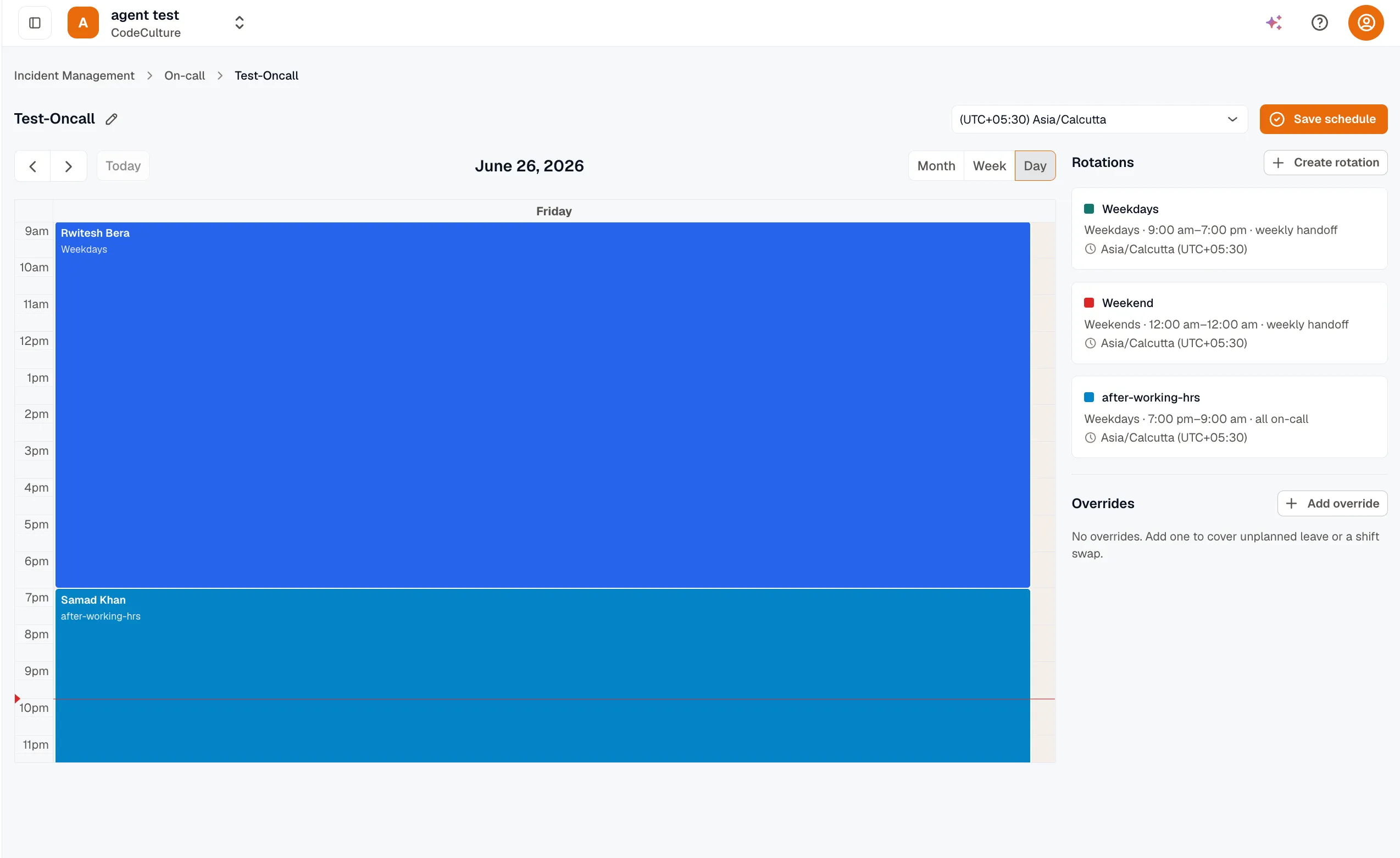
Example: business hours plus after hours
Section titled “Example: business hours plus after hours”Two additive rotations give you a daytime team alongside an always-available on-call rotation:
| Rotation | Coverage | Members |
|---|---|---|
| Business hours | Custom — Mon–Fri, 09:00–17:00 | Day-shift team |
| After hours | 24/7 | On-call engineers |
During business hours both rotations are active, so the day-shift responder and the on-call engineer are on call at once — an escalation step notifies both. Outside business hours only the 24/7 rotation is active, so the on-call engineer holds it alone. The always-on rotation guarantees there’s never a moment with nobody on call.
If you’d rather have exactly one person on call at a time, you have two options. Give the Business hours rotation a higher priority so it takes over during the day while the 24/7 rotation holds nights and weekends alone — one responder at every moment, no gaps. Or replace the 24/7 rotation with one whose window complements business hours (nights and weekends) so the two tile the week without overlapping, taking care not to leave a gap. (That second route usually takes two after-hours rotations, since a rotation has a single active-times window.)
Example: follow-the-sun
Section titled “Example: follow-the-sun”To hand coverage around the globe, give each region its own rotation with its own timezone and a local active-times window. Each region works its own daytime, and coverage passes from one to the next as the day moves west:
| Rotation (region) | Timezone | Active times (local) |
|---|---|---|
| APAC | Asia/Singapore | 09:00–17:00 |
| EMEA | Europe/London | 09:00–17:00 |
| Americas | America/New_York | 09:00–17:00 |
Because each window is evaluated in the rotation’s own timezone, you express every region’s hours as plain local working hours — no timezone math. As the clock advances, coverage hands from APAC to EMEA to the Americas and back. Small overlaps between regions are fine: while they overlap, both regions’ responders are on call — what you want at a handover. Keep every region at the same priority (the default 0) so none masks another.
Example: overnight on-call
Section titled “Example: overnight on-call”A single rotation can carry an overnight shift. Using the 22:00–05:00 window from above:
| Field | Value |
|---|---|
| Coverage | Custom |
| Active days | Mon–Fri |
| Active times | 22:00–05:00 |
This covers each weeknight from 22:00 until 05:00 the next morning, including Friday night into Saturday at 05:00. It does not start a shift on Saturday or Sunday night — add those days if you need the weekend too.
Mind the gaps
Section titled “Mind the gaps”Custom coverage windows create uncovered time on purpose, but a schedule made entirely of windowed rotations can leave moments with nobody on call. If an incident fires during such a gap, an escalation step that targets the schedule has no one to reach.
Make it a habit: for any schedule an escalation policy depends on, keep at least one 24/7 rotation, or make sure your rotations’ coverage windows tile the clock with no gap. The coverage timeline in the Schedules view (and the schedule’s own calendar) is the quickest way to scan for an uncovered window before you rely on the schedule.
Related
Section titled “Related”- Create a schedule — rotation fields and the calendar editor.
- Overrides — one-off coverage on top of the rotations.
- Escalation Policies — what notifies a schedule.