

Verify your company domain
Verifying your domain lets an employee type you@acme.com on the login page and get routed to your identity provider. Until a domain is verified, email-based sign-in won’t reach your IdP — KloudMate has no proof that you control the domain, so it won’t hand those users off.
You verify ownership by publishing a DNS TXT record that KloudMate looks up. This is the same kind of check you’ve done for email or other SaaS tools.
Before you start
Section titled “Before you start”- You must be the organization owner on a paid plan.
- You need access to your domain’s DNS records (or someone who can add a TXT record for you).
- You’ll usually want at least one connection added first, so sign-in has somewhere to go once the domain verifies.
Add a domain
Section titled “Add a domain”- Open Settings → Single Sign-On and find the Verified domains card.
- In Company domain, type your domain — for example
acme.com— and click Add domain. - The domain appears in the list with a Pending badge and the DNS record you need to publish.
Publish the TXT record
Section titled “Publish the TXT record”A pending domain shows the exact record to add. It has two parts:
- Host / Name —
_kloudmate-verify.<your-domain>(for example_kloudmate-verify.acme.com). - Value — a one-time verification token.
Both fields have a copy button. At your DNS provider, create a new TXT record using these values. Leave the TTL at the default.
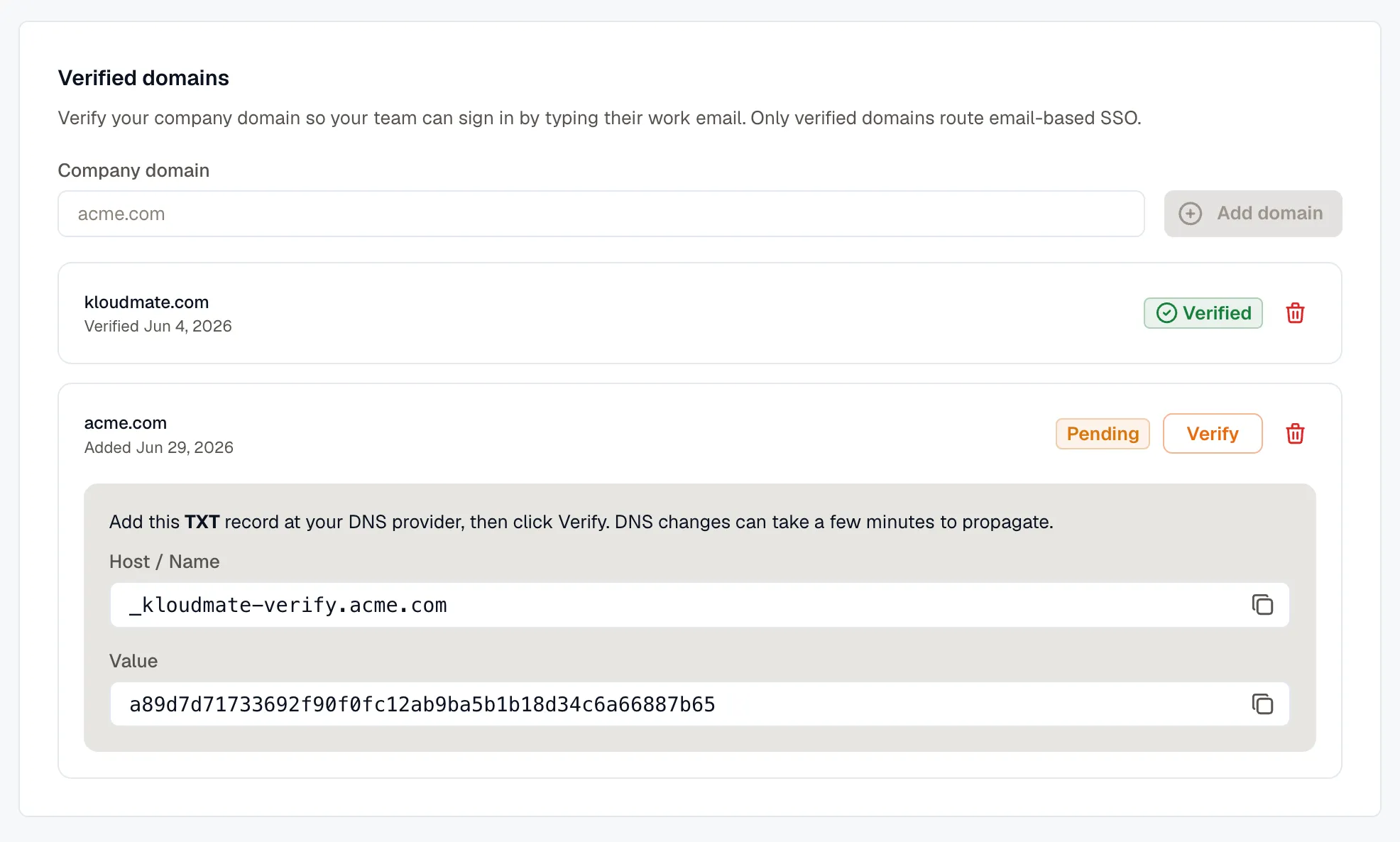
How the host is entered varies slightly by DNS provider. Many providers append your domain automatically, so you enter only _kloudmate-verify as the host or name. If your provider expects the full record name, use _kloudmate-verify.acme.com. When in doubt, follow how your provider handles other TXT records.
Verify
Section titled “Verify”Once the record is published, click Verify on the domain row.
DNS changes can take a few minutes — sometimes longer — to propagate. If verification doesn’t succeed on the first try, wait a bit and click Verify again. On success the badge switches from Pending to Verified and the verification date is shown.
After verification
Section titled “After verification”A verified domain does two things:
- Routes email-based sign-in. Anyone whose email ends in a verified domain is sent to your IdP when they sign in.
- Brings members into SSO enforcement. Members on a verified domain must sign in through SSO from then on — password login is blocked for them. The owner keeps password access as a fallback, and collaborators on other domains aren’t affected. See Provisioning & enforcement for the full rules.
Remove a domain
Section titled “Remove a domain”Use the delete (trash) icon on a domain row to remove it. KloudMate asks you to confirm, because members on that domain will no longer be able to sign in by typing their work email. Removing a domain doesn’t delete your connections — it only stops email-based routing for that domain.
Troubleshooting
Section titled “Troubleshooting”| What you see | Likely cause | Fix |
|---|---|---|
| TXT record not found or didn’t match | The record isn’t published yet, has the wrong host/value, or DNS hasn’t propagated | Re-check the Host / Name and Value against the row, wait a few minutes, then click Verify again |
| Public email domains (gmail.com, etc.) can’t be used | You entered a shared public domain | Use a domain your company owns |
| This domain is already verified by another organization | Another org claimed it first | Contact support if the domain is yours |
For sign-in-time errors, see the full Troubleshooting page.