

Notification Routing
Configure where issue notifications land — by service, by occurrence type (new vs. regression), and across the channels you’ve set up.
Where to find it
Section titled “Where to find it”Open the Issues list page. The header has a Notification settings button.
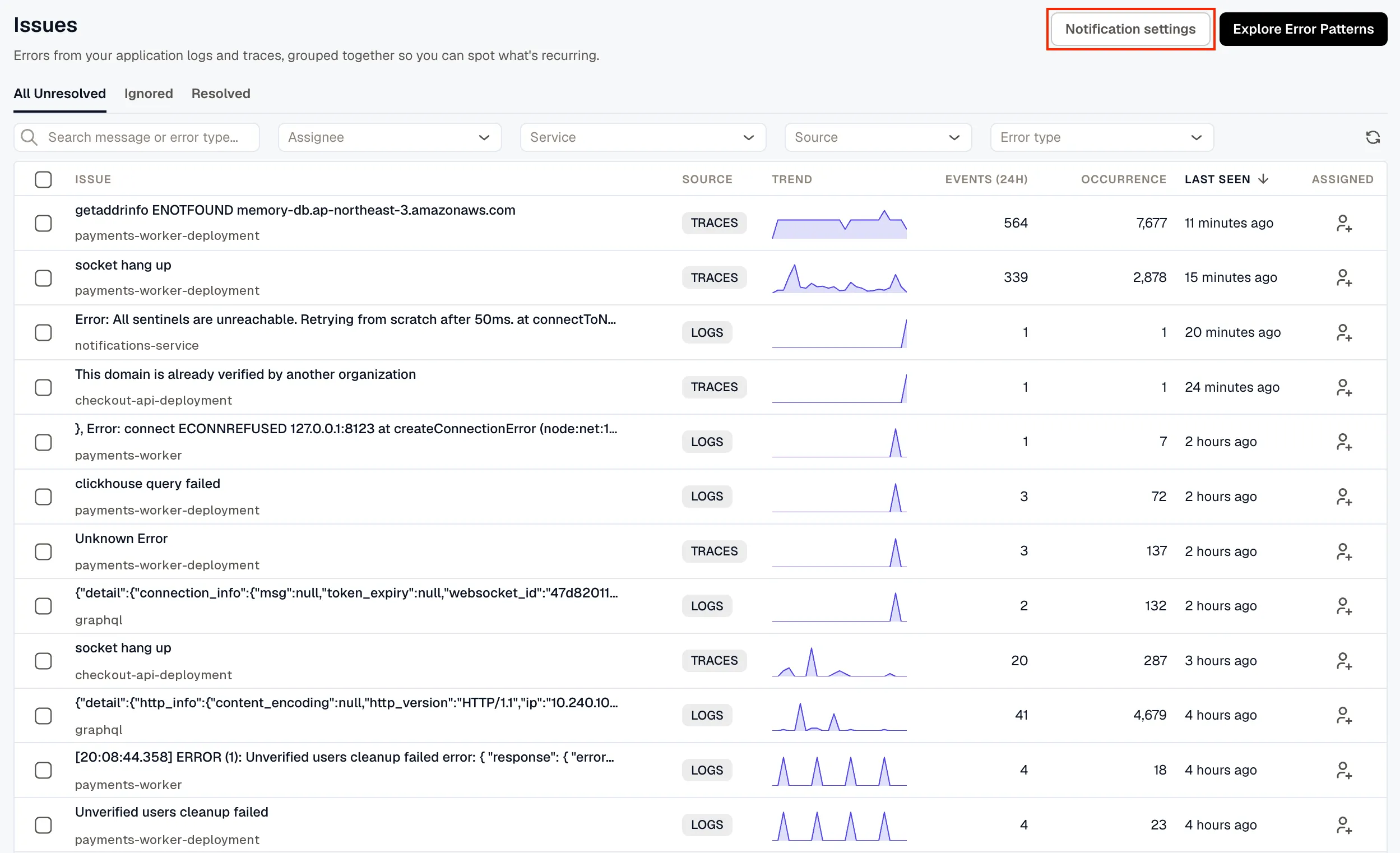
Clicking it opens the Issues-scoped notification settings page:
<workspace>/issues/notifications— list of all issue notification policies.<workspace>/issues/notifications/create— create a new policy.<workspace>/issues/notifications/<id>— edit a policy.
Anatomy of a policy
Section titled “Anatomy of a policy”Each policy is workspace-scoped (not per-issue) and has three fields:
| Field | What it does |
|---|---|
| Name | How the policy shows up in the list. |
| Conditions | One or more rows. Each picks an Issue type (New issues or New and regression) and one or more Target services. |
| Notification channels | One or more channels that receive the notification. |
A Disabled toggle lets you save the policy without activating it.
Create an issue notification policy
Section titled “Create an issue notification policy”- Open Issues → Notification settings and click New policy.
- Name the policy.
- Add one or more conditions. Select the Issue type (
New issuesorNew and regression) and one or more Target services from the autocomplete (suggestions come from services emitting telemetry). - Select one or more Notification channels from the multi-select.
- Click Save.
Forward-looking note
Section titled “Forward-looking note”This page is a dedicated settings surface for issues because the grouping engine and Routing Rules currently handle alert signals only. Issues may converge onto the routing-rules engine in a future release; if that happens, existing issue notification policies will migrate automatically — no recreation required.
Related
Section titled “Related”- Issues — the error-tracking surface this routes from.
- Routing Rules — separate surface for alert notifications.
- Notification Channels — set up where notifications land.