

Post Incidents and Updates
When something breaks, a status-page incident is how you tell customers what’s happening and keep them posted as you work. You can write one from scratch in the editor, or publish an existing Incident Management incident to the page in a couple of clicks.
Create a status-page incident
Section titled “Create a status-page incident”-
In the status page editor, open the Incidents tab and start a new incident.
-
Write a title — what customers will see at the top of the page.
-
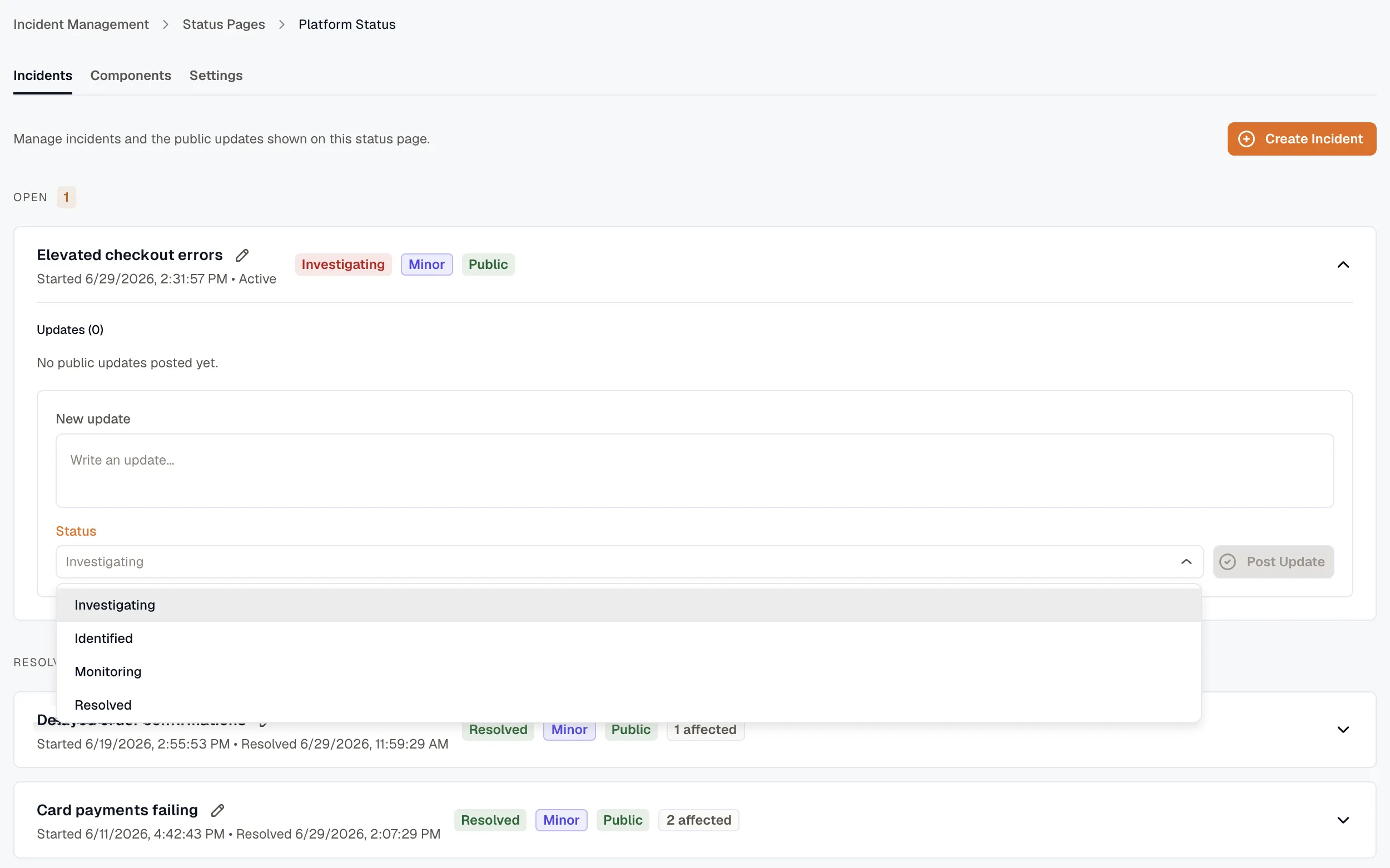
Set the status: Investigating, Identified, Monitoring, or Resolved. A new incident usually starts at Investigating.
-
Set the impact: None, Minor, Major, or Critical. Impact drives how the incident shows on the overall status banner — minor shows as degraded performance, major as a partial outage, critical as a major outage.
-
Choose the affected components. Their status reflects the incident while it’s open.
-
Decide whether the incident is public now or hidden. Turn public off to draft it — line up the first update before anyone sees it — then make it public when you’re ready.
Post updates as you learn more
Section titled “Post updates as you learn more”An incident is a running log, not a single message. As you investigate, add updates — each has its own body and its own status — and the page shows them newest first. A typical arc:
- Investigating — “We’re looking into elevated error rates on the API.”
- Identified — “A bad deploy is the cause. Rolling back now.”
- Monitoring — “The rollback is complete. Watching error rates.”
- Resolved — “Error rates are back to normal. The incident is resolved.”
Each update moves the incident’s status forward, so visitors see both the current state and the timeline that got there.
Publish from an Incident Management incident
Section titled “Publish from an Incident Management incident”When you’re already responding to an incident in IM, you don’t have to retype it. Open the incident and use Publish to status page.
The publish dialog pre-fills what it can: it picks a status page linked to the incident’s service, pre-selects that page’s linked components, and carries over the incident’s title. Adjust the impact and components, choose whether to publish publicly or as a draft, and post.
This action is idempotent — publishing the same incident again updates the status-page incident it already created rather than making a duplicate. So as the IM incident progresses, you can re-publish to keep the customer-facing version in sync.
See Incident details for where the button lives.
Related
Section titled “Related”- Status Pages overview — components and publishing.
- Branding and custom domain — make the page yours.
- Incident details — the “Publish to status page” action.