

Create an On-Call Schedule
The fastest way to understand on-call schedules is to build the common one: a single rotation that hands the on-call duty between a few people every week. This page walks that end to end through the template picker and the calendar editor, then covers each rotation field so you can adjust it.
Create a schedule
Section titled “Create a schedule”-
Open Incidents → On-call and click New schedule.
-
Pick a starting point from the Quick start template picker (see below). For a single weekly rotation, choose Weekly handoff.
-
Answer the short guided wizard — the timezone, who covers, and when to hand off. It pre-creates the rotation for you and drops you into the calendar editor.
-
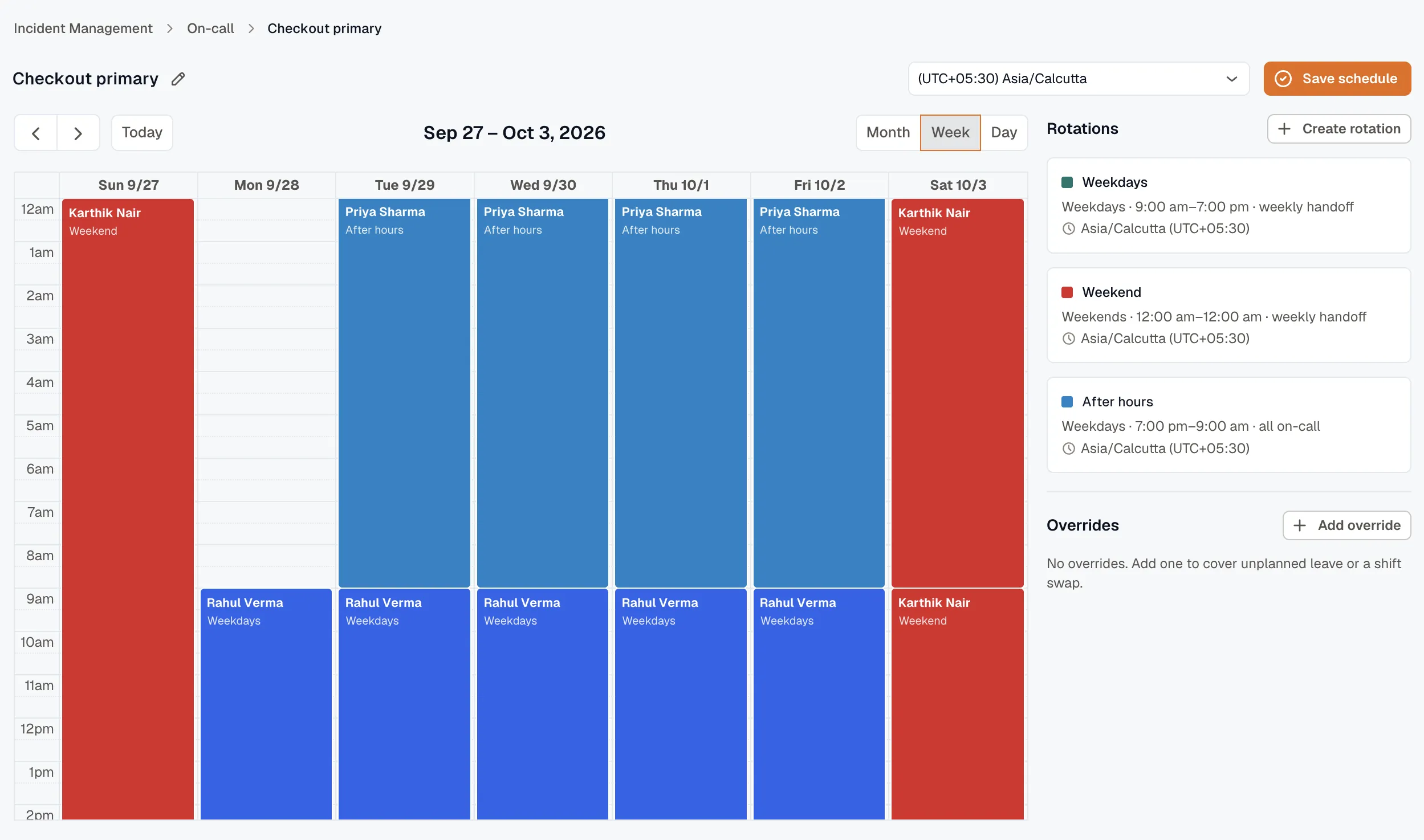
Review the calendar. It lays out every rotation’s shifts, color-coded per person, so you can confirm the handoffs land where you expect.
-
Adjust the schedule name (the pencil in the top bar) and the timezone if needed, then open any rotation to fine-tune it.
-
Click Save schedule.
Quick start: pick a template
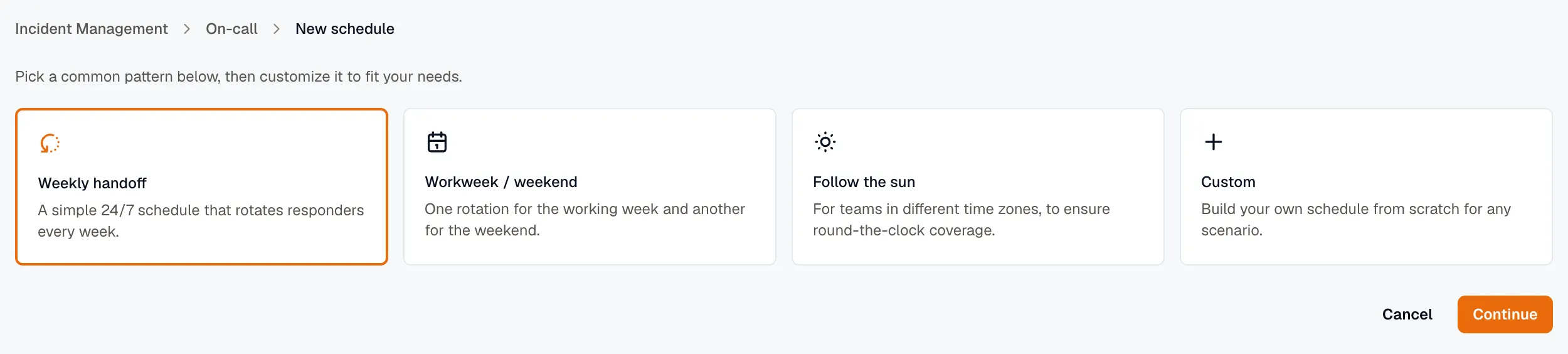
Section titled “Quick start: pick a template”New schedule opens a Quick start picker with four cards. Each one is just a head start — everything it creates is fully editable afterward in the calendar editor.
- Weekly handoff — one rotation that rotates through its members, handing off once a week. The 80% case.
- Workweek / weekend — two complementary rotations: a weekday team and a separate nights-and-weekends rotation.
- Follow the sun — one rotation per region, each in its own timezone, so coverage hands around the globe. You add as many regions as you need; each region has its own name, timezone, members, and active days/times, and each becomes a rotation.
- Custom — an empty editor. No rotations are pre-created; you add them yourself.
Picking any template except Custom opens a short guided wizard that asks plain-language questions — the timezone, who’s covering, and when to hand off — and pre-creates the matching rotation(s). Custom skips the wizard and drops you straight into an empty calendar editor.
The schedule editor
Section titled “The schedule editor”The editor is calendar-first. The main surface is a week/day calendar showing every rotation’s shifts, color-coded per person, so the whole schedule reads at a glance.
- A right-hand Rotations panel lists each rotation with a one-line summary and its timezone, plus a + Create rotation button.
- An Overrides panel sits below it for one-off swaps. See Overrides.
- The top bar carries the schedule name (click the pencil to rename), a timezone selector, and Save schedule.
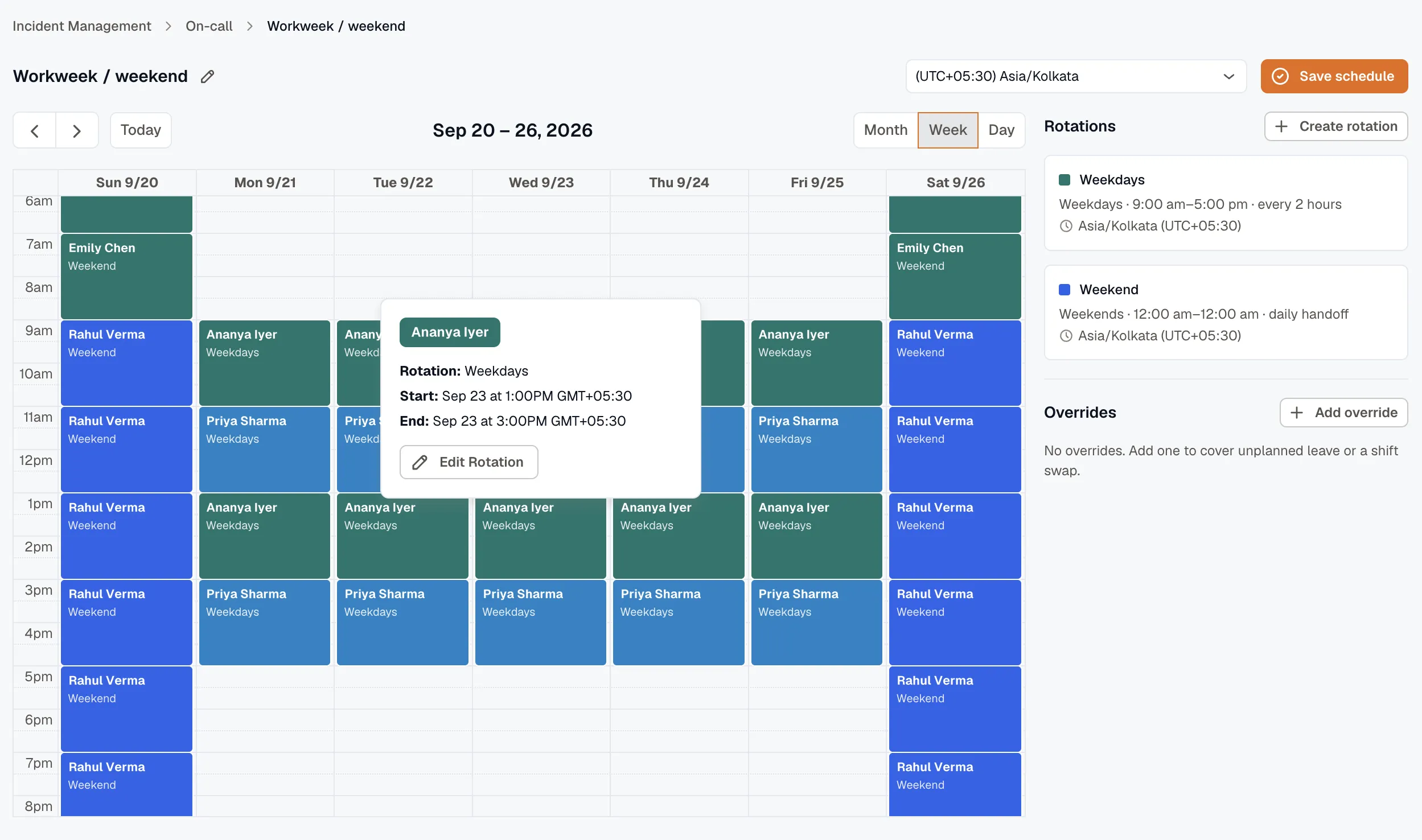
Each calendar event shows the responder’s name with the rotation name beneath it. Click an event to open a details popover — the person, the rotation, the shift’s start and end, and an Edit rotation shortcut.
Create a rotation
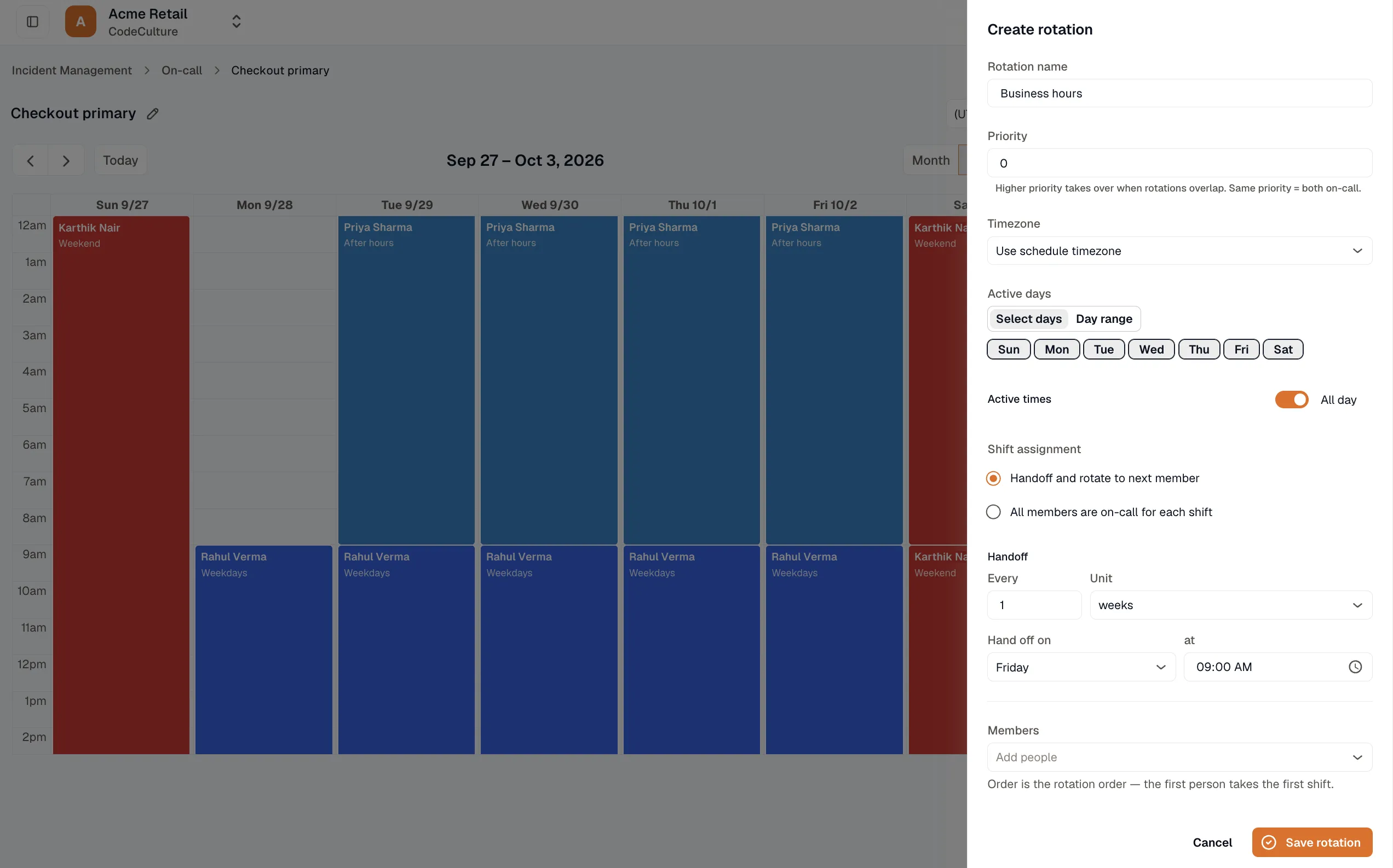
Section titled “Create a rotation”Open a rotation from the Rotations panel — + Create rotation for a new one, or an existing row to edit it — to open the rotation drawer.
-
Give the rotation a name. It labels the rotation’s shifts on the calendar and its row in the Rotations panel.
-
Set the priority if this rotation should win an overlap with another. Leave it at 0 — the default — to keep the rotation additive with the rest; a higher number takes over lower ones where they overlap. See Rotation priority.
-
Set the timezone — leave it on Use schedule timezone, or override it for this rotation (the basis for follow-the-sun). All of this rotation’s times are evaluated in its effective timezone.
-
Set the coverage. Leave it at 24/7 for always-on, or choose Custom and set Active days (pick days, or a day range) and Active times (the All day toggle, or a from–to window). See Rotations and coverage.
-
Choose the shift assignment: Handoff and rotate to next member (one person on call per shift) or All members are on-call for each shift (everyone in the rotation at once).
-
For a rotating shift, set the handoff — every N hours, days, or weeks. For a weekly cadence, pick the handoff weekday and time; a start date anchors the first shift.
-
Add members in the order they should take a shift. Order matters: the first person covers the first shift, the second the next, and so on. Reordering them later changes who’s on call when.
-
Save the rotation. It appears on the calendar immediately so you can check it before saving the schedule.
Example: a weekly handoff across three people
Section titled “Example: a weekly handoff across three people”This is the 80% case — one rotation that rotates weekly, handing off every Monday at 09:00, across three members:
| Field | Value |
|---|---|
| Shift assignment | Handoff and rotate to next member |
| Handoff | Weekly, Mondays at 09:00 |
| Coverage | 24/7 |
| Members (in order) | Alice, Bob, Carol |
Alice covers this week. Bob takes over next Monday at 09:00, Carol the Monday after, then it loops back to Alice. The handoff always happens at 09:00 in the rotation’s timezone.
Because the handoff weekday is its own field, you set it directly — pick Monday and the rotation hands off on Mondays, no matter which date you started it on.
Rotation field reference
Section titled “Rotation field reference”Every rotation has the same fields. The defaults below are what a fresh rotation starts with.
| Field | Values | Default | Notes |
|---|---|---|---|
| Name | Text | — | Labels the rotation’s shifts on the calendar and its row in the Rotations panel. |
| Priority | Whole number, 0 or higher | 0 | Where rotations overlap, a higher priority takes over and hides lower ones; equal priority stays additive. |
| Timezone | Use schedule timezone, or any timezone | Use schedule timezone | The basis for this rotation’s handoff and coverage times. Override it for follow-the-sun. |
| Coverage | 24/7, Custom | 24/7 | When the rotation is active. Custom adds Active days and Active times. |
| Active days | Selected weekdays, or a day range | — | Custom coverage only. The days a shift can start. |
| Active times | All day, or a from–to window | All day | Custom coverage only. The hours within the active days. |
| Shift assignment | Handoff and rotate to next member, All members are on-call for each shift | Handoff and rotate | One person per shift (advancing each handoff), or everyone in the rotation at once. |
| Handoff | Every N hours / days / weeks (weekly: on a weekday at a time) | Weekly | How often the on-call member changes. Applies only when the rotation hands off. |
| Start date | Date | Today | Anchors the first shift, together with the handoff time. |
| Members | Ordered list of users | — | Shift order follows this list; the first member takes the first shift. |
Read the calendar
Section titled “Read the calendar”The calendar is the quickest check that a schedule does what you meant. It lays out who’s on call across the coming weeks — every rotation’s shifts, color-coded per person, with the exact handoff moments. Where two rotations overlap, you’ll see both responders on the calendar at once — the additive default. If you gave one rotation a higher priority, the lower one drops out of the overlap instead, so a shift can disappear from the calendar on purpose.
If a handoff lands on the wrong day or the wrong person leads, open the rotation, fix the handoff weekday or the member order, and watch the calendar update before you save. The coverage timeline in the Schedules view is also where you confirm there are no gaps with nobody on call.
- Rotations and coverage — add a second rotation or limit one to business hours.
- Overrides — hand off temporarily for a vacation or a swap.