

Folders
Folders organize related alert rules and let member rules inherit shared evaluation defaults, the same grouping pattern dashboards use.
On Alerts → Rules, switch between a flat List view and a grouped Folder view. In Folder view, rules are grouped under their folder, and rules without one appear under Ungrouped. Rules that Smart Alerts manages appear under Smart Alerts until you move them into a folder.
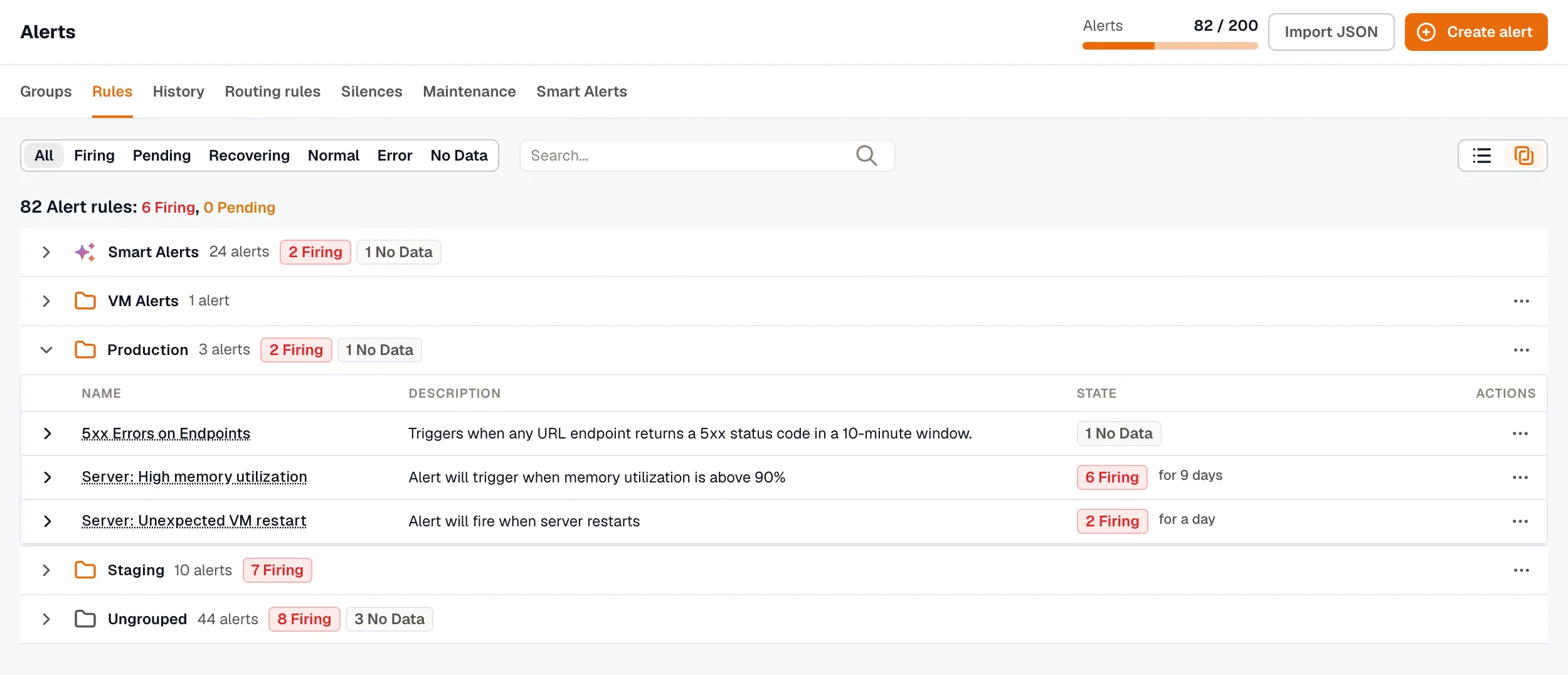
There’s no separate Folders page. You manage folders from the Rules tab and the rule editor.
Create a folder
Section titled “Create a folder”You create folders inline from the alert rule editor’s Folder picker; there’s no separate “New folder” button.
- Open an alert rule (create a new one or edit an existing one).
- In Configure evaluation settings (Evaluation settings in Simple mode), click the Folder dropdown.
- Type a new folder name, then select the
+ Create "<name>"option that appears. - KloudMate creates the folder and assigns the current rule to it.
- Save the rule. A folder appears in Folder view only after it contains at least one saved rule.
- To set folder defaults, switch to Folder view on the Rules tab, open the folder’s kebab menu, and select Edit folder.
Edit folder defaults
Section titled “Edit folder defaults”In Folder view, each folder header row has a kebab menu with Edit folder, Export alerts as JSON, and Delete folder.
Edit folder opens a dialog with the folder’s settings:
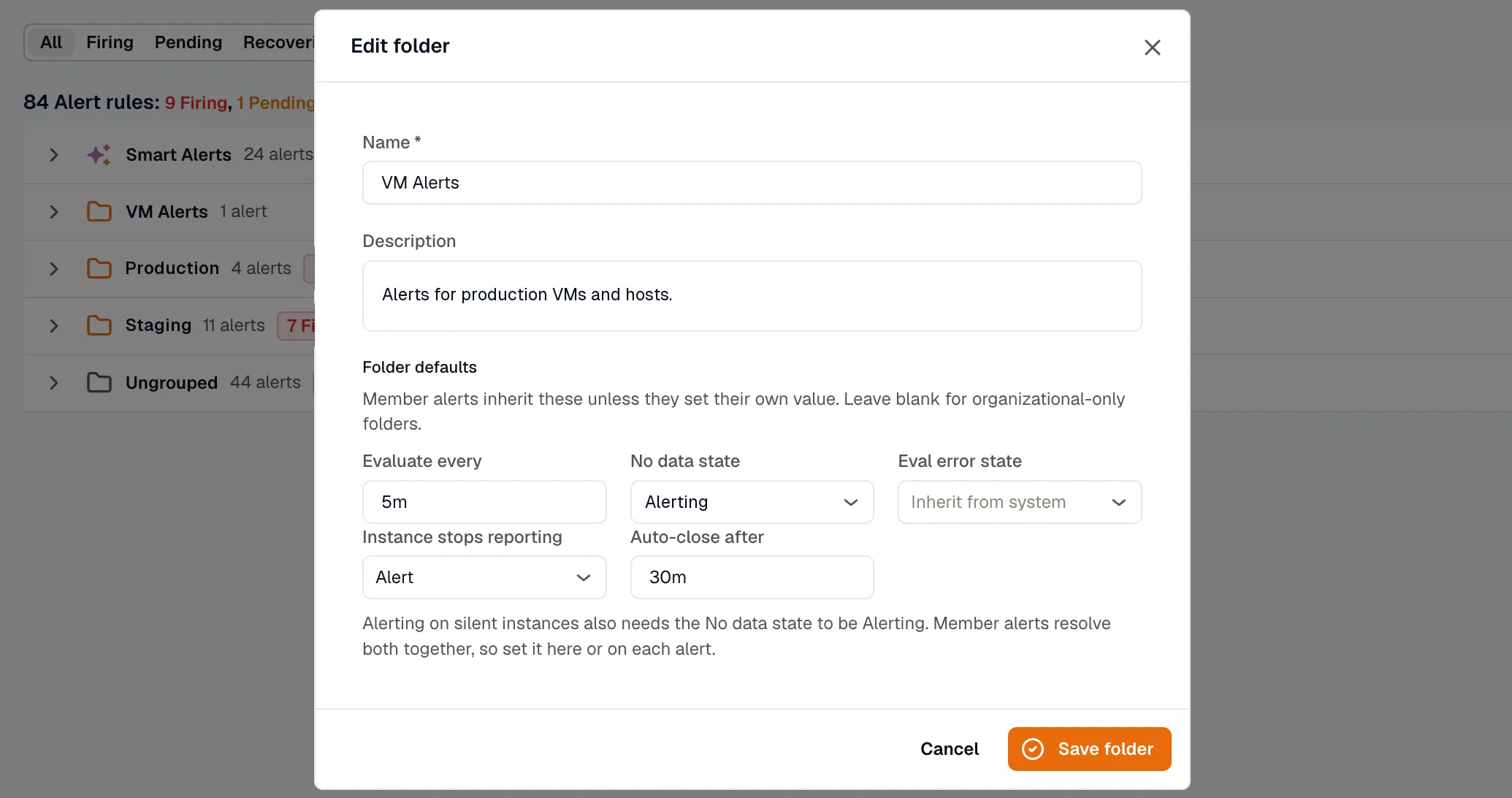
| Field | What it controls |
|---|---|
| Name | Required, unique within the workspace. |
| Description | Optional. |
| Evaluate every | Default evaluation interval (for example 60s, 1m, or 2h). Members inherit when blank. |
| No data state | Default state when queries return no data. Options: Alerting, Normal, No Data, or Error. |
| Eval error state | Default state when evaluation errors out. Options: Alerting, Normal, No Data, or Error. |
| Instance stops reporting | Whether members alert when an instance stops reporting. Options: Alert or Don’t alert. Alert also needs No data state set to Alerting, on the folder or on each member rule. See Instance Absence Detection. |
| Auto-close after | How long a silent instance stays tracked before it closes on its own, from 5m to 72h (for example 30m or 24h). |
Member alerts inherit these defaults unless they set their own value. Leave a folder’s fields blank to make it organizational-only.
Move rules into a folder
Section titled “Move rules into a folder”You move rules one at a time, from the Rules tab or from the rule editor:
- From the Rules tab: open the rule’s more options (⋯) menu and select Move to folder…. Choose a folder or Ungrouped, then click Move.
- From the rule editor: open the rule, pick the folder from the Folder dropdown in the Configure evaluation settings section, and save the rule.
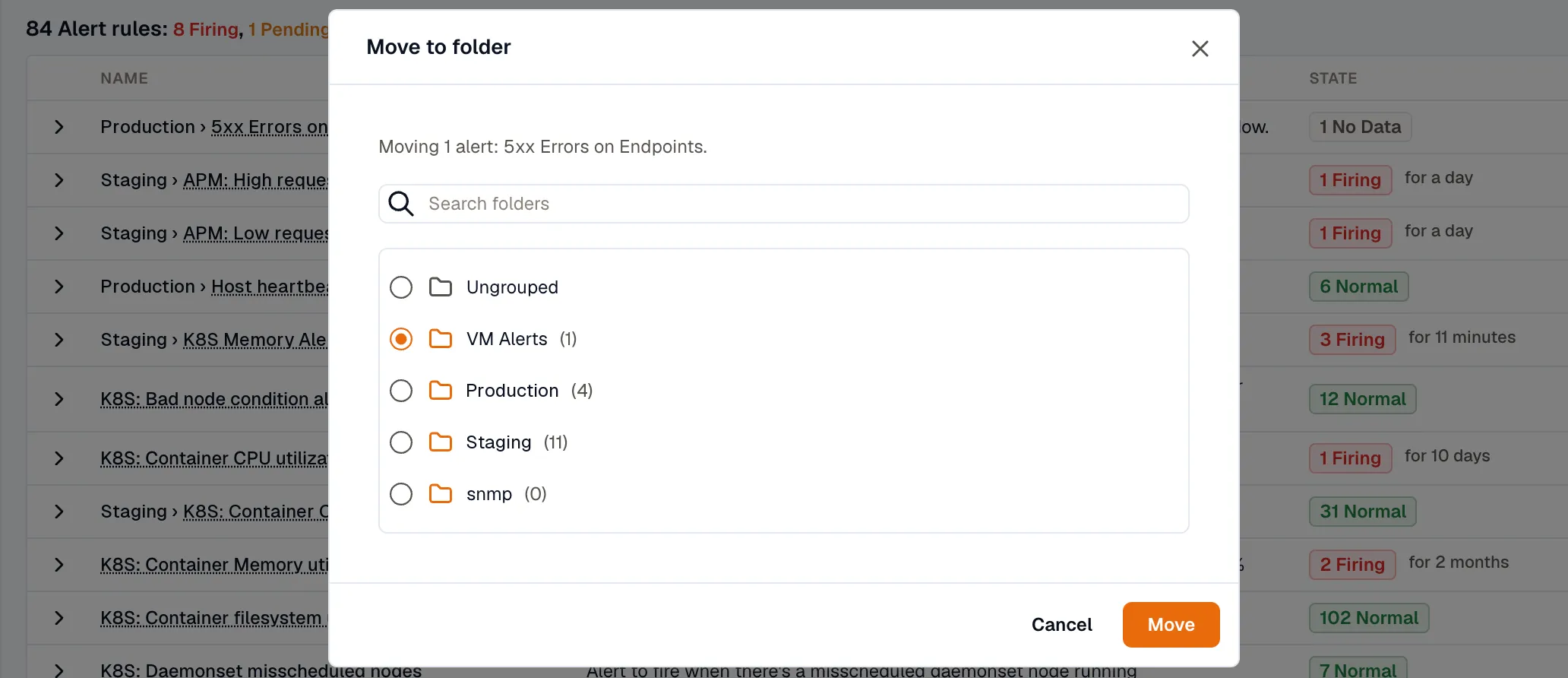
Moving a rule does not rewrite its own Evaluate every, No data state, or Eval error state values. Whatever the rule had before the move stays. The folder defaults only apply where the rule’s field is blank.
Inheritance and overrides
Section titled “Inheritance and overrides”A rule’s evaluation fields resolve like this:
| Rule field | What runs |
|---|---|
| Blank, inheriting from its folder | The folder’s default |
| Set, overriding its folder | The rule’s own value |
| Blank, with no folder | The system default |
| Set, with no folder | The rule’s own value |
Reset to folder default clears an overridden field so it inherits again. A blank field keeps inheriting, so when the folder default later changes, the rule picks up the new value automatically.
New rules start with Evaluate every set to 1m, Alert state if No data set to No Data, and Alert state if Error set to Firing, and those values override the folder’s defaults. To inherit the folder’s value instead, click Reset to folder default on the field. Existing and duplicated rules keep inheriting wherever a field is blank. Alert when an instance stops reporting and Auto-close after inherit from the folder on every rule, new ones included, until you set them.
Delete a folder
Section titled “Delete a folder”From the folder’s kebab menu, select Delete folder. Member alerts become ungrouped, keeping their stored evaluation values. KloudMate detaches the members first, then deletes the folder; the rules survive.
Folder labels in alert groups
Section titled “Folder labels in alert groups”A rule’s folder identity flows into the alert’s labels as alarm_rule_folder_id and alarm_rule_folder_name. That means:
- Routing Rules can match on folder identity (for example,
alarm_rule_folder_name in [Kubernetes, Networking]). - The folder name appears automatically as a label on the Alert Group.
Related
Section titled “Related”- Creating Alerts: picking a folder during rule creation.
- Routing Rules: matching on folder labels.
- Export and Import Alerts: exporting a folder’s rules into another workspace.