

Custom roles
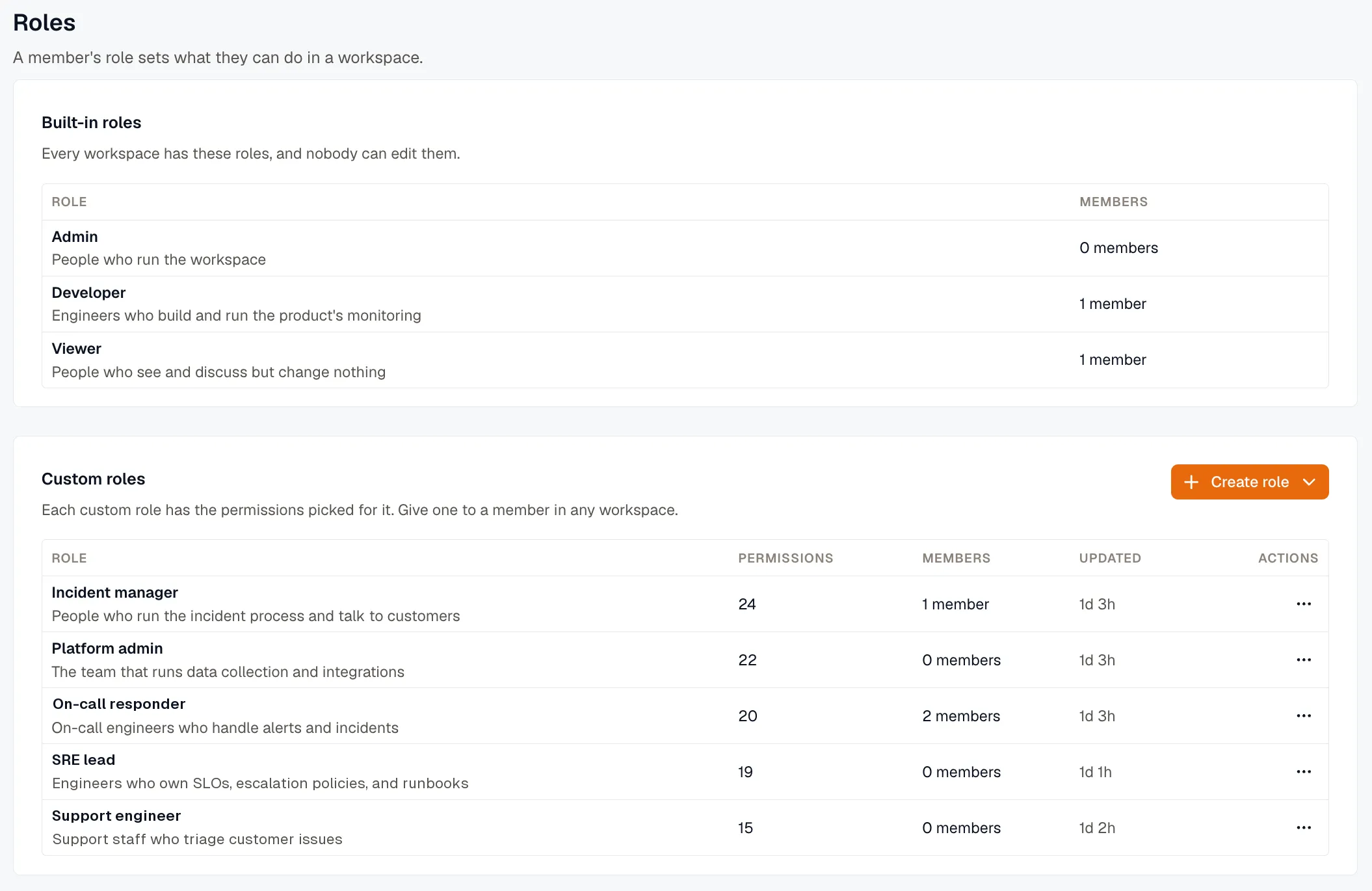
A custom role gives a person the permissions their job needs and nothing more. For example, an on-call engineer can acknowledge and resolve incidents without the right to change alert rules or escalation policies. You create the role once for the organization, then give it to members in any workspace.
Before you start
Section titled “Before you start”- Your organization needs a paid plan. The built-in roles work on every plan.
- Only an organization Owner can create, edit, or delete custom roles.
What a custom role can include
Section titled “What a custom role can include”A custom role decides what a person can change, run, or share. It doesn’t hide data:
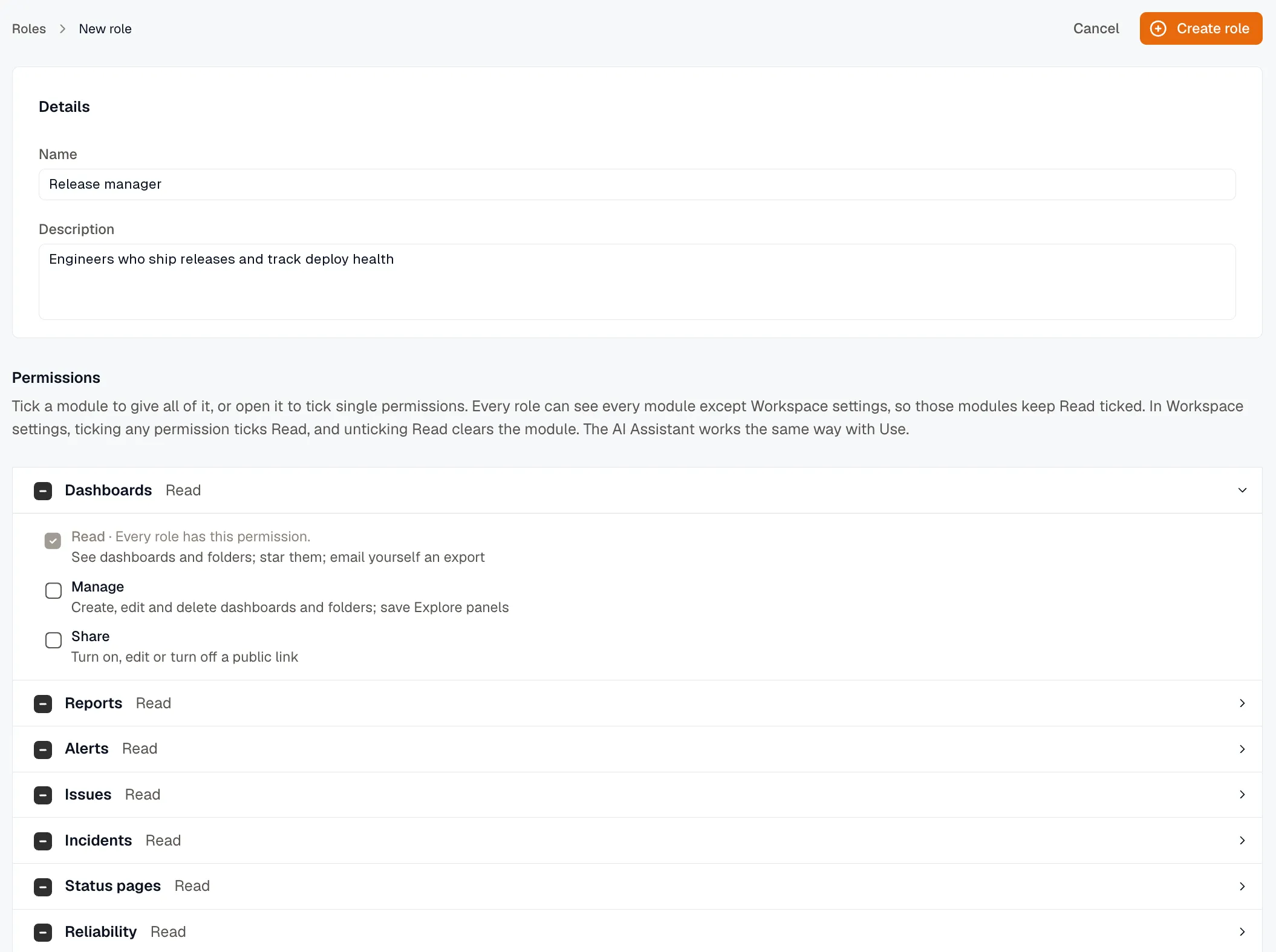
- Every custom role has Read on every module except Workspace settings. You can’t remove it.
- Workspace settings and AI Assistant are optional. Without Workspace settings, the person doesn’t see the workspace settings pages. Without AI Assistant, they can’t use the Assistant.
- A custom role holds workspace permissions only. Organization tasks, such as inviting users or managing billing, stay with Owners.
For what each permission lets a person do, see the permission reference.
Create a custom role
Section titled “Create a custom role”-
Open Settings → Roles.
-
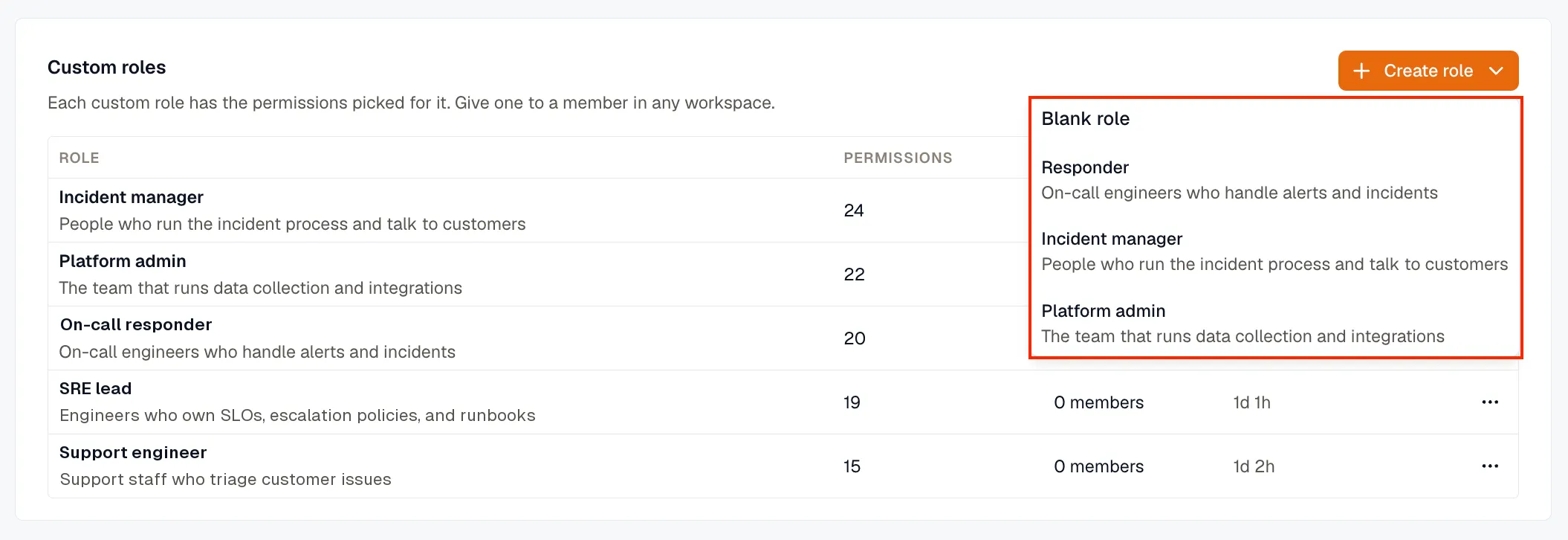
Click Create role, then select Blank role or a template.
-
Enter a Name, and optionally a Description. Each role in the organization needs its own name.
-
Under Permissions, tick a module to give all of its permissions. To give single permissions, open the module and tick each one.
-
Click Create role.
Every Workspace settings permission comes with Read, and every AI Assistant permission comes with Use.
Start from a template
Section titled “Start from a template”A template is a custom role with permissions already picked for a common job. Select it from Create role, then change the name or the permissions before you save. For read-only access, give the built-in Viewer role instead.
| Template | For | Permissions added to Read |
|---|---|---|
| Responder | On-call engineers who handle alerts and incidents | Operate on Alerts, Issues, Incidents, Synthetic monitoring, and Workflows. AI Assistant Use and Investigate. |
| Incident manager | People who run the incident process and talk to customers | Operate on Alerts, Issues, Synthetic monitoring, and Workflows. Incidents Operate and Configure. Status pages Post and Manage. AI Assistant Use and Investigate. |
| Platform admin | The team that runs data collection and integrations | Dashboards Manage. Logs Rehydrate. AI Assistant Use and Investigate. Every Workspace settings permission. |
Give a custom role to a member
Section titled “Give a custom role to a member”You give a custom role the same way as a built-in role: when you invite a user or change a user’s roles. You can also make a custom role the default for single sign-on.
Edit or delete a custom role
Section titled “Edit or delete a custom role”On Settings → Roles, open the actions menu on the role’s row:
- Edit: after you click Save, the change applies to every member with the role, in every workspace.
- Delete: the role is removed from every workspace. You can’t delete a role that a member still has. Give them another role on Settings → Users first.
If your plan no longer includes custom roles
Section titled “If your plan no longer includes custom roles”- Members with a custom role get Viewer access in that workspace.
- You can’t create or edit custom roles, or give one to another member. A member keeps a custom role they already have, and you can still delete a role.
- When the plan includes custom roles again, each role applies again with its saved permissions.