

Storage
A run keeps nothing after it ends. Storage saves values that later runs can read, so a workflow can skip duplicates, keep a count, or continue from where the last run stopped.
Use it to notify about something only once a day, continue from where the last run stopped, stop repeating a fix that isn’t working, or pause automation during maintenance. See Examples.
The actions are under Utilities → Storage and need no connection.
| Action | What it does | Output |
|---|---|---|
| Storage: Get | Read a stored value, with a default when the key isn’t there. | value, found |
| Storage: Put | Store a value, replacing what was there. | value |
| Storage: Increment | Add to a stored number. A negative amount counts down, and a key that doesn’t exist starts at 0. | value |
| Storage: Add to List | Add one item, or several at once. added is false when Skip if already there stopped it. | value, length, added |
| Storage: Remove from List | Take items out of a list. Removing something that isn’t there isn’t an error. | value, length, removed |
| Storage: Remove | Delete a key. | removed |
Every action has a Scope that decides where the key lives:
- This workflow, the default, keeps the key private to the workflow that wrote it, so two workflows can both use
cursorwithout colliding. - This workspace shares the key with every workflow. Pick it only when two workflows need to read the same value.
Keys and values
Section titled “Keys and values”A key is 1 to 200 characters of letters, digits, and _ : . -. It can include a template, so alerted:{{ trigger.body.group.id }} makes a separate key for each alert group.
A value you type is stored as text. For a list or an object, type valid JSON with quoted strings, like ["apple","banana"]. A bare [apple, banana] isn’t valid JSON, so it’s stored as text too.
A value can be up to 64 KB and a list up to 10,000 items, and a workspace holds up to 10,000 keys. At the key limit, a write that adds a key fails, because KloudMate never evicts keys to make room.
Expiry
Section titled “Expiry”Expires after takes a duration such as 24h or 30m. If you leave it blank, the key lives until something deletes it.
Publishing refuses a typed value that isn’t a duration, such as 30 min. KloudMate checks a value built from a template when the step runs, and the step fails if the value isn’t a duration.
Only the actions that can create a key have this field. Leaving it blank never removes an expiry that an earlier write set.
An expired key counts as missing right away. The Storage tab lists it as Expired until a daily cleanup removes it.
Examples
Section titled “Examples”Each example uses readable step ids, such as steps.cursor, to show the shape. In the builder, pick references from the variable picker instead of typing them.
Notify once a day per alert group
Section titled “Notify once a day per alert group”An alert group can start many runs while it’s open. To notify about it only once a day, use a marker key that expires on its own:
- Add a Storage: Get step with the key
alerted:{{ trigger.body.group.id }}. Itsfoundoutput isfalsethe first time that group arrives. - Add a Branch whose condition checks that the step’s
foundequalsfalse. - In the Then block, send the notification. Then add a Storage: Put step for the same key, with Expires after set to
24h.
Storage: Add to List has a Skip if already there option that checks for the item and adds it in one operation. Its added output is true only for the run that added the item. When two runs can race, use it instead of the read-then-write pattern above.
Continue from where the last run stopped
Section titled “Continue from where the last run stopped”A scheduled workflow that processes new items, such as events from an API, can keep a cursor so that each run handles only what’s new:
- Add a Storage: Get step,
cursor, for the keylast_run. Set its Default to a start time, such as2026-01-01T00:00:00Z, for the first run. - Fetch only the newer items, for example with an HTTP Request to
https://api.example.com/events?since={{ steps.cursor.output.value }}. - Process the items.
- Add a Storage: Put step for
last_runwith the value{{ trigger.schedule.fired_at }}, the time this run was scheduled.
If a run fails before the last step, the cursor doesn’t move, so the next run picks up the same items again. For a complete example, see Trigger a workflow when a new email is received in Gmail.
Stop repeating a fix that isn’t working
Section titled “Stop repeating a fix that isn’t working”A workflow that restarts a service can count its restarts, and hand over to a person when restarting doesn’t help:
- Add a Storage: Increment step,
restarts, for the keyrestarts:{{ trigger.inputs.host }}, with Expires after set to1h. - Add a Branch whose condition checks that
steps.restarts.output.valueis greater than3. - In the Then block, ask a person to look, for example with an Approval or a Jira Create Issue step. In the Else block, restart the service with Run Command on Host.
Each increment restarts the expiry, so the count clears after an hour without a restart.
Collect results and report them later
Section titled “Collect results and report them later”A workflow that fixes hosts can build a list for a daily report that another workflow sends:
- In the workflow that fixes hosts, add a Storage: Add to List step with Scope set to This workspace, the key
fixed_hosts, and the host as the Item. - In a second workflow on a daily Schedule, add a Storage: Get step for
fixed_hosts, email the list, then clear it with Storage: Remove.
Both workflows use the key, so its Scope must be This workspace.
Pause automation during maintenance
Section titled “Pause automation during maintenance”One workflow can switch the others off for a maintenance window:
- Create a workflow with a Manual / API trigger and a Storage: Put step with Scope set to This workspace, the key
maintenance, the valuetrue, and Expires after set to the length of the window, such as2h. - Start each workflow you want to pause with a Storage: Get step for
maintenance, followed by a Branch that checks whetherfoundistrue. Put the rest of the workflow in the Else block.
When the key expires, the workflows go back to normal on their own.
Act on a resource only once in a while
Section titled “Act on a resource only once in a while”The Send alerts to your workflows template uses Storage: Increment as a cooldown, so it acts on a resource once and then leaves it alone while it keeps alerting.
View and delete stored keys
Section titled “View and delete stored keys”Workflows → Storage lists every key in the workspace with its scope, type, size, expiry, and when it last changed. The list doesn’t show values. To read one, open View value on its row.
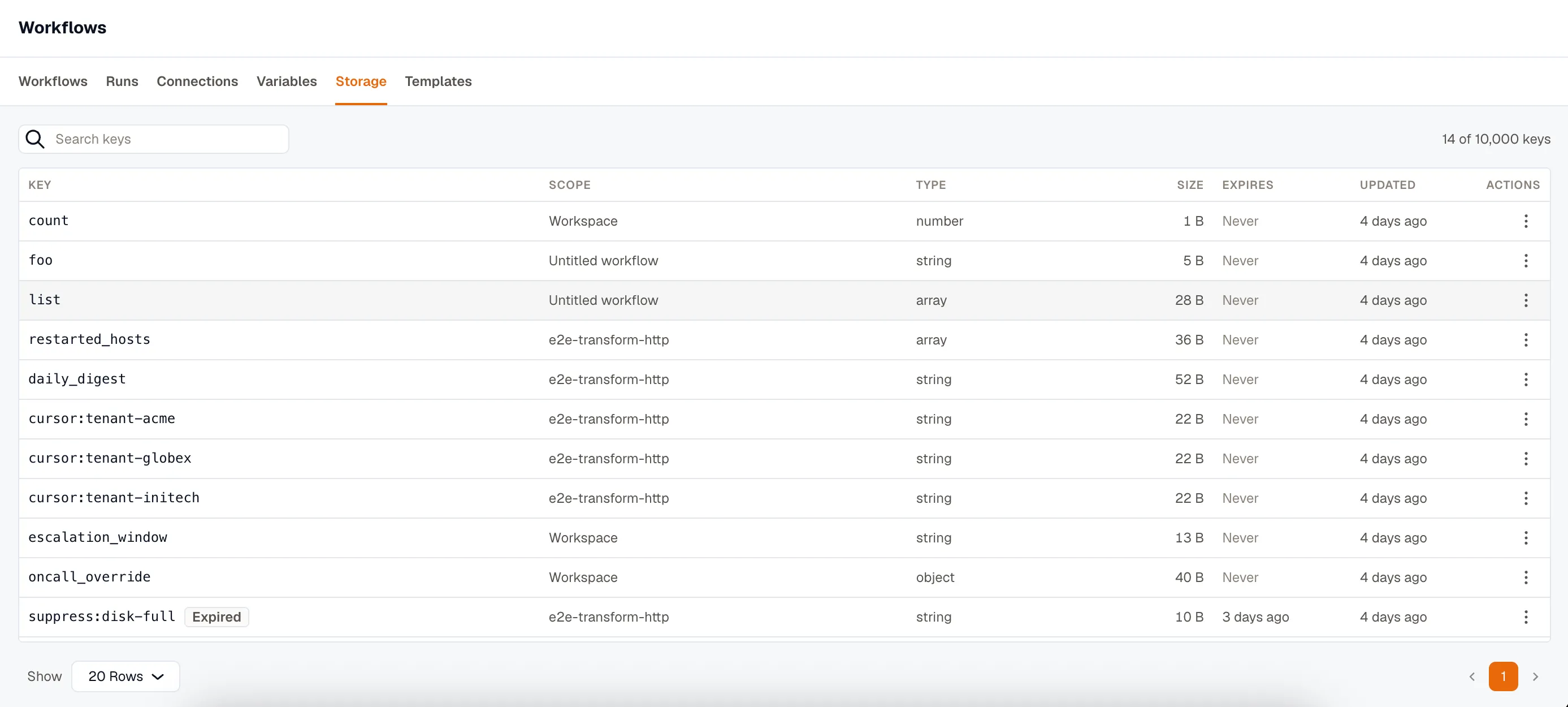
It’s the only place to remove a key by hand. A row’s menu deletes that key, or clears every key a given workflow wrote.
Related
Section titled “Related”- Variables for values you set rather than values a run writes.
- The action catalog for the rest of the palette.