

Routing Rules
Routing rules decide what happens to an alert the moment it reaches Incident Management: which service the incident opens against, which escalation policy pages, what severity it gets, and whether to suppress it, add responders, or notify an on-call schedule.
What a routing rule decides
Section titled “What a routing rule decides”When an alert arrives from an alert source, KloudMate runs it through your routing rules in priority order. A rule that matches can:
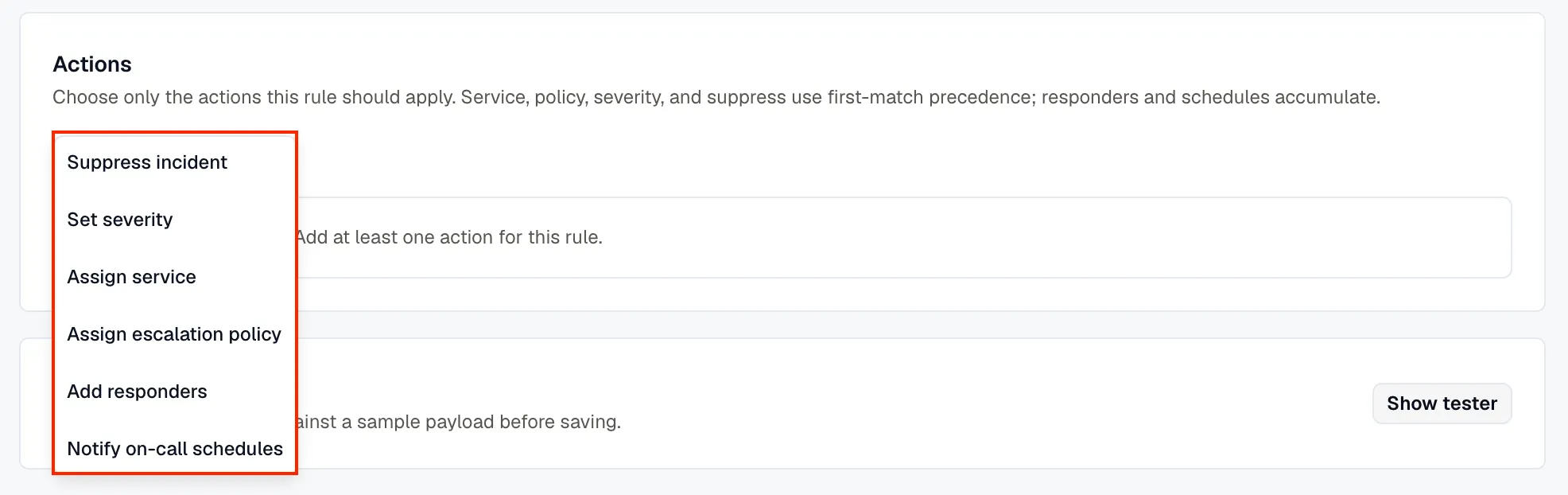
- Assign a service — open the incident against a specific service.
- Assign an escalation policy — choose which policy pages.
- Set the severity — override the severity carried by the alert.
- Suppress the incident — drop the alert so no incident opens.
- Add responders — attach specific users to the incident.
- Notify on-call schedules — notify whoever is on call on one or more schedules — possibly several people per schedule.
Scope, priority, and order
Section titled “Scope, priority, and order”Each rule has three controls that decide when it runs:
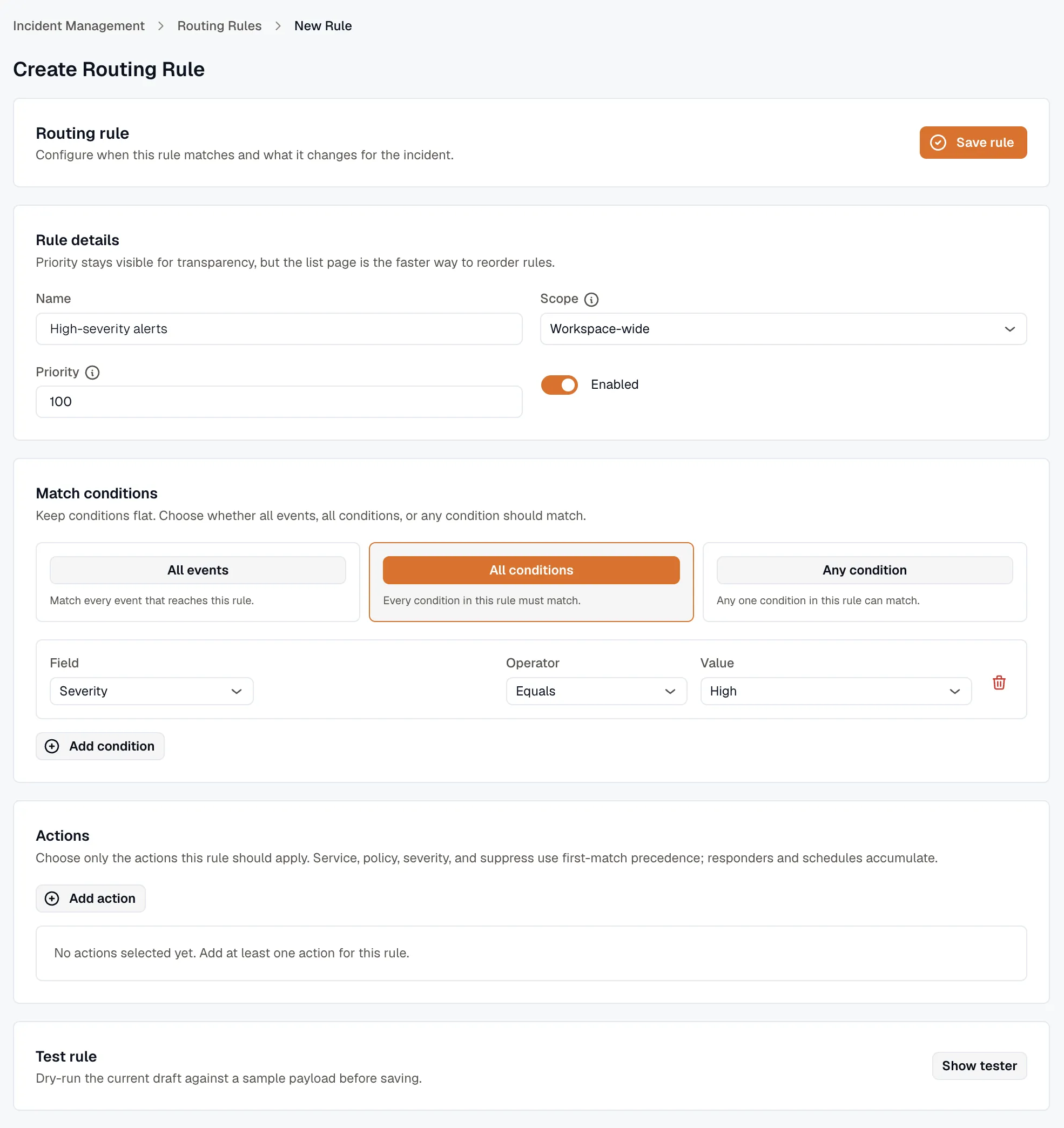
- Scope — a rule is either workspace-wide (applies to every alert) or scoped to a single service. When two rules share a priority, service-scoped rules are evaluated ahead of workspace-wide ones.
- Priority — a number where lower wins. Rules run from lowest priority upward. Give specific rules low numbers and broad catch-alls high ones. New rules default to
100. - Enabled — a toggle. Disabled rules are skipped entirely, which lets you stage a rule before turning it on.
Match conditions
Section titled “Match conditions”A rule’s matcher has one of three modes:
- All events — the rule matches every alert, with no conditions.
- All conditions — every condition must be true (AND).
- Any condition — at least one condition must be true (OR).
Each condition picks a field, an operator, and a value. The available operators depend on the field:
| Field | What it matches | Operators |
|---|---|---|
| Severity | The severity carried by the alert | Equals, Not equals, In |
| Service | The target service | Equals, Not equals, In |
| Alert Source | The integration the alert came from | Equals, Not equals, In |
| Tag | A tag on the payload, addressed as tag.<key> (for example tag.environment) | Equals, Not equals, Contains, Matches regex, In |
| Payload Field | Any field in the raw payload, addressed as payload.<path> (for example payload.details.region) | Equals, Not equals, Contains, Matches regex, In, Greater than, Less than |
In matches against a comma-separated set of values. Matches regex tests the value against a regular expression. Greater than / Less than compare numerically, so they’re available only on payload fields.
Actions
Section titled “Actions”When a rule matches, its actions feed a single routing decision. How conflicting rules combine depends on the action:
| Action | What it does | When rules conflict |
|---|---|---|
| Assign service | Routes the incident to a service | First match wins |
| Assign escalation policy | Sets which policy pages | First match wins |
| Set severity | Overrides the incident’s severity | First match wins |
| Suppress incident | Drops the alert — no incident opens | First match wins, and stops evaluation |
| Add responders | Attaches users to the incident | Accumulates across every matching rule |
| Notify on-call schedules | Notifies the people on call on the named schedules | Accumulates across every matching rule |
“First match wins” means the highest-priority rule to set a value owns it; later rules can’t override it. “Accumulates” means responders and notified schedules from every matching rule are merged together (duplicates removed).
How service, policy, and severity are resolved
Section titled “How service, policy, and severity are resolved”A rule action is only the first place KloudMate looks. For each of these fields it takes the first value it finds:
- Escalation policy — the rule’s action, then the alert source’s default policy, then the service’s default policy.
- Severity — the rule’s action, otherwise the severity mapped from the incoming alert.
- Service — the rule’s action, otherwise the service the alert source is wired to.
So a rule doesn’t have to set everything. If you only want to bump severity for a subset of alerts, set that one action — service and policy still resolve from the alert source and service defaults.
Test a rule before saving
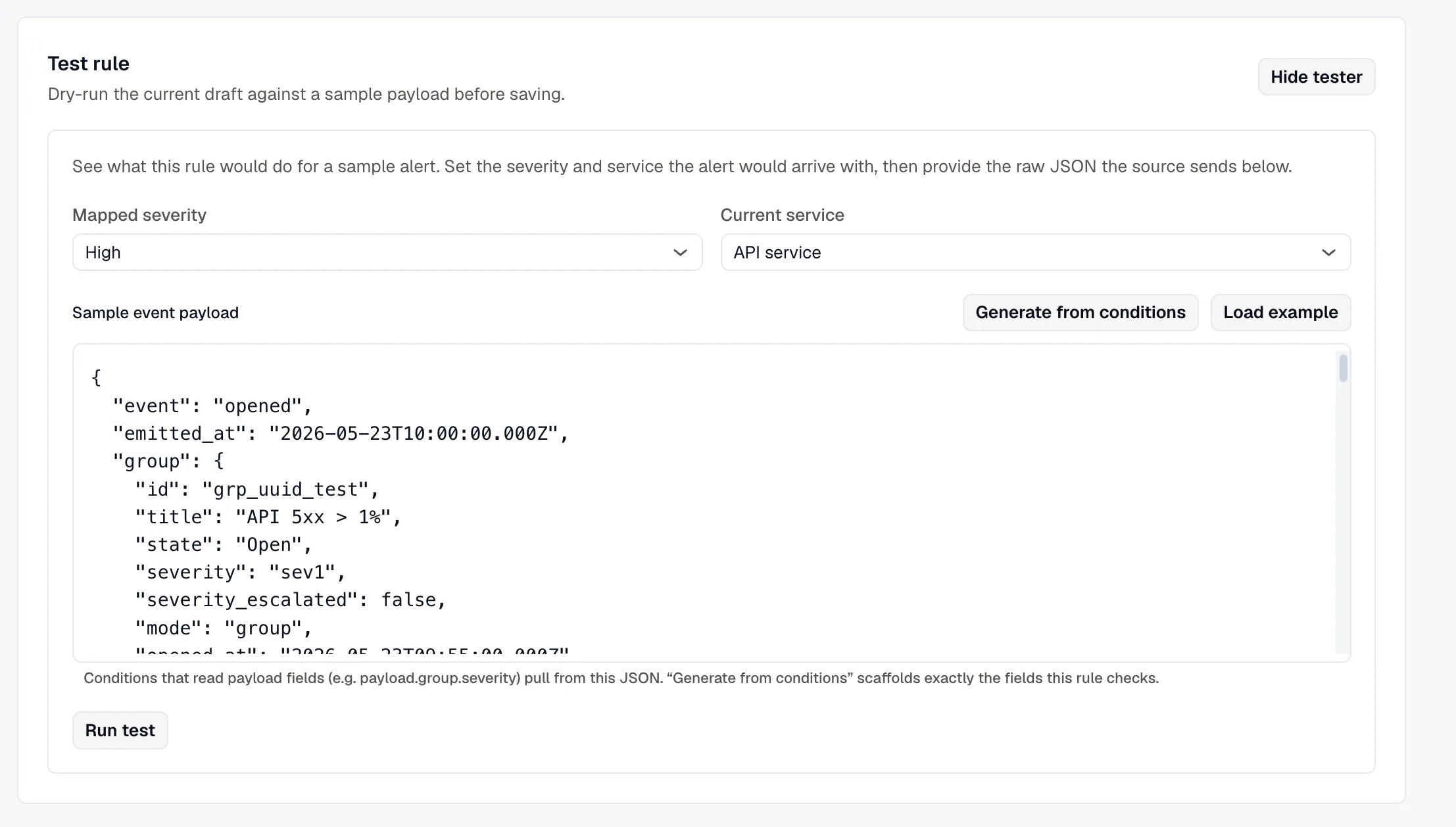
Section titled “Test a rule before saving”The rule editor includes a tester so you don’t have to wait for a real alert. Feed it a sample severity, service, and payload (as JSON), and it shows the decision the rules would produce:
- which rules matched,
- the final service, escalation policy, and severity,
- whether the incident would be suppressed,
- the responders and on-call schedules that would be notified.
Use it to confirm a new rule does what you expect — and that it doesn’t accidentally suppress traffic you care about — before it goes live.
Create a routing rule
Section titled “Create a routing rule”-
Open Incidents → Routing rules and click Add Rule.
-
Name the rule, set its scope (workspace-wide or a single service), and set a priority (lower wins).
-
Choose a match mode — All events, All conditions, or Any condition — and add conditions.
-
Add actions: assign a service or escalation policy, set severity, suppress, add responders, or notify on-call schedules.
-
Test the rule against a sample payload and confirm the decision.
-
Save. The rule lands at its priority, enabled by default.
Related
Section titled “Related”- Alert Sources: where alerts enter IM.
- Services: the routing target and its default escalation policy.
- Escalation Policies: what a rule assigns.
- On-Call Schedules: what “Notify on-call schedules” pages.
- Alerts → Routing rules: the different feature that routes alert notifications to channels.