

Overrides
An override puts a specific person on call for a fixed window, then restores the normal rotations. Reach for one when the rotations are right in general but wrong for a few days — someone’s on vacation, swapping a shift, or covering a deploy. The rotations underneath are untouched; the override sits on top of them for its window only.
Add an override
Section titled “Add an override”-
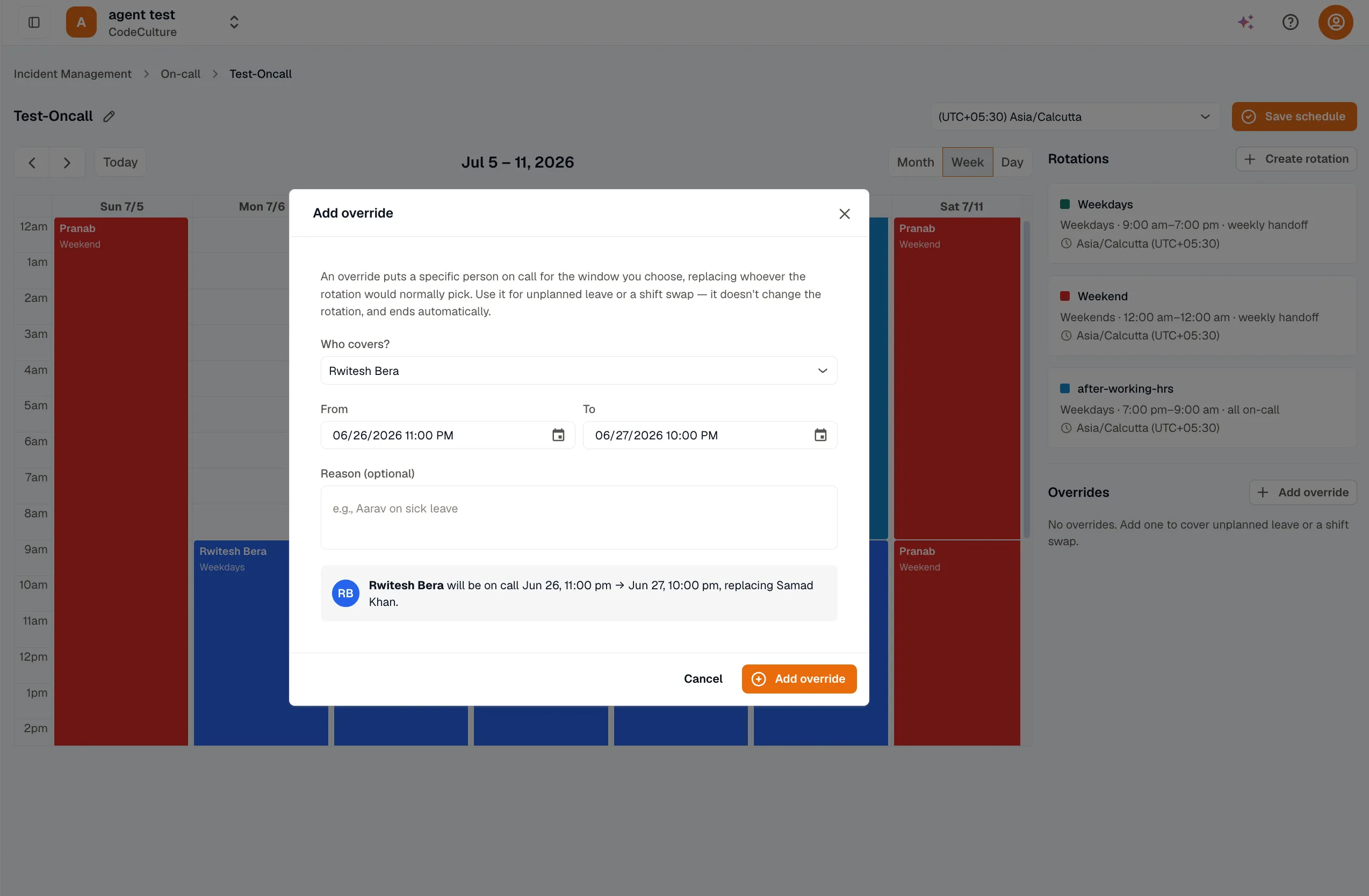
Open the schedule and start a new override.
-
Pick the user who’ll cover the window.
-
Set the start and end — both are a date and time, interpreted in the schedule’s timezone.
-
Add an optional reason (“Bob PTO”, “covering deploy”) so the rest of the team knows why.
-
Save. The override takes effect immediately for its window.
An override replaces the active on-call set for the time it covers — whoever the rotations would otherwise put on call is set aside until it ends, and only the override’s person is on call. If two overrides overlap, the one created most recently wins.
Example: cover a vacation
Section titled “Example: cover a vacation”Bob is on call next week but away Wednesday and Thursday. Cover the gap with one override:
| Field | Value |
|---|---|
| User | Dana |
| Start | Wednesday 00:00 |
| End | Friday 00:00 |
| Reason | Bob PTO |
Dana is on call from Wednesday until Friday at 00:00; Bob resumes automatically when the override ends. Nothing about the weekly rotation changes — the next handoff still happens on schedule.
Remove an override
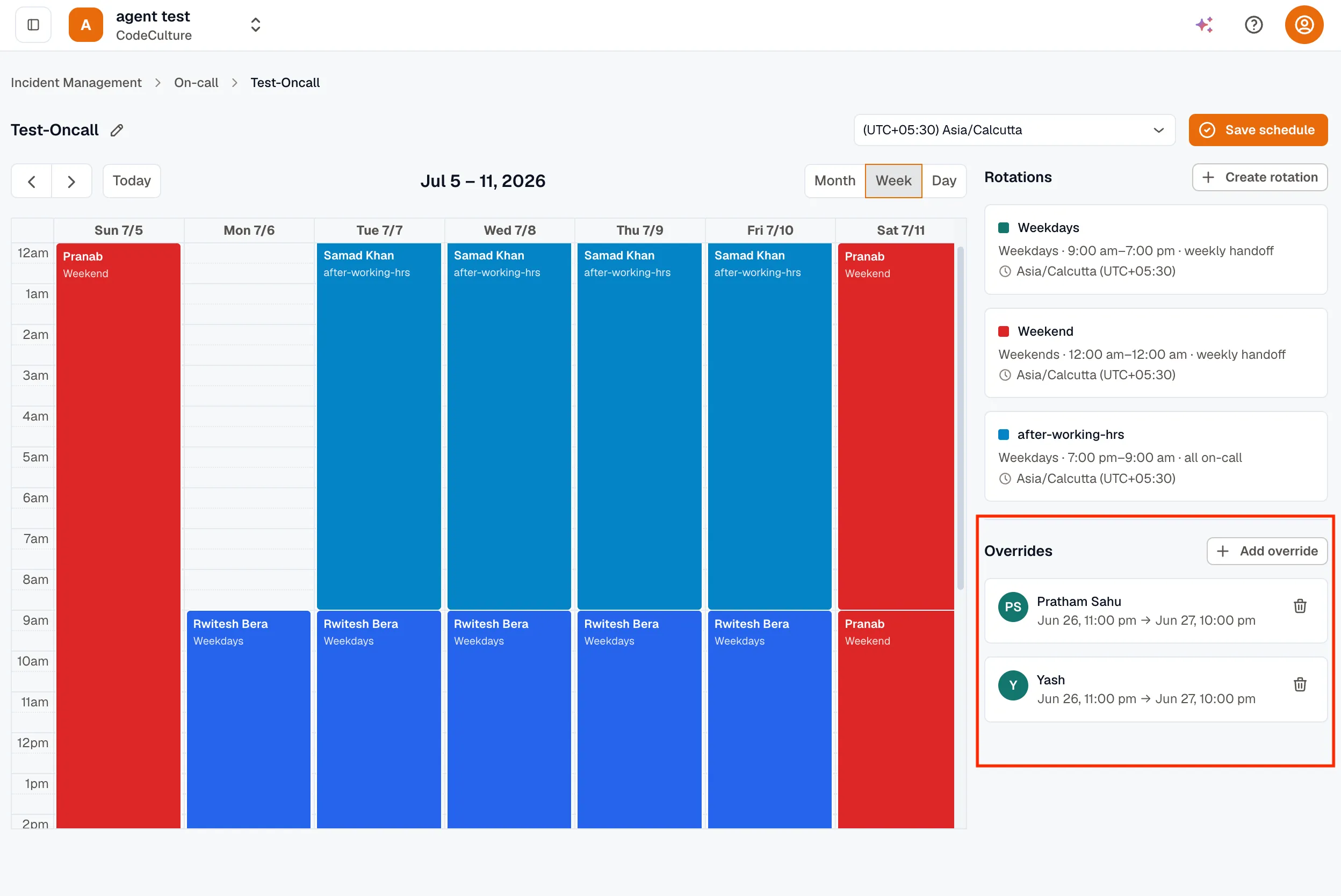
Section titled “Remove an override”Plans change. Open the schedule, find the override in its list, and delete it. The rotations underneath resume for that window as if the override had never existed.
Related
Section titled “Related”- Create a schedule — the rotations an override sits on top of.
- Rotations and coverage — the permanent coverage structure an override sits on top of.