

Inventory
Inventory lists everything KloudMate knows about in your workspace: cloud resources, hosts, Kubernetes objects, services, and databases. Use it to find a resource, see where it runs, and check what it connects to. To see how a resource performs, open it in Kubernetes, Hosts, APM, or Databases.
You don’t need an AWS account to use Inventory. The KloudMate agent adds your hosts, Kubernetes objects, services, and databases. Connect an AWS account to add its resources too.
Browse by type
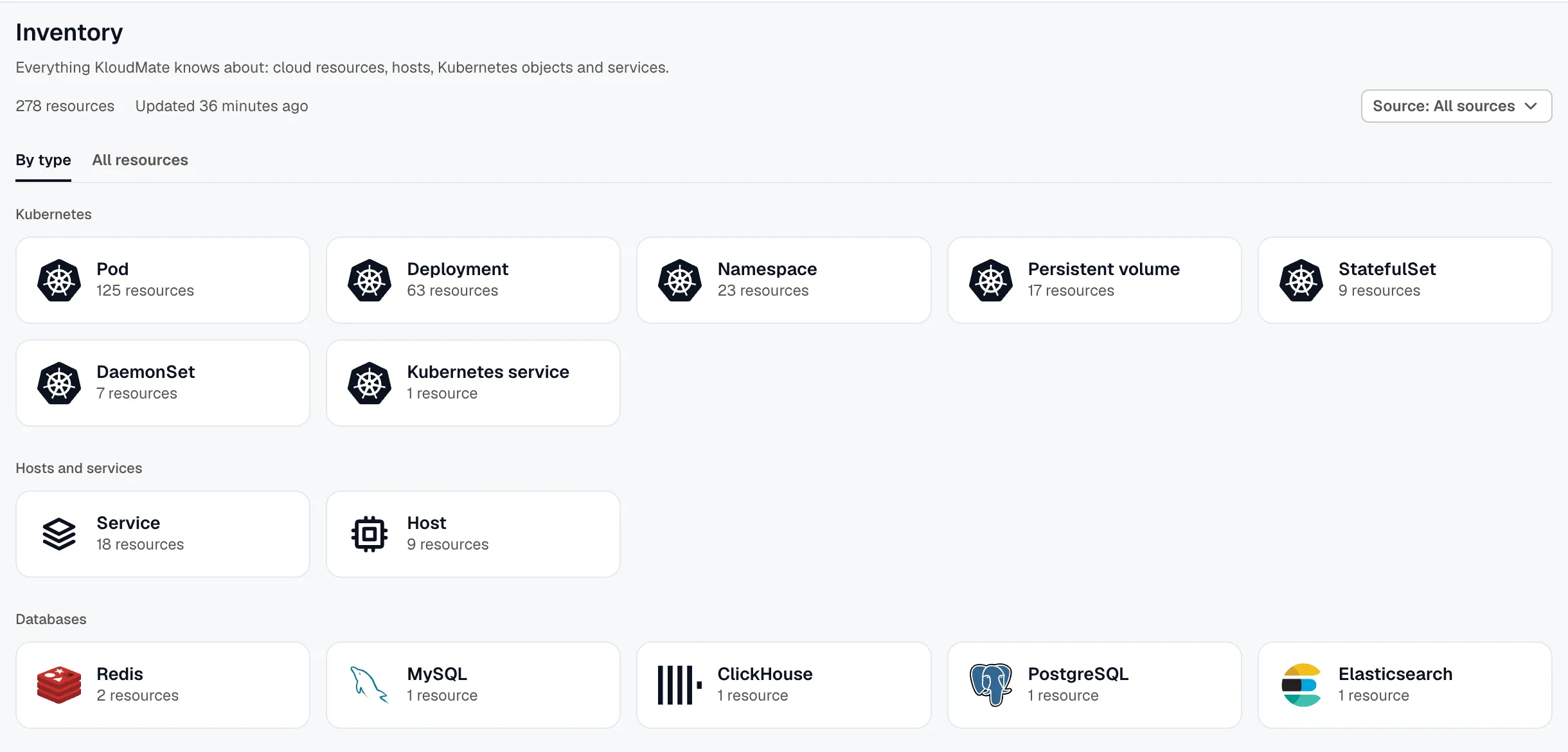
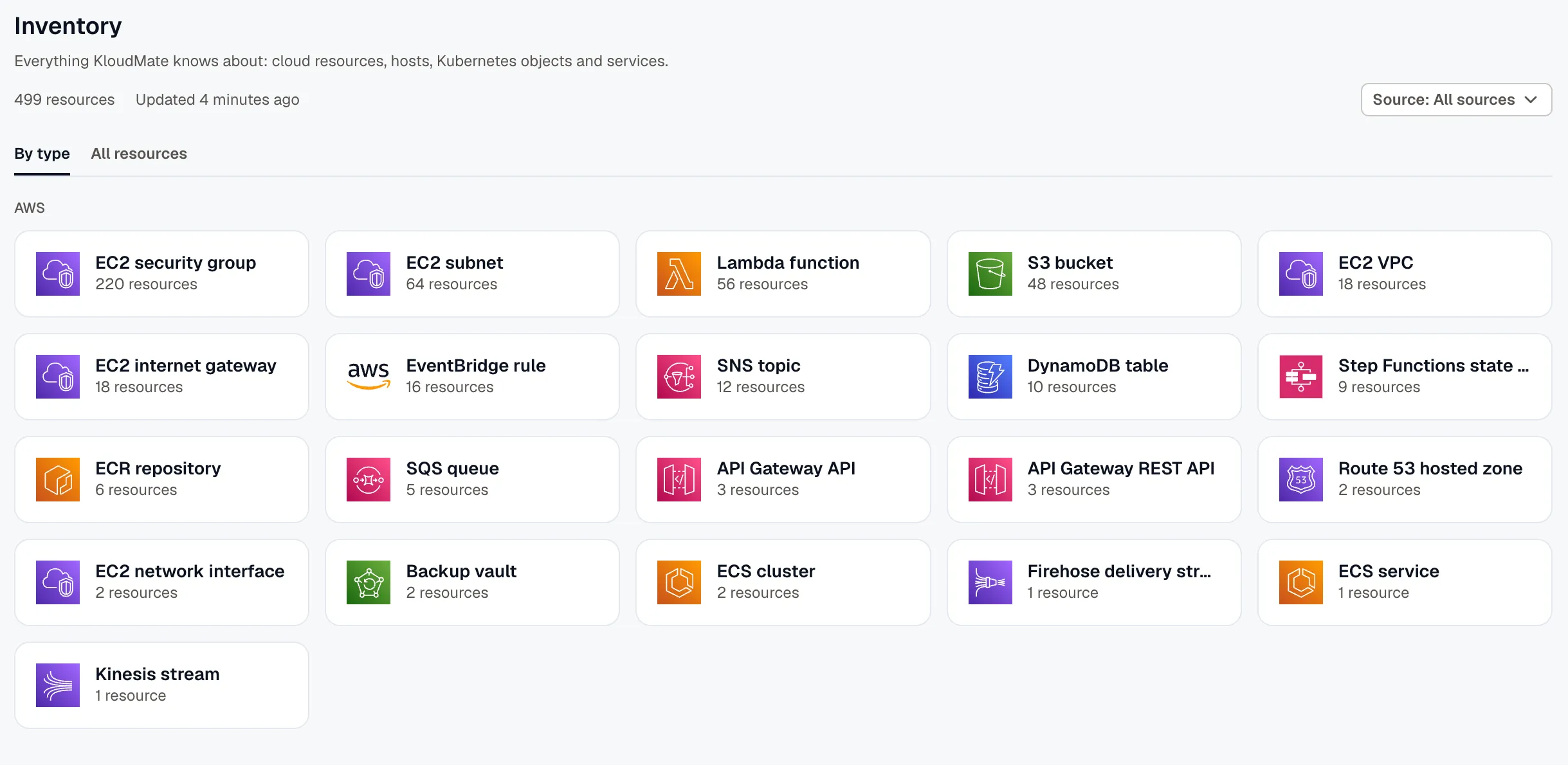
Section titled “Browse by type”Open Inventory. The By type tab shows a card for each resource type with its count, grouped into AWS, Kubernetes, Hosts and services, Databases, and Other. Click a card to list the resources of that type on the All resources tab.
AWS resources get their own group after you connect an AWS account.
Filter by source
Section titled “Filter by source”When the workspace has a cloud account, use the Source filter to choose where the resources come from:
- All sources: every resource.
- A cloud account: the resources of one connected account.
- Telemetry: the resources the KloudMate agent reports, such as hosts, Kubernetes objects, and services.
The filter applies to both tabs. Without a cloud account, every resource comes from telemetry, so the filter doesn’t show.
If you pick an AWS account that has regions turned off, some of its resources may be missing. Click Review on the warning to turn those regions back on. See Region sync status.
Find a resource
Section titled “Find a resource”The All resources tab lists each resource with its Name, Type, Where, Tags, and Last seen. Search by name or key to find one.
Where shows where the resource lives:
- A cloud resource shows its region and account.
- A Kubernetes object shows its cluster, and its namespace when it has one.
- A database shows the address and port that clients connect to.
- Hosts and services leave it empty.
Inventory doesn’t list containers, network endpoints, or storage mounts.
How often Inventory updates
Section titled “How often Inventory updates”Inventory checks each source on a schedule, not all the time. Last seen shows when a check last found the resource, not when the resource last sent data.
- Resources the agent reports (hosts, Kubernetes objects, services, and databases): checked once an hour, so their Last seen can be up to an hour old.
- AWS resources: synced every 30 minutes in the account’s primary regions and about once a day in other regions. Use Sync now to sync an account right away.
The page doesn’t refresh by itself. Reload it to see the latest values.
Resources that the agent reports leave the list when they haven’t been seen for 2 hours. A resource that stops sending data leaves about 2 to 3 hours later. Cloud resources stay until a sync finds they’re gone.
Open a resource
Section titled “Open a resource”Click a resource to open its details. Every resource has these tabs:
- Overview: the resource’s type, where it runs, its key (the ARN for an AWS resource), and when KloudMate first and last saw it.
- Related: what the resource connects to, grouped by relation, such as Runs on, Talks with, or Contains. Each group shows how many of its resources are alerting, and a group with alerting resources opens by default. Click a resource to open it.
- Tags: the resource’s tags.
AWS resources also have Alerts, Metrics, and Config tabs, with the resource’s active alerts, its CloudWatch metrics, and its AWS configuration.
When a resource has its own page elsewhere in KloudMate, a button takes you there: Open in Kubernetes, Open in Hosts, Open in APM, or Open in Databases.
When Inventory is empty
Section titled “When Inventory is empty”If Inventory shows No resources yet, nothing has reported to the workspace. Install the KloudMate agent to list your hosts, Kubernetes objects, and services, or connect an AWS account to list its resources. An organization Owner can start either one from the empty page with Install the agent or Connect AWS account.
Related
Section titled “Related”- Kubernetes Monitoring: how clusters, nodes, and workloads perform, and a map of the traffic between workloads.
- Hosts & Containers: host metrics and logs, and what each host connects to.
- Alert Groups: the resources an alert group affects, and what else is alerting around them.