

Workflows
A workflow is a series of steps that runs when something happens, such as an alert, a schedule, or a webhook call. A step can query a system, branch on the result, change a resource, or wait for a person to approve.
A disk-space alert is a good first workflow. It reads the host from the alert and runs df -h on it through the KloudMate agent. Then it posts the output to Slack, asks the on-call engineer to approve a cleanup, runs the cleanup, and waits until free space recovers before it reports back.
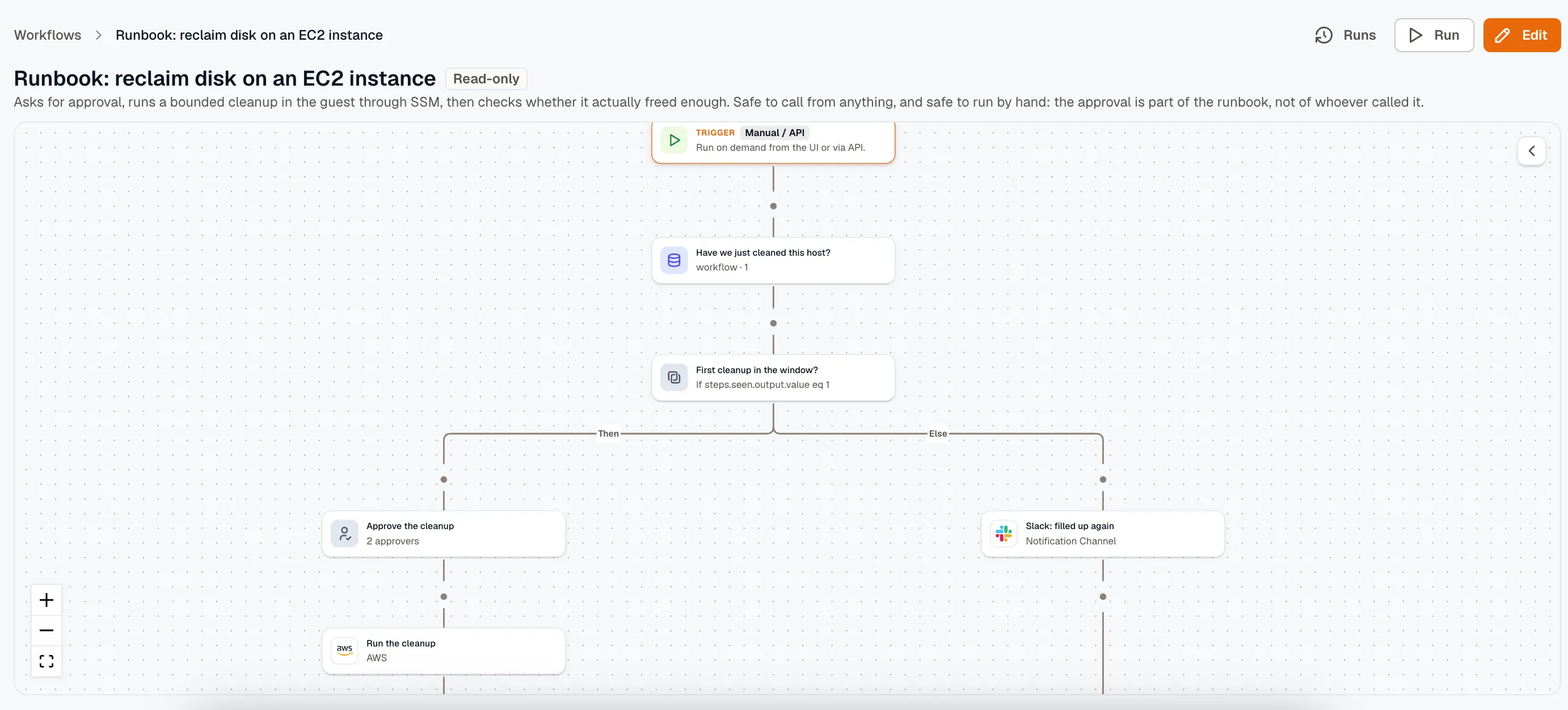
What a workflow can do
Section titled “What a workflow can do”- Act on cloud resources: call an AWS API action, such as stopping an EC2 instance, or an Azure Resource Manager operation through a connected account, or run a script on an Azure VM.
- Run a command on a host: use the KloudMate agent to run shell commands on any Linux host where someone with the Developer role has allowed runbook scripts.
- Work in your tools: post and edit Slack messages, create and transition Jira issues, call a tool on an MCP server, or send an HTTP request to anything else.
- Notify: send through an existing Slack, Teams, webhook, or SNS channel, or email an address directly.
- Transform and decide: extract a value with JSONPath, parse CSV and XML, run sandboxed JavaScript, choose between several paths by condition, or have a model pull structured fields out of a payload.
- Ask the Assistant: have the KloudMate Assistant look into an alert using your telemetry, then use its answer in later steps.
- Wait for a person: pause for an approval or a filled-in form. Both arrive by email, and each person gets their own link.
- Reuse configuration: refer to a workspace constant or secret by name instead of pasting a channel id or a token into every workflow.
- Store data between runs: save a cursor, a counter, or a marker such as “this alert was already handled today” for later runs to read.
The action catalog lists every action.
What starts a workflow
Section titled “What starts a workflow”| Trigger | Fires when |
|---|---|
| Manual / API | Someone clicks Run, or an API client starts a run. |
| Schedule | An interval or cron expression comes due, in the timezone you pick. |
| Webhook | Something calls the workflow’s own URL. |
| Form submission | Someone submits the workflow’s public form. |
| App event | Something happens in a connected app, such as a Slack mention or a new Jira issue. |
Alerts start workflows through the webhook trigger. Point a webhook notification channel at the workflow’s URL, then attach the channel to a routing rule. Each notification then starts a run with the alert group payload. See Triggers. To run a different workflow for each resource in an alert group, start from the Send alerts to your workflows template.
When to use a workflow
Section titled “When to use a workflow”A routing rule decides who gets notified about an alert. A workflow decides what to do about it, and a routing rule can start it.
Use the KloudMate Assistant for an open-ended investigation, where you don’t know what you’ll ask next. Turn a task into a workflow after you’ve done it the same way twice.
Before you start
Section titled “Before you start”- You need the Developer role to create, edit, publish, or delete a workflow. Anyone in the workspace can read workflows and run history, and can start a run by hand when the workflow permits it.
- Steps and triggers that use an outside account need a connection. That includes AWS, Azure, Slack, Jira, and MCP servers. The Connections tab in Workflows lists the ones a workflow can use, and a step’s connection picker can connect a new account without leaving the builder.
- Workflow automation is part of the Pro and Business plans. See Limits.
Build a workflow
Section titled “Build a workflow”- Open Workflows and click Create workflow, then pick a trigger. Manual is a good place to start, because you control when it fires. To start from a ready-made workflow instead, pick one on the Templates tab.
- Add steps from the palette and configure each one. Click Run test on a step to see its real output, so you can build the next step from real values.
- Click Test run to run the whole draft end to end.
- Click Publish. The first publish also switches the workflow on.
A trigger starts a run only from the published version, and only while the workflow is enabled. Editing the draft afterward changes nothing until you publish again.
In this section
Section titled “In this section”- Build a workflow
- Triggers
- Control flow
- Send alerts to your workflows
- Approvals and collected input
- The action catalog
- Templating
- Variables
- Storage
- Test a workflow
- Run history
- Limits
Related
Section titled “Related”- Workflow guides for complete workflows you can import, such as granting temporary SSH access with an approval, deploying from Slack, onboarding a new hire, and running an IT help desk in Slack.
- Connections for the credentials a workflow uses.
- Routing rules for sending alerts to a workflow.
- Notification channels for the Slack, Teams, webhook, and SNS destinations that steps send through.